
This article covers UK property landlords and overseas landlords using Capium for MTD IT. Under HMRC's rules, the individual, not the property business, is the central submission hub. This means a landlord's UK property, foreign property, or a combination of both, is reported under their individual record.
Step 1: Set up the client
Landlords are set up directly as an Individual client type in Capium. Unlike sole traders, there's no need to link a separate business record first.
Navigation > Capium 365 > Clients > Add Client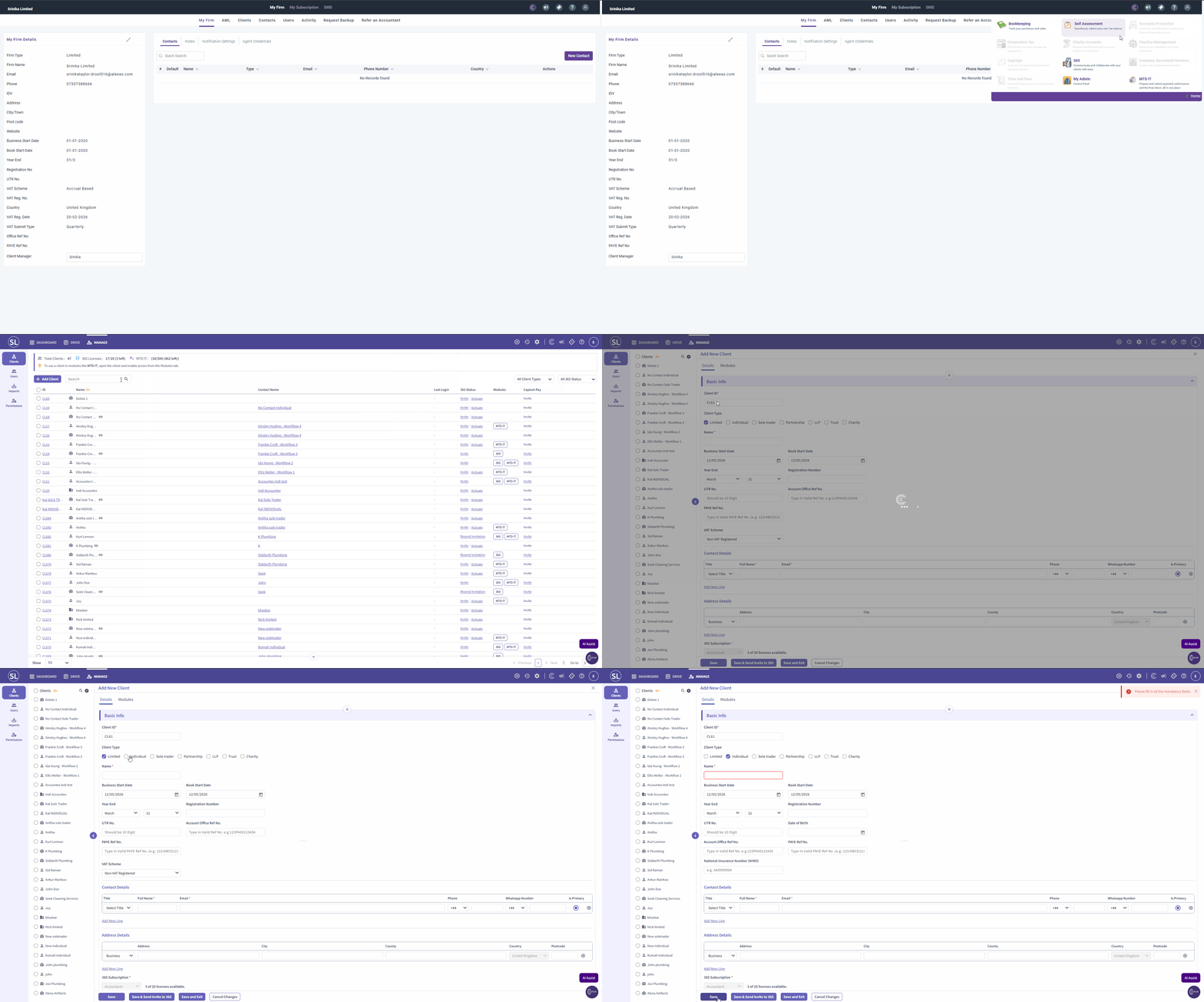
For full steps, see MTD IT - Adding New Clients.
Step 2: Give the client access to MTD IT
Navigation > Capium 365 > Clients > Filter by Individual > Select client > Modules > Enable MTD IT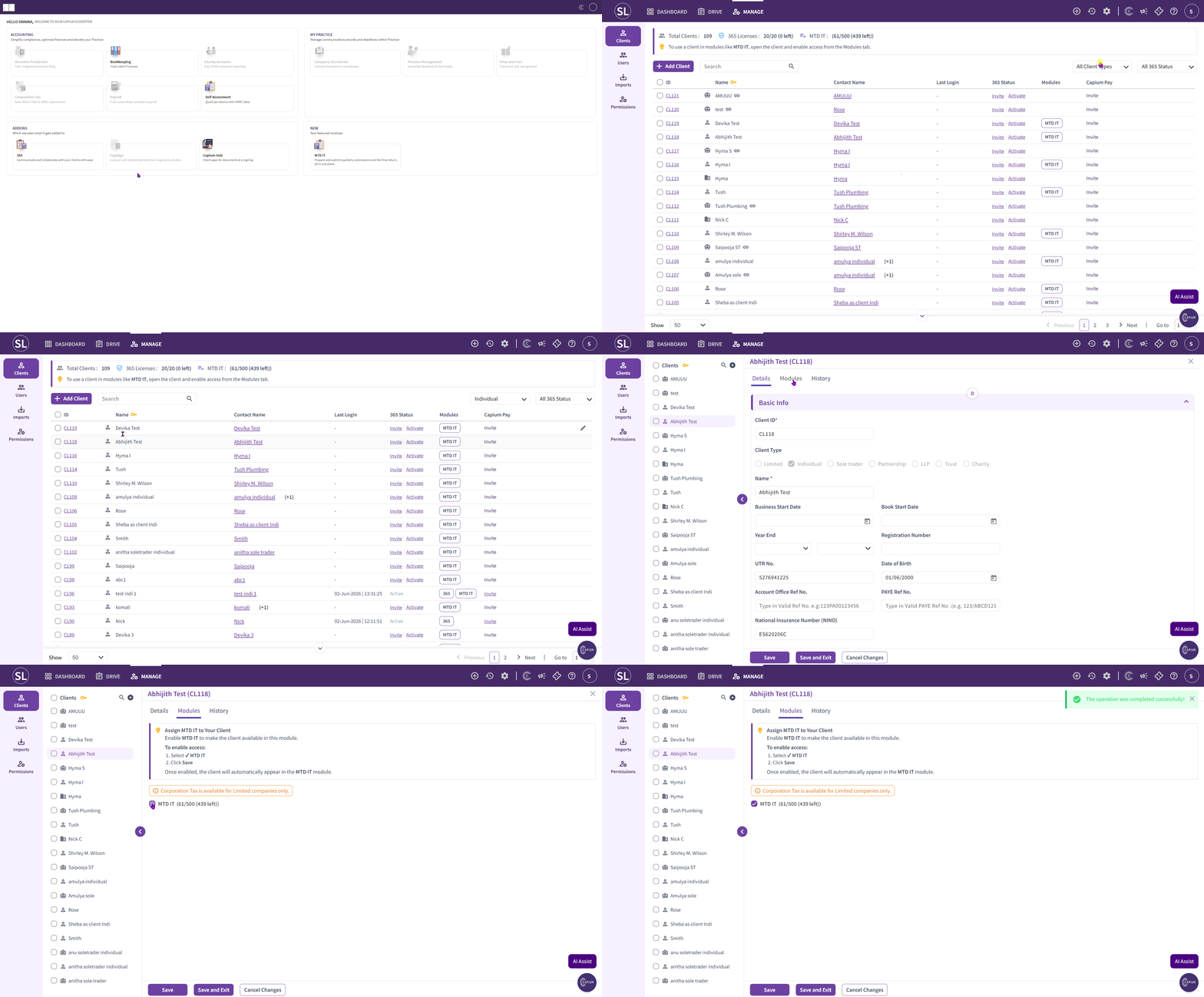
Step 3: Check MTD eligibility with HMRC
Before making any submissions, check whether the client is required to join MTD IT via the HMRC Agent Services Account. This is done per client.
See MTD IT - Checking and Registering Your Client with HMRC.
Step 4: Authorise the client
Once eligibility is confirmed, authorise the client in Capium using your agent credentials. Clients can be authorised individually or in bulk.
See MTD IT - Client Authorisation Workflow and MTD IT - Bulk Authorisation.
Step 5: Add a tax year and choose reporting settings
When adding a tax year, you'll need to choose:
- Calendar type: standard HMRC calendar (6 April to 5 April) or calendar year (1 April to 31 March). This cannot be changed once chosen. See Calendar Types in MTD IT.
- Consolidated or detailed reporting: chosen separately for each income stream (UK property, foreign property), based on whether that income stream is over the VAT registration threshold. This locks once selected. See MTD IT - Consolidated vs Detailed Submission.
Step 6: Choose how digital records are kept
Landlords can use either of the following two workflows:
| Workflow | Best suited for |
|---|---|
| Workflow 1: Bridging | Landlords comfortable using a spreadsheet template for one income stream, with few corrections expected |
| Workflow 2: Capium 365 | Landlords with multiple properties, or who want automatic record keeping, bank feeds, and audit logs |
Workflows 3 and 4 are not available for landlords, as these require a linked Sole Trader business and are restricted to self-employment income.
If a client has multiple UK properties mapped to the same property source, these are consolidated into a single submission. Multiple foreign properties in the same country are also combined into one submission.
For full setup steps, see MTD IT - Bridging Workflow (Workflow 1) and MTD IT - 365 Workflow (Workflow 2). If you're unsure which workflow suits your client, see MTD IT - Choosing the Right Workflow.
Step 7: Make quarterly submissions
Navigation > MTD IT > Submissions > Client specific > View & Submit > Digital records > Summary of each category > Cumulative summary > Submit to HMRC
Each quarterly submission is cumulative, covering all year to date transactions rather than just that quarter.
See MTD IT - How to Make Quarterly Submissions and MTD IT - Cumulative Summary.
Step 8: Final Declaration
Once all four quarterly submissions have been made, the client's Final Declaration can be completed. This includes any adjustments per income stream, other income and reliefs, and the year end tax calculation.
See MTD IT - Adjustments and Allowances.
Things to keep in mind
- HMRC can impose a penalty of up to £3,000 for a quarterly period where digital records aren't kept in HMRC-recognised software.
- Once a calendar type or reporting threshold is chosen, it cannot be changed for that client during the tax year.
- We recommend not switching workflows mid-year. If a switch is necessary, do this at the end of a quarter so year to date records transfer cleanly.