
Workflow 1 is suitable for clients whose income and expense records are maintained in a spreadsheet, manually imported within the MTD IT module.
This workflow is compatible with the following client and income types:
- Sole traders Business (This requires linking to the individual client type)
- UK landlords
- Overseas landlords
Whether you import your records from a spreadsheet or manually update the records on the MTD IT module. You will follow the same setup and submission steps regardless of which method applies. The methods differ only at the point of data entry in Step 6.
Bridging is used when the accountants or their clients maintains their income and expense records in a spreadsheet outside of Capium. The accountants downloads a template, populates it with the client's figures, and uploads it back into the module for submission.
Please note:
You can use this method as long as records are imported into the system using the steps above. The right workflow depends on where you keep your records, not on which compliance services the client needs.
| Where records are kept | Workflow to use |
|---|---|
| Spreadsheet Import | Workflow 1 |
| Capium 365 only | Workflow 2 |
| Capium 365 and the Bookkeeping module together | Workflow 3 |
| Bookkeeping module | Workflow 4 |
Refer to the MTD IT: Choosing the Right Workflow article before proceeding
Step 1: Add or Locate the Individual Client
Ensure the client is set up as an Individual and the MTD IT module is enabled for them. For full guidance on adding a new client or enabling an existing client for MTD IT, refer to: MTD IT - Adding New Clients.
Step 2: Grant MTD IT Module Access
Before proceeding, confirm that the client is set up as an individual in the system.
For any individual who was created in Capium before the MTD IT module was introduced, you must manually grant them access to the module.
- Navigation > Capium 365 Client Portal
- Search for and select the individual client.
- Open the client record and select Modules.
- Enable access to the MTD IT module.
- Save the changes.
Note: If you added the individual directly through the MTD IT module in Step 1, module access is granted automatically and this step is not required.
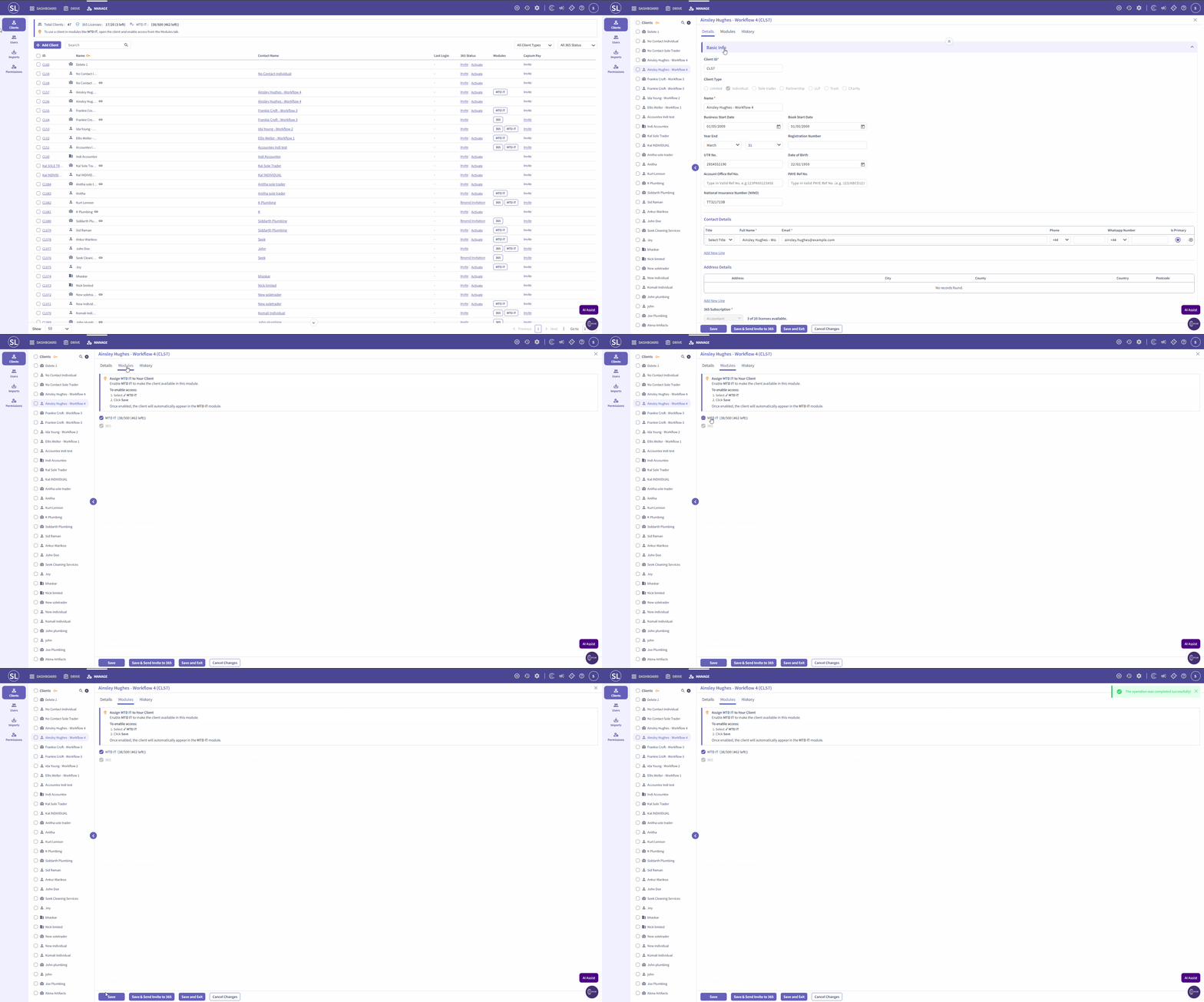
Note: If you added the individual directly through the MTD IT module in Step 1, you do not need to complete this step. The access is granted automatically.
Step 3: Authorise the Client with HMRC
Once the client is visible in the MTD IT module, the HMRC authorisation must be completed before any submissions can be made.
- Navigation > MTD IT > Manage
- Locate the individual client in the list.
- Open the client record and select Start Authorisation.
- You will be redirected to the HMRC website.
- Complete the authorisation process on the HMRC website.
- Return to Capium. The client will now display an authorised status.
Note: Bulk authorisation is available if you need to authorise multiple clients at once. Refer to the MTD IT: Bulk Authorisation article for instructions.
For further detail on this step, refer to the MTD IT: Client Authorisation Workflow article.
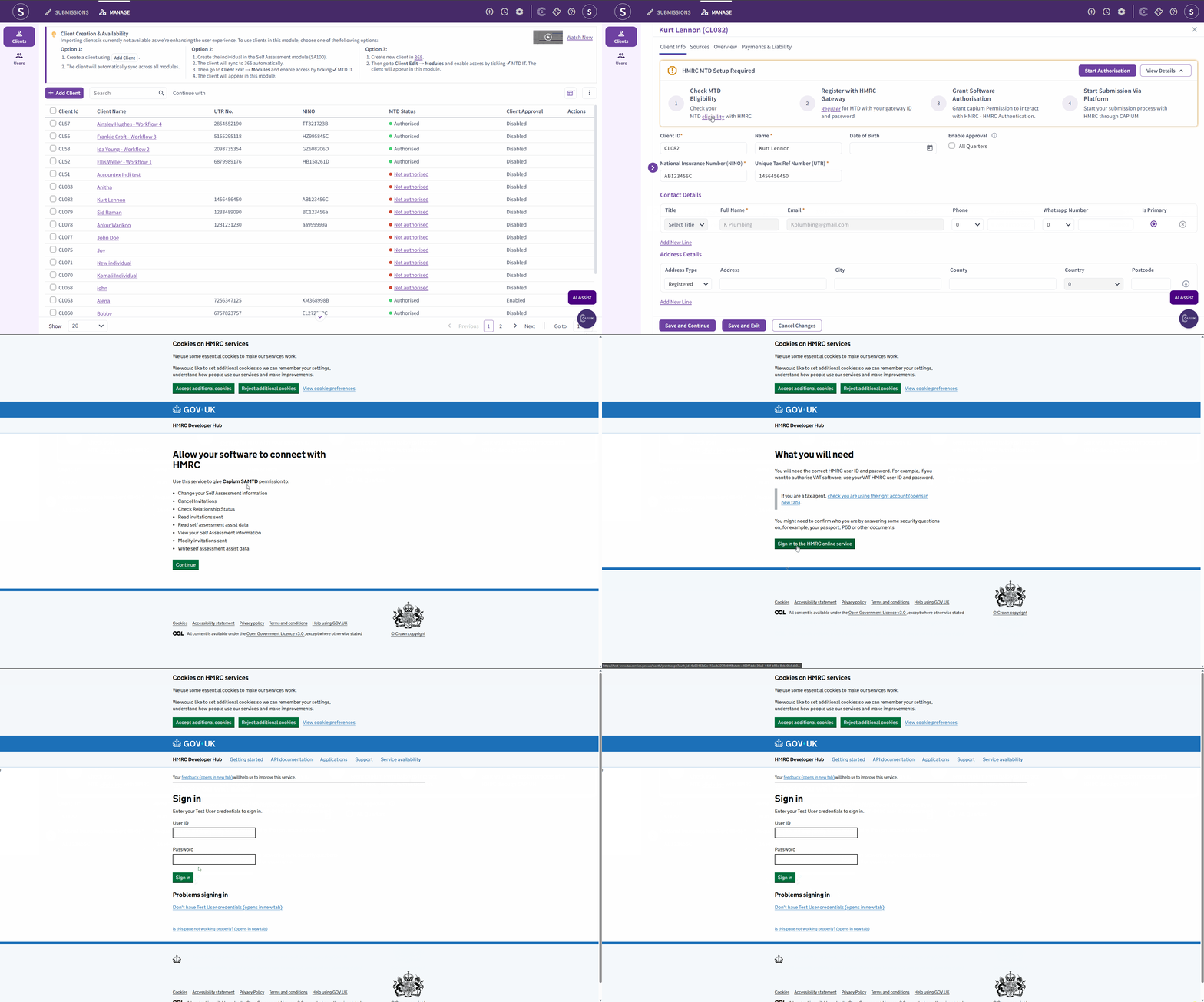
To find out more about this step please review this article.
Step 4: Review the Client's Sources of Income
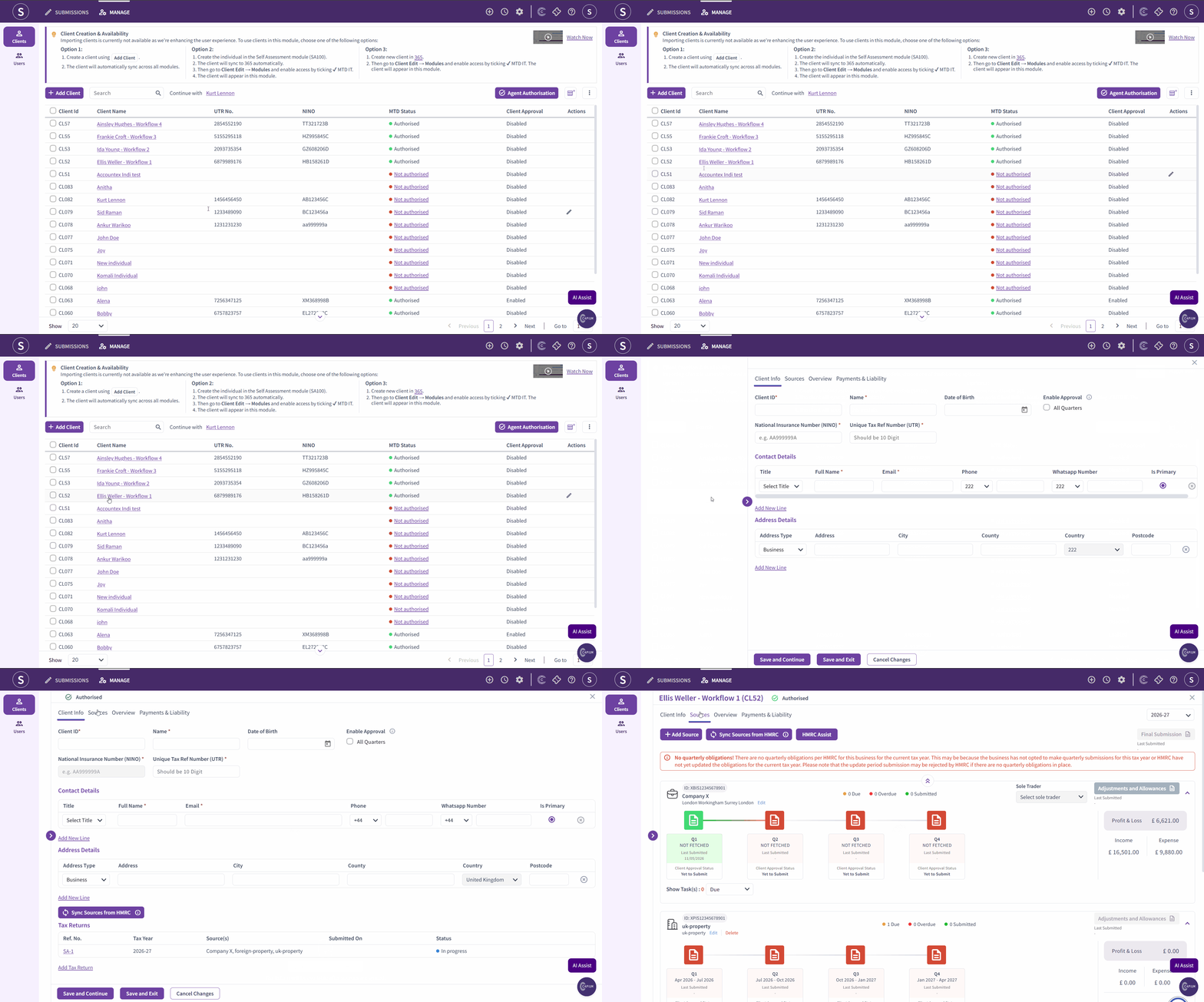
Once authorisation is complete, the available sources of income will populate automatically for the client. These may include:
- Self-employment (sole trader income)
- UK property
- Foreign property
If a property source is missing, it can be added manually within the software. If a sole trader source is missing, this must be requested directly through HMRC and cannot be added by the agent within the software.
Step 5: Create a Tax Return
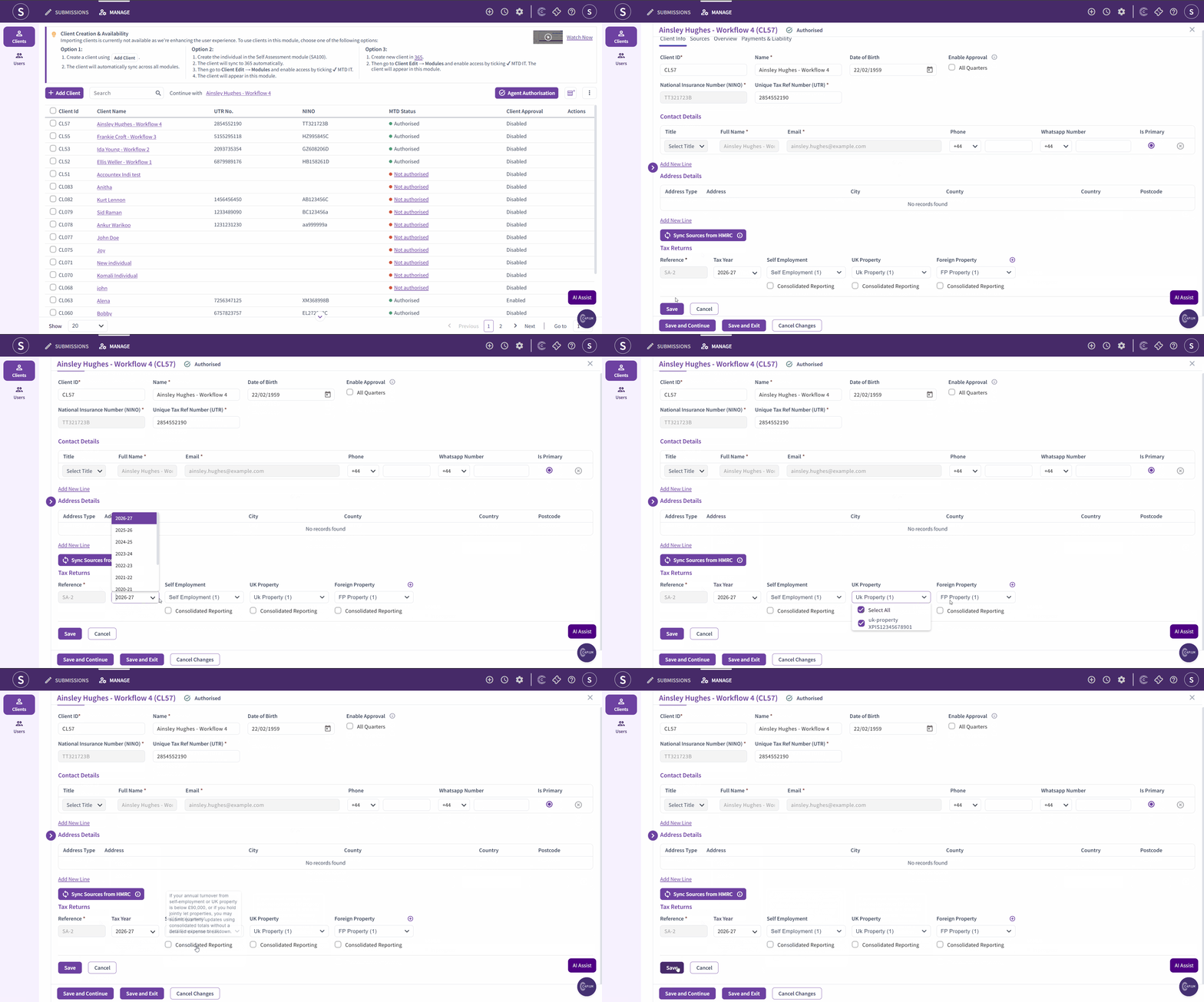
- Navigation > MTD IT > Manage
- Open the individual client record.
- Select Add Tax Return.
- The system will automatically include all available sources of income for that client.
- Review the sources and select the Consolidated Reporting option where applicable.
Consolidated reporting can be selected if income from a given source is not expected to exceed £90,000 in the year. This threshold applies independently to each income stream:
- Self-employment income: £90,000
- UK property income: £90,000
- Foreign property income: £90,000
The three thresholds are independent of one another. For example, a client with £60,000 from self-employment and £60,000 from UK property may opt for consolidated reporting on both sources.
- Confirm and save. The system will generate the full quarterly submission workflow, covering Q1 to Q4, adjustments and allowances, and the final declaration.
Step 6: Enter Income and Expense Data for Each Quarter
This is the step where Bridging and Manual Update diverge. Follow the section that applies to your client's record-keeping method.
Option A: Bridging (Records Held in a Spreadsheet)
Use this option when the client maintains their records in a spreadsheet outside of Capium. Please note that you need to download one template per source of income and keep the cumulative records within this template.
- Navigation > MTD IT > Manage > Select Client > Submission Grid
- Select the relevant quarter for the income source you are working on (for example, Q1 for sole trader income).
- Select Template to download the bridging file for that income source.
- Complete the template with the relevant income and expense transactions for that quarter.
- Upload the completed file back into the system.
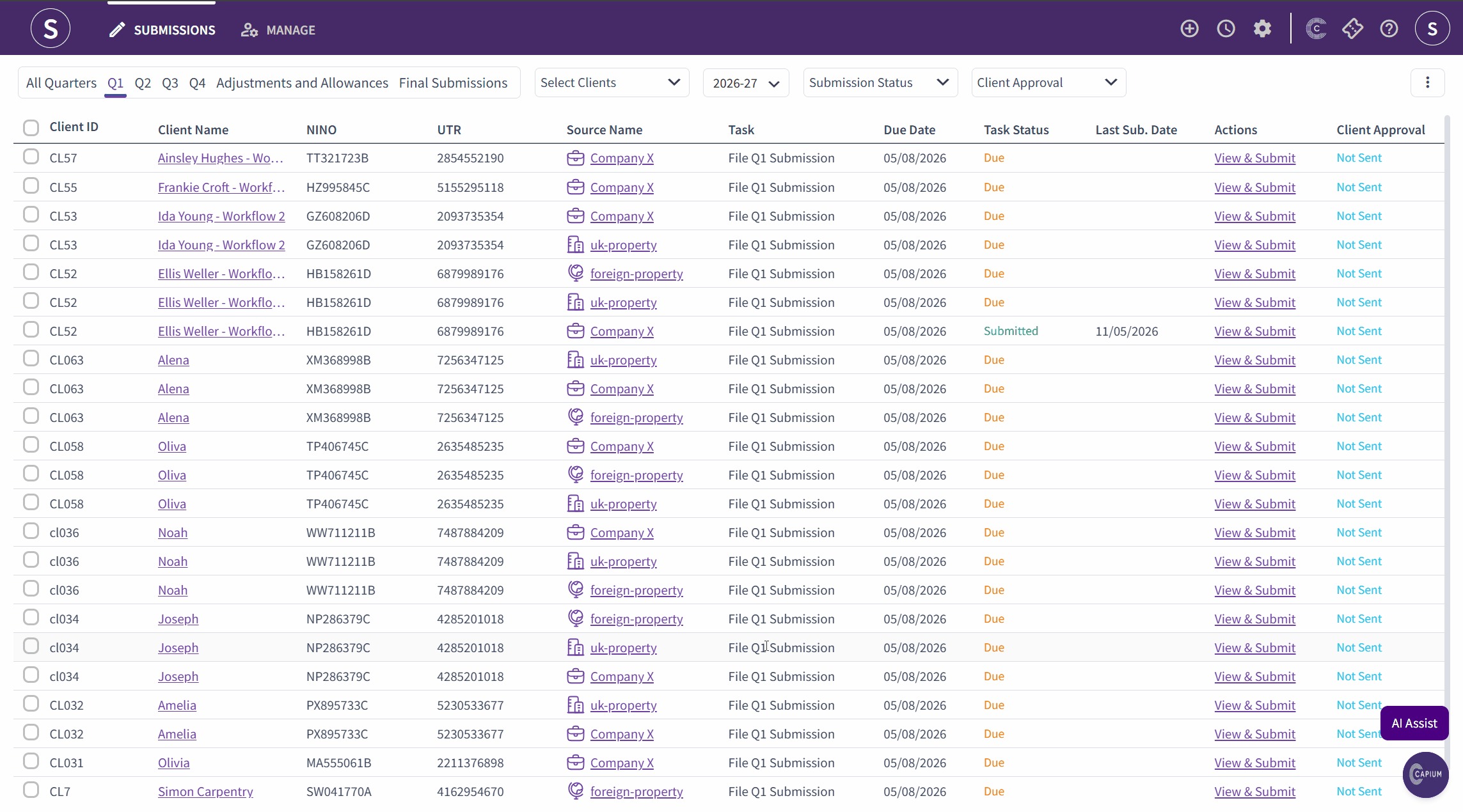
Repeat this process for each income source in the quarter.
Important notes on the Bridging method:
- Each income source has its own template. The upload process is the same for all sources.
- Each quarter when you re-upload the spreadsheet the
- Only transactions visible in the digital records and the adjustment screens will be included in the submission. Any transactions not shown on these will not be submitted in the cumulative records.
Step 7: Review and Submit to HMRC
Once the bridging file has been uploaded for a given quarter:
- Navigate to the quarterly summary for the relevant income source.
- Review the quarterly summary (if enabled in preferences).
- Navigate to the Cumulative Summary page.
- Review the cumulative figures.
- Click Submit to HMRC directly from the cumulative summary page.
Repeat this process for Q2, Q3, and Q4 for each income source.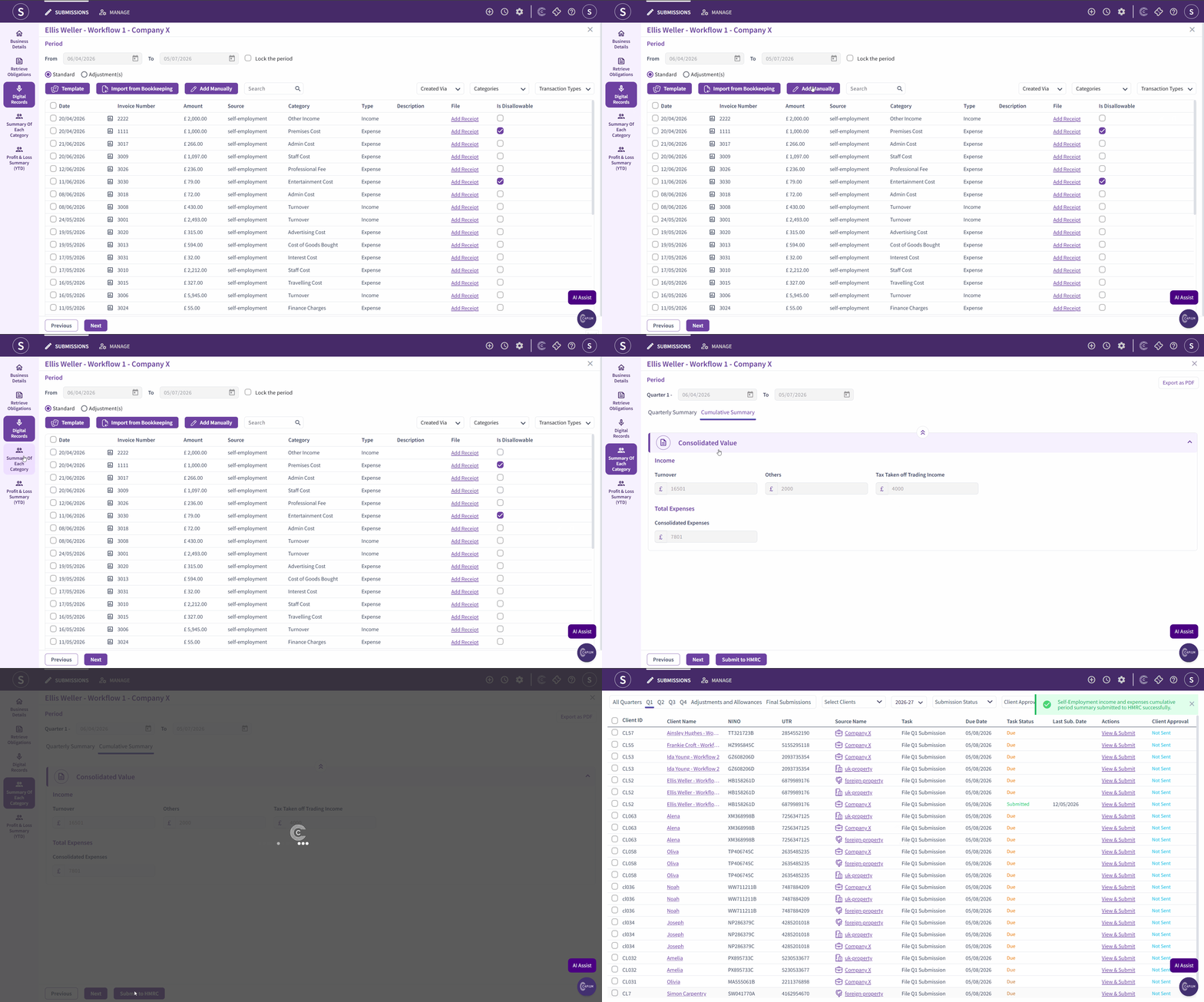
Note: The quarterly summary screen can be hidden or shown by navigating to Navigation > MTD IT > Preferences > Hide Quarterly Summary. This setting can be adjusted at any time.
Step 8: Locked Transactions After Submission
Once a quarter has been submitted, the transactions are locked and cannot be edited.
- If a client wishes to amend a submitted quarter, they can include any corrections in the following quarter's submission.
- If an immediate correction is required, a support ticket must be raised with the Capium support team. The technical team will re-enable the submission for that period.
Note: HMRC does not impose a restriction on the number of submissions. The locking of transactions is a Capium control to ensure submissions are made intentionally.
Step 9: Year-End Adjustments, Allowances, and Final Submission
The year-end process is the same across all four MTD IT workflows. Once all four quarterly submissions have been completed:
- Navigate to the adjustments and allowances section for each income source.
- Complete the relevant adjustments per source of income (for example, sole trader adjustments, property income adjustments).
- For sole trader income, a trial balance import is available. For UK property and foreign property, only amended values can be entered.
- Complete the other income section, which includes dividends, employment income, other expenses, losses, and deductions.
- Complete the year-end approval (this is mandatory).
- Submit the final declaration to HMRC.
Note: Quarterly approval is an optional feature. If a client requires quarterly approval, this can be enabled when creating or editing the client record.
Navigate to Navigation > MTD IT > Manage > Edit Client > Enable Approval.