
Capium 365 workflow within the MTD IT module. It is the most automated workflow available and is suited to clients who do their income and expense record keeping within Capium 365. Once records are kept in Capium 365, transactions are automatically posted into the MTD IT module without any additional manual steps required from the accountant.
This workflow is compatible with:
- Sole traders who are not VAT registered, do not need accrual basis accounting, and do not require payroll
- UK landlords
- Overseas landlords who do not require foreign currency conversions
This workflow uses the individual client type only. You do not need to create a sole trader or link a sole trader to an individual for Workflow 2. If a sole trader is created and linked to the individual, you will be operating on Workflow 3 or Workflow 4 instead.
Step 1: Add or Locate the Individual Client
New clients should be added as individuals. This can be done in one of two ways:
- Navigation > MTD IT > Manage > Add New Client (add the client as an individual)
- Navigation > Capium 365 Client Portal > Add New Client (add the client as an individual)
If the client already exists in the system as an individual, proceed to Step 2.
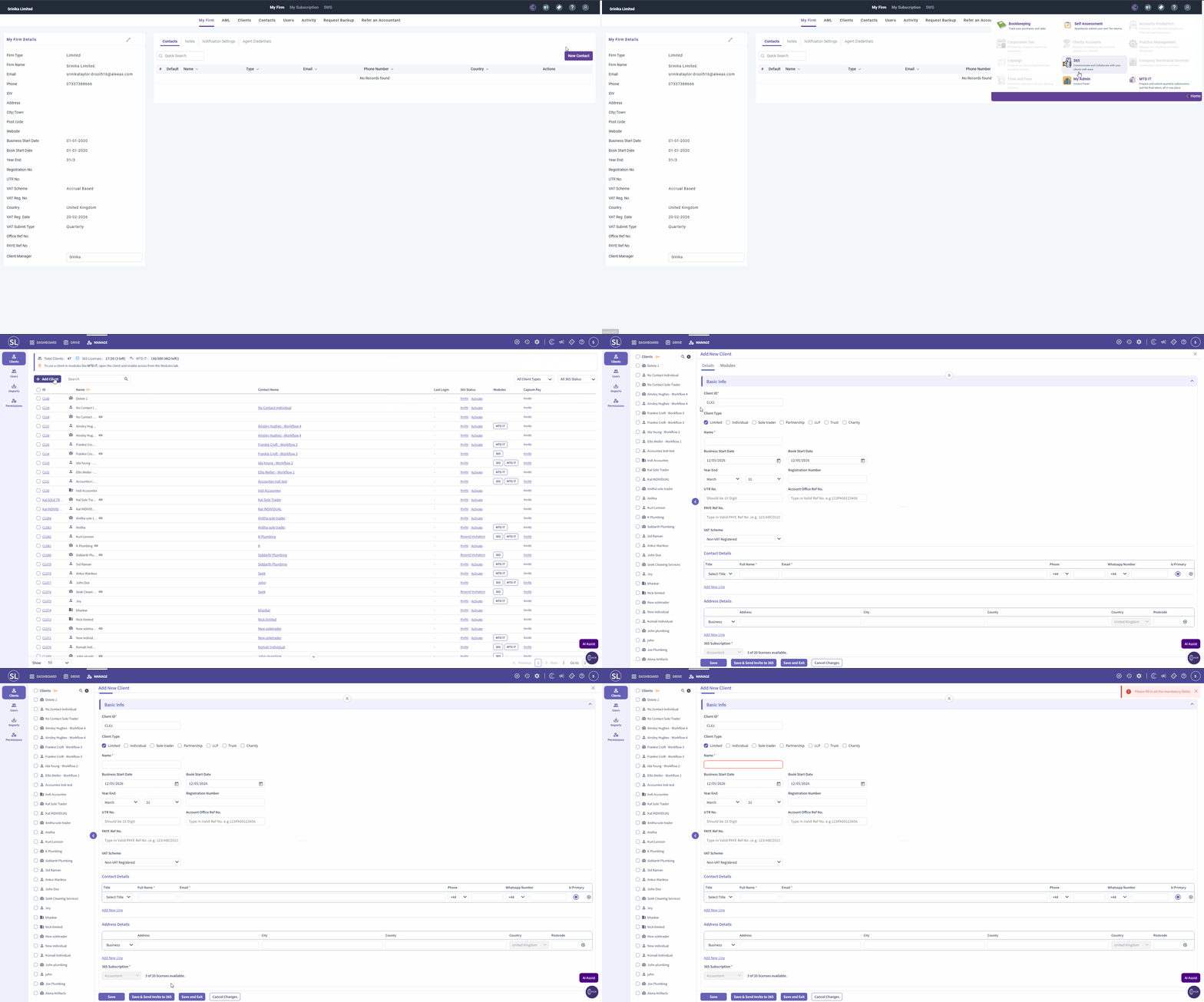
Step 2: Activate the Client on Both Capium 365 and MTD IT
For Workflow 2 to function correctly, the same individual must be activated on both Capium 365 and the MTD IT module.
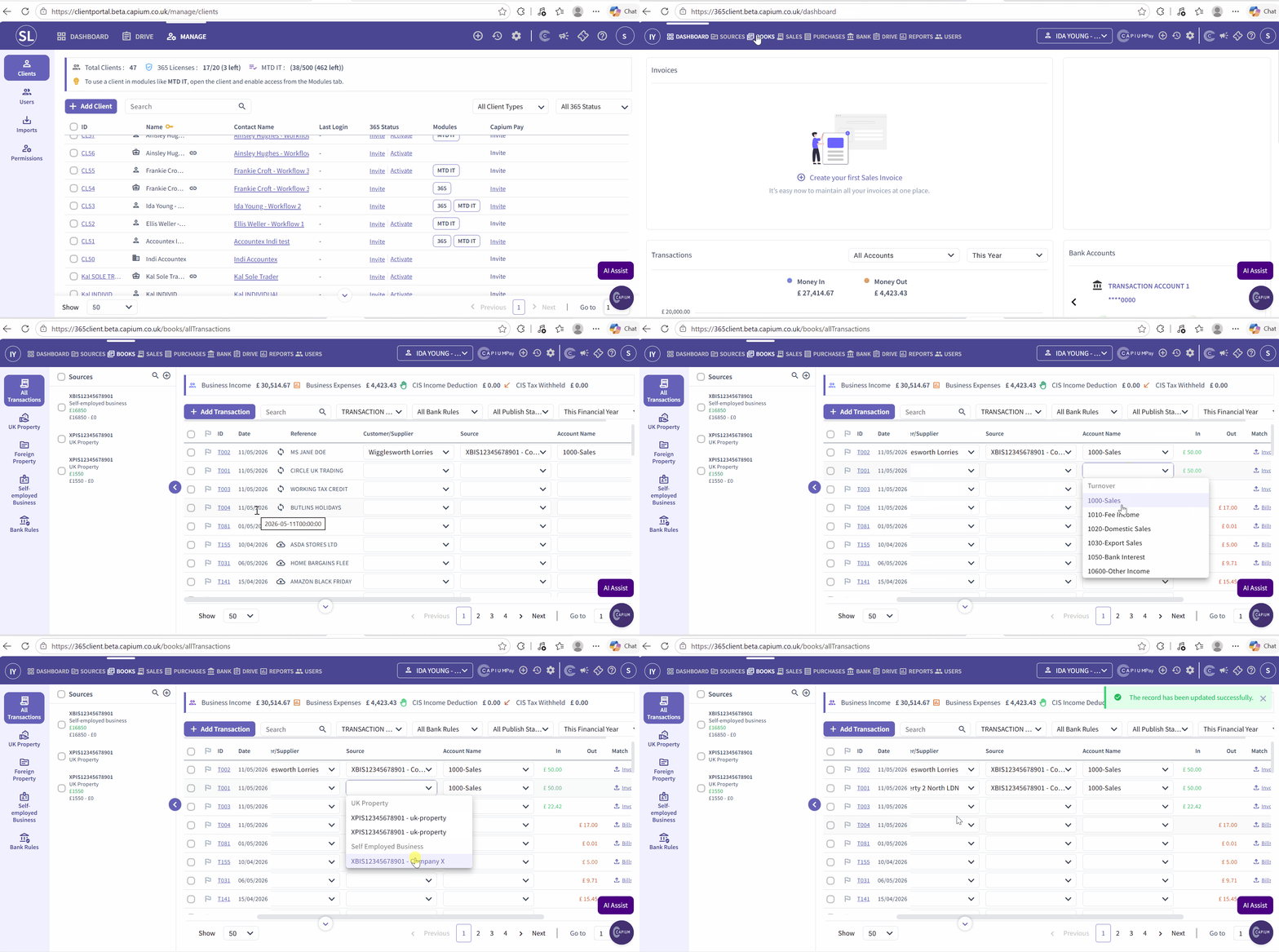
- Navigation > Capium 365 Client Portal
- Search for and open the individual client record.
- Click on Modules within the client section.
- Enable access to Capium 365.
- Enable access to the MTD IT module.
- Save the changes.
Important: Both modules must be activated on the same individual client record. If they are activated on separate records, Workflow 2 will not function correctly.
Note: When activating the client on Capium 365, an email address is required. If the client does not have an email address, a placeholder email address should be entered. This is required because the system sends quarterly approval notifications and Capium Sign confirmations to that email address.
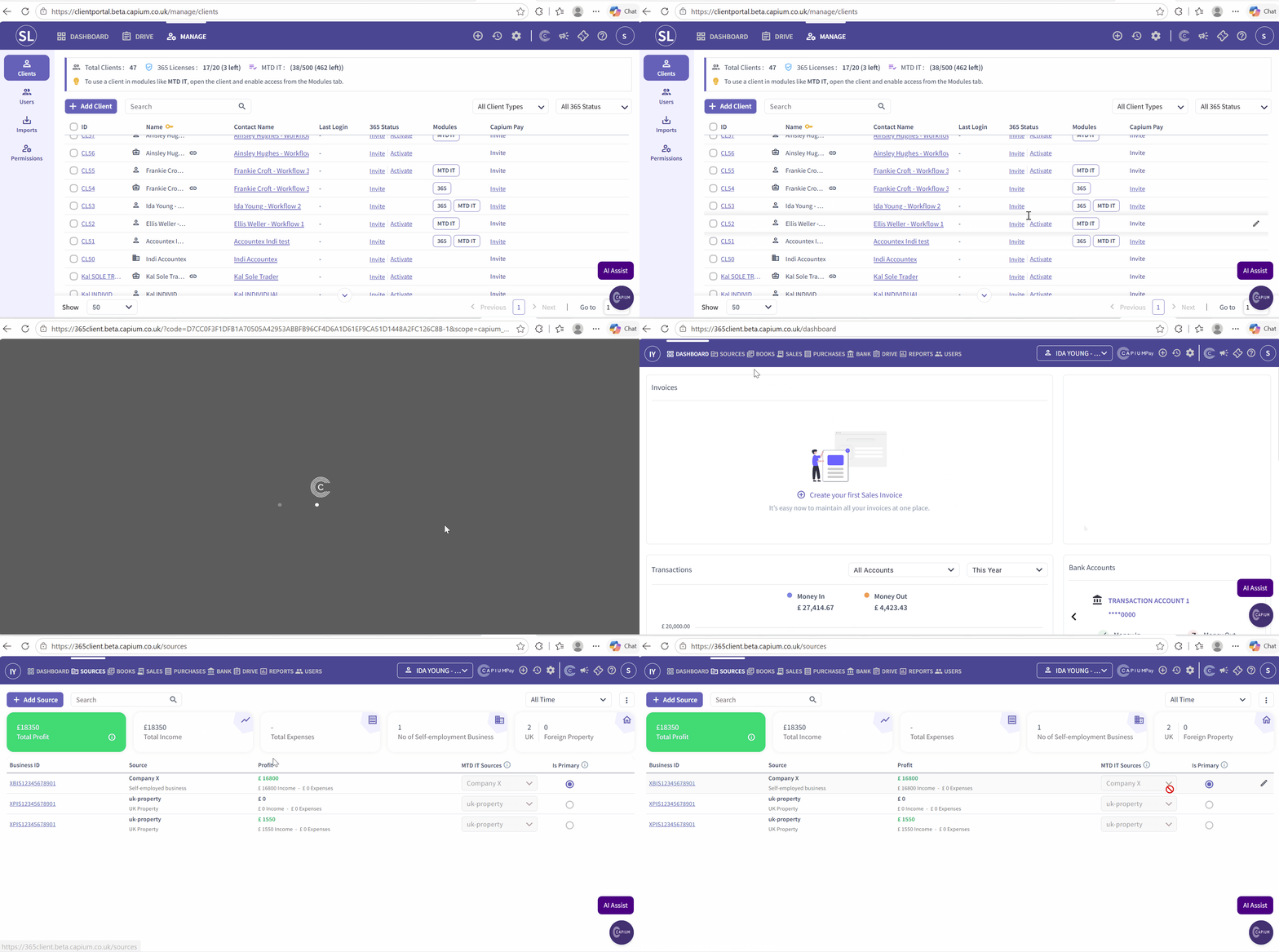
Step 3: Link Income Sources in Capium 365
Before transactions can be published from Capium 365 into the MTD IT module, each income source must be mapped to the correct MTD IT source.
- Navigation > Capium 365 Client Portal > Select Client > Sources
- For each income source (for example, self-employment, UK property, foreign property), select the relevant MTD IT source from the dropdown.
- Confirm the mapping.
Note: This is a one-time mapping per client. Once the sources are linked, all future transactions will automatically route to the correct MTD IT source.
If this step is not completed, transactions will show as not publishable when you attempt to post them to the MTD IT module.
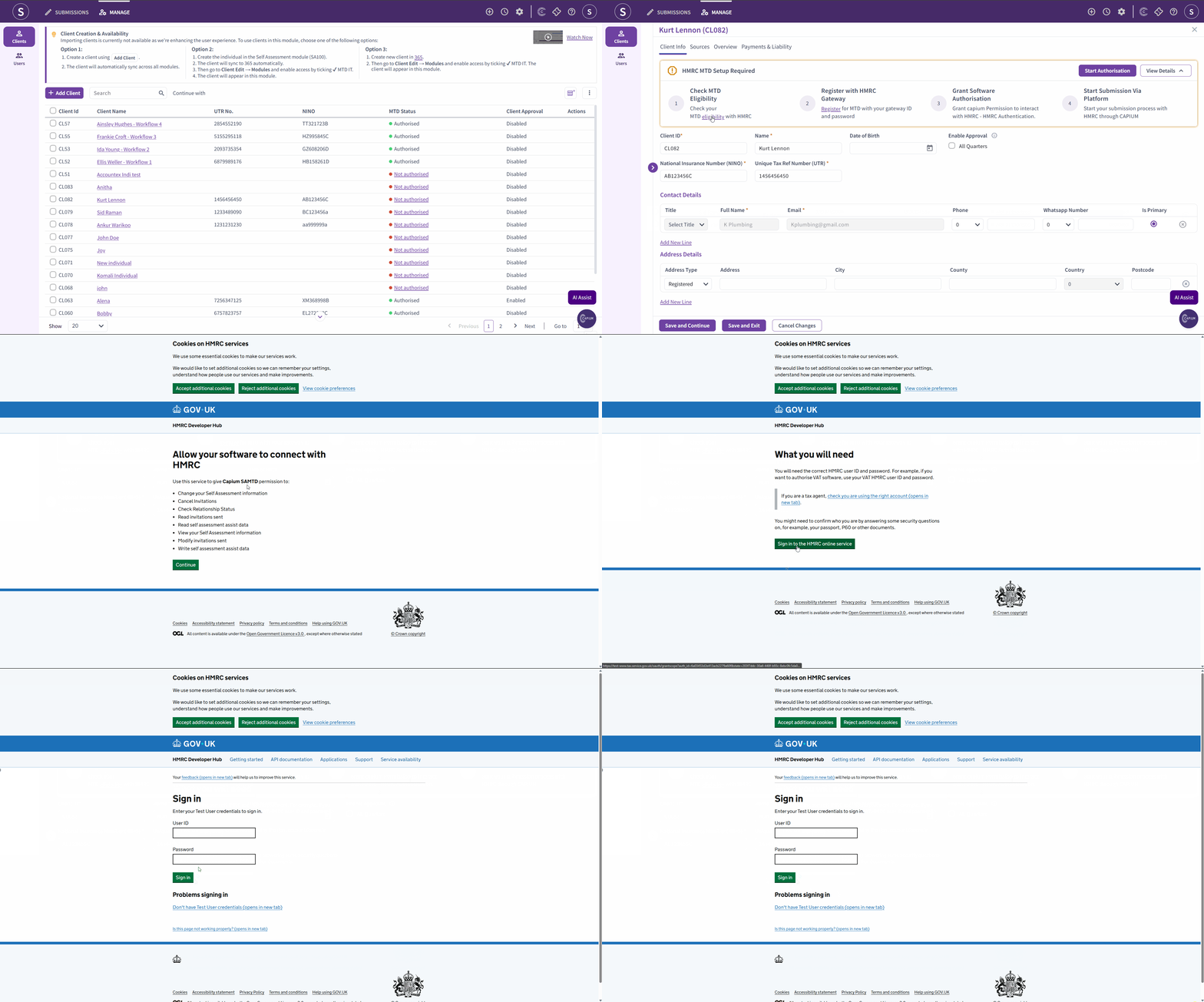
Step 4: Authorise the Client in the MTD IT Module
The client must also be authorised in the MTD IT module before transactions can be published.
- Navigation > MTD IT > Manage
- Locate the individual client in the list.
- Open the client record and click Start Authorisation.
- You will be redirected to the HMRC website.
- Complete the authorisation process on the HMRC website.
- Once complete, return to Capium. The client will now display an authorised status.
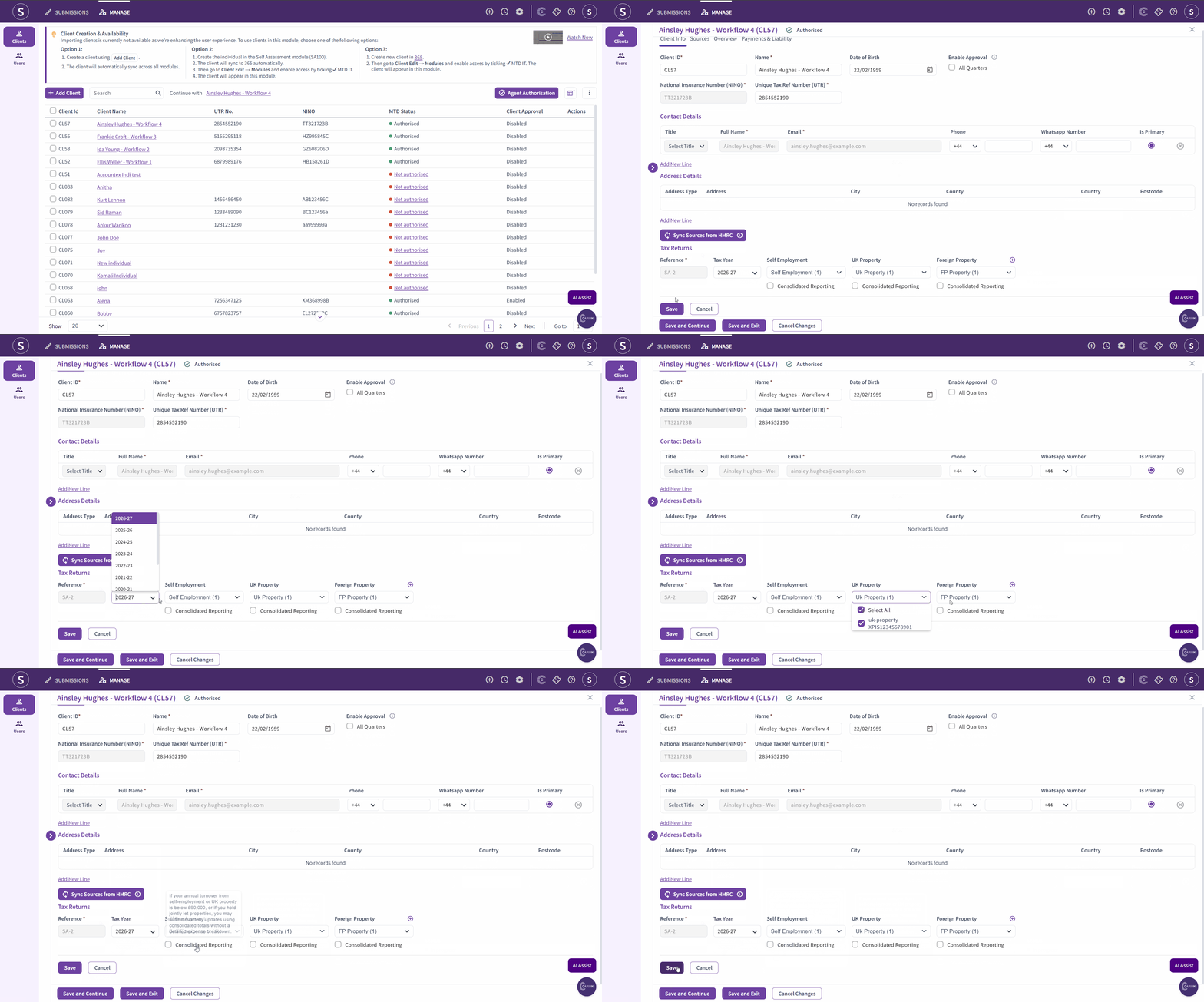
Step 5: Create a Tax Return
- Navigation > MTD IT > Manage
- Open the individual client record.
- Click Add Tax Return.
- The system will automatically select all available sources of income for that client.
- Select the Consolidated Reporting option if the client's income from a given source is not expected to exceed 90,000 pounds in the year. This threshold applies separately to each income stream.
- Confirm and save. The system will generate the full quarterly submission workflow automatically.
Note: Transactions recorded in Capium 365 can be entered at any time, but they cannot be published to the MTD IT module until both the MTD connection is active and the tax return has been created.
Step 6: Record Income and Expenses in Capium 365
Once the client is set up, all income and expense record keeping takes place within Capium 365. The process is similar to recording transactions for a limited company.
- Navigation > Capium 365 Client Portal > Select Client > Books
- Enter and categorise income and expense transactions.
- Ensure each transaction is allocated to the correct nominal account and referenced appropriately.
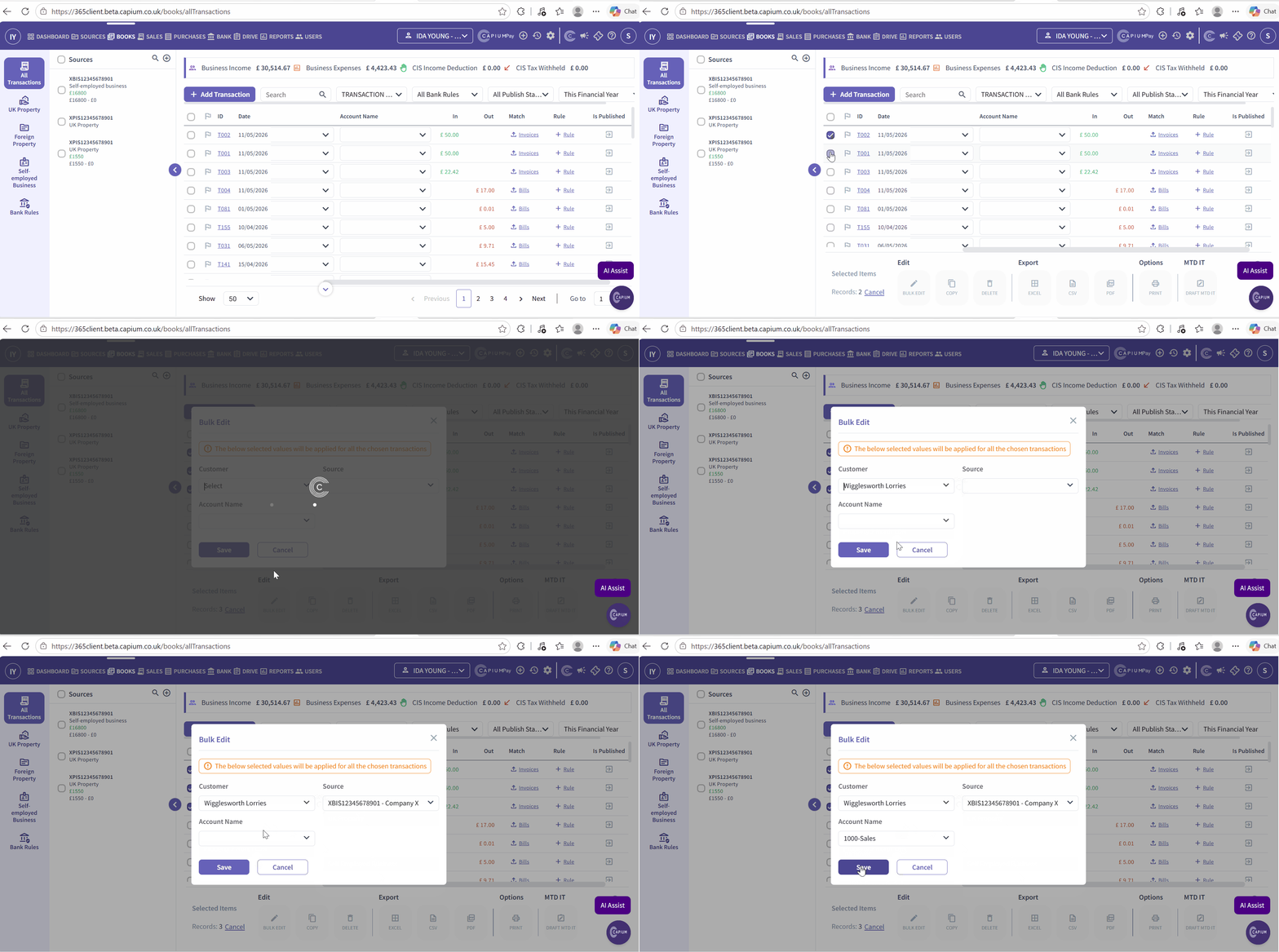
To categorise multiple transactions at once:
- Navigate to the transactions list within Capium 365.
- Select Bulk Edit.
- Assign the relevant business source and nominal code to the selected transactions.
- Click Save.
Step 7: Publish Transactions to the MTD IT Module
Once transactions have been categorised in Capium 365, they can be published directly into the MTD IT module.
Individual transaction:
- Open the transaction within Capium 365.
- Click Publish to MTD IT.
- Review the impact on the relevant period.
- Confirm the publication.
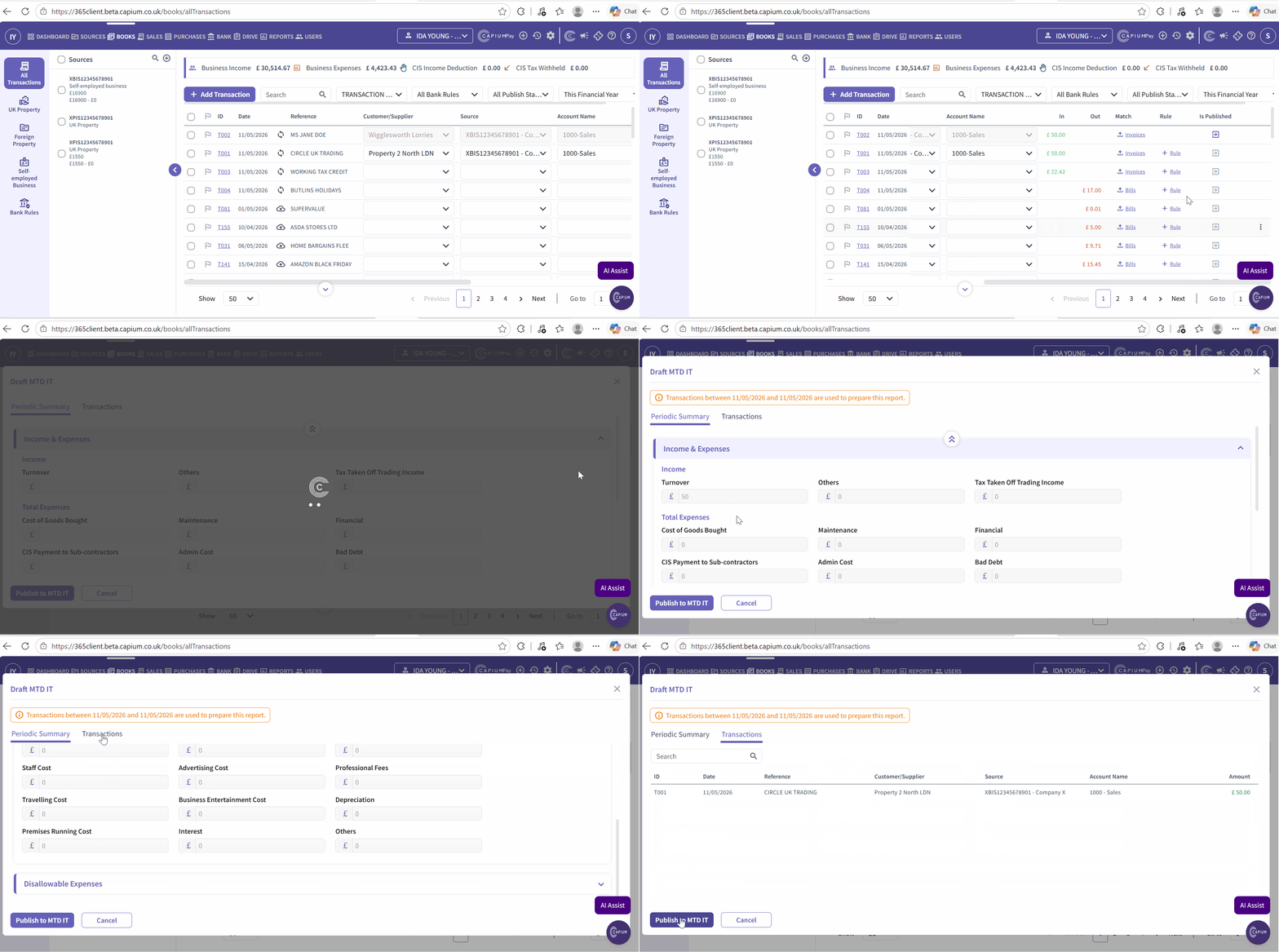
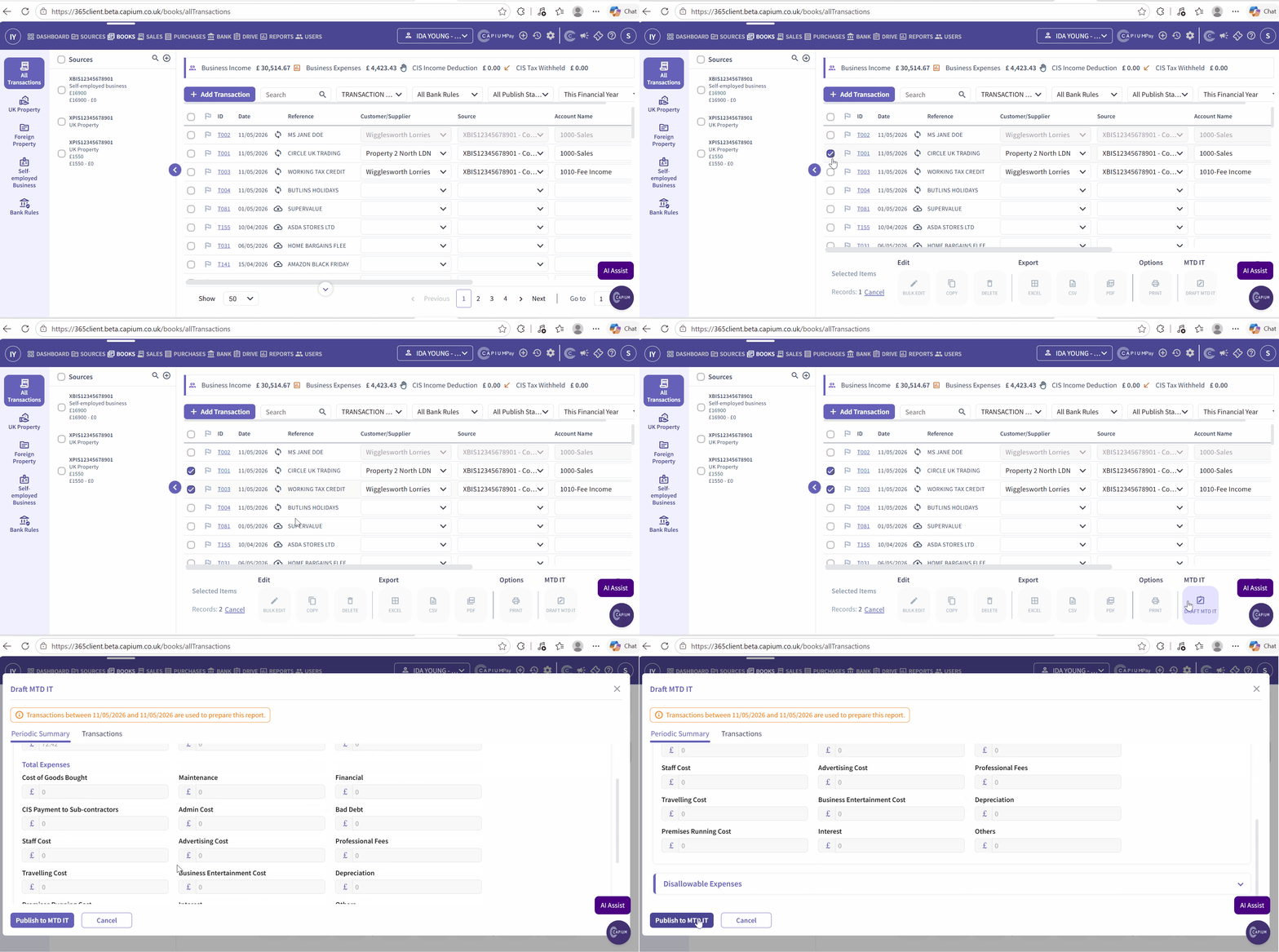
Bulk publication:
- In the transactions list, select the transactions to be published.
- Click Draft MTD IT.
- Review the turnover figures.
- Click Publish to post all selected transactions to the MTD IT module.
Once published, the transactions will appear automatically in the digital records section of the MTD IT module for the relevant quarter.
Note: If the period for the transactions does not yet exist in the MTD IT module (for example, because a tax return has not been created for that year), the system will flag an error. Ensure the tax return has been created before attempting to publish transactions.
Step 8: Review Digital Records in the MTD IT Module
- Navigation > MTD IT > Manage > Select Client > Digital Records
- Review the transactions that have been published from Capium 365.
- Confirm the records are correct for the relevant quarter.
All transactions visible in the cumulative summary will be included in the HMRC submission. Transactions not visible in the digital records screen will not be submitted.
Step 9: Submit to HMRC
Once the digital records are confirmed for a given quarter:
- Navigation > MTD IT > Manage > Select Client > Submission Grid
- Open the relevant quarterly period.
- Navigate to the Quarterly Summary and review the figures.
- Navigate to the Cumulative Summary page.
- Click Submit to HMRC.
Repeat this process for Q2, Q3, and Q4.
Note: Workflow 2 handles all three income sources automatically. You do not need to take separate action for each source. The same submission process applies regardless of how many income sources the client has.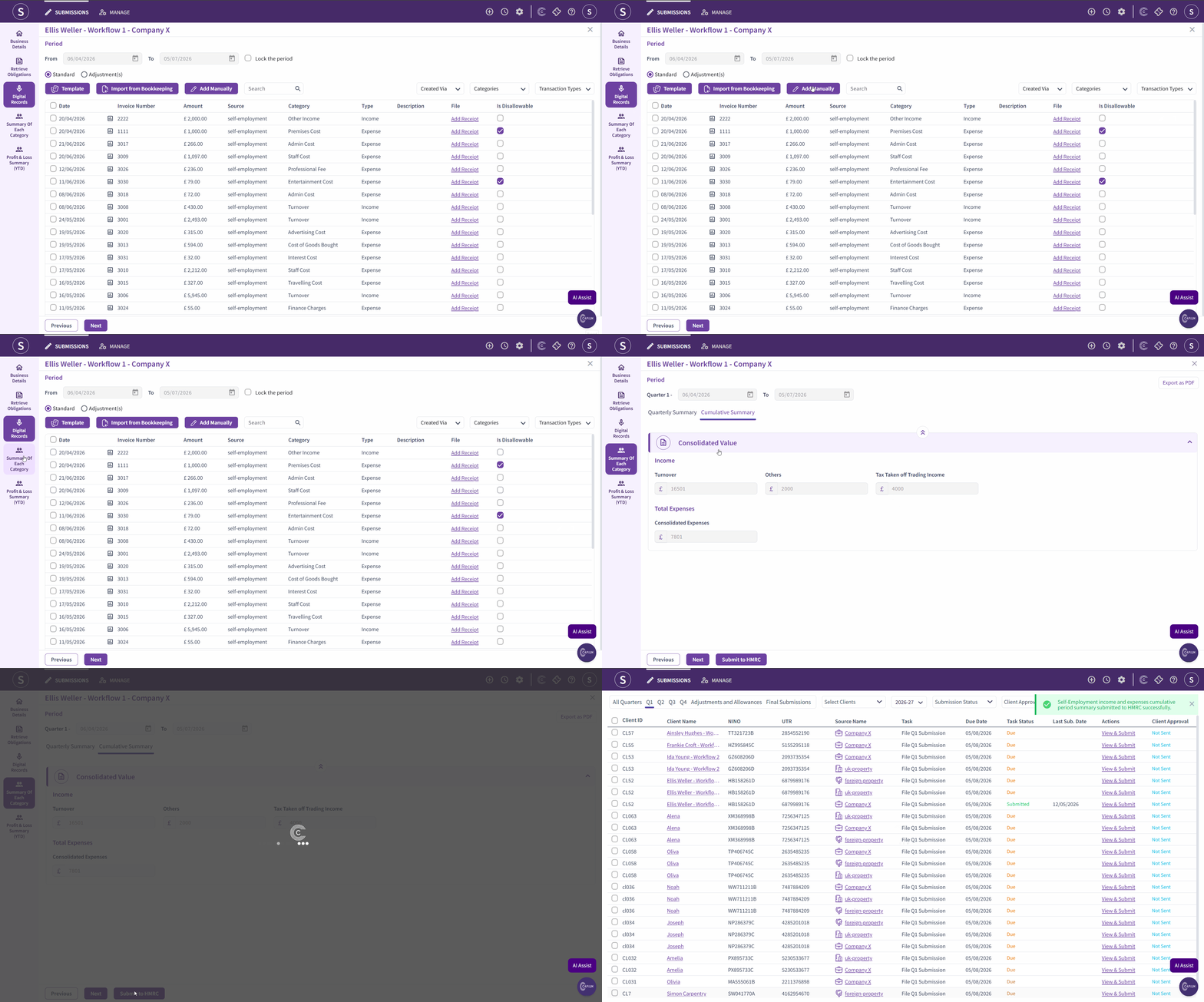
Step 10: Year-End Adjustments, Allowances, and Final Submission
The year-end process is the same across all four MTD IT workflows. Once all four quarterly submissions have been completed:
- Navigate to the adjustments and allowances section for each income source.
- Complete the relevant adjustments per source of income.
- For sole trader income, a trial balance import is available. For UK property and foreign property, only amended values can be entered.
- Complete the other income section, including dividends, employment income, other expenses, losses, and deductions.
- Complete the year-end approval (this is mandatory).
- Submit the final declaration to HMRC.
Note: Quarterly approval is an optional feature.
If a client requires quarterly approval, this can be enabled when creating or editing the client record. Navigate to Navigation > MTD IT > Manage > Edit Client > Enable Approval.