
MTD IT: Adding new clients
This article explains how to add clients to the MTD IT module in Capium, and how individual and sole trader clients relate to each other.
| Important: Every sole trader must be linked to an individual before it can be brought into MTD IT. An individual can be added without any sole trader linked. |
Before you start
- MTD IT licence. Your firm needs an active MTD IT licence. See MTD IT - How to purchase the module.
- Client in scope. Check the client is within scope of MTD IT and is signed up with HMRC. See Who does MTD IT apply to? and MTD IT - Checking and Registering your client with HMRC.
- Client type. Identify the individual, and any self-employment businesses they run. Each business will be set up as a separate sole trader linked to that individual.
- Required details. To enable MTD IT for an existing individual, their record must include UTR Number, National Insurance Number, Full Name and Email Address.
How individuals and sole traders work in MTD IT
Client type | What it represents | Linking requirement |
Individual | The person responsible for the MTD IT obligations and submissions | Does not need a sole trader linked |
Sole Trader | A self-employment business run by that individual | Must be linked to an individual |
Example: a client runs a plumbing business, a car repair business and a carpentry business. In Capium, this is set up as:
- one individual (the client)
- three sole traders, each linked to that individual
Each business is treated as a separate income source, so a submission is made for each source.
| Important: Set up one individual per person. Do not create a separate individual for each business, as each business should be a sole trader linked to the same individual. |
Client setup by income type
Client’s income | Clients to create | Linking |
Property income only (UK or foreign) | One individual | No sole trader needed |
Multiple properties | One individual | No sole trader needed. Do not create an individual per property. |
One sole trade business | One sole trader and one individual | Link the sole trader to the individual |
Multiple sole trade businesses | One sole trader per business, and one individual | Link each sole trader to the same individual |
Mixed income (sole trade and property) | One sole trader and one individual | Link the sole trader to the individual. Property income sits with the individual. |
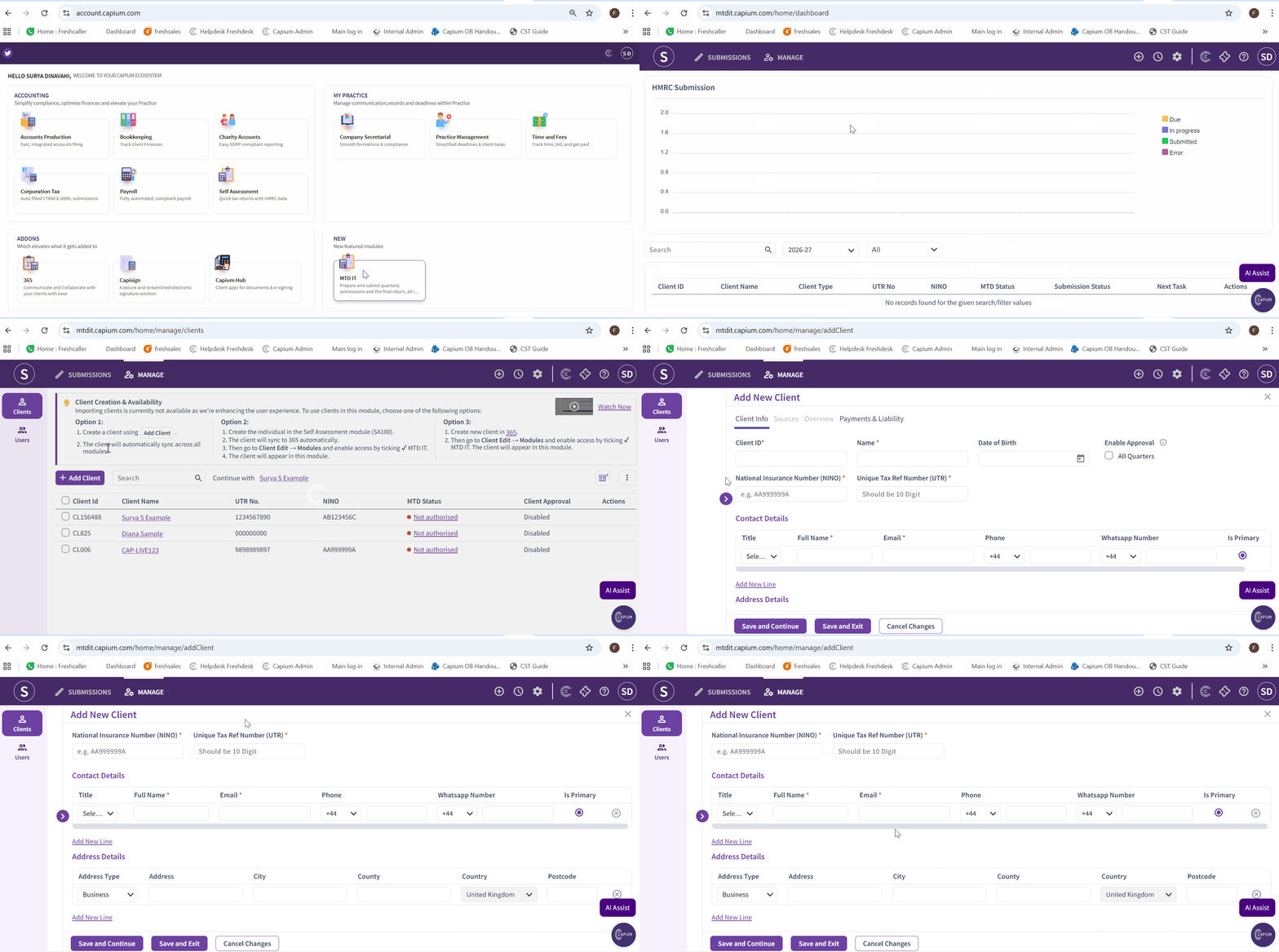
Option 1: Add a new client directly in MTD IT
Use this route for a client who doesn’t yet exist anywhere in Capium.
Navigation > MTD IT > Add Client
- Click Add Client.
- Enter the required client details.
- Save the client.
Please see picture for reference
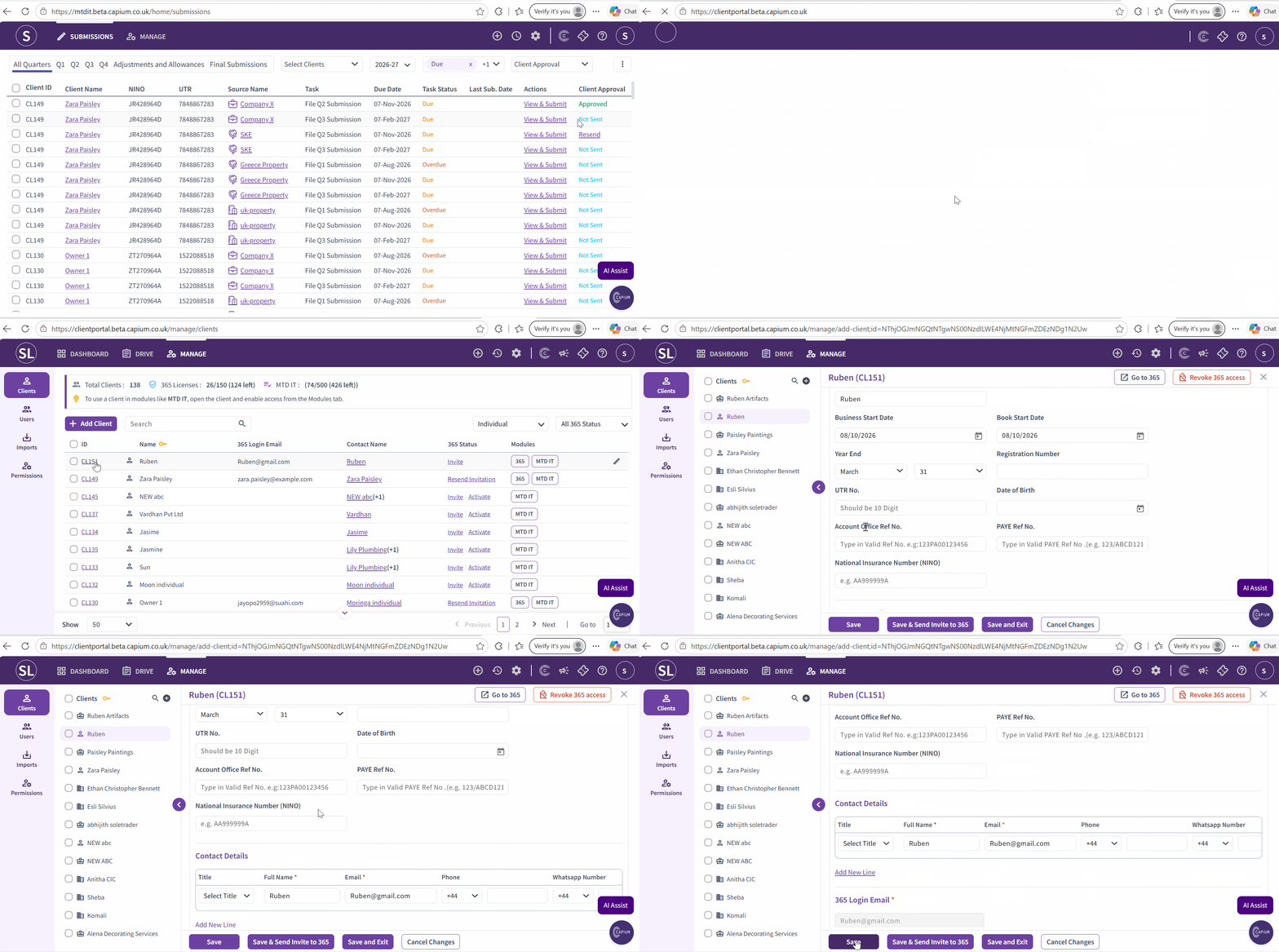
Option 2: Enable MTD IT for an existing individual via Capium 365
Use this route if the client already exists in My Admin.
Navigation > Capium 365 > Individuals > Select a client
- From the client list, select the Individuals client type.
- Select the relevant individual.
- Check that UTR Number, National Insurance Number, Full Name and Email Address are all completed.
- Go to the Module section.
- Enable the MTD IT module for the individual.
Note: all four required fields must be completed before the MTD IT module can be enabled for the individual.
Please see picture for reference
Bringing sole traders into MTD IT
Only individuals can be brought into MTD IT directly. To include a sole trader business, link it to its individual first. Once linked, the sole trader sits under that individual in MTD IT.
You can link a sole trader to an individual in either:
- Capium 365
- My Admin
For step by step instructions, see MTD IT - Linking Individuals and Sole Traders. To link several clients at once, see MTD IT - Linking the Sole Traders and Individuals in Bulk.
If an individual has no self-employment income, no sole trader needs to be linked.
| Note : Once a sole trader is linked to an individual, the pair uses one MTD IT licence in total. Until the link is made, Capium treats them as separate client records and two licences are used. To check a link is in place, look for the link icon next to the sole trader’s licence indicator. please see MTD IT - Licence Usage When Linking a Sole Trader to an Individual. |
What happens next
Once the client is in MTD IT:
- Authorise the client with HMRC. See MTD IT – Client Authorisation Workflow.
- Sync the client’s income sources from HMRC. See MTD IT: Sync Sources from HMRC.
Related articles
- MTD IT - Linking Individuals and Sole Traders
- MTD IT - Linking the Sole Traders and Individuals in Bulk
- Unlink an individual in MY ADMIN
- MTD IT - Licence Usage When Linking a Sole Trader to an Individual
- Why do I see both an Individual and a Sole Trader business? (MTD IT)
- Capium 365 - Bulk Assign Individual Clients
- MTD IT for Landlords: Getting Started and Making Submissions