
Step-by-Step Navigation & Overview Guide
This guide shows how to manage MTD IT quarterly submissions within Capium, including quarterly updates.
Navigation: MTDIT > Submissions.
Alternatively, please click on this link to be redirected to the submissions page.
Submissions Main Page Overview
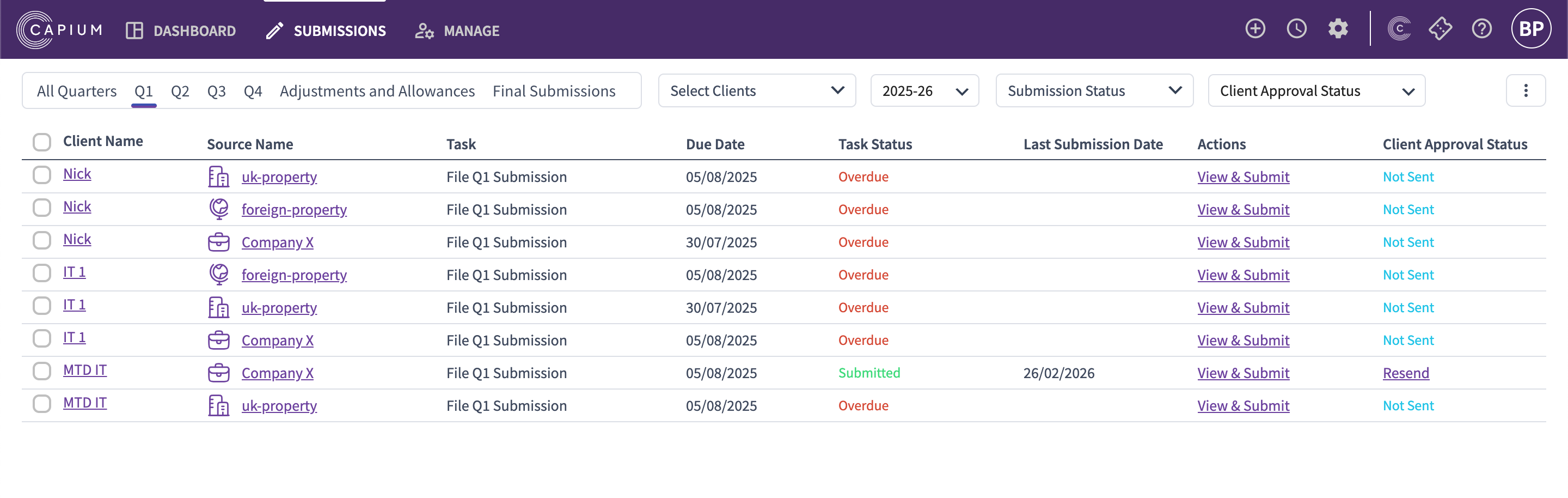
On the Submissions page, you will find the following information:
Client Name and Source Name:
The same client may appear multiple times with different source names as each client can have multiple sources of income, which are presented separately (Note: You must import records and submit quarterly updates per source type to meet Self-Assessment MTD IT obligations.)
Clicking the Client Name takes you to the client information page (You are also able to filter by client)
Clicking the Source Name takes you to the sources page.
Tasks: Displays the quarterly submission task for the income source.
Due Date: Shows the due date for the quarterly submission.
Task Status: Shows the current status of the submission:
Due
Overdue
Submitted
You can filter submissions by task status.
Last Submission Date:Displays the most recent submission date for that task.
Actions : Clicking View & Submit opens the digital records for the selected income source and allows you to review and submit the quarterly update.
Client Approval Status: Displays the client approval state; Not Sent, Resend, Approved
You can filter submissions by approval status.
Steps on how to access and manage MTD IT quarterly submissions
Step 1:
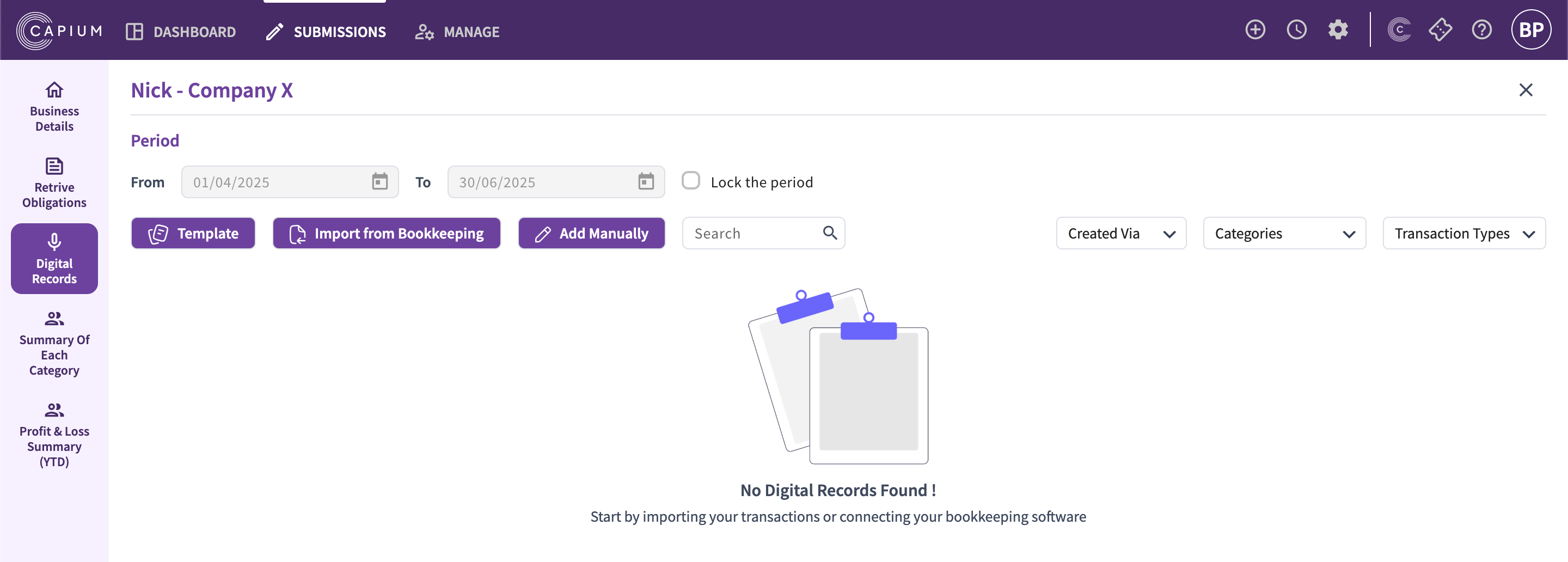
Under Actions click View and Submit where you will be redirected to the digital records page.

Step 2: Selecting a Calendar
Click on Business Details where you then opt for the calendar type. Here you can choose between:
- The standard HMRC calendar for individuals (6th April 20XX till 5th April 20XY) or
- The Calendar method (from 1st April 20XX till 31st Match 20XY).

NOTE: You opt for the first quarter of every financial year. Also, you will not be able to change the calendar type once the first quarter has been submitted. However, you can change it in the first quarter of the following year.
See article below for a more details on the Calendars: MTD IT – Cumulative Summary
Step 3: Mapping
If you plan to use the bookkeeping module, you will map the business on this screen (See image below). If you are using Capium 365, spreadsheet import, and manual import you can move directly to the Digital record screen. Skip to step 5 .
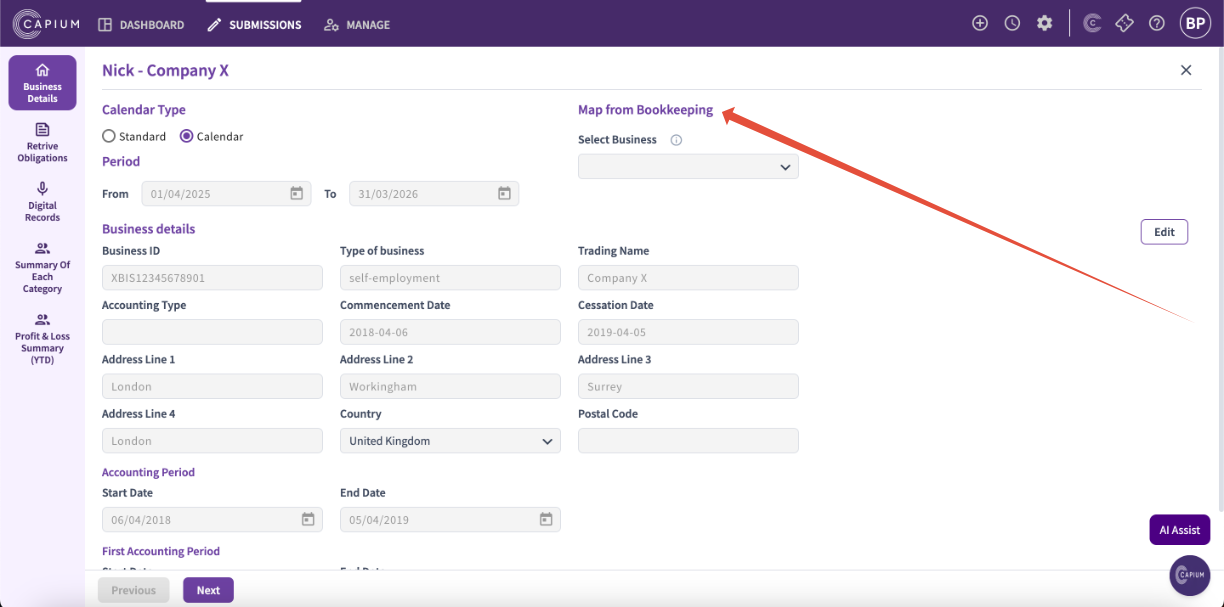
NOTE:As shown in the screen, the address and other details for the business these details are synced from HMRC thus any changes to the address needs to make with the Agent Services account and this will then sync through to Capium.
Step 4: Retrieve Obligations
In the next step you can retrieve the obligations for the source from HMRC. If you have made previous submissions for this source of income you will see that the retrieve obligations.

Step 5: Digital Records
Digital records are the cumulative quarterly records that you need for making submissions for an individual and sources of income.
NOTE: You need to keep digital records for each source of income.
There are four ways to sync digital records:
1. Bookkeeping
2. Capium 365
3. Spreadsheet Import
| PLEASE NOTE: Bookkeeping licenses can only be purchased for Sole Trader businesses. |
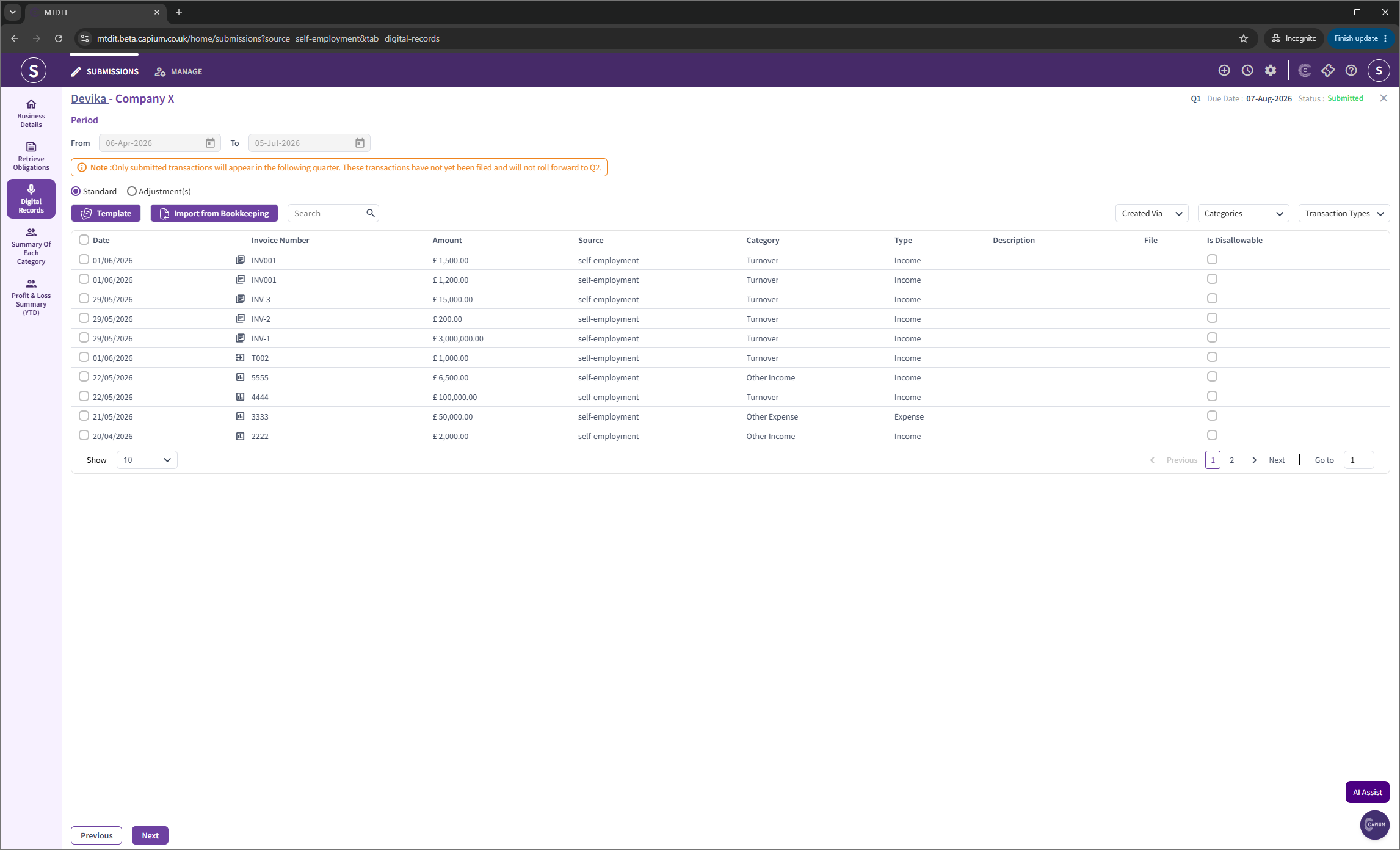
Depending on the income source, the templates for recording keeping defer. Please, click on the guides below for more details:
Step 6: Summary of Each Category; Two Submission Methods
Once the digital records are in place you can check the summary of each category where you can see the cumulative information for each category. You can cross reference your records from this screen to your digital records screen and any amendments that you need to make can be made on that screen.
HMRC permits two reporting methods for quarterly updates under MTD IT:
- The three-line method can be used where the client’s total annual turnover across all businesses is below £90,000.
The detailed/full Method is used where turnover exceeds £90,000, or where greater detail is preferred, the detailed/full method must be used.
If you opted for the three-line method when creating the financial year, you will only be able to see the Consolidated Value. See image below:

If you opted for Detailed/ Full method when creating the financial year, you will only be able to see the Income, Disallowable Expense and Consolidated Value. See image below:

Once you have made the first quarterly submission you will not be able to switch between the three-line method and the full method. It is advisable that you consider your client’s income and other scenarios before opting a method.
NOTE:The process of the three-line method is identical to the full submission, the only difference is at the point of submitting the figures to HMRC you can restrict the data that you need to send purely based on the minimum requirements.
You can also enable a quarterly submission screen that will filter just the quarterly data not the full cumulative data, this can help you communicate things to your clients. You can turn this feature on based on your internal requirements.
Step 7: Submission
7a. Once you are happy with the records, you can submit these for approval from your clients.
NOTE: You are not required to have the approval for the quarterly submission of the records, however we recommend you use this based on your internal processes.

7b. Once it is all completed, you can make a submission to HMRC. Here the system will prompt a confirmation message. Once you have confirmed the submission will be made to HMRC.
NOTE: Once a submission is made the associated digital records will be locked for that period. You will still be able to re-upload/re-sync the records and make changes to them in the next quarterly return.
Once the submission is made to HMRC you can review your YTD figures in Capium. You can also check your YTD Tax figure within the Adjustment and Allowance section.
You repeat the steps again based for all the four quarterly submissions per income type.
Please see related articles below for more information:
MTD IT - How to set up the module for the first time
MTD IT – Client Authorisation Workflow