
This article explains how to link sole traders and individuals within the MTD IT module demonstrating how the individuals are linked to multiple sole trader business.
Linking is a mandatory requirement when using the Bookkeeping module alongside the MTD IT module to pull in the relevant information to ease your submissions.
Before you start:
- Add client clients to the MTD IT module.
- Ensure if the Sole trader clients have already added in My Admin section.
- Client Authorisation process is completed.
This feature allows you to link multiple individuals across multiple sole trader businesses. There are two scenarios to be aware of:
- Assigning multiple individuals across different sole trader businesses.
- Assigning one individual across multiple sole trader businesses.
Scenario 1: Assigning Multiple Individuals Across Multiple Sole Traders.
Navigation > Capium 365 Client Portal > Manage > Clients
This scenario applies when you need to assign different individuals to different sole trader businesses.
Follow the steps below:
- Navigate to the Capium 365 Client Portal.
- Open the Manage section.
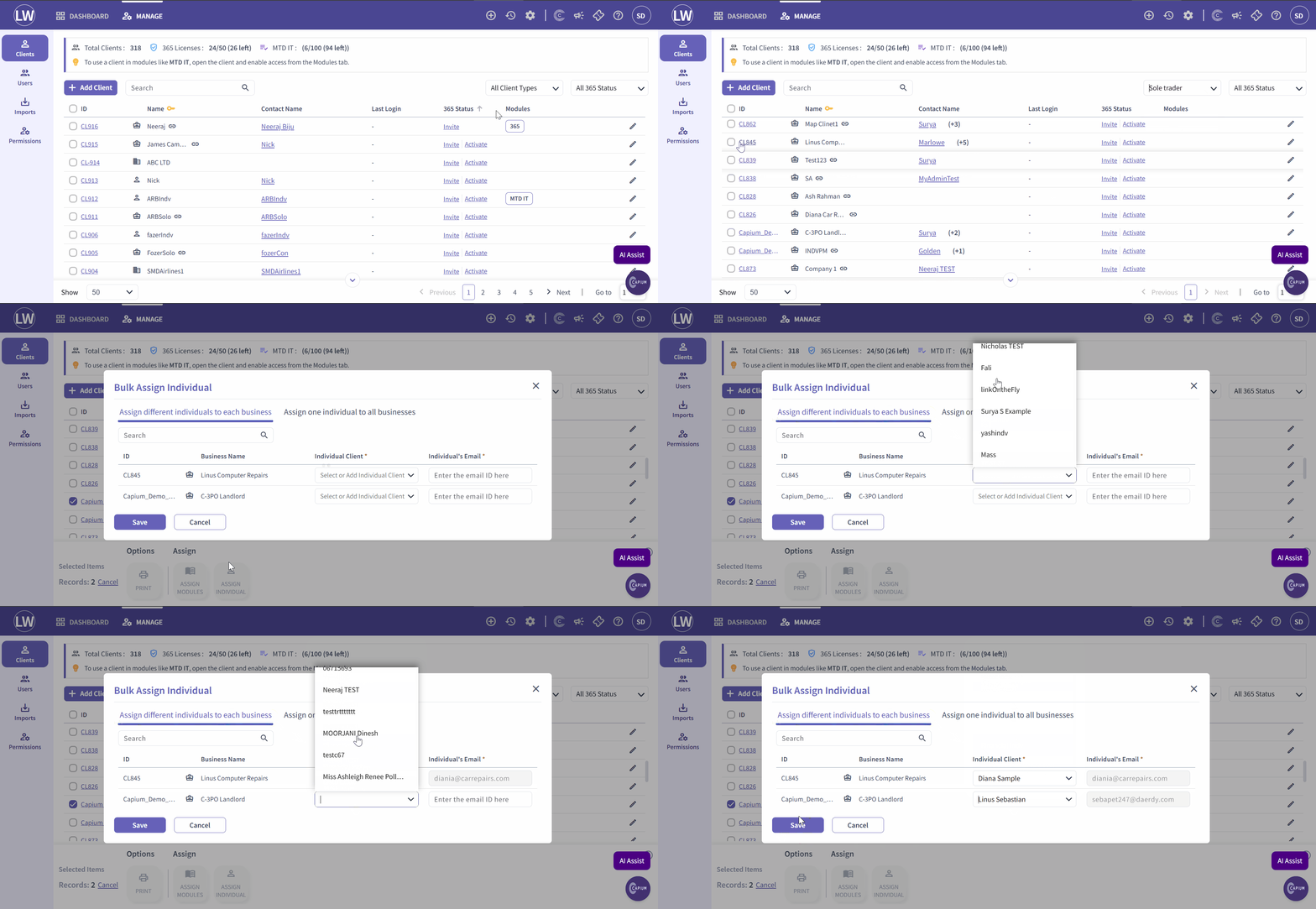
- Filter the client type to Soletrader.
- Select your list of clients using the checkboxes.
- Once the relevant clients are selected click Assign Individual at the bottom of the screen.
- In the pop-up screen, you can select an existing individual or add a new Individual by entering their name into the blank field provided.
Please refer to the below picture for your reference.
Scenario 2: Assigning one Individual Across Multiple Sole Traders.
Navigation > Capium 365 Client Portal > Manage > Clients
This scenario applies when you need to link one individual to multiple sole trader businesses.
Follow the steps below:
- Navigate to the Capium 365 Client Portal.
- Open the Manage section.
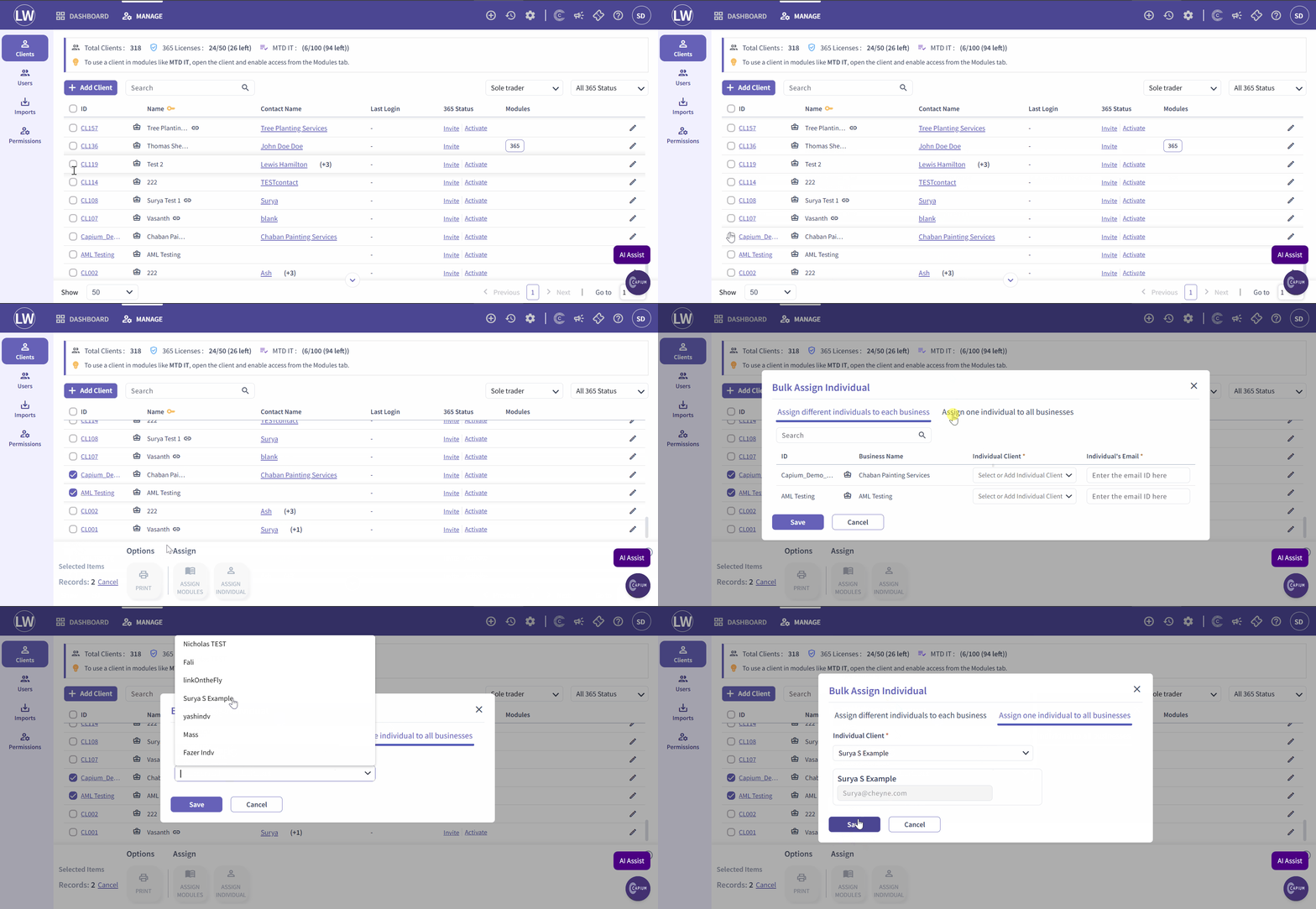
- Select your list of clients using the checkboxes.
- Select the multiple sole trader businesses that need to be linked to one Individual client.
- On the pop-up screen, select the option Assign one individual to all businesses.
- Select the individual you wish to assign and confirm the selection to apply them across all chosen businesses.
Please refer to the below picture for your reference.
Important Note: When a sole trader record is linked to an individual record, both records will share one licence. Please be aware that two separate records will still appear in 365, My Admin, and Practice Management. This is intentional and does not indicate a duplication or error. The records remain separate because the sole trader and the individual are legally distinct entities even though they share a single licence. |
Related Articles:
MTD IT : How to Bulk assign Individual clients
MTD IT : Linking Individuals to Sole traders
MTD IT : Capium 365 and Bookkeeping (Workflow 3)
MTD IT : License usage while linking a Sole trader
MTD IT : Why do I see both Individual & Soletrader
MTD IT : How to unlink an Individual in My Admin