
Once a client has reached an approved state in MTD IT, their income sources can be synced directly from HMRC. This ensures the sources held in Capium match those registered on HMRC's systems, so quarterly updates and the Final Declaration can be submitted against the correct income streams.
Before you start
The client must be in an approved state before their sources can be synced. If the client has not yet been approved, see MTD IT: Client Approval.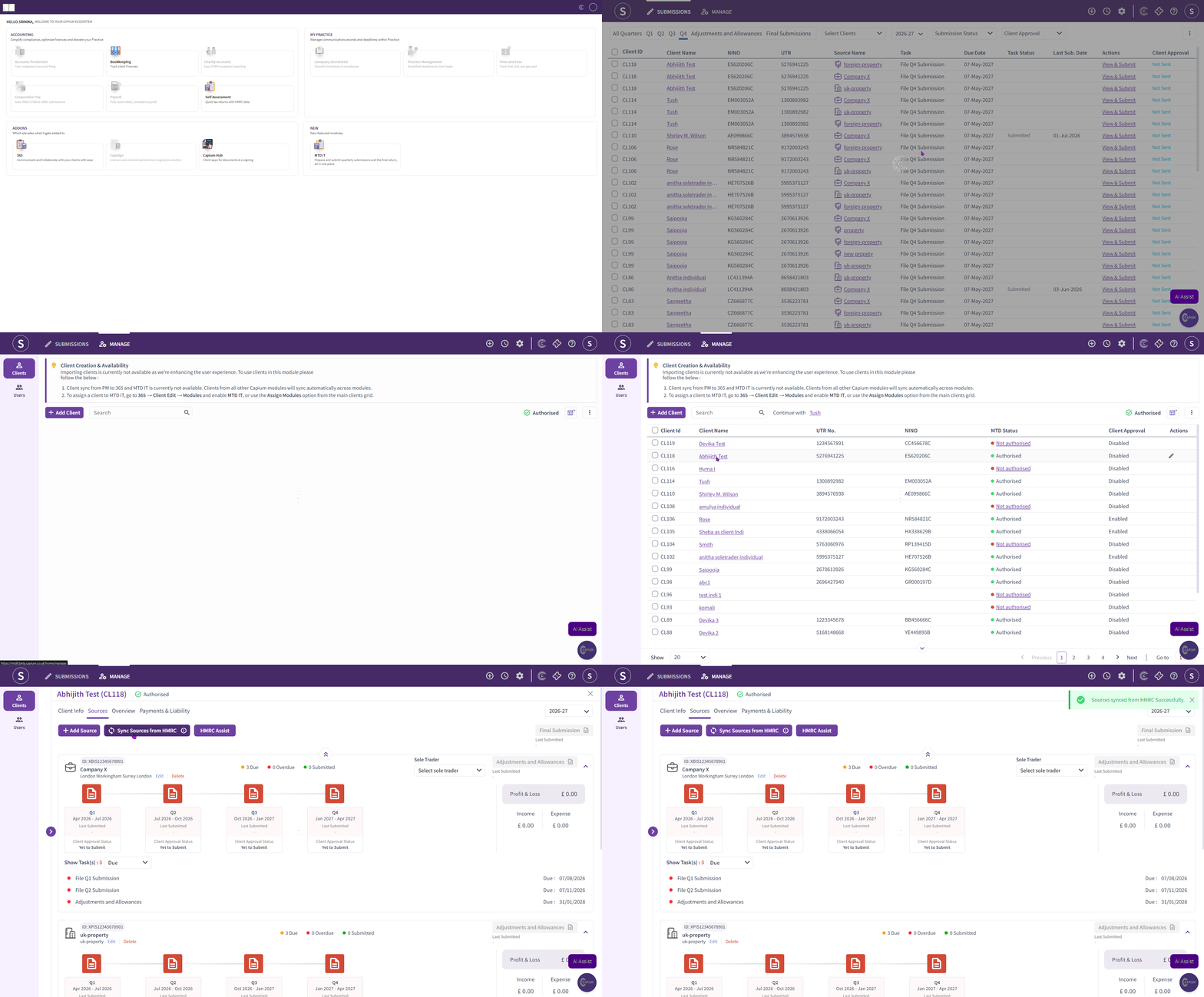
How to sync sources from HMRC
- Navigation > MTD IT > Manage
- Click into the relevant client.
- Navigate to the Sources tab.
- Click Sync Sources from HMRC.
This will re-sync the client's income sources with HMRC, pulling through any sources currently held on HMRC's systems (for example self-employment, UK property, or foreign property).
If a source does not appear after syncing
Capium can only display sources that HMRC has recorded against the client. If an expected source is still missing after syncing, the source has not yet been added on HMRC's side. In this case:
- The client or agent should contact HMRC directly to confirm the source has been added to their record.
- Once HMRC has added the source, return to the Sources tab and click Sync Sources from HMRC again.
For more on how sources are first set up with HMRC, see MTD IT: Checking and Registering your Client with HMRC.
Related articles