
This article will guide you to Bulk Assign Individual Clients, which allows accountants to assign multiple individual clients to sole trader Businesses in a single action. This helps save time and streamlines the client assignment process also the same will reflect on the MTD IT.
Before you start:
Ensure the Sole trader & Individual clients have been added into the system.
Step 1: Open the Clients List :
- Navigate to the 365 module.
- Open the Clients list.
- The available client list will be displayed.
- From the All-Types filter, select Sole Trader to display only sole trader clients.
Navigation : Capium 365 > Clients 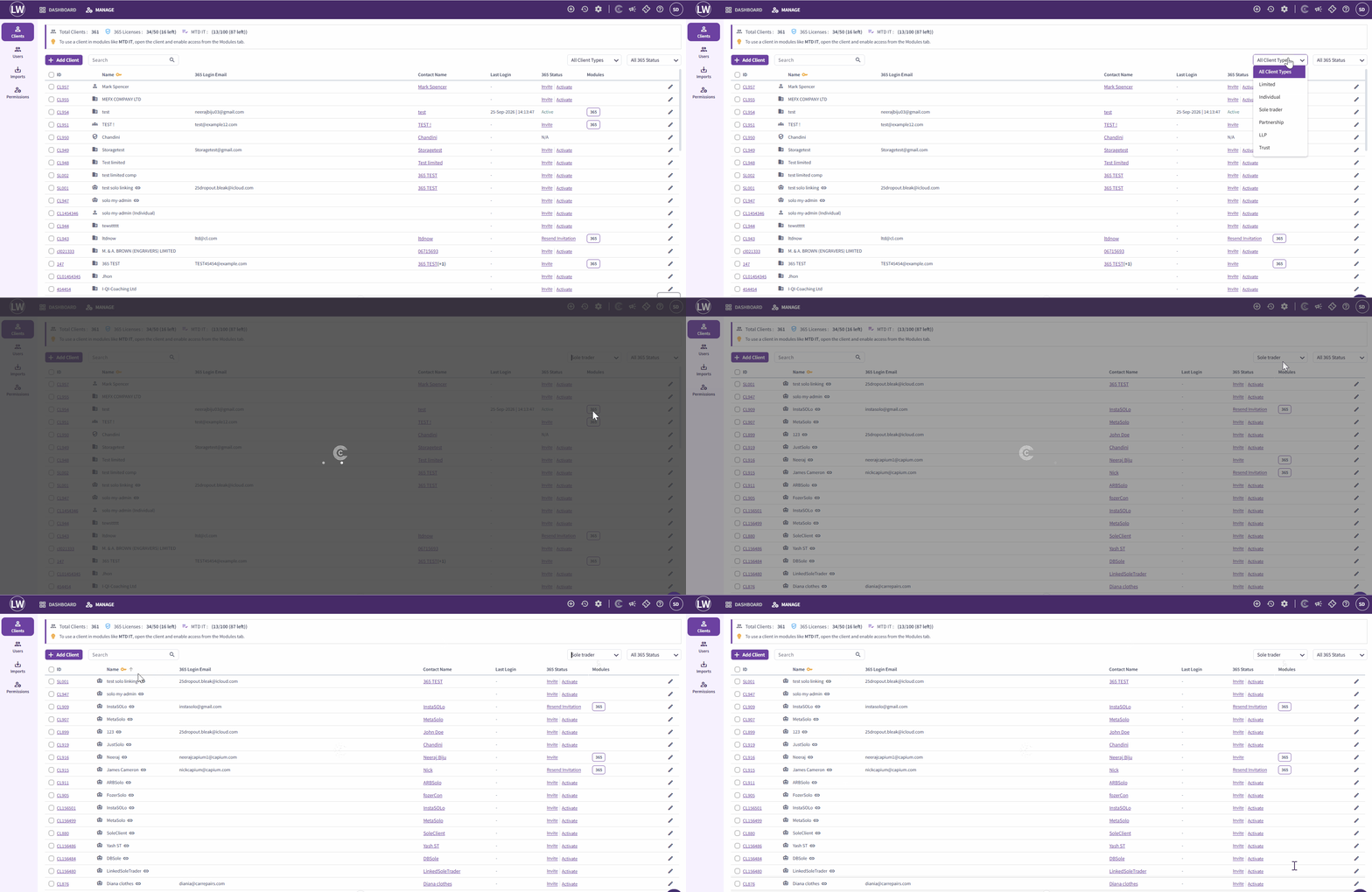
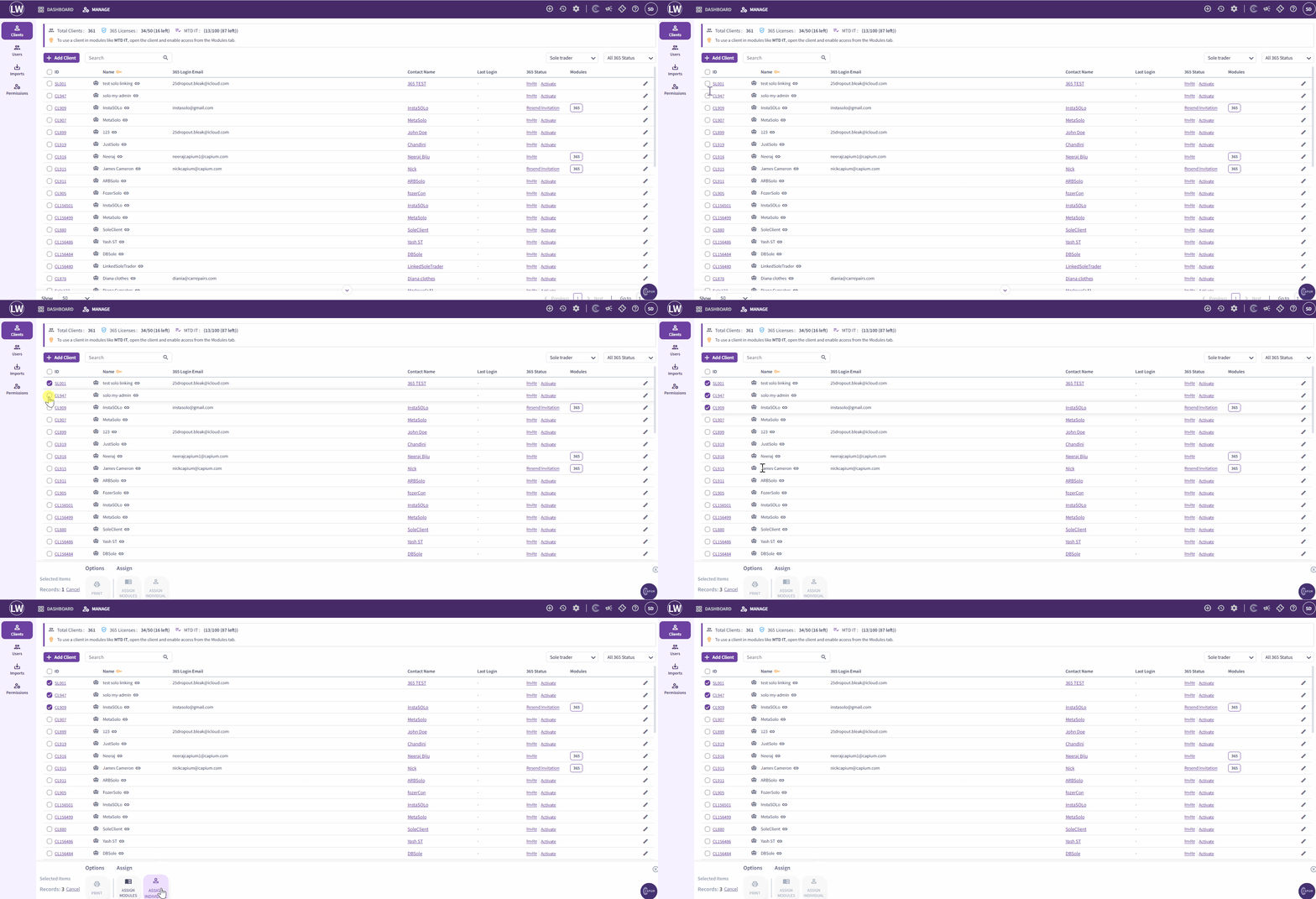
Step 2: Select Multiple Sole Trader Clients:
• Use the checkboxes on the left-hand side to select the Sole Trader clients you want to assign.
• Once the clients are selected, the Assign Individual option will appear at the bottom of the screen.
Please refer to the below picture for your reference
Step 3: Assign Individuals:
Click on Assign Individual option to view the available bulk assignment options.
Option 1: Assign Different Individuals to Each sole trader Business
This option allows you to assign different Individual to each selected Sole trader business.
You can:
• Select an existing individual from the dropdown list.
• Add a new individual client directly.
Note: The individual email address will automatically populate if it is already available in the system. If not, you can manually enter the email address.
Please refer to the below picture for your reference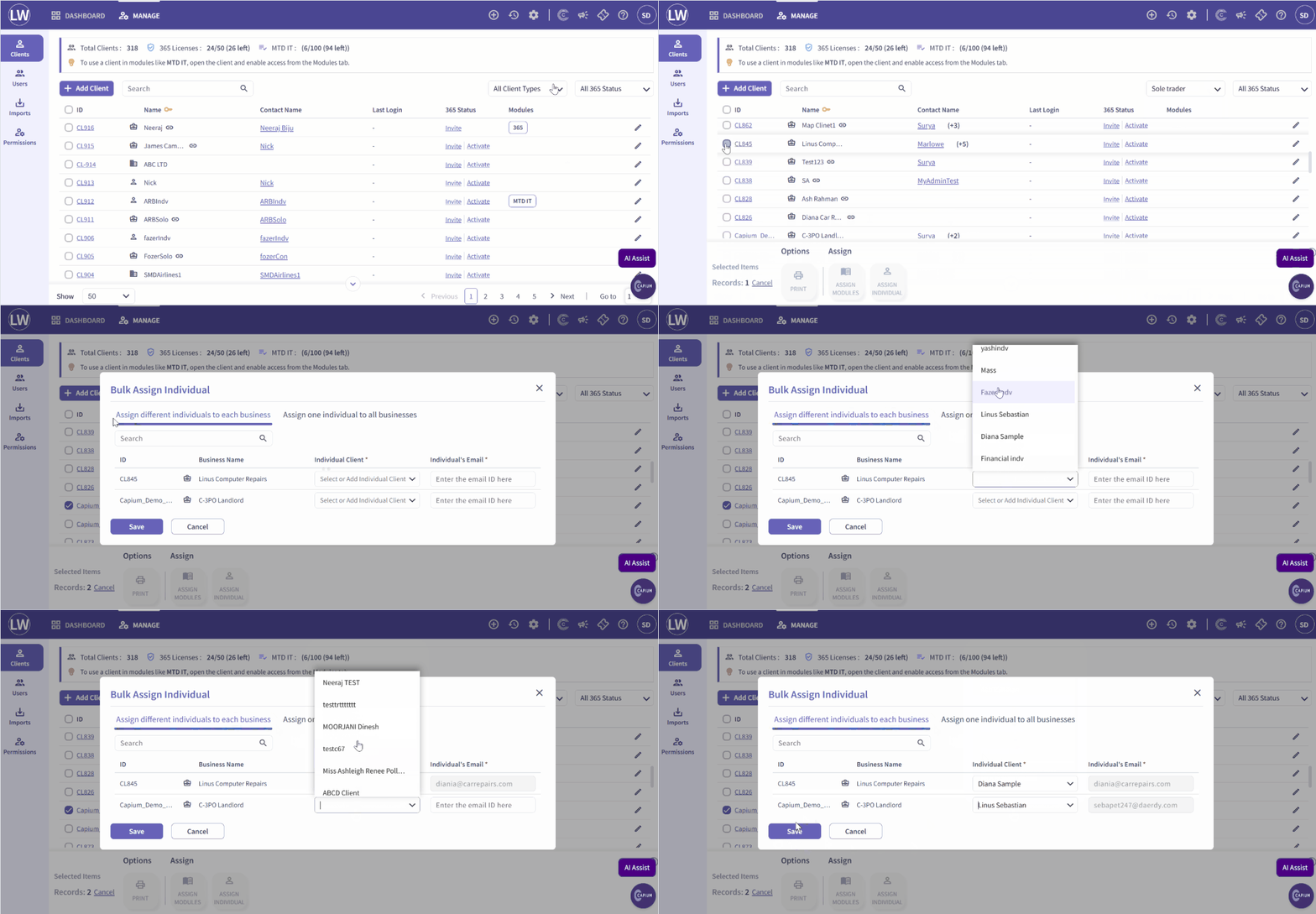
Option 2: Assign One Individual to All Businesses
This option allows you to select one Individual and assign them to all selected sole trader businesses in a single action.
Please refer to the picture below for your reference 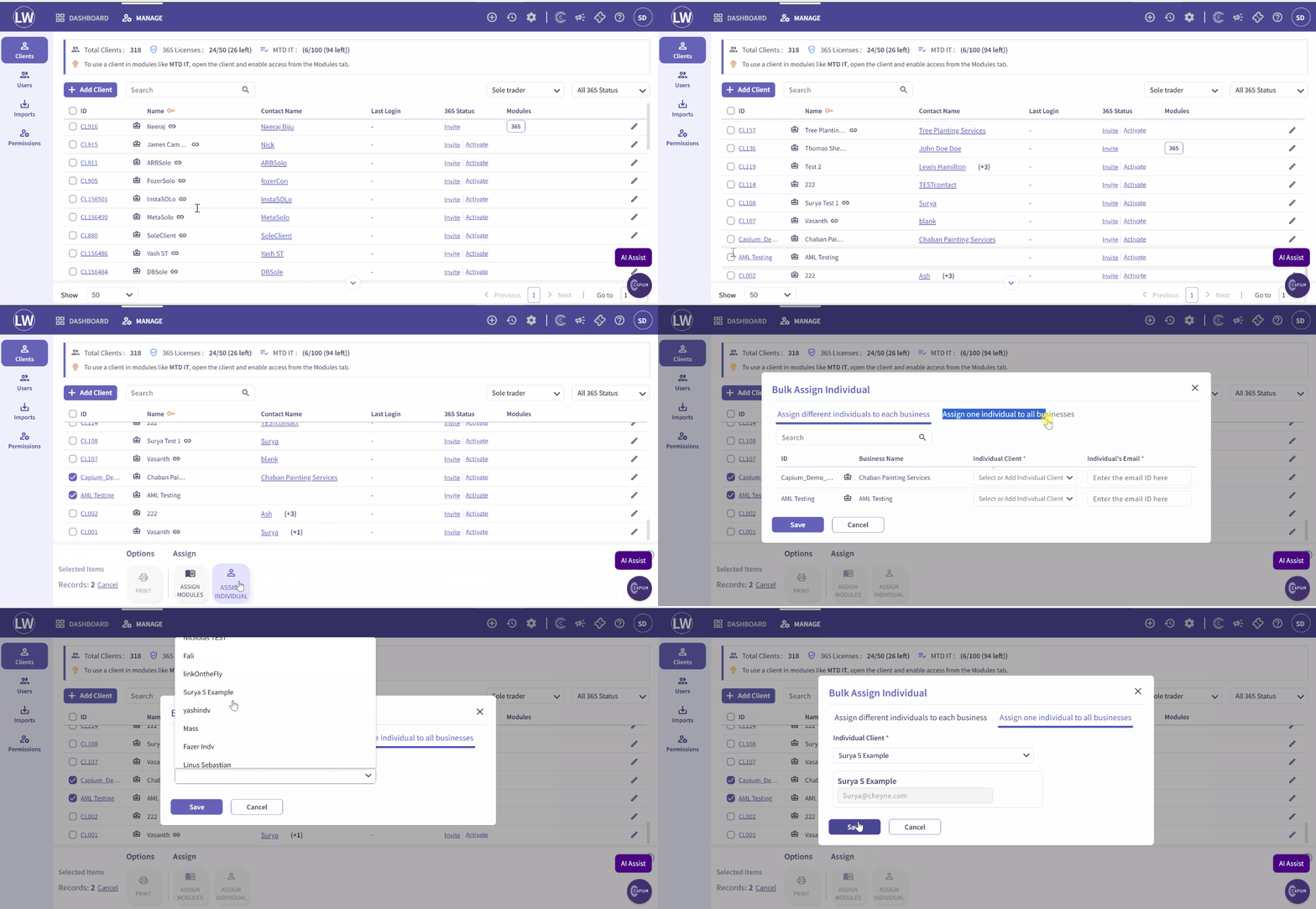
Please Note: Please be aware that two separate records will still appear in 365, My Admin, and Practice Management. This is intentional and does not indicate a duplication or error. The records remain separate because the sole trader and the individual are legally distinct entities, even though they share a single licence. |
Related Articles:
MTD IT - Linking the Sole Traders and Individuals in Bulk