
This article explains how to purchase the Capium MTD IT module.
Navigation: My Admin > My Subscription > Subscription
Alternatively click on this link to be redirected.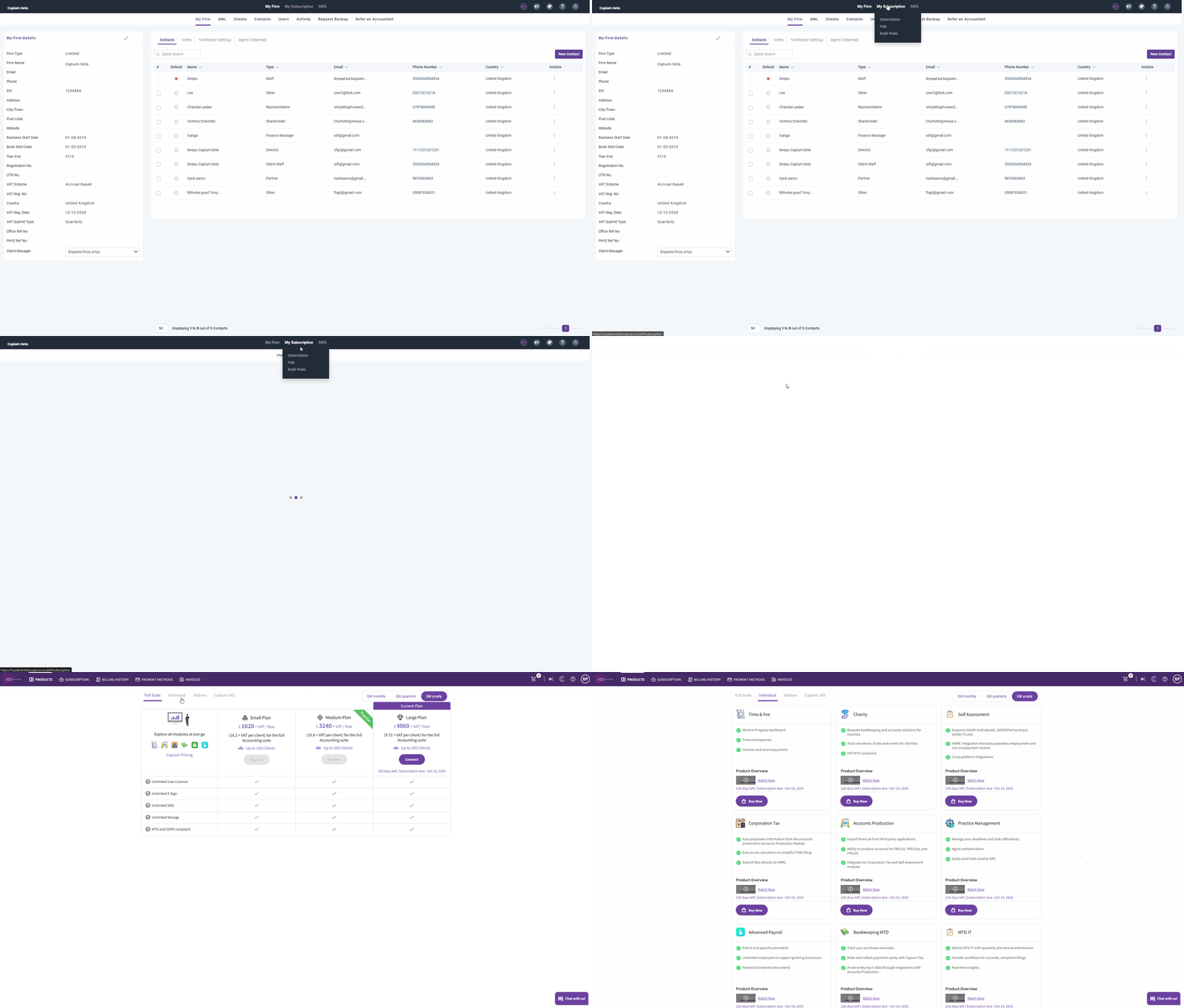
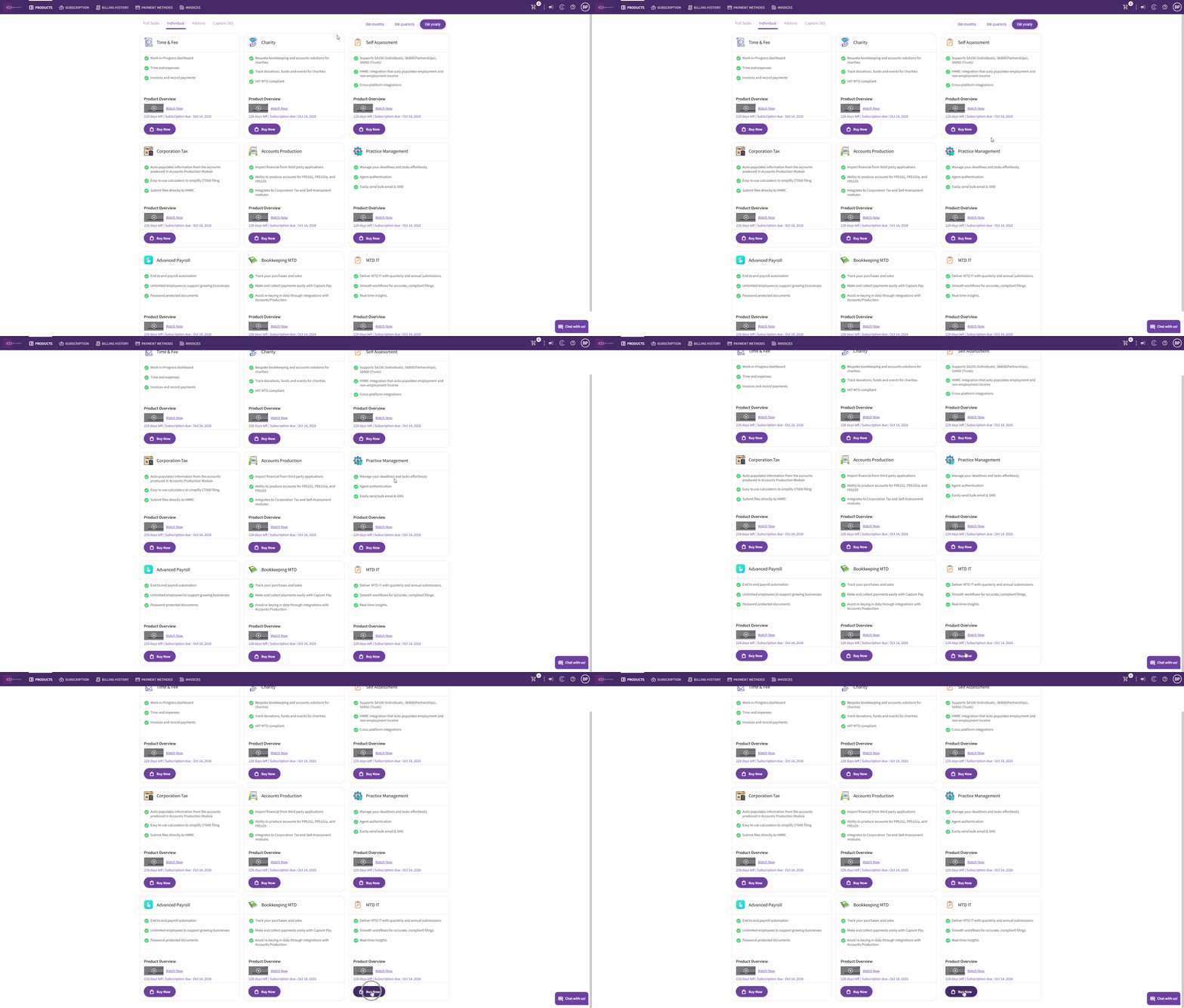
Locate and select the MTD IT module
Scroll to the bottom of the Individual product list until you see the MTD IT module. Next to the MTD IT entry, click Buy Now to view the available packages and licence options.
Review the available MTD IT package you require.
Your client limits are based on the total number of clients you plan to import into the MTD IT module.
For example:
Your licensing is calculated based on the are clients in the MTD IT module not the total number of client in the practice.
In a practice with 500 clients if you only need 100 licences within MTD IT, then the client limit you need is 100.
Add the MTD IT package to your cart
Once you have selected the appropriate package, click Add to Cart.
Complete payment using Direct Debit or Card
If you already have a Direct Debit set up with Capium:
The MTD IT licence cost will be taken automatically as part of your next Direct Debit collection.
If you do not have a Direct Debit set up:
You will be taken to a payment screen. Enter your card details and bank details to set up a new Direct Debit mandate.
Follow the on-screen prompts until the Direct Debit setup and purchase are confirmed.
For Immediate access we recommend making a card payment then setting up the direct debit.
If you require assistance after purchasing the module:
Existing customers: Contact the Renewals Team at renewals@capium.com
New customers: Contact the Sales Team at sales@capium.com
Related Articles