
This article explains how to set up a foreign property source for a client and make MTD IT quarterly submissions against it. Foreign property is handled differently from self-employment and UK property sources, so treat it as a separate workflow rather than a variation on the others.
Before you start
Make sure the following are in place before you begin:
- The client has been added to the MTD IT module (see MTD IT - Adding New Clients)
- The client is authorised with HMRC (see MTD IT – Client Authorisation Workflow)
- The client is registered for MTD IT with HMRC (see MTD IT - Checking and Registering your client with HMRC)
- A tax year has been created for the client
Step 1: Save the tax return with the HMRC sources
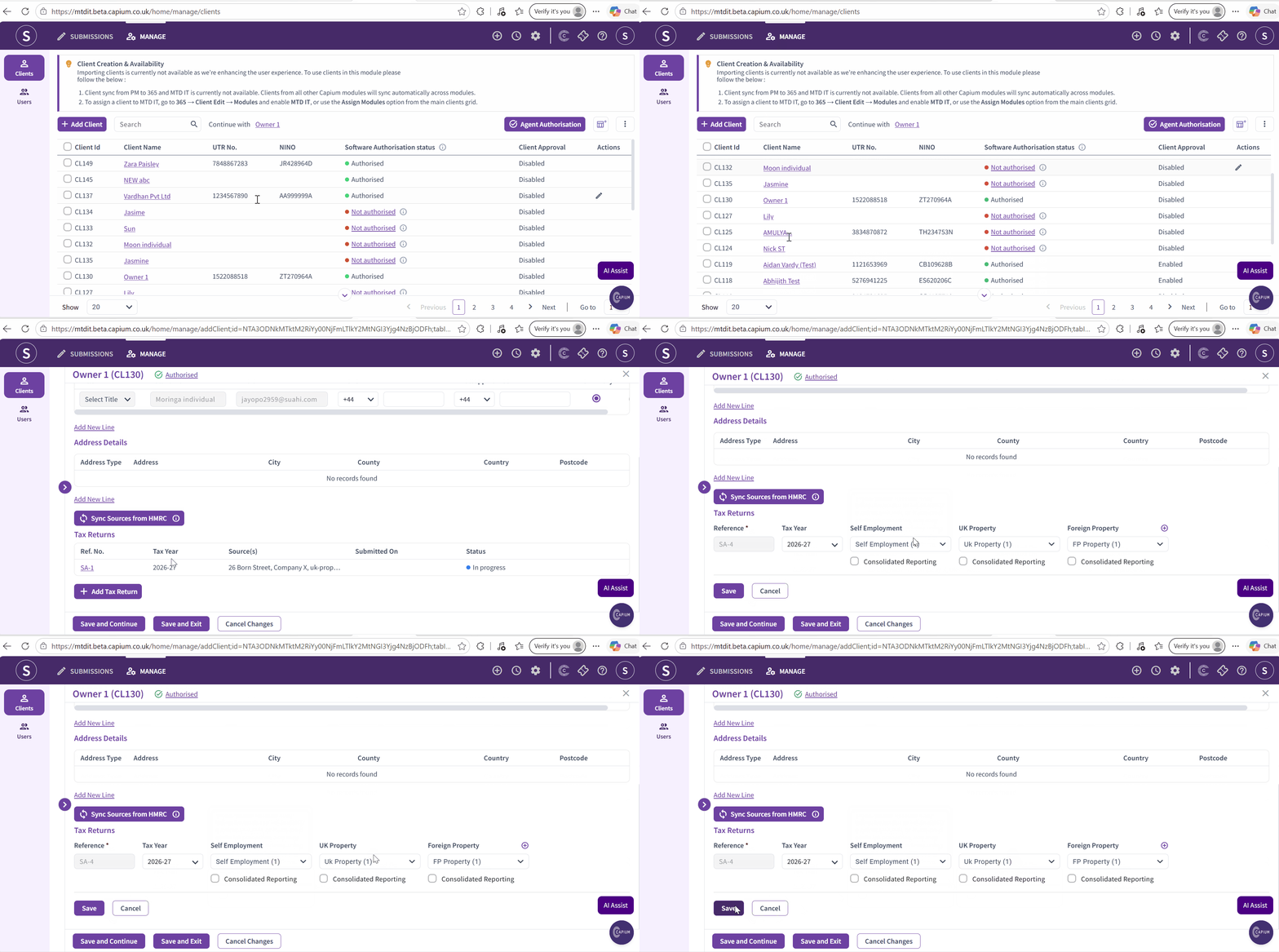
Navigation > MTD IT > Manage > Select the client > Tax Return
- Open the sources drop-down. The self-employment and UK property sources held by HMRC will be listed here.
- Select the sources that apply to the client.
- Click Save.
Note: You need to save the tax return before you can add foreign property sources. Foreign property will not appear in this drop-down at this stage.
Please see picture below :
Step 2: Add each foreign property as a source
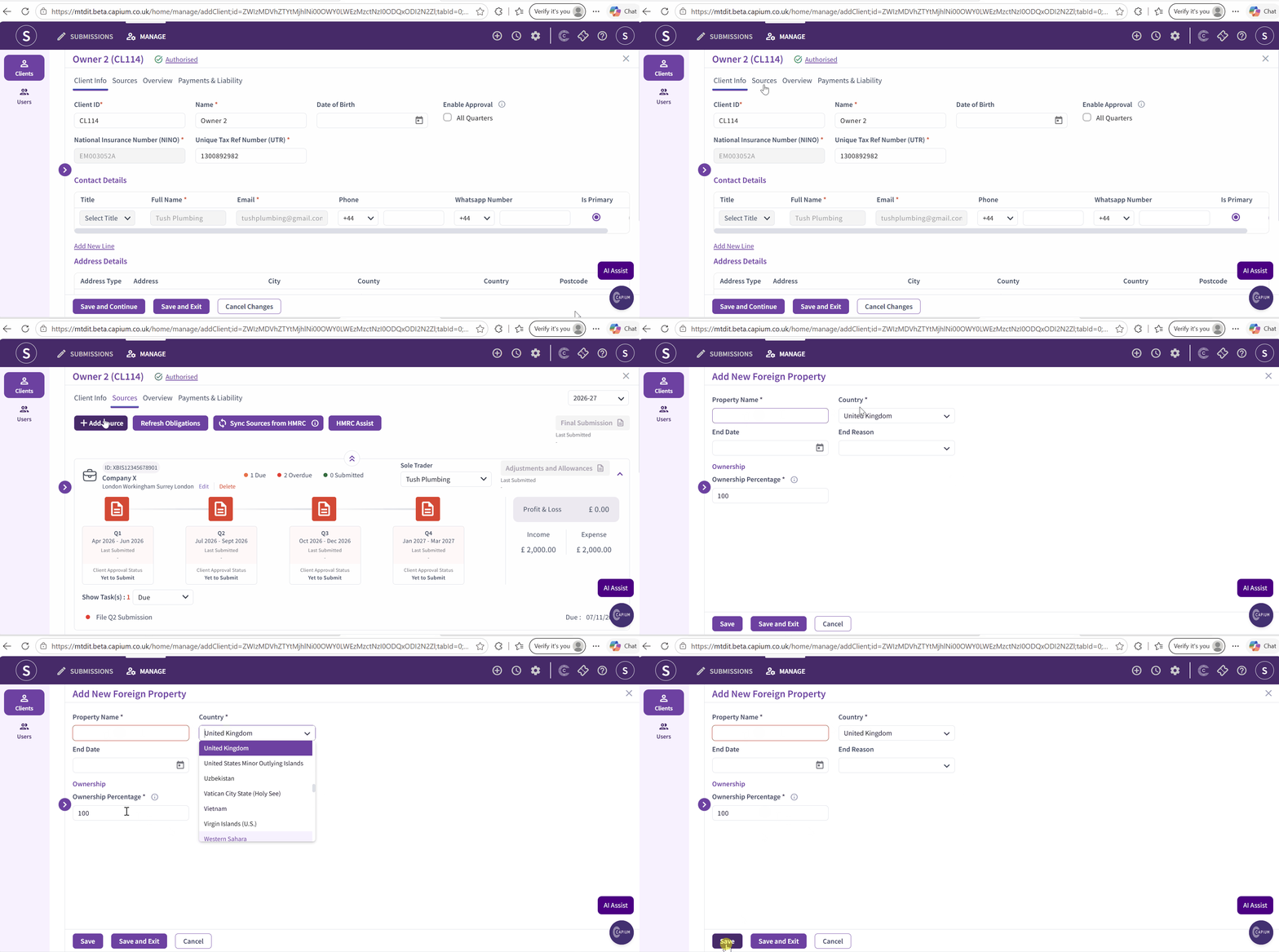
Navigation > MTD IT > Manage > Select the client > Sources > Add Source
- Click Add Source.
- Complete the property details on the form.
- Give the property a name that clearly identifies it. Each property needs its own distinct name, for example Greece Property 1 and Greece Property 2.
- Select the country the property is located in.
- Enter the ownership percentage (see Step 3 below).
- Click Save.
The property is now created in the software. It will not appear against the client's return until you complete Step 4.
Note: Add your foreign properties individually. Do not group multiple properties into a single source, even where they are in the same country. HMRC assigns a unique property reference to each one.
Please see picture below :
Step 3: Set the ownership percentage
The ownership percentage controls how Capium apportions income and expenses for that property.
If you are | Set the ownership percentage to | And upload |
Letting Capium apply the ownership split | The client's actual share, for example 50% | The full 100% income and expense values |
Applying the split yourself before upload | 100% | The client's share only |
Step 4: Select the property against the client
Adding a property in Step 2 creates it, but does not attach it to the client's return. To complete that:
Navigation > MTD IT > Manage > Select the client > Client Info > Edit
- Click Edit.
- The foreign properties you have added will now be listed.
- Select each foreign property you want included.
- Click Save.
The sources section will now show your foreign properties alongside the client's other income sources.
Please see picture below for reference :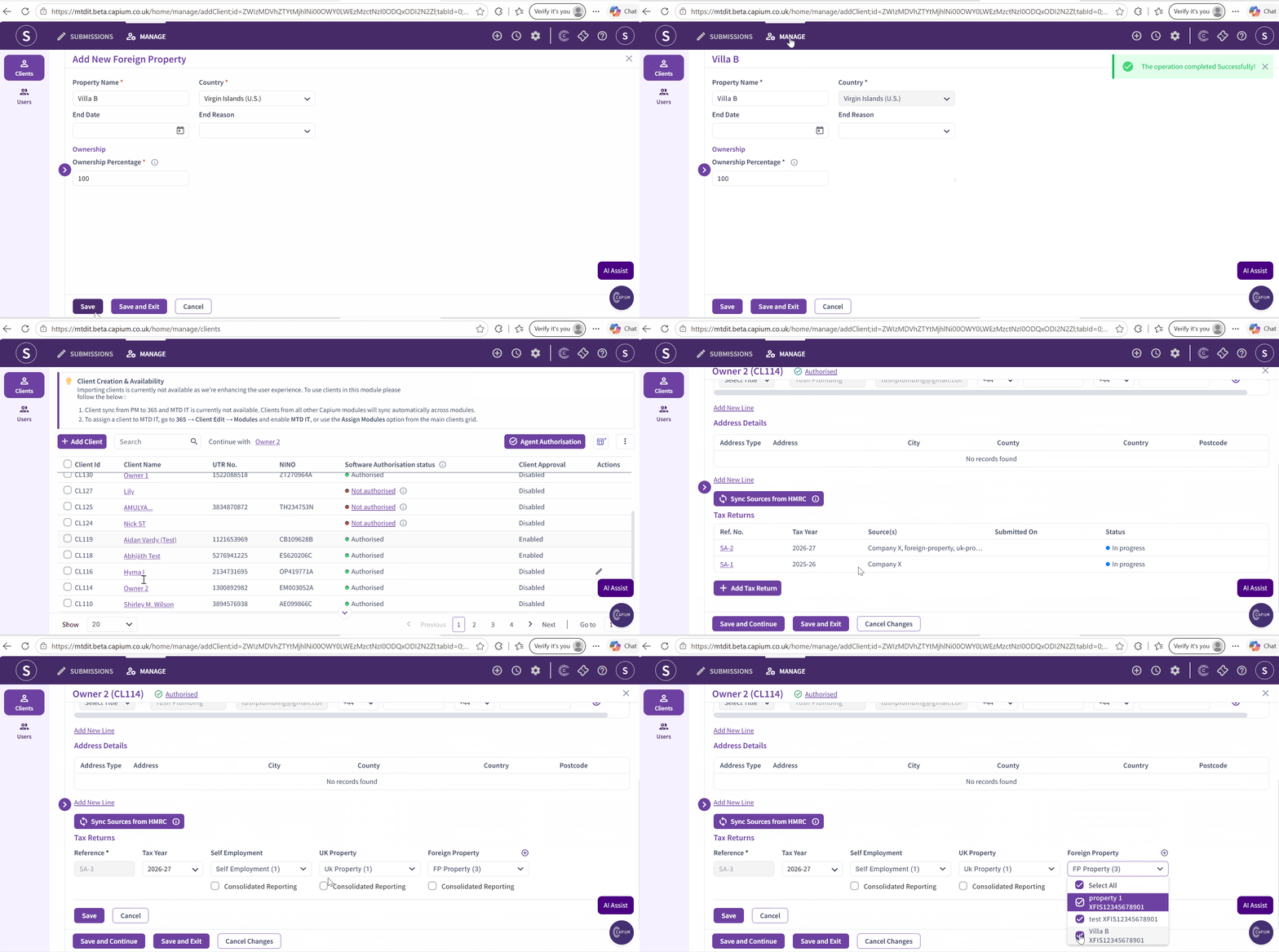
Repeat per property
Steps 2 and 4 must be completed for every foreign property the client holds.
The full loop for each property is:
- Sources > Add Source > complete the details > Save
- Client Info > Edit > select the new property > Save
Recommendation: complete the loop fully for one property before starting the next. Adding several properties in Sources and then returning to Client Info once makes it easy to miss a property, and a property that has not been selected will not be included in the submission.
Once all properties have been added and selected, save the return.
Step 5: Upload digital records for each property
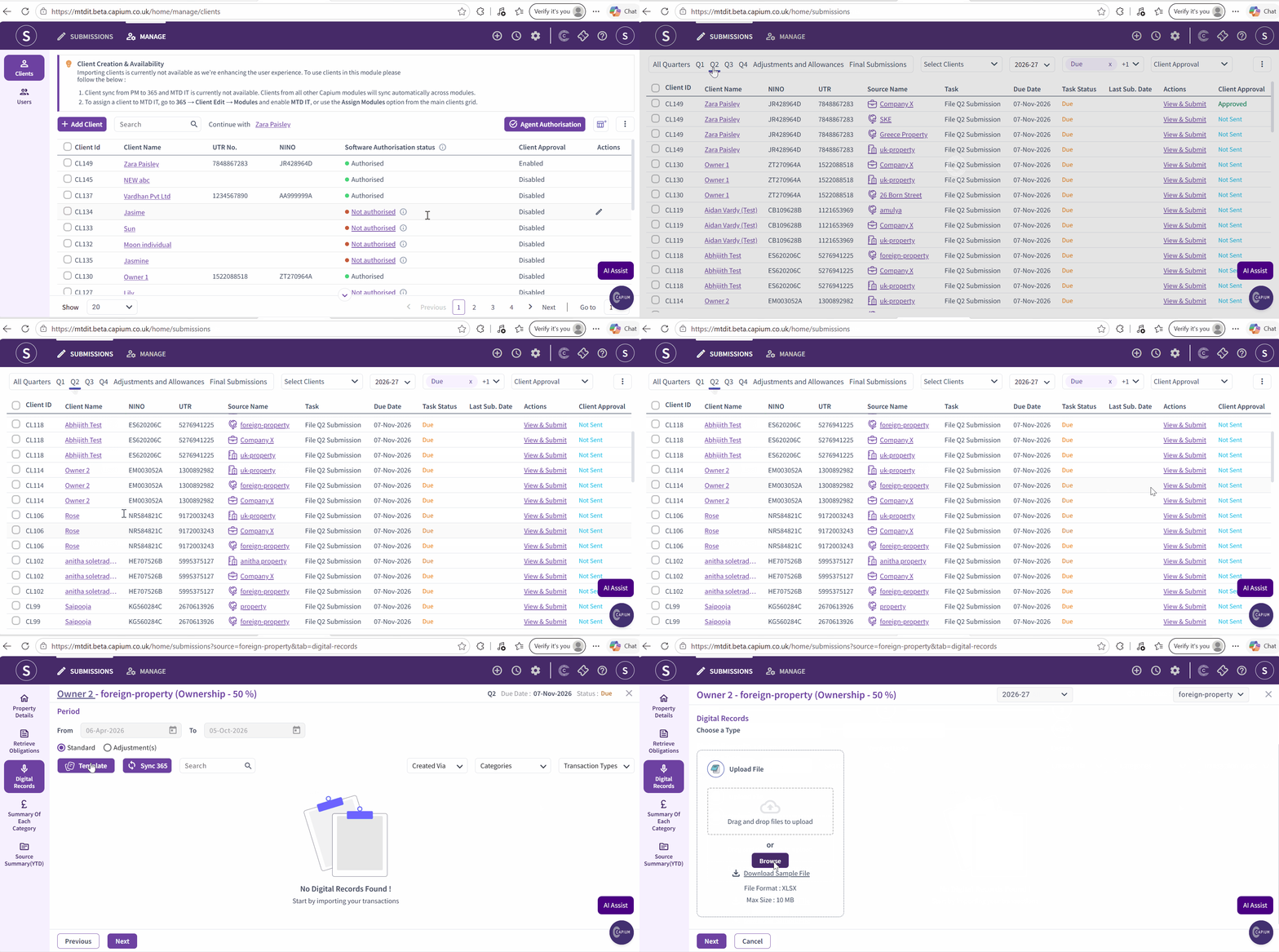
Navigation > MTD IT > Submissions > Select the property source > View & Submit > Digital Records > Template
Each foreign property appears in the Submissions grid as its own line. Select the property you want to work on and click View & Submit.
- Download the CSV template.
- Populate the relevant fields.
- Save the file, then upload it using browse or drag and drop.
- Click Next.
The system will return a success list, a duplicates list and an error list so you can check what has imported.
For the full template process, see Template upload for Foreign Property. For background on what digital records are and how they work in MTD IT, see MTD IT: Understanding Digital Records.
Important: Digital records cannot be edited directly within the MTD IT module. Any corrections must be made at source, which means in the spreadsheet or in Capium 365, depending on where the client's records are kept. Once corrected, re-upload the records into MTD IT.
Please see picture below for reference :
Step 6: Review and submit to HMRC
- Review the cumulative summary for each property (see MTD IT – Cumulative Summary).
- Where your firm's process requires it, obtain client approval before submitting (see MTD IT Client Approval).
- Submit the quarterly update to HMRC for each property (see MTD IT – How to make Quarterly Submissions).
Submit updates for all four quarterly periods in the tax year, following the same steps each quarter.
Related articles
- MTD IT: Understanding Digital Records
- MTD IT: Setting Ownership Percentages for Property Splits in Bridging
- MTD IT: Handling Multiple Properties and Ownership Splits
- Template upload for UK Property
- MTD IT for Landlords: Getting Started and Making Submissions
- MTD IT – Cumulative Summary
- MTD IT – How to make Quarterly Submissions