
Once a client has been authorised, their income sources are pulled directly from HMRC. Capium can only display the sources HMRC holds against that client. If a source appears to be missing, the first step is to confirm whether it is genuinely missing or whether it is being displayed in the way HMRC groups it.
Before you start
The client must be authorised to sync the sources from HMRC.
The symptom
The client has been authorised successfully and synced, but one or more expected income sources do not appear in the Sources tab.
Step 1: Check how sources are expected to appear
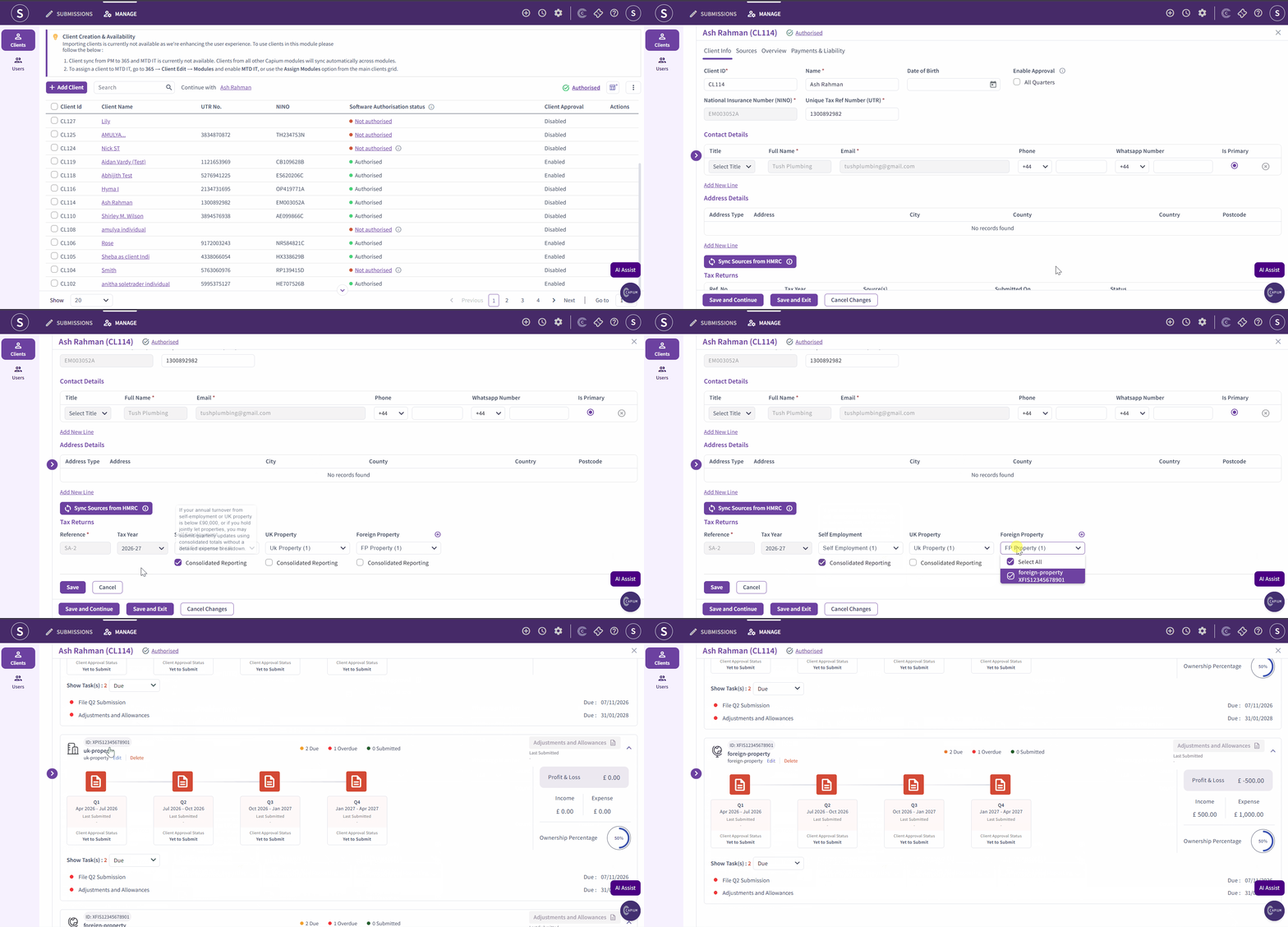
Sources are not always shown one to one against the properties or businesses the client holds. The grouping differs by source type.
| Source type | How it appears in MTD IT |
|---|---|
| Sole trade | Each sole trade business appears as its own separate source |
| UK property | One single source covering all UK properties, however many the client holds |
| Foreign property | User adds the required properties from the software. |
A client with four UK rental properties will therefore see one UK property source, not four. This is correct and reflects how HMRC treats property income. A client with three sole trade businesses will see three separate sources.
If the source you were expecting falls into the grouping above, no action is needed.
 Step 2: Resync the sources from HMRC
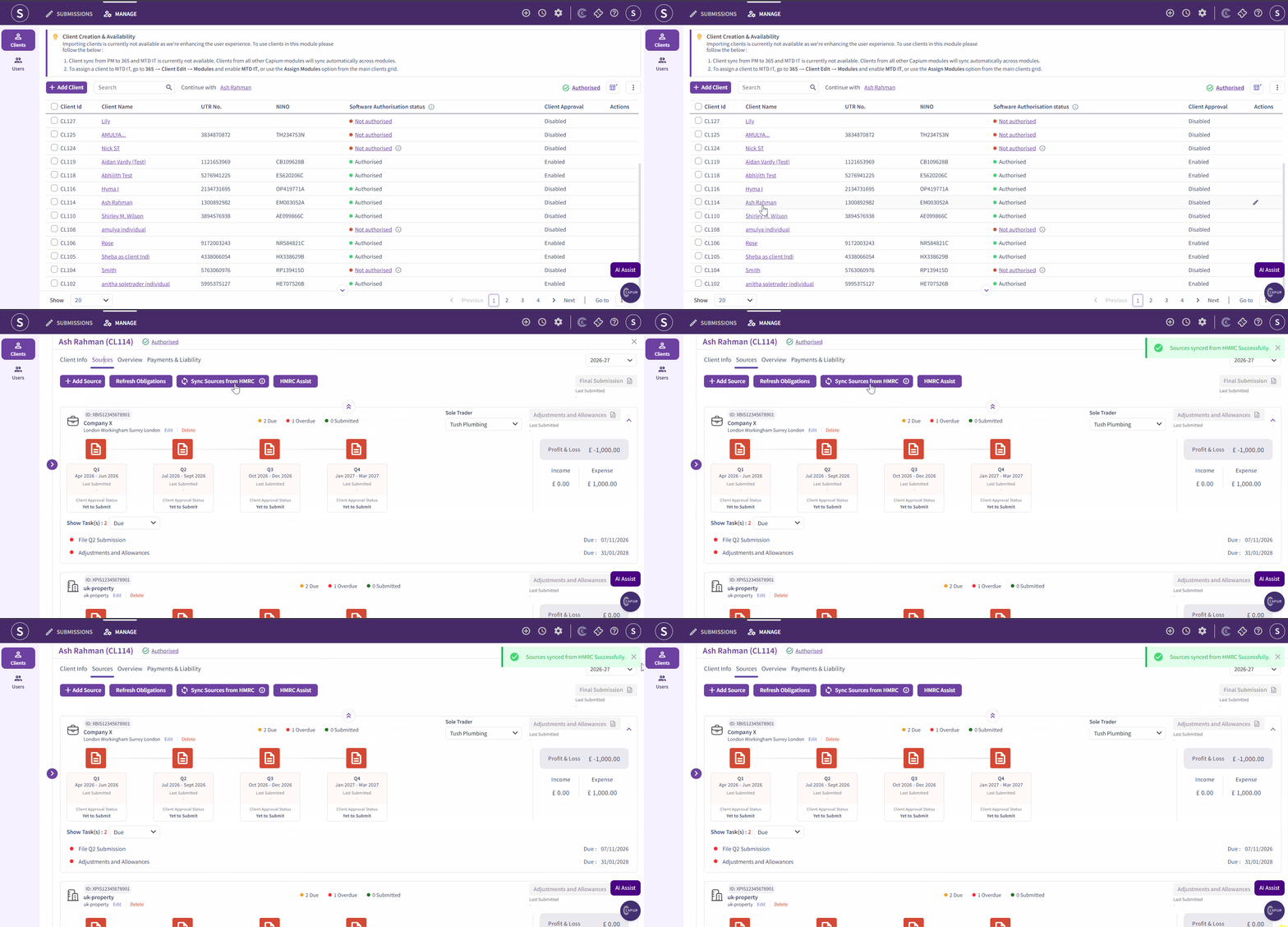
If a sole trade business is genuinely absent, or the UK property or foreign property source is missing altogether, resync first.
- Navigation > MTD IT > Manage
- Click into the relevant client.
- Open the Sources tab.
- Click Sync Sources from HMRC.
See MTD IT: Sync Sources from HMRC for full detail on this step.
 Step 3: Contact HMRC
If the source is still missing after resyncing, the source has not been recorded against the client on HMRC's systems. Capium cannot create a source that HMRC does not hold.
Contact HMRC directly to confirm what is held against that client's record. HMRC will be able to tell you whether the business or property has been registered, and whether anything is outstanding on their side.
Important: Do not proceed to step 4 until HMRC has confirmed the position and, where necessary, corrected the client's record |
Step 4: Revoke the authorisation and reauthorise to force a fresh sync
Once HMRC has updated the client's record, revoking and reauthorising forces the software to retrieve the client's details again from the beginning.
Important: If a tax return has already been created for this client, it must be deleted before the authorisation can be revoked. Revoking will also stop the HMRC data sync immediately, and no further submissions can be made until the client has been reauthorised. Submissions already made will remain in place. |
To revoke the authorisation:
- Navigation > MTD IT > Manage
- Use the search to locate the relevant client.
- Click on the client's name to open their record.
- Next to the client's name, click the Authorised button.
- In the pop-up, read the confirmation message and click I confirm that I want to revoke the HMRC authorisation.
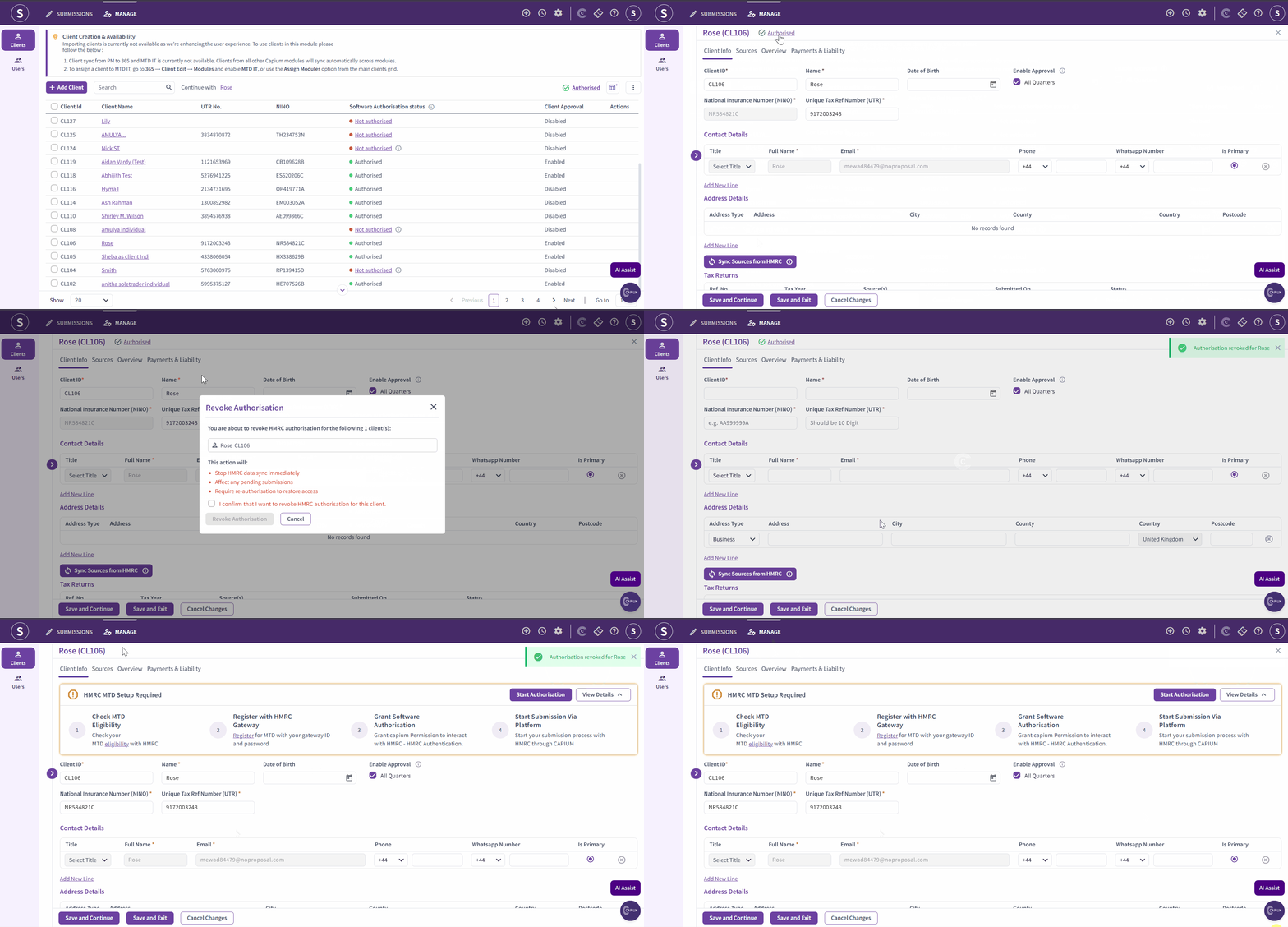 Full guidance is available in MTD IT: How to Revoke HMRC Authorisation for a Client.
To reauthorise:
Bulk Authorisation is the quickest route back in, particularly where more than one client is affected.
- Navigation > MTD IT > Manage
- Select the client or clients using the checkboxes on the left-hand side.
- Click Bulk Authorise.
- Complete the HMRC authorisation journey and select Give permission.
- You will be redirected back to Capium and the client status will update to Authorised.
See MTD IT: Bulk Authorisation for the full process.
Once reauthorised, return to the Sources tab and click Sync Sources from HMRC again. The client's sources should now pull through correctly.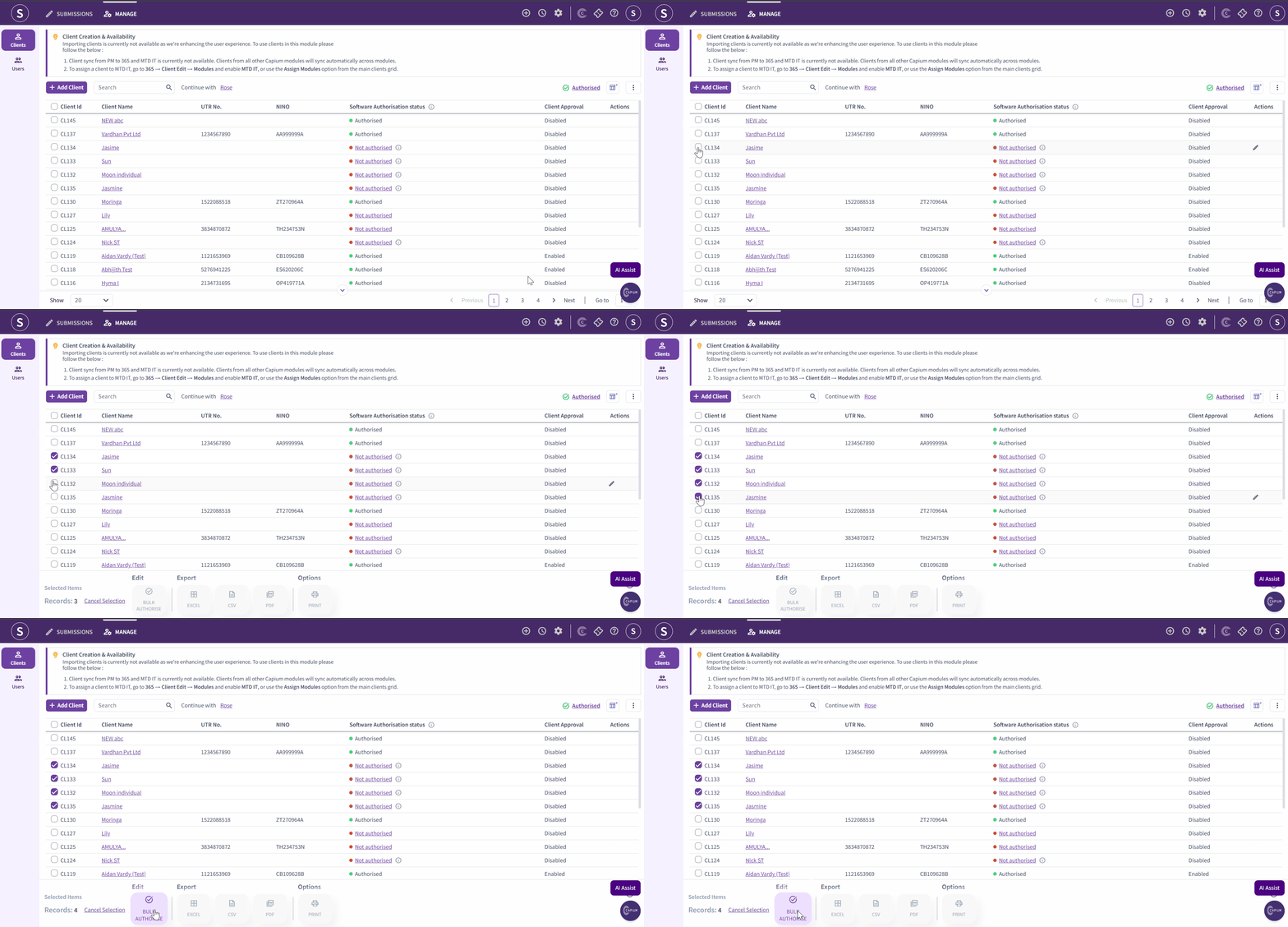
Still not resolved
If you have reauthorised the client more than once and the sources are still not appearing, check the Agent Services Account again to confirm the client has been linked to the MTD IT system. If the issue continues beyond that point, it will need to be investigated by HMRC directly.