Welcome to our set up guide for Capium 365.This guide will walk you through the essential steps and best practices to ensure a smooth setup and successful deployment.
If you would like to purchase Capium 365 licences please have look a the step by step guide linked below. Capium 365: How to Purchase Licenses
Click the link below to learn how to add clients in My Admin.
How to add clients in My Admin
Capium 365 - Client Invite and Activate
Navigation: Capium 365 > Manage > Clients
The next step is to navigate back to the Clients section. Here, you have two options. You can invite your clients to Capium 365 and collaborate with them by giving them access to their account. If you prefer not to collaborate with your client but still want to manage their account within Capium 365, you can do that as well.
Client Invite:
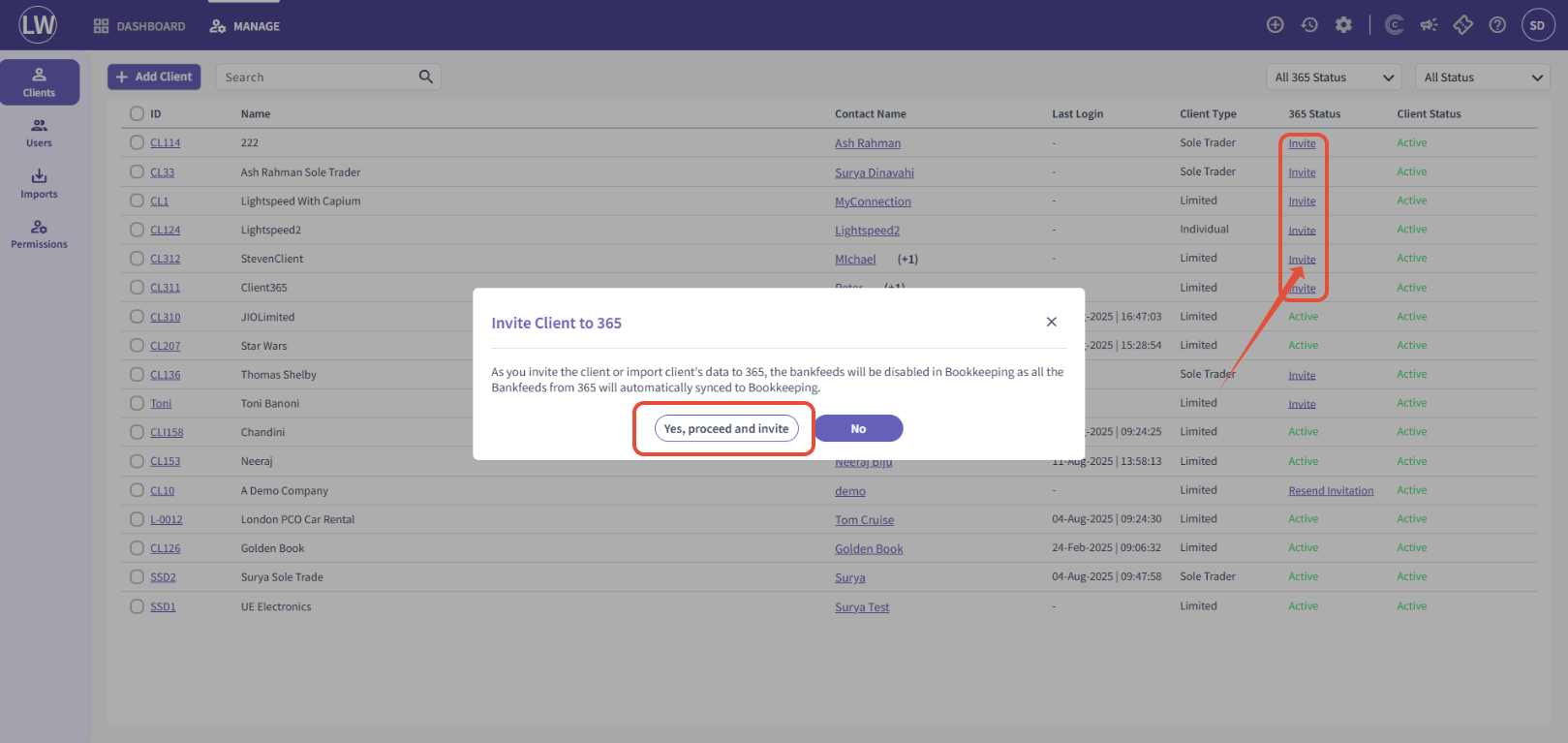
To invite your client to Capium 365, click the Invite button and then select Yes, Proceed and Invite. This will send an email invitation to the client.
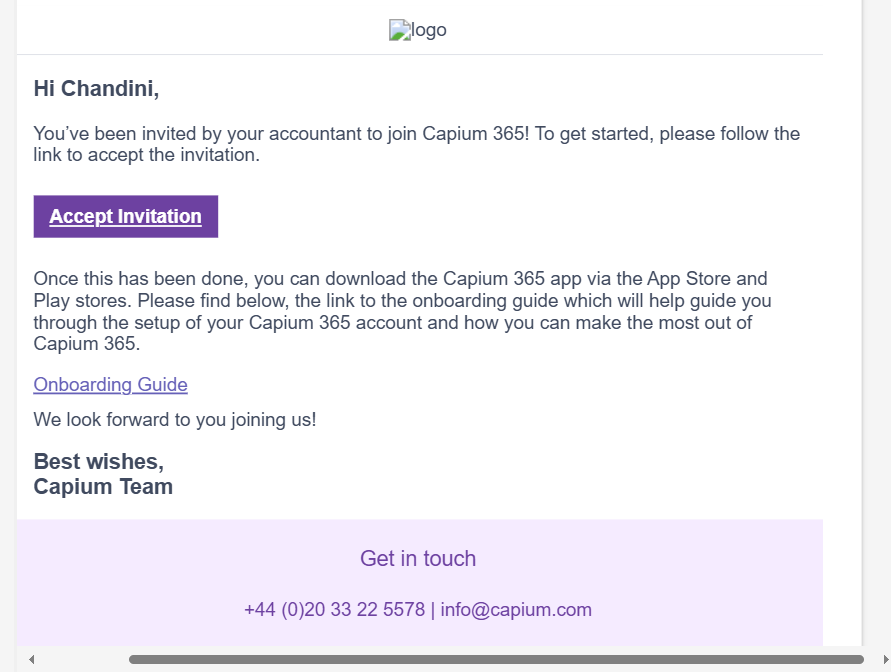
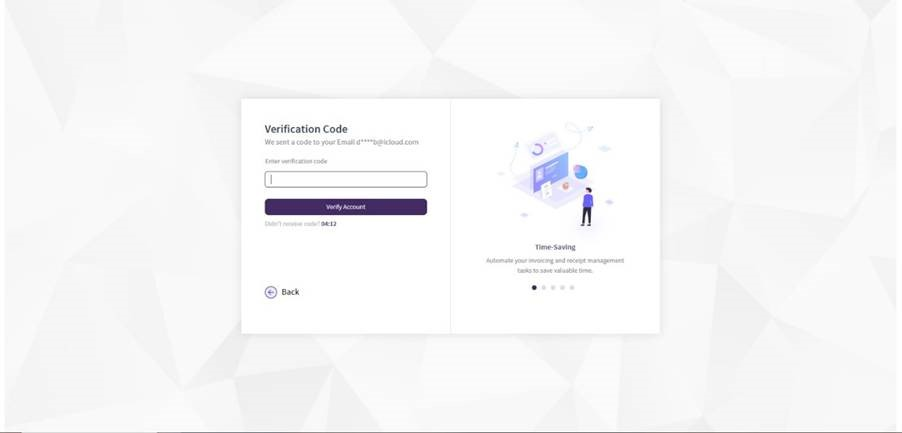
This picture below shows the email the client will receive when you send them a invite. All the client has to do is click the 'Accept Invitation' button, then enter the verification code sent to their email.
No Client Collaboration:
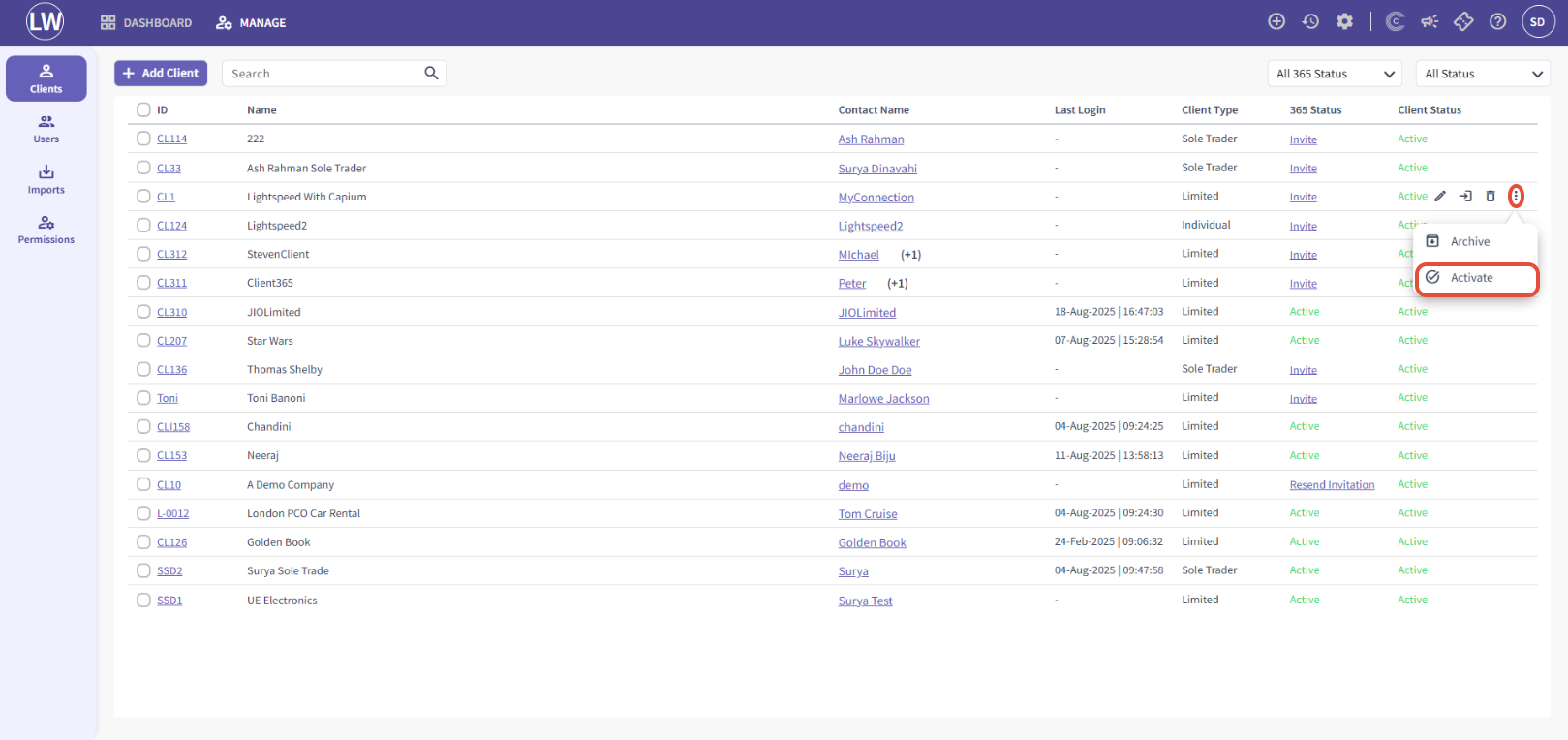
If you prefer not to collaborate with your client but still want to use Capium 365 on their behalf, click on the three dots shown in the image below and select Activate. This will give you access to the client's account without sending them an invitation to Capium 365.
Capium 365 - Settings
Navigation: Capium 365 > Manage > Client Specific > Settings > Imports
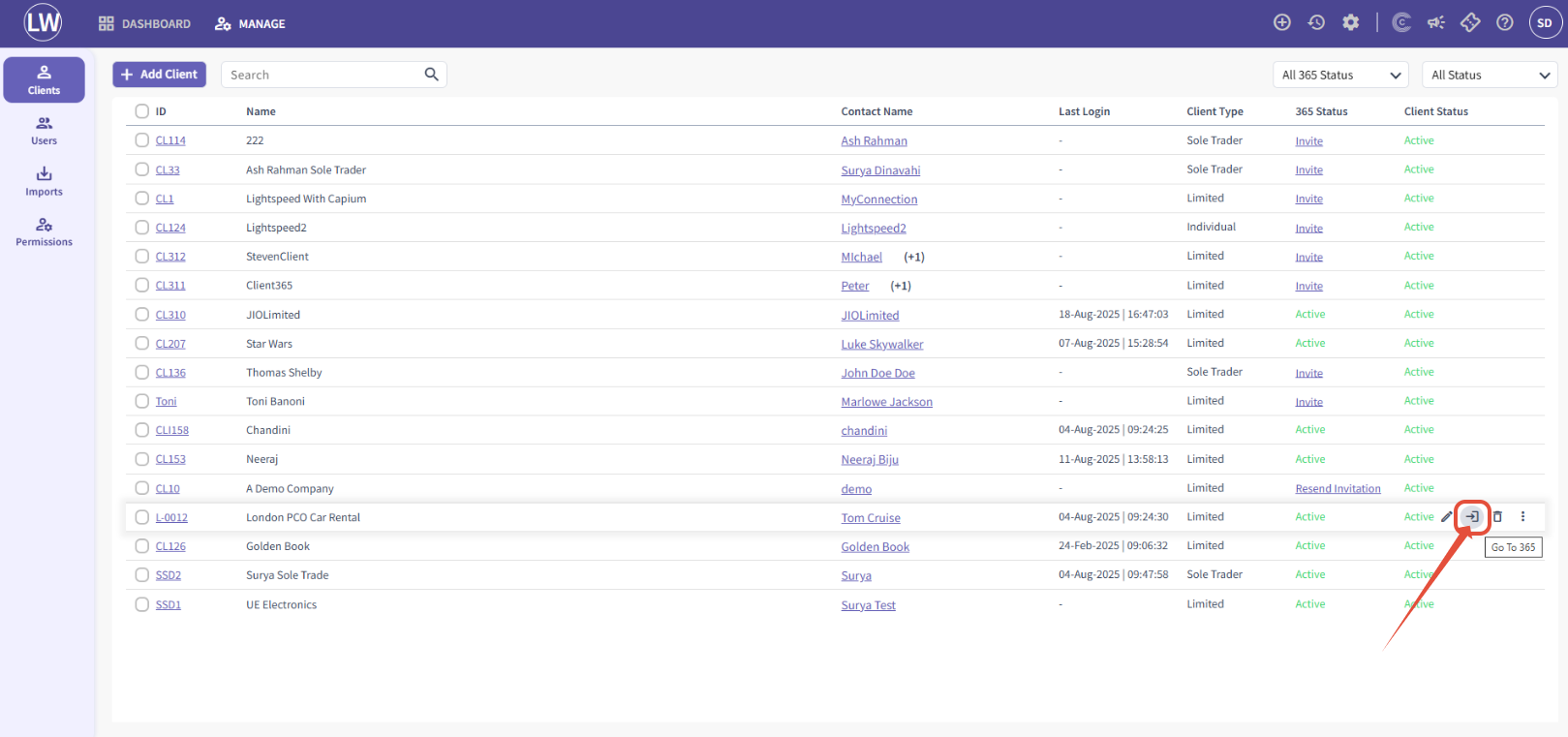
After inviting the client or activating the account, you can access that client’s specific area. Click on the 'Go to 365' button shown in the image below. This will take you directly to that client’s workspace.
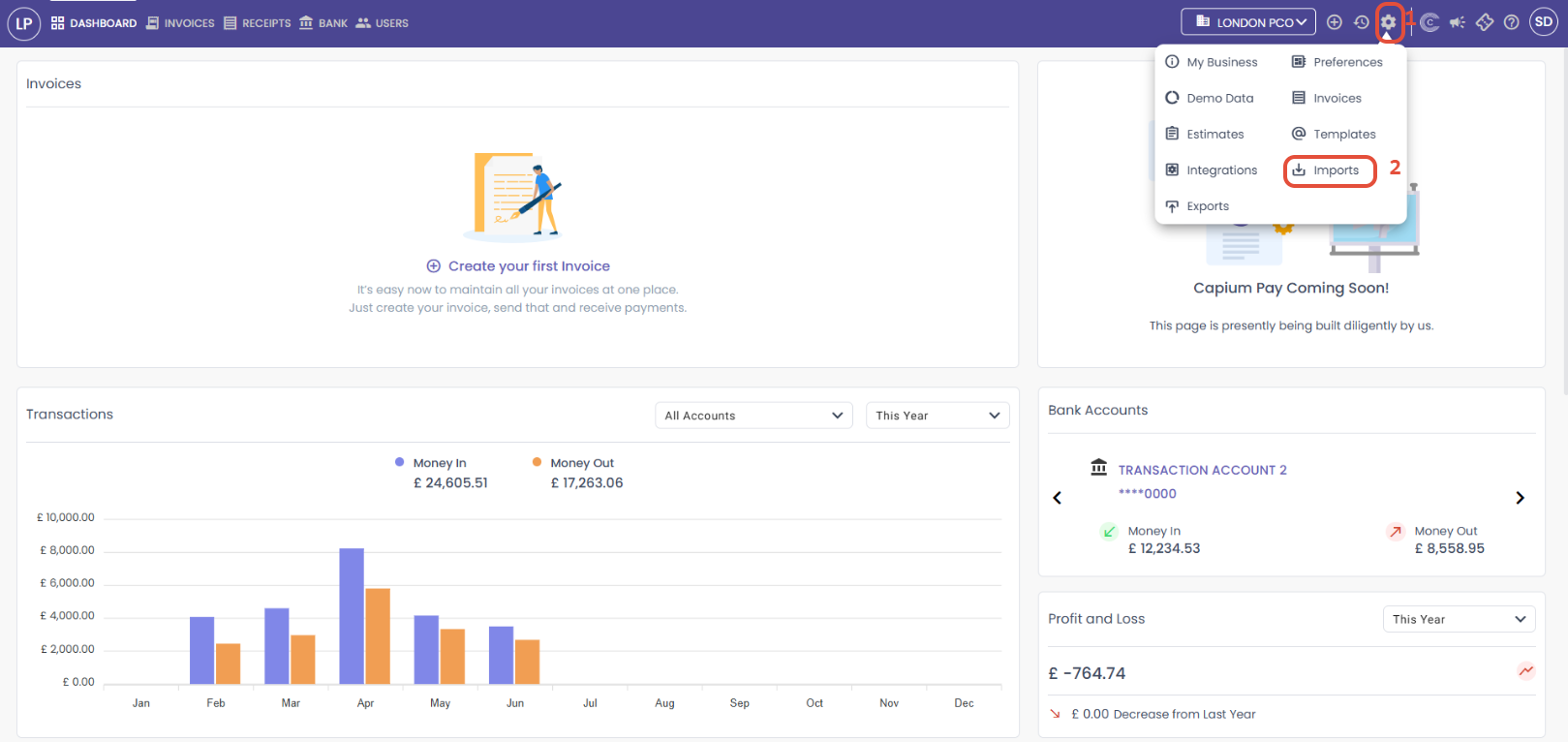
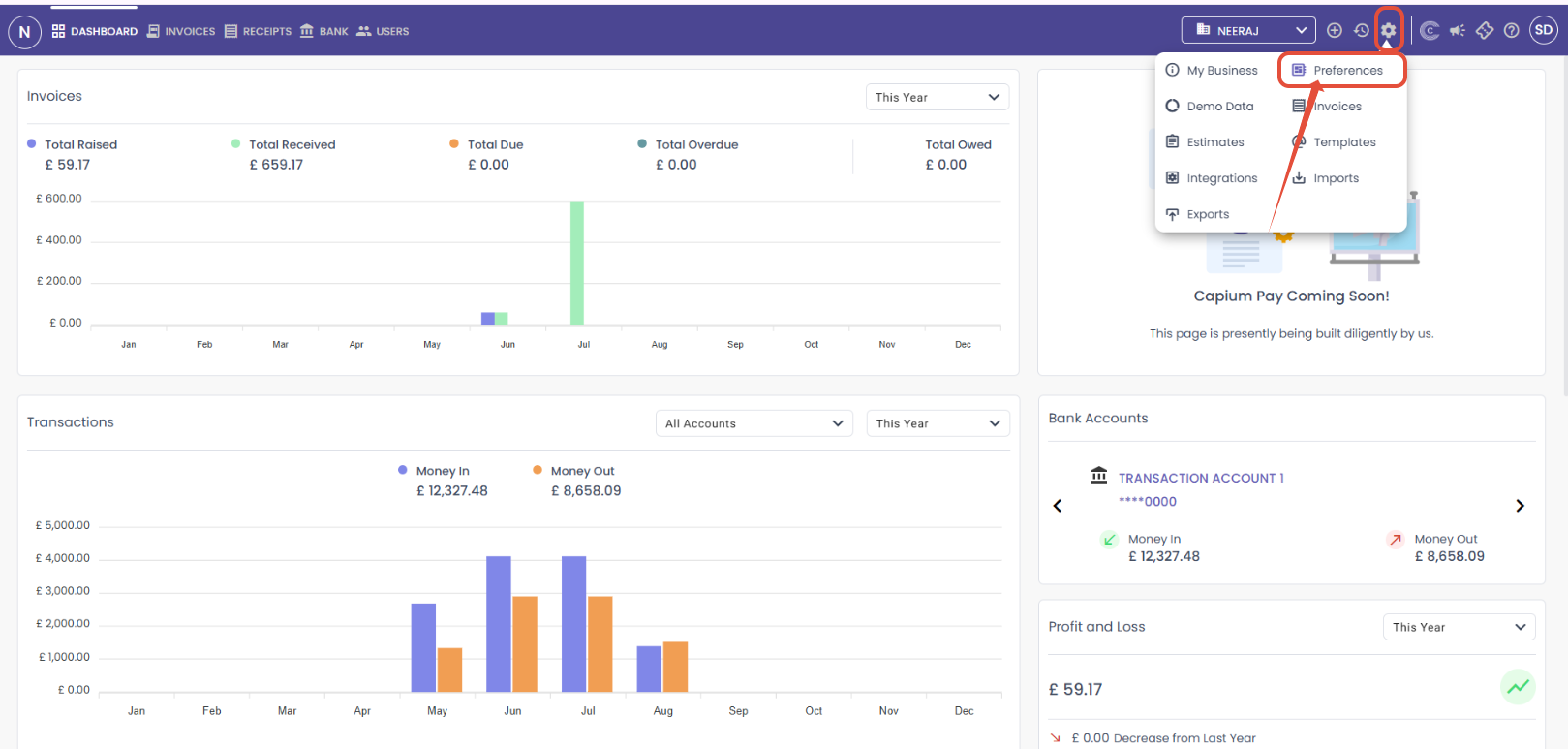
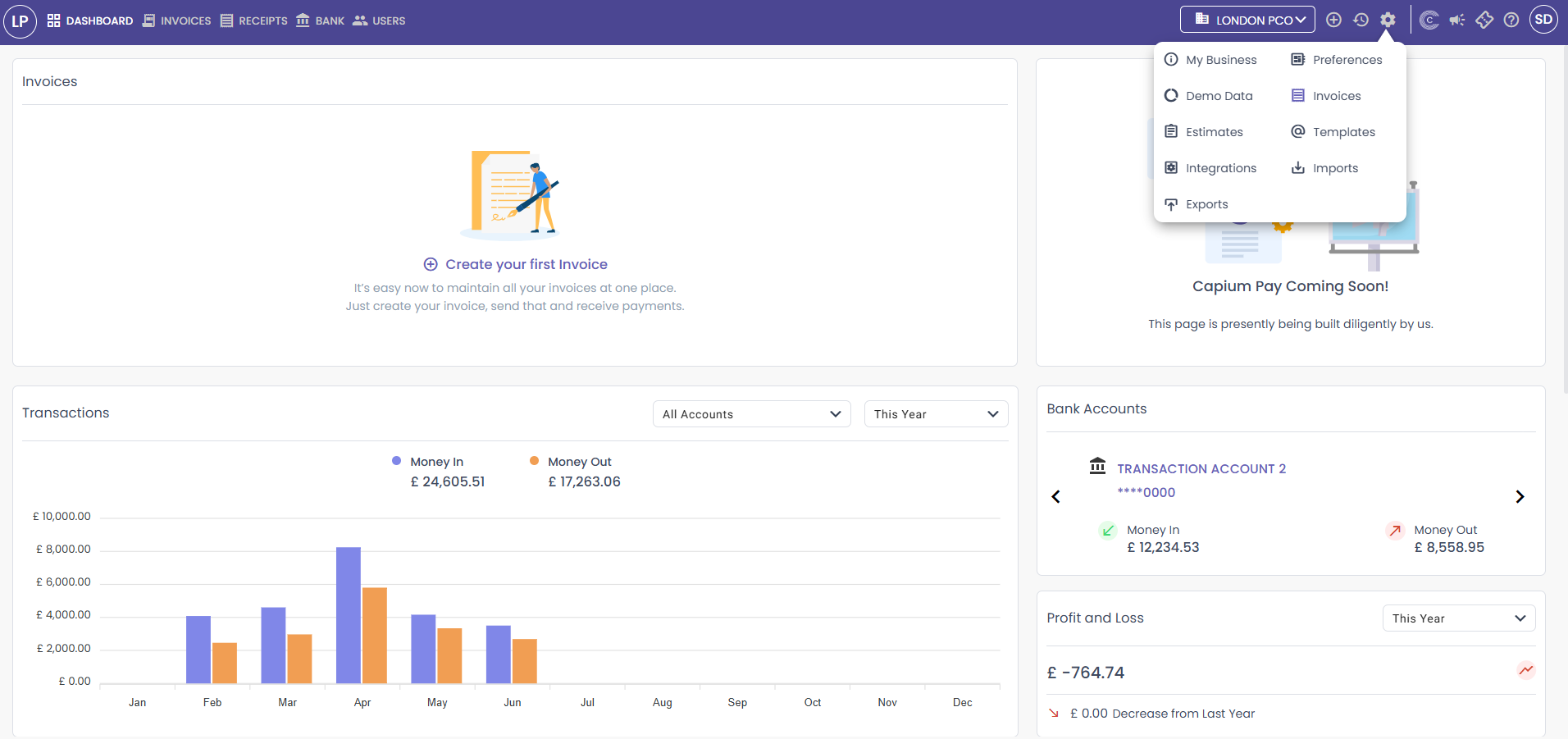
Once you enter the client’s workspace, navigate to the wheel icon in the top right corner and select Imports.
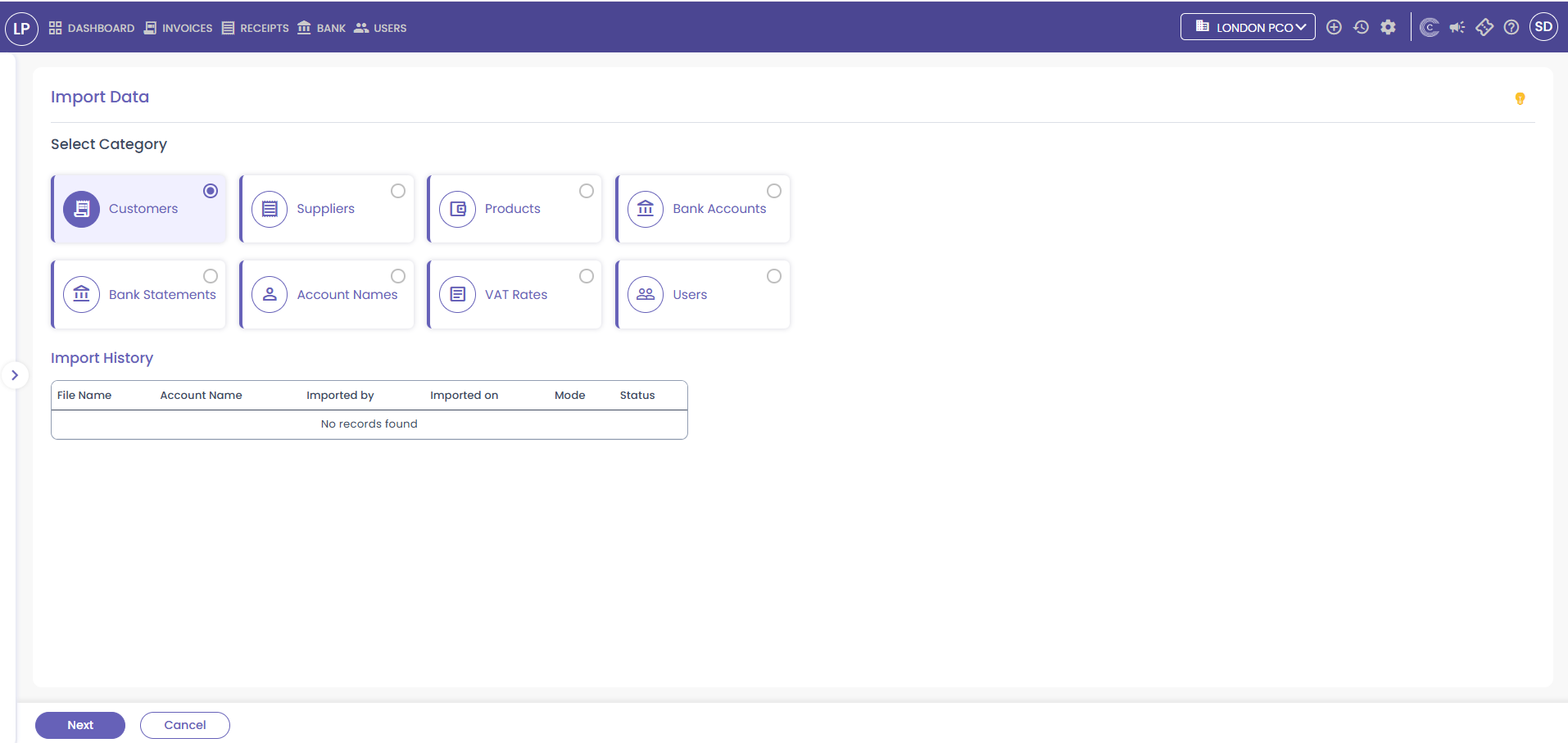
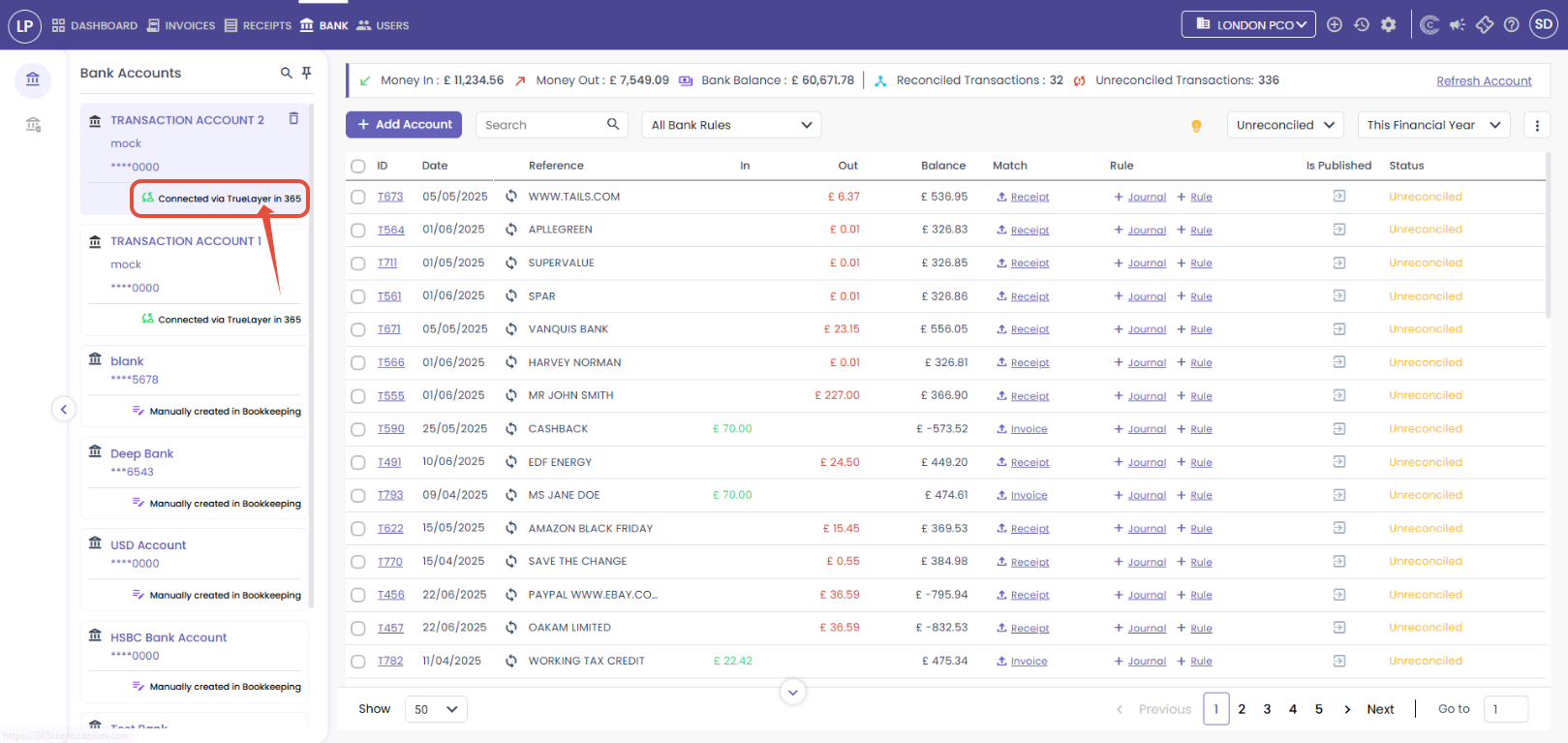
Here, you will find multiple categories that you can import directly from the bookkeeping module, such as Customers, Suppliers, Products, Bank Accounts, VAT Rates, Account Names, and Users. You can select a category by ticking the checkbox next to it and click next to continue.
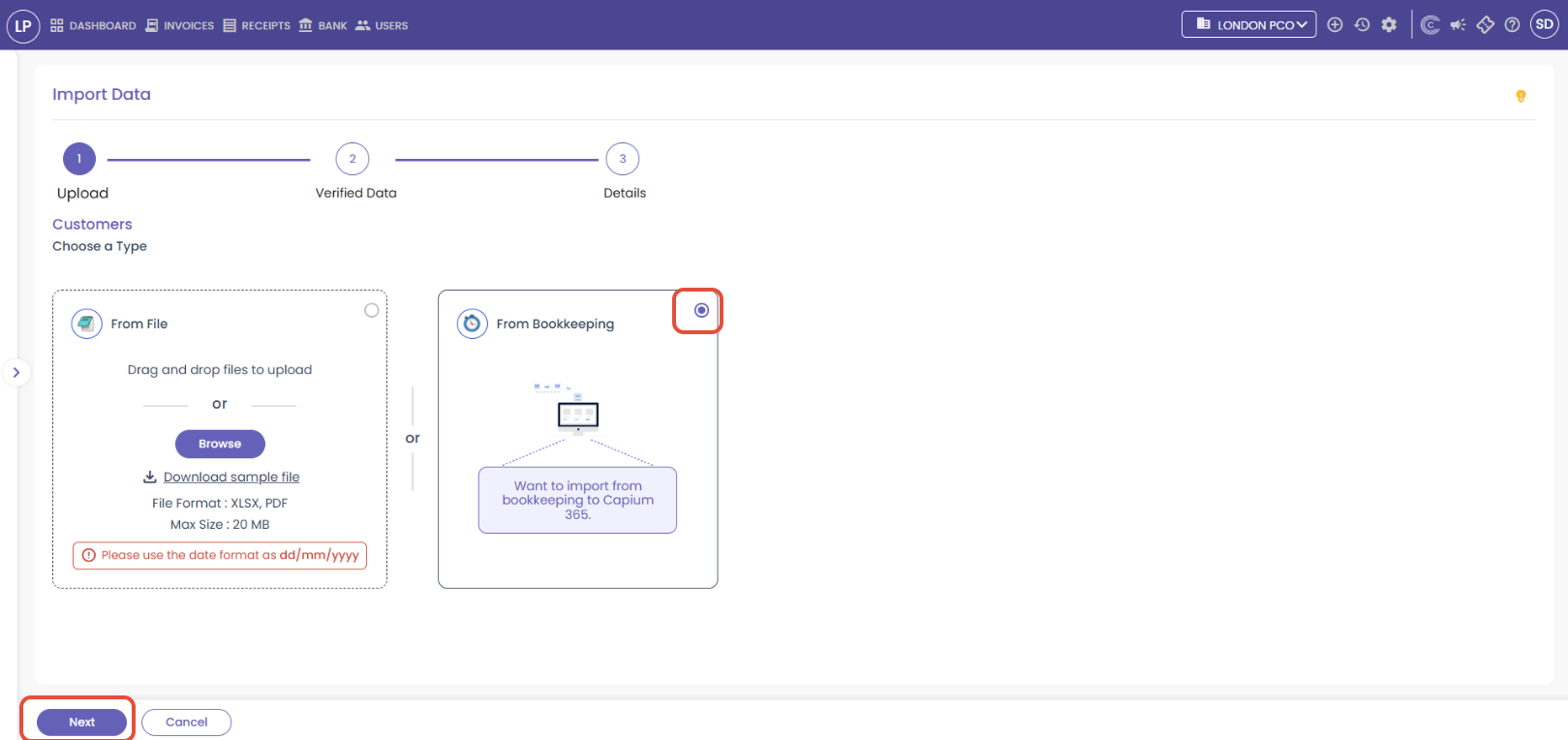
After you click Next, you will be taken to the page shown below. From here, tick the checkbox next to From Bookkeeping to import data directly from the bookkeeping module, then click Next.
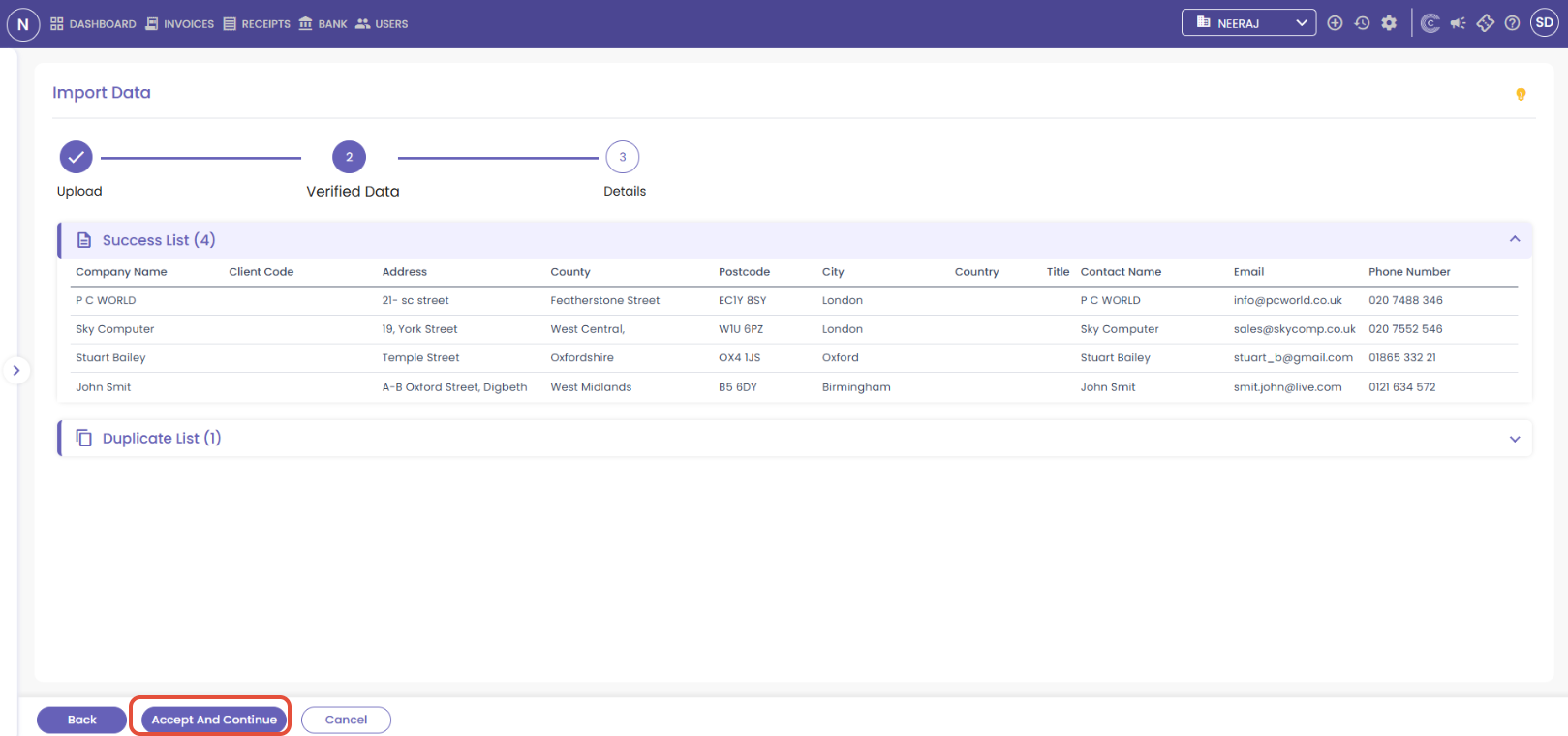
You will then be taken to the page shown below, here you will be able see all the customers that you have imported from the bookkeeping module, once your happy with the list click 'Accept and Continue'.
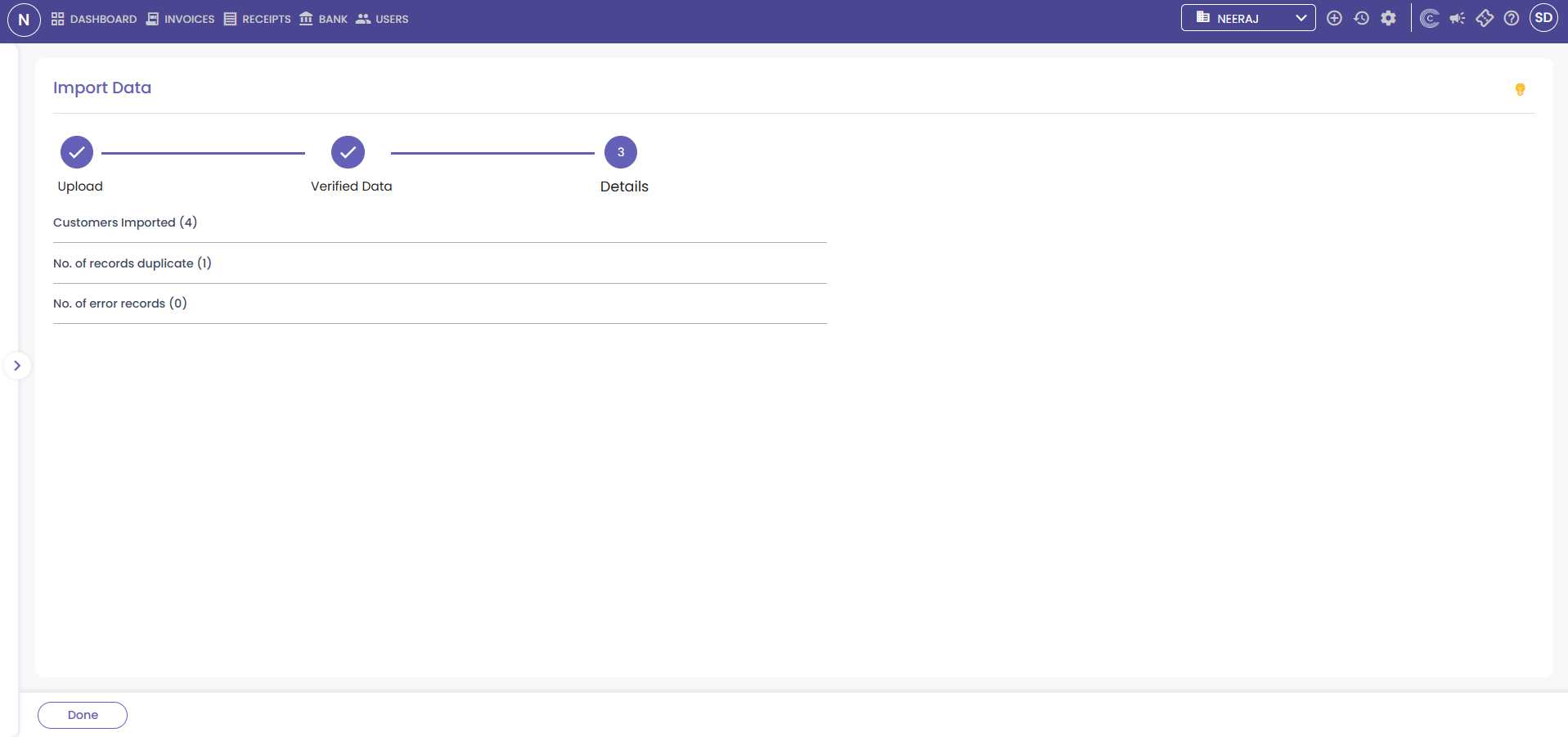
After you click Accept and Continue, you will be taken to the 'Details Tab', where you will see a quick overview of all the imported data. Click 'Done' to complete the import. You can do the same steps for all the other categories.
Capium 365 - Invoices
Navigation: Capium 365 > Manage > Client Specific > Settings > Invoices
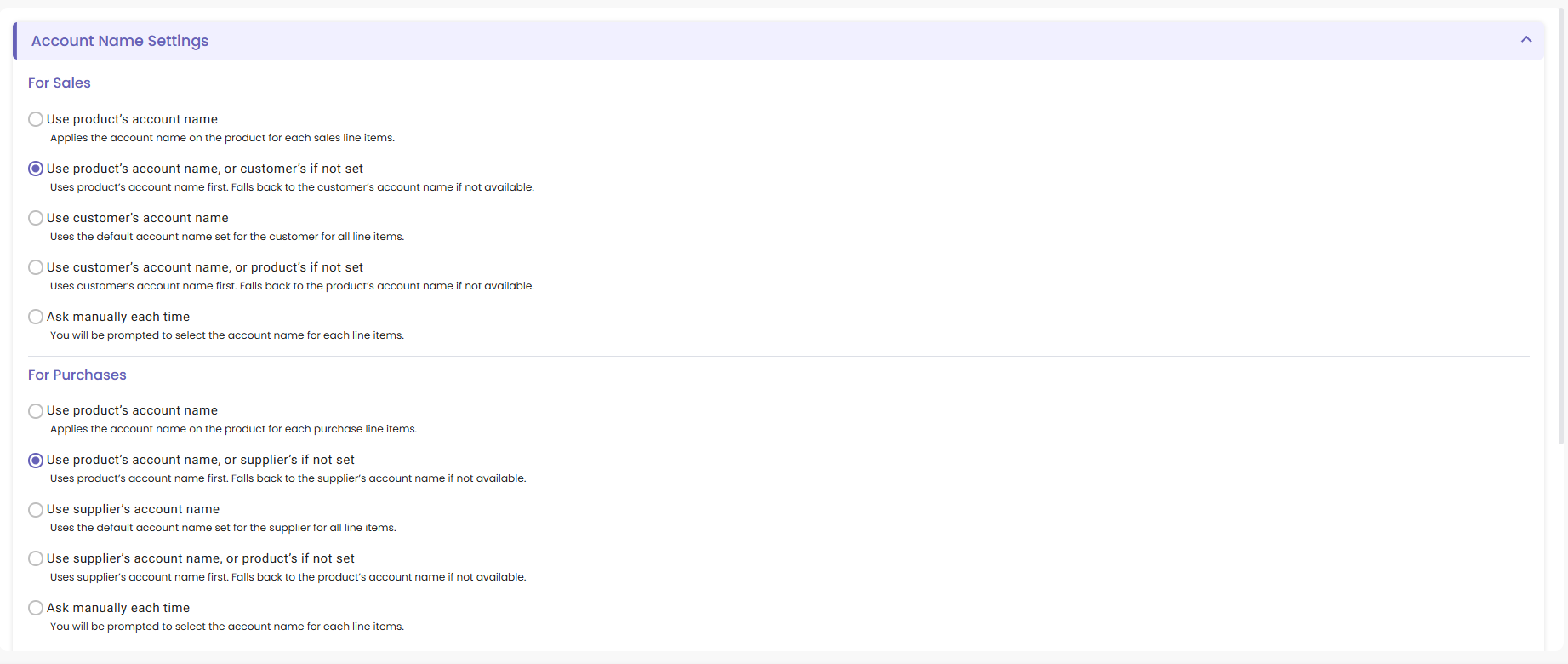
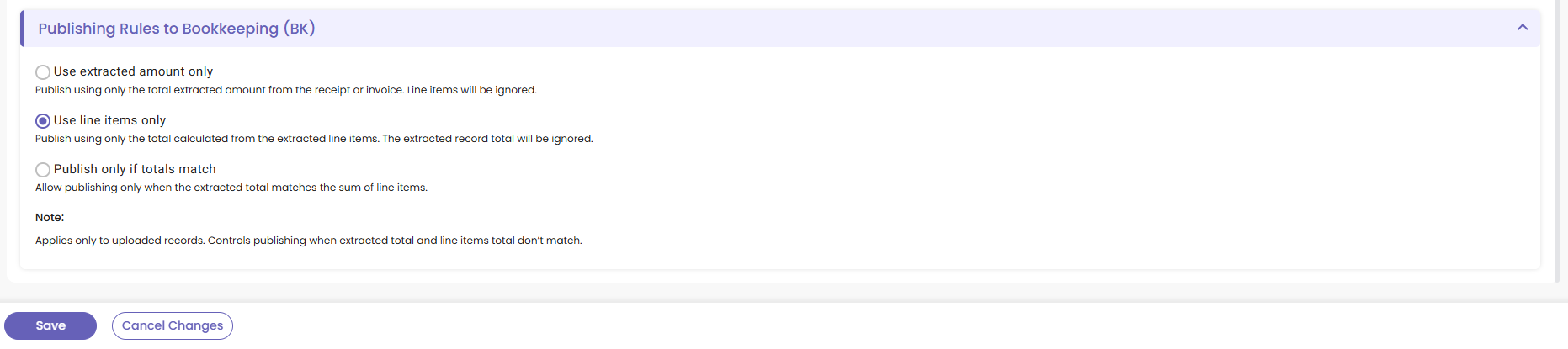
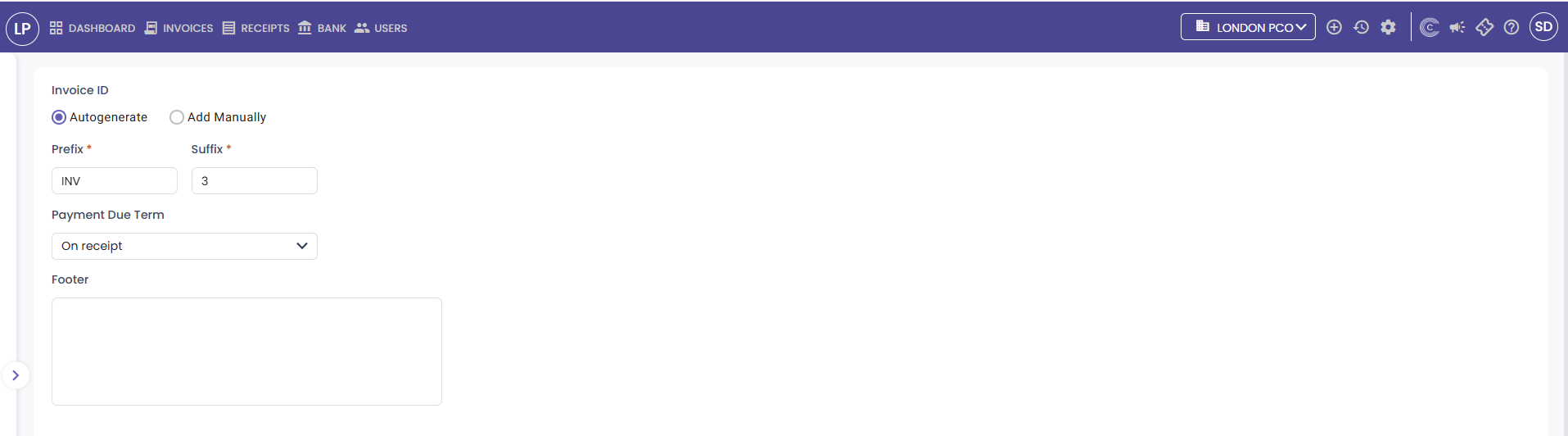
After setting your preferences, go back into Settings and click on 'Invoices'.
In this section, you can choose whether to auto-generate your Invoice ID or enter it manually. If you select auto-generate, you can customise your prefix and suffix. You can then set your preferred payment due terms.
Capium 365 - Settings
Navigation: Capium 365 > Manage > Client Specific > Settings > Templates
After setting up your Invoice settings, go back into Settings and click on 'Templates'.
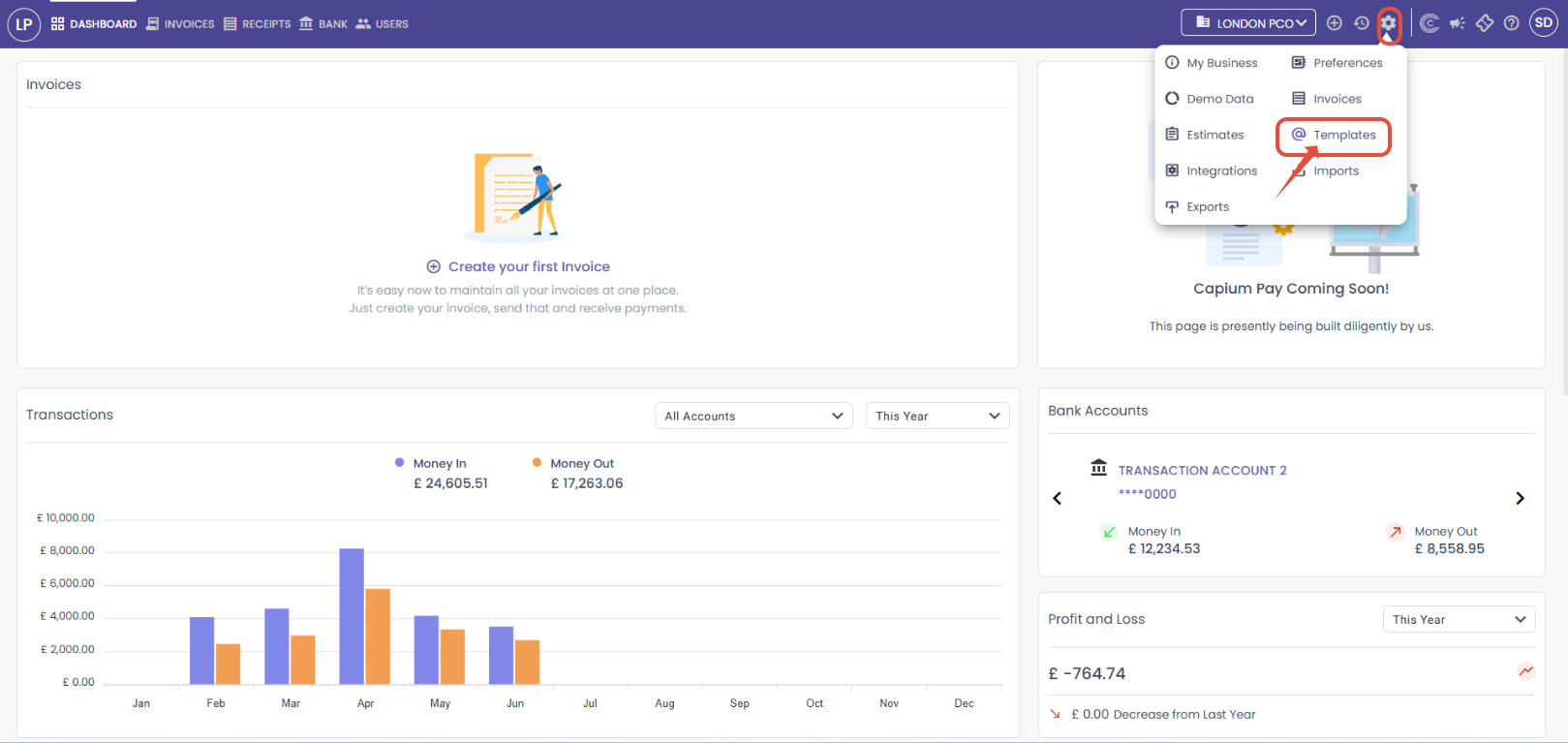
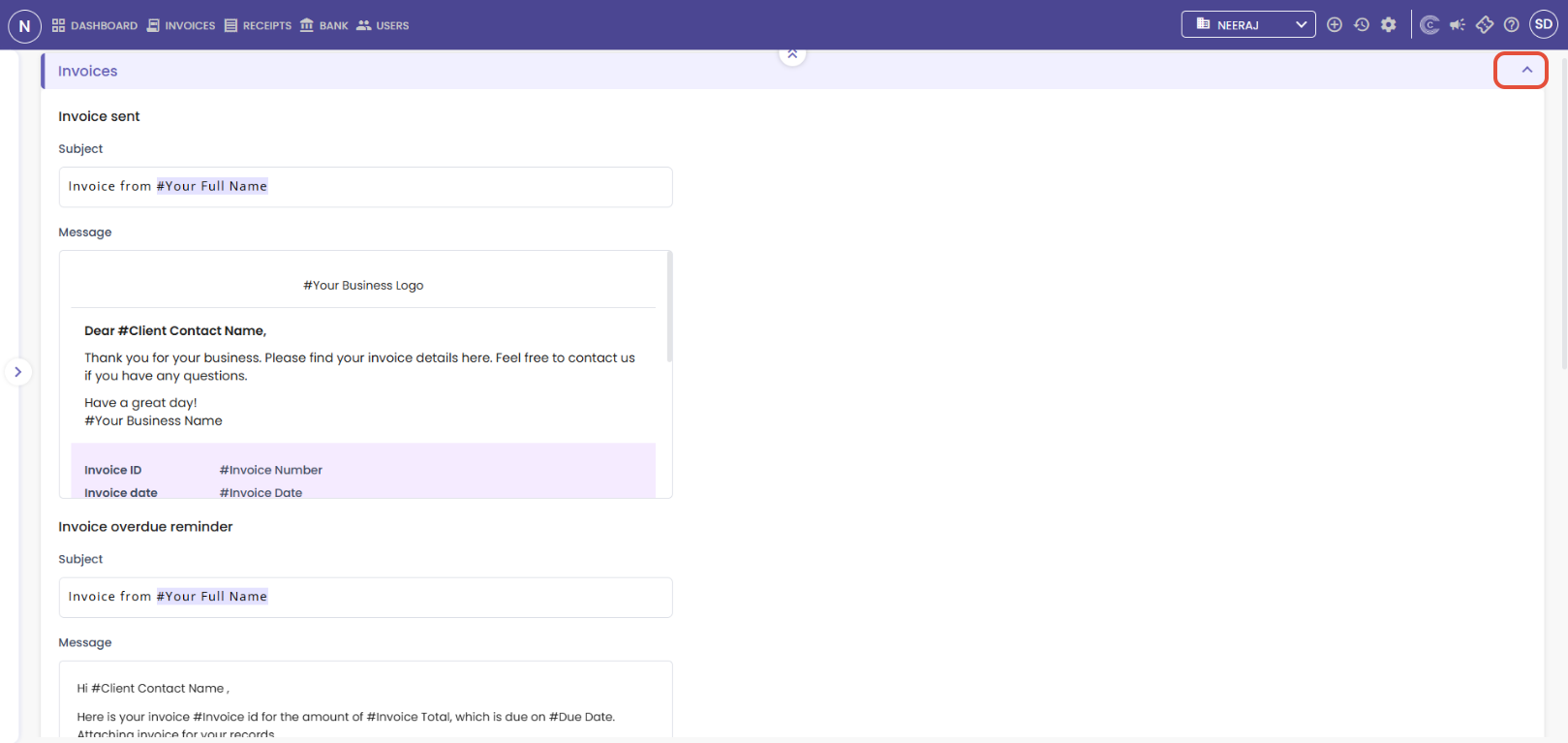
In this section, you can customise a variety of templates such as Invoice Templates, Payment Templates, Reminder Templates, Estimate Templates, Invoice Credit Note Templates, and Signature Templates. 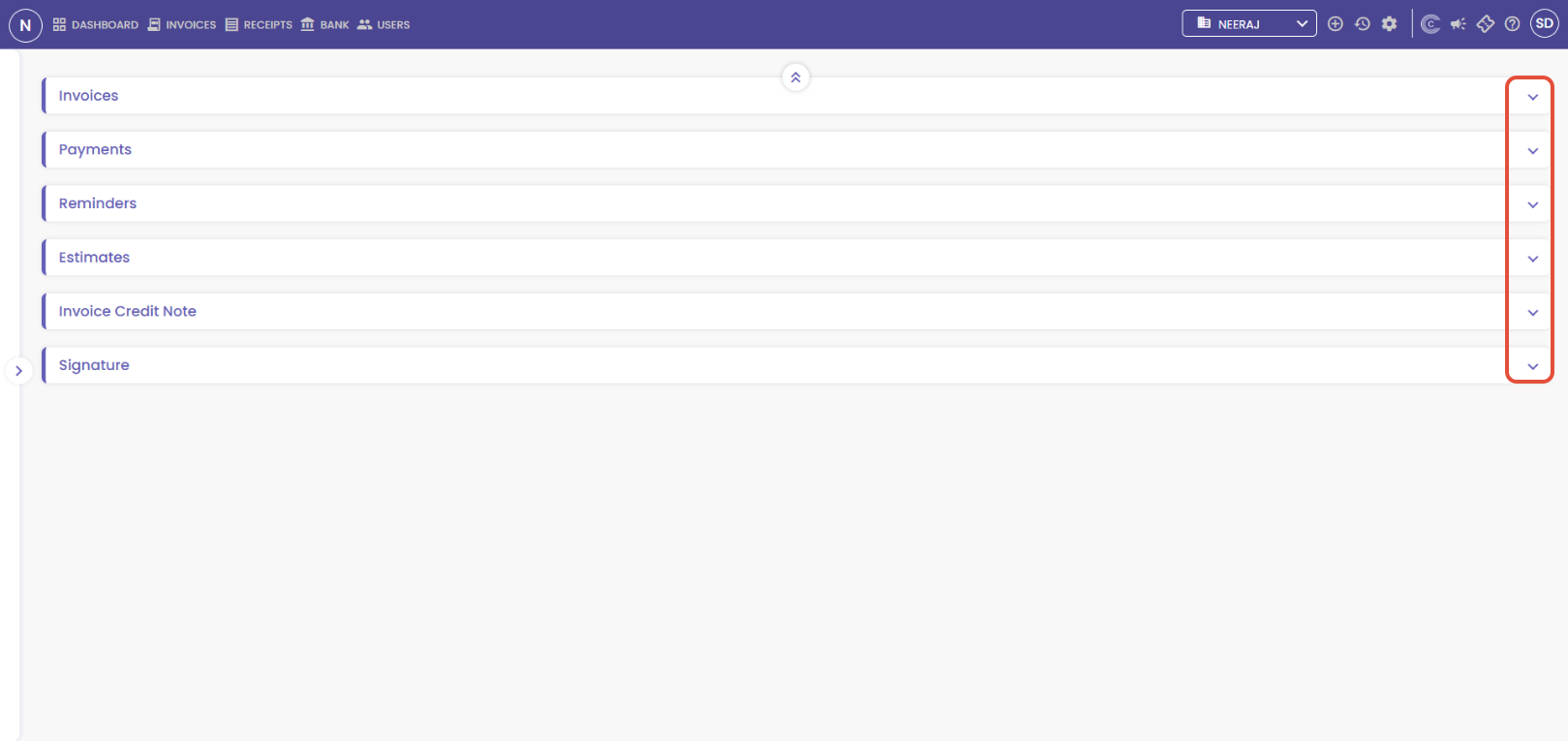
Capium 365 - Receipts and Invoices
Navigation: Capium 365 > Manage > Client Specific > Receipts and Invoices
The next step is to upload your client’s invoices or receipts into Capium 365. There are three ways to do this:
The accountant can log in to Capium 365 from a desktop, navigate to the specific client, and upload the invoices or receipts.
The accountant can log in to the Capium 365 mobile app and upload the invoices or receipts directly from their phone.
The client can also log in to the Capium 365 mobile app and upload the invoices or receipts from their phone.
After uploading the invoices or receipts, review the line items and assign each one to the correct account. When you're ready, click the 'Thumbs Up' button. A pop-up will appear, as shown below. Simply click 'Approve & Publish' to confirm and publish the receipt or invoice to the bookkeeping module. 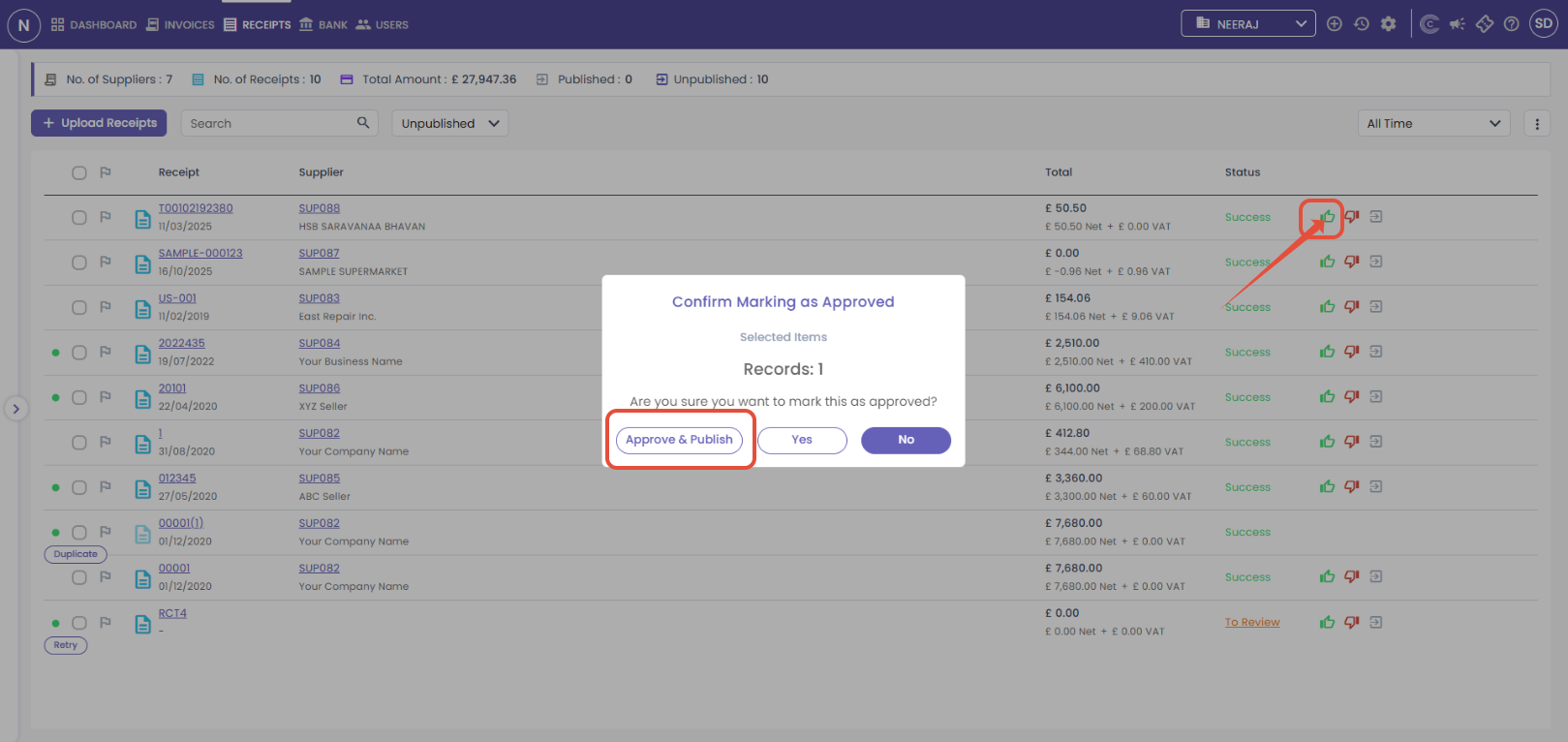
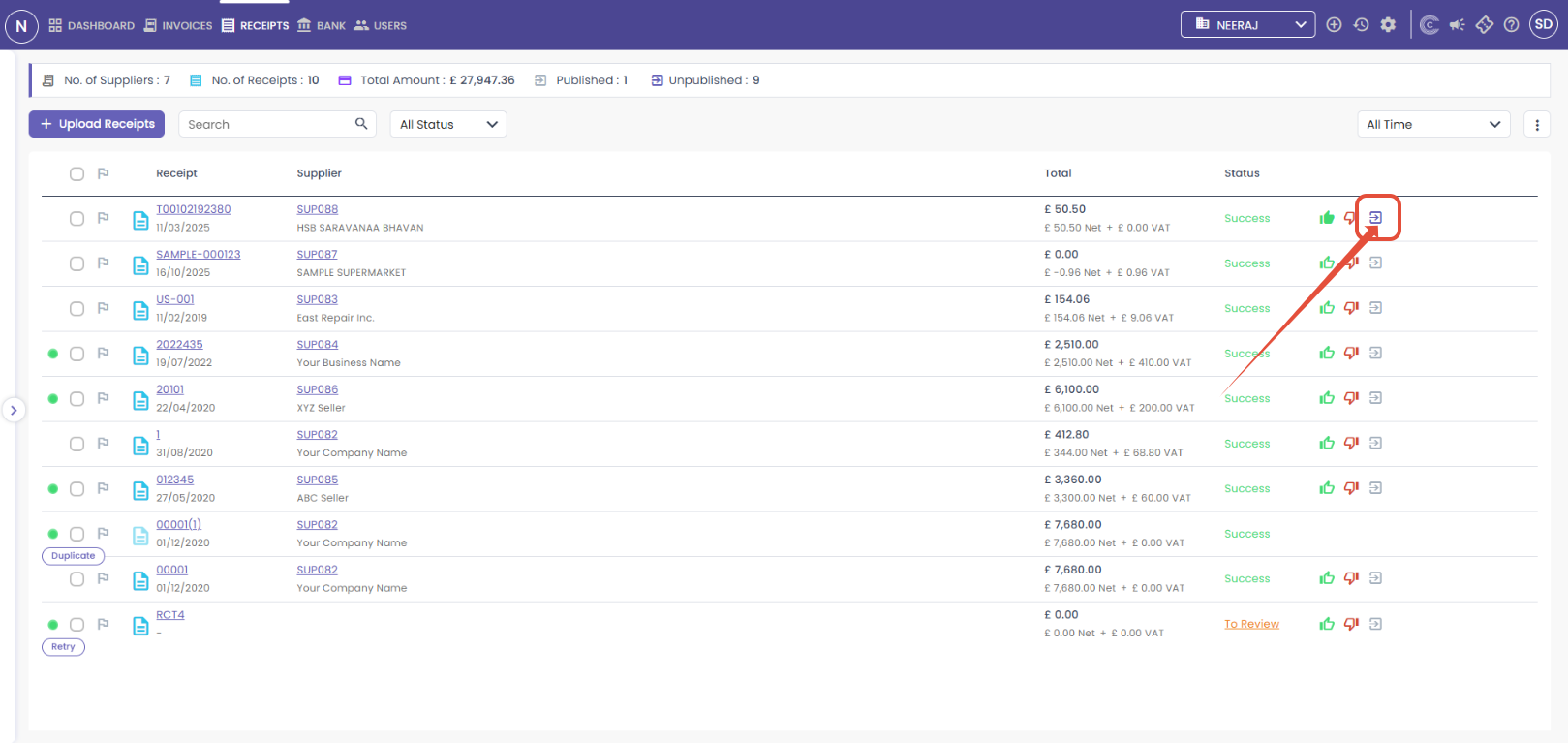
The highlighted button in the picture below indicates that the receipt has been published to the bookkeeping module. If you wish to unpublish t
The links below will guide you on how to upload invoices and receipts.
- CAPIUM 365: Invoice Overview
- Capium 365: Receipts
- How to upload documents, As an Accountant, using the Capium 365 app, to different clients
- Downloading the App mobile devices
Capium 365 - Bank
Navigation: Capium 365 > Manage > Client Specific > Bank - Reconciliation (Bank Rules, Invoice and Receipt Match, and Direct Allocation (Journal))
The next step is to reconcile your bank transactions. In Capium 365, there are three ways to do this. You can create Bank Rules to automatically reconcile transactions, allow the system to auto-match invoices and receipts, or use Direct Allocation to manually reconcile them.
Bank:
Click the link below to view the complete guide on creating bank rules in Capium 365.
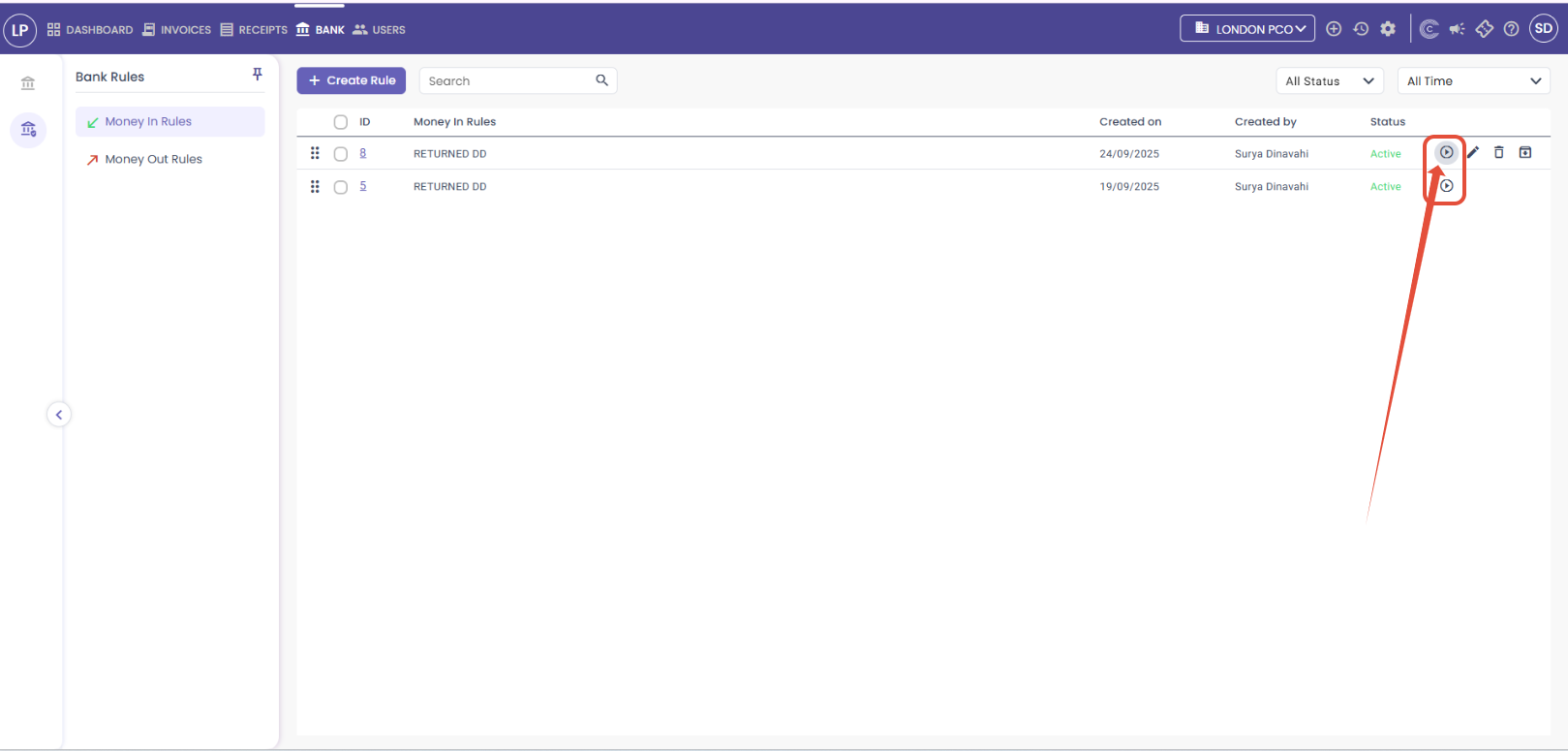
After creating a Bank Rule, click the 'Run Now' button. This will apply the rule to all transactions and reconcile them accordingly. If you selected the option to auto reconcile and publish while setting up the rule, the system will not only reconcile the transactions but also publish them to the bookkeeping module automatically.
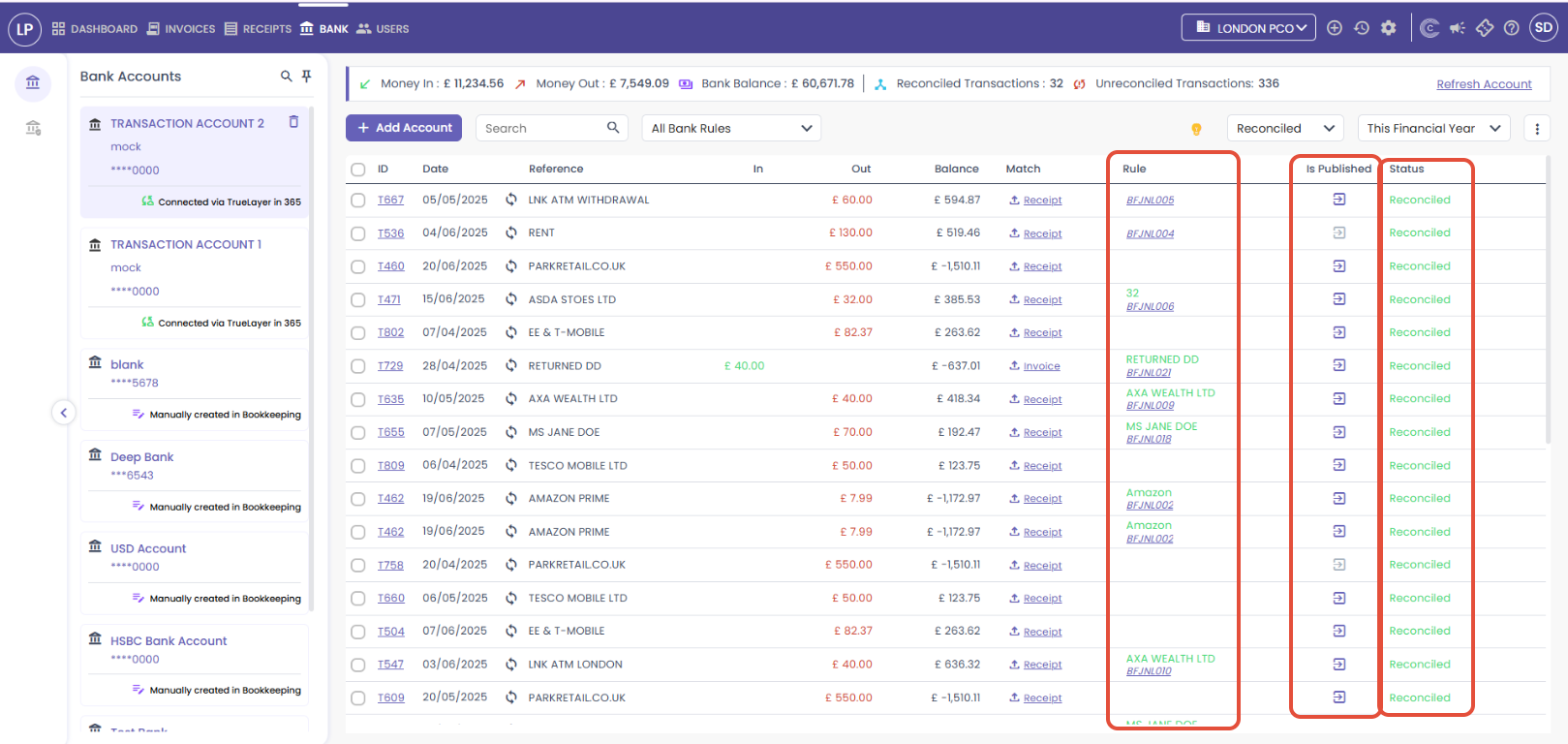
Invoice and Receipt Match:
If you wish to reconcile using a Invoice or Receipt, the system will automatically find matches based on the Invoices and Receipts uploaded into the system.
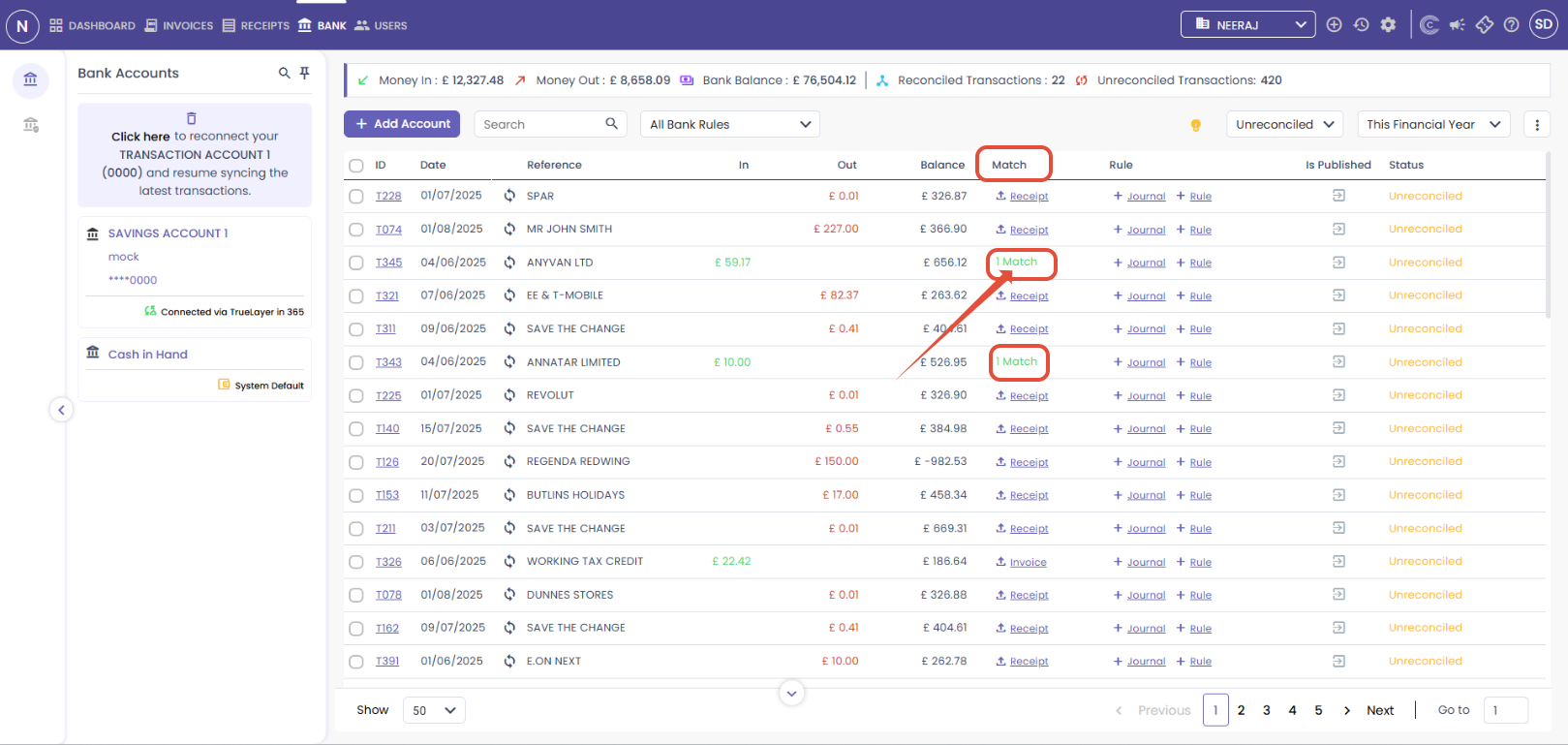
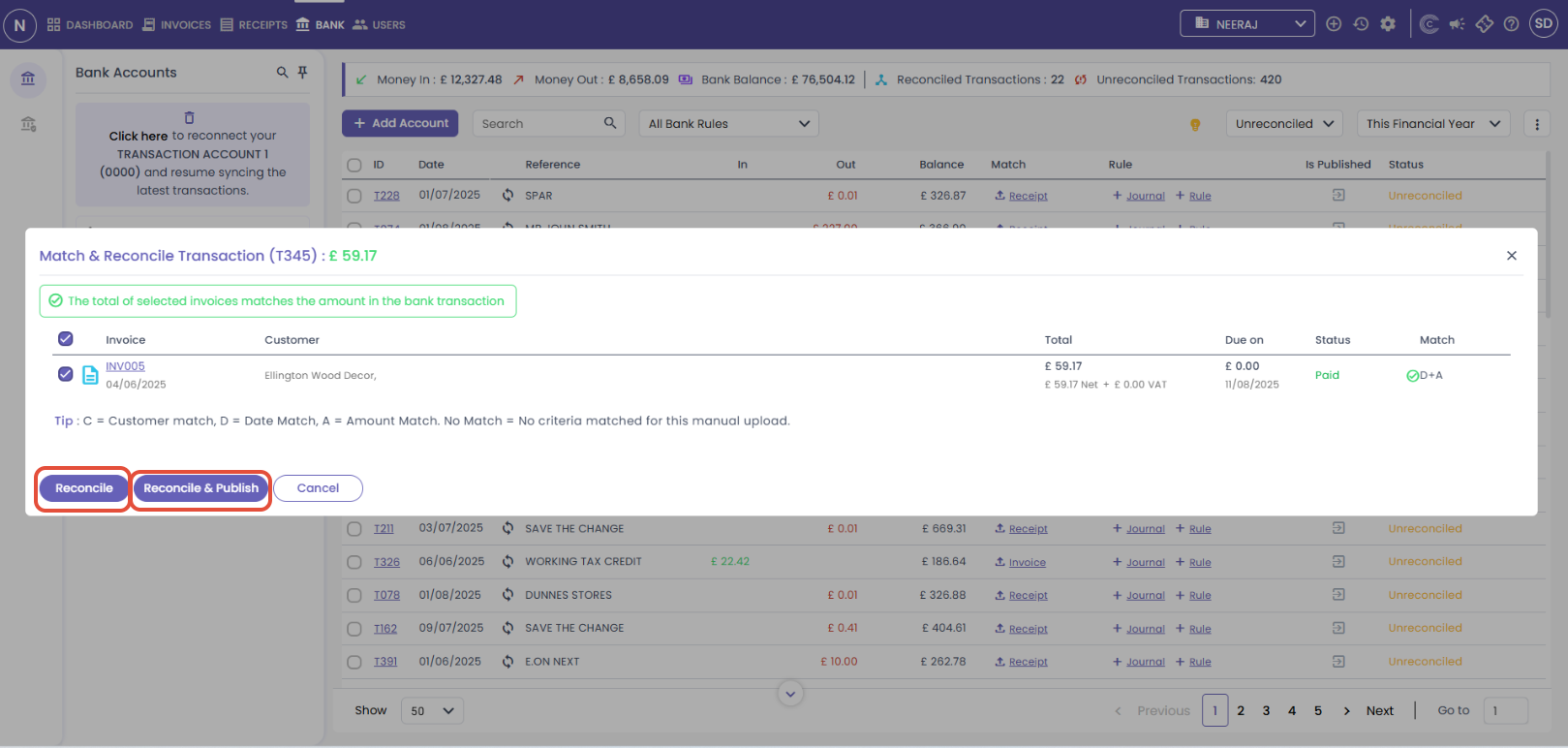
If the system detects a match, it will appear in the Bank section as shown in the image above. To reconcile the transaction with a receipt or invoice, click the '1 Match' button next to that transaction. A pop-up will appear giving you the option to Reconcile or Reconcile and Publish. If you choose Reconcile and Publish, the matched transaction will be published to the bookkeeping module.
Direct Allocation (Journal):
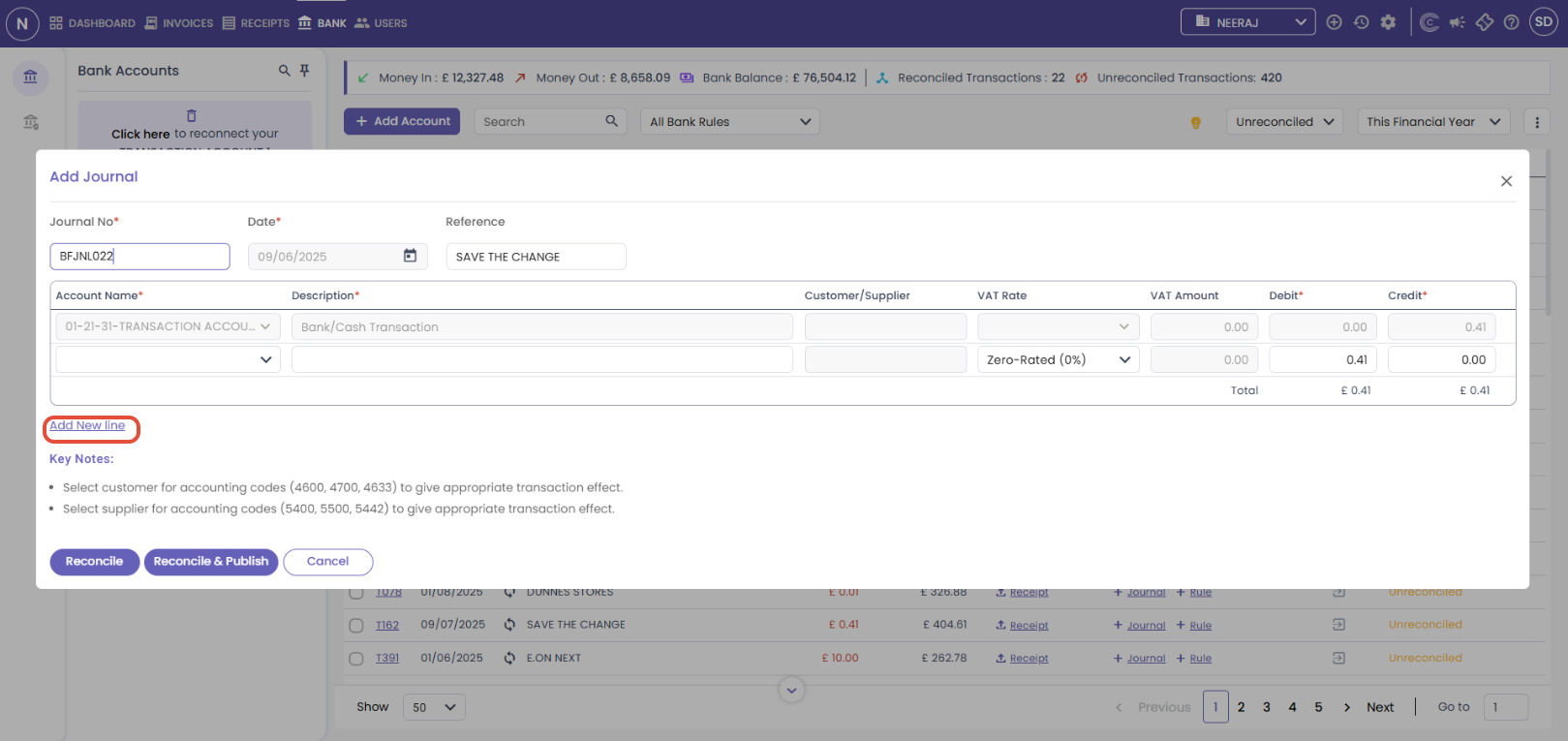
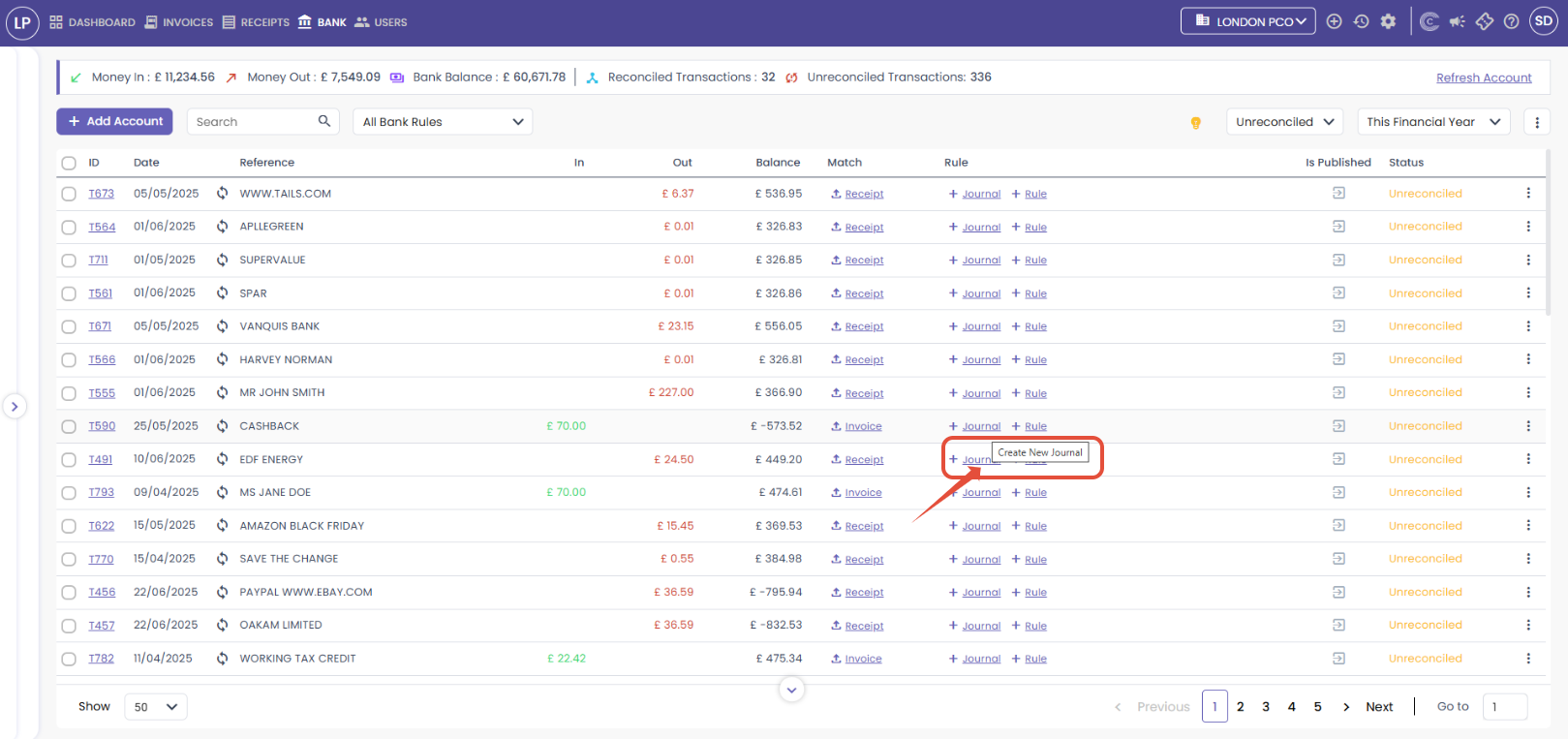
The final method to reconcile transactions is Direct Allocation (Journal). First, click 'Journal' as shown in the image below. A pop-up will appear where you can assign the transaction to a specific account and enter the relevant details such as Customer or Supplier, VAT Rate, Debit, and Credit.
You can also add a new line to split the transaction across multiple accounts. To do this, click 'Add New Line' and enter the relevant information. Once complete, you can choose either Reconcile or Reconcile and Publish. If you select Reconcile and Publish, the matched transaction will be published to the bookkeeping module.