
Overview
This article explains how to import a trial balance from Xero into a client's accounting period in Capium Accounts Production, and how to map the imported entries to Capium's Chart of Accounts. It applies to Annual and Management trial balances.
Before you start
- The client's Accounts Production workspace and accounting period must already exist. See Add Accounting Periods.
- You need the Xero login credentials for the organisation you are importing from.
- Capium can map many Xero accounts automatically. See Trial Balance Automated Mapping from Xero and QuickBooks for how this works.
Import a trial balance from Xero
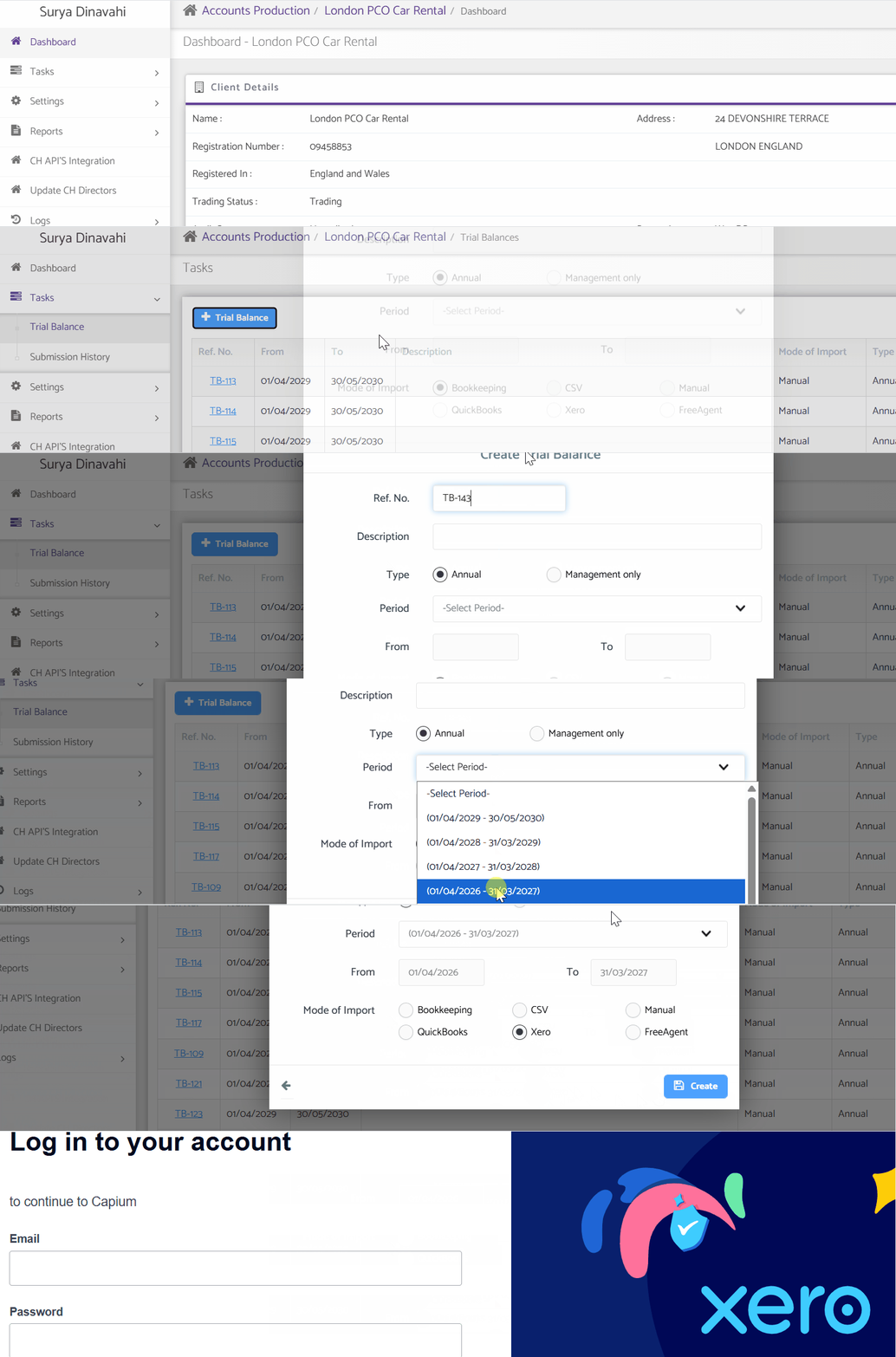
- Open the client workspace and go to the Trial Balance task.
- Navigation > Accounts Production > Select a client > Tasks > Trial Balance
- Select the + Trail Balance icon to create a new trial balance.
- Enter a Description for the trial balance.
- Choose the trial balance type: Annual or Management.
- Choose the Accounting Period.
- Under Mode of Import, tick Xero.
- Select Create. Capium redirects you to Xero.
- Enter your Xero credentials and select the company you want to import from.
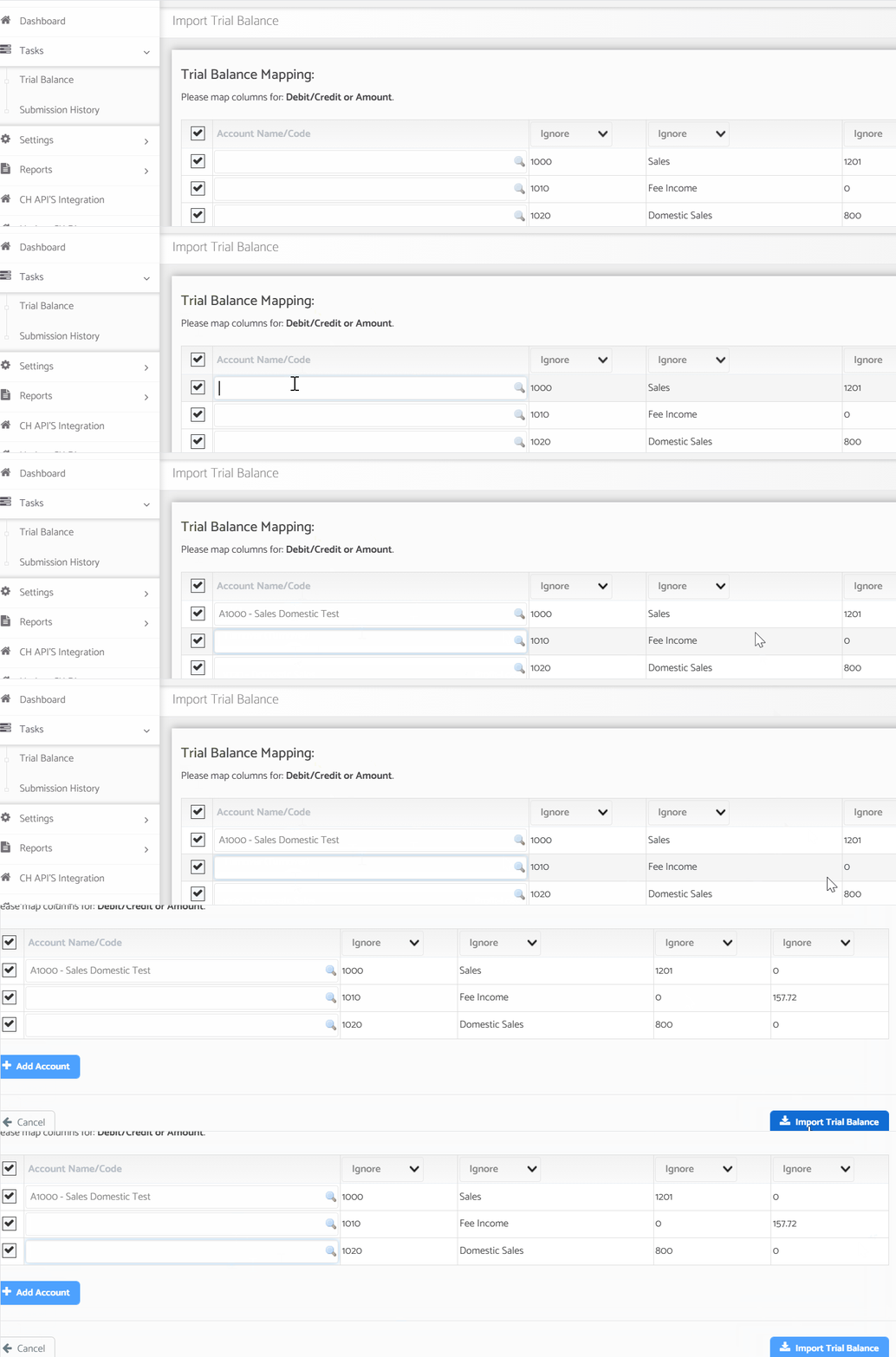
- Map each imported entry to Capium's Chart of Accounts. See the next section.
Map entries to the Chart of Accounts
After the import, each Xero entry must sit against an account in Capium's Chart of Accounts.
- Review each imported entry and select the matching Capium account.
- If the code you need does not exist in Capium, select +Add Account and create a new account.
- Once every entry is mapped, save the trial balance.
Related Articles: