
This article explains how to convert an existing limited company client to a Community Interest Company (CIC) in Capium, rather than creating a new client. It also covers the client information fields worth reviewing at this stage and why completing them matters for later modules.
Note: If you are setting up a brand new client as a CIC rather than converting an existing one, refer to this article. |
|---|
Before you start
- The client must currently be set up in Capium as a Limited company type. Only limited company clients can be converted to a CIC.
- You will need access to the My Admin module.
- Review the client's existing record before you start, so you can identify any of the fields below that are missing or out of date.
Converting the client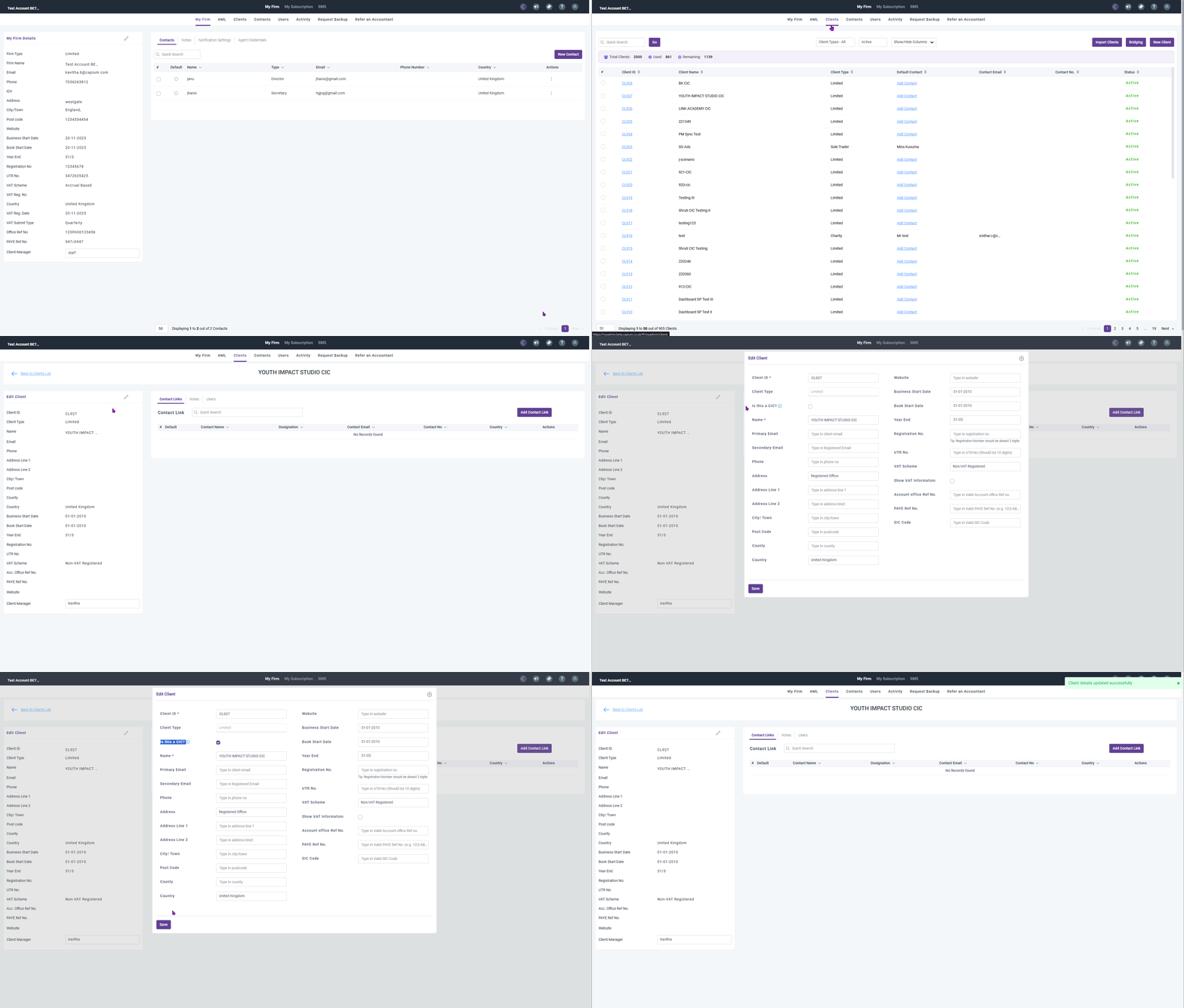
- Navigate to the client section and select the client. Navigation > My Admin > Clients > Select Client
- Confirm the client type is set to Limited company.
- Select the option to designate the client as a CIC.
- Review and update the client's details.
- Save the client record.
Option 2: converting via Accounts Production report settings
You can also convert a client to a CIC from within Accounts Production, at the point where you are setting up the client's report settings. This is useful if you are already working on the client's accounts and want to enable CIC status without leaving Accounts Production.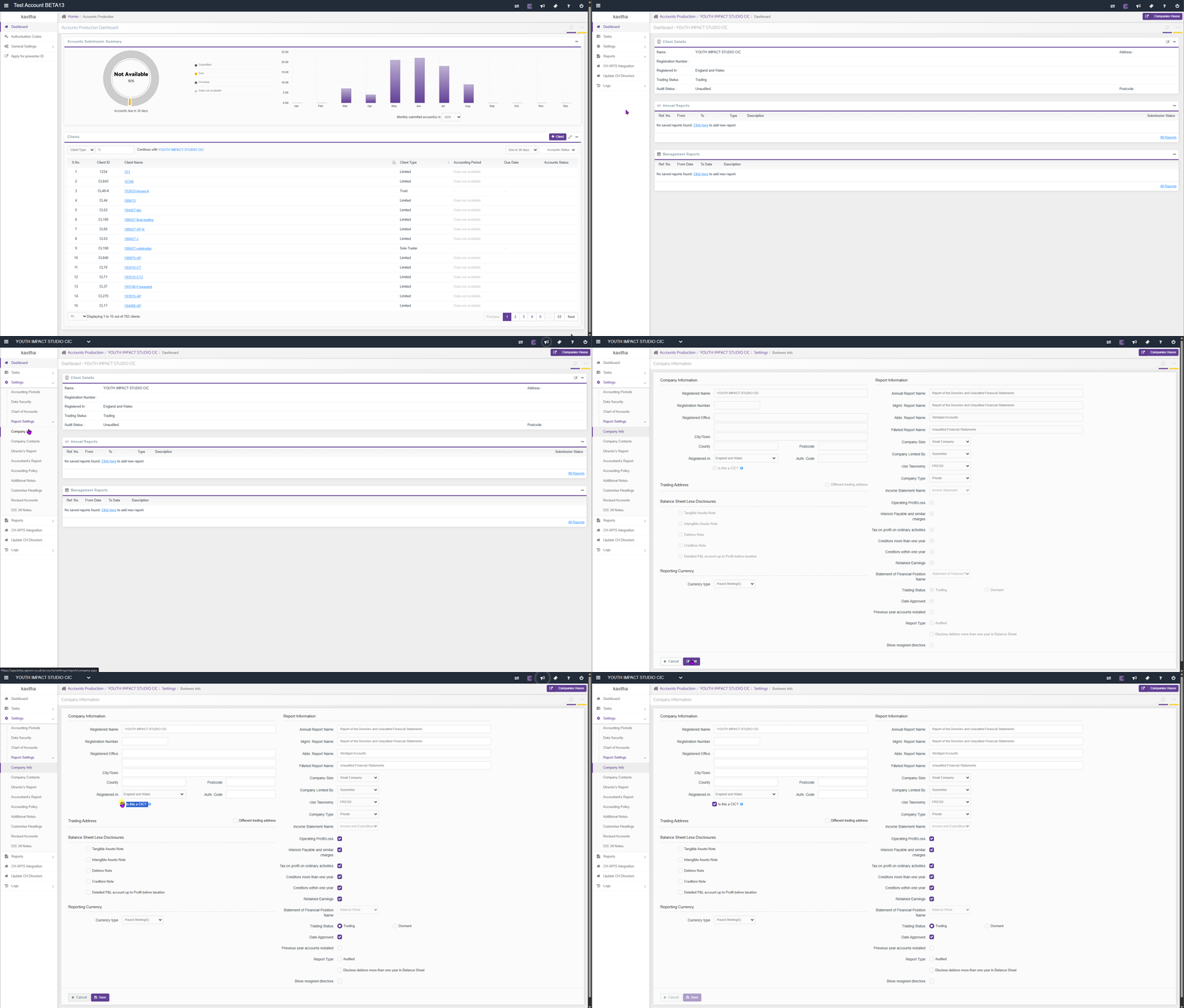
- Navigate to the client's report settings. Navigation > Accounts Production > Select Client > Settings > Report Settings > Company Info
- Select Edit at the bottom of the screen to make changes.
- Enable the option for the company being a CIC.
- Confirm and save your changes.
Important: Enabling CIC status from this screen automatically creates the CIC 34 notes for the client. You will need to go on and complete these notes, which is covered in Accounts Production: report settings and CIC 34 notes for CIC clients. |
|---|
Related Articles: