This article explains how to pay for your Capium subscription, which payment methods give you immediate access to your account, and what to expect after you pay. It applies to new customers subscribing to Capium and to existing customers updating how they pay.
Payment methods at a glance
| Payment method | Provider | When your account is activated | What to expect |
|---|---|---|---|
| Debit or credit card | Stripe | Straight away | The payment settles instantly, so you can start using Capium immediately. |
| Direct Debit | GoCardless | After payment processing or manual unblocking by capium | The payment can take up to seven days to be processed and received. If you have set up GoCardless but are still unable to access your account, contact Capium and we can manually unblock your account. |
| Bank transfer | Not applicable | Once the payment has been received and processed | The payment needs to be received by Capium first. The Credit Control team will identify the payment, mark the invoice as paid and provide access to your account. |
Setting up a Direct Debit is not the same as paying
When you set up a GoCardless Direct Debit, you are authorising Capium to collect payment. That does not mean Capium has received the payment yet.
- The payment may take up to seven days to be processed and received.
- If you set up the Direct Debit towards the end of the billing period, the payment may not leave your bank account straight away.
- If you have set up a GoCardless Direct Debit but are still unable to access your account, contact Capium and we can manually unblock your account. You do not need to wait for the payment to settle before contacting us.
- Once the payment has been received, it will be applied to your invoice.
Need access straight away?
If you need to start using Capium immediately:
- Make your first payment by card using Stripe. Your account is activated as soon as the card payment is confirmed.
- Once your account is active, you can set up GoCardless for future payments.
Please see both steps covered below.
How to pay by card using Stripe
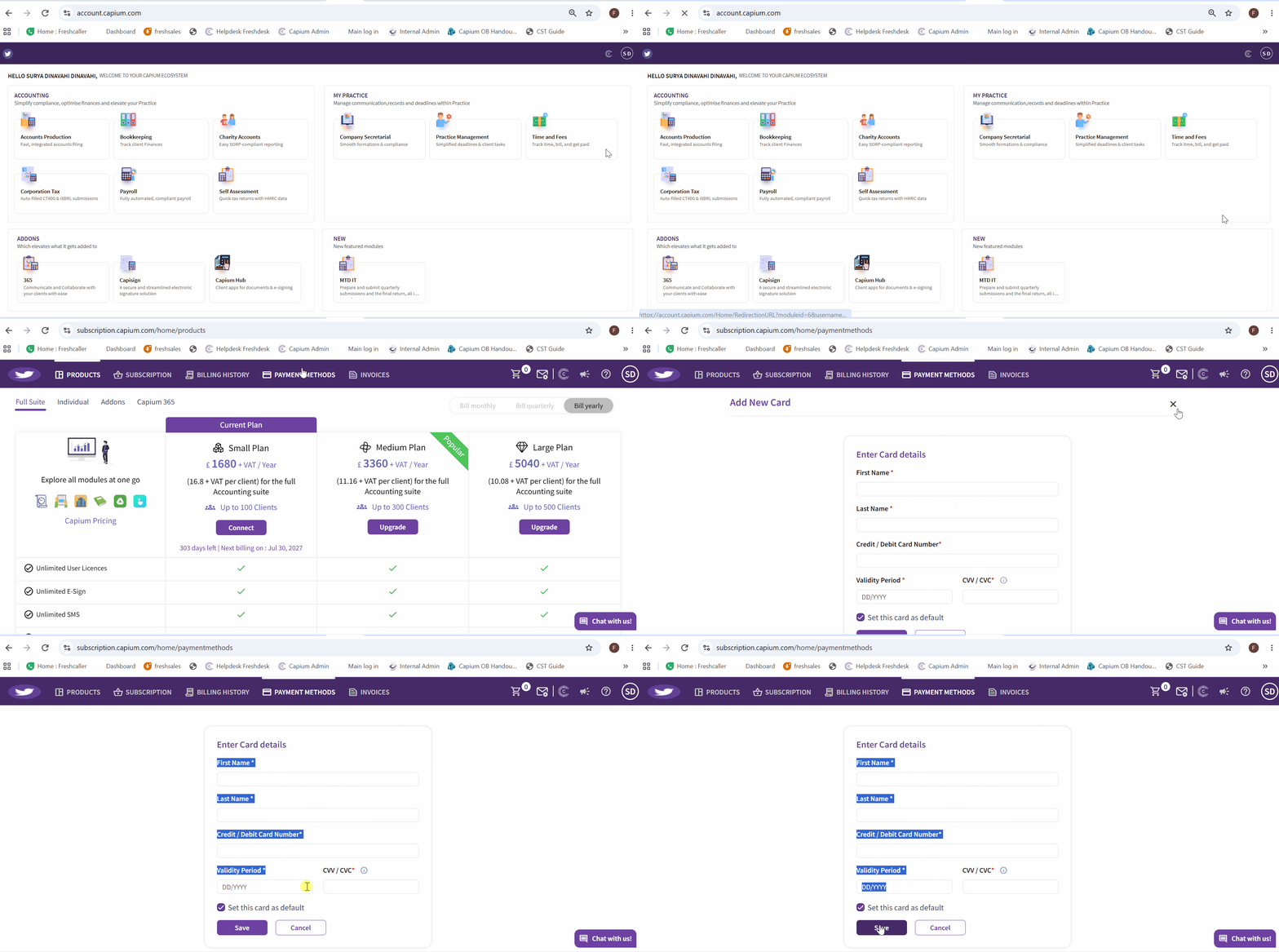
- Go to your payment methods. Navigation > My Admin > My Subscription > Payment Methods
- Under Saved Credit / Debit Cards, select Add New Card.
- Complete the required fields, which are marked with an asterisk (*).
- Leave Set this card as default ticked if you want to use this card as your default payment method.
- Select Save.
Please see picture for reference :
How to set up a Direct Debit using GoCardless
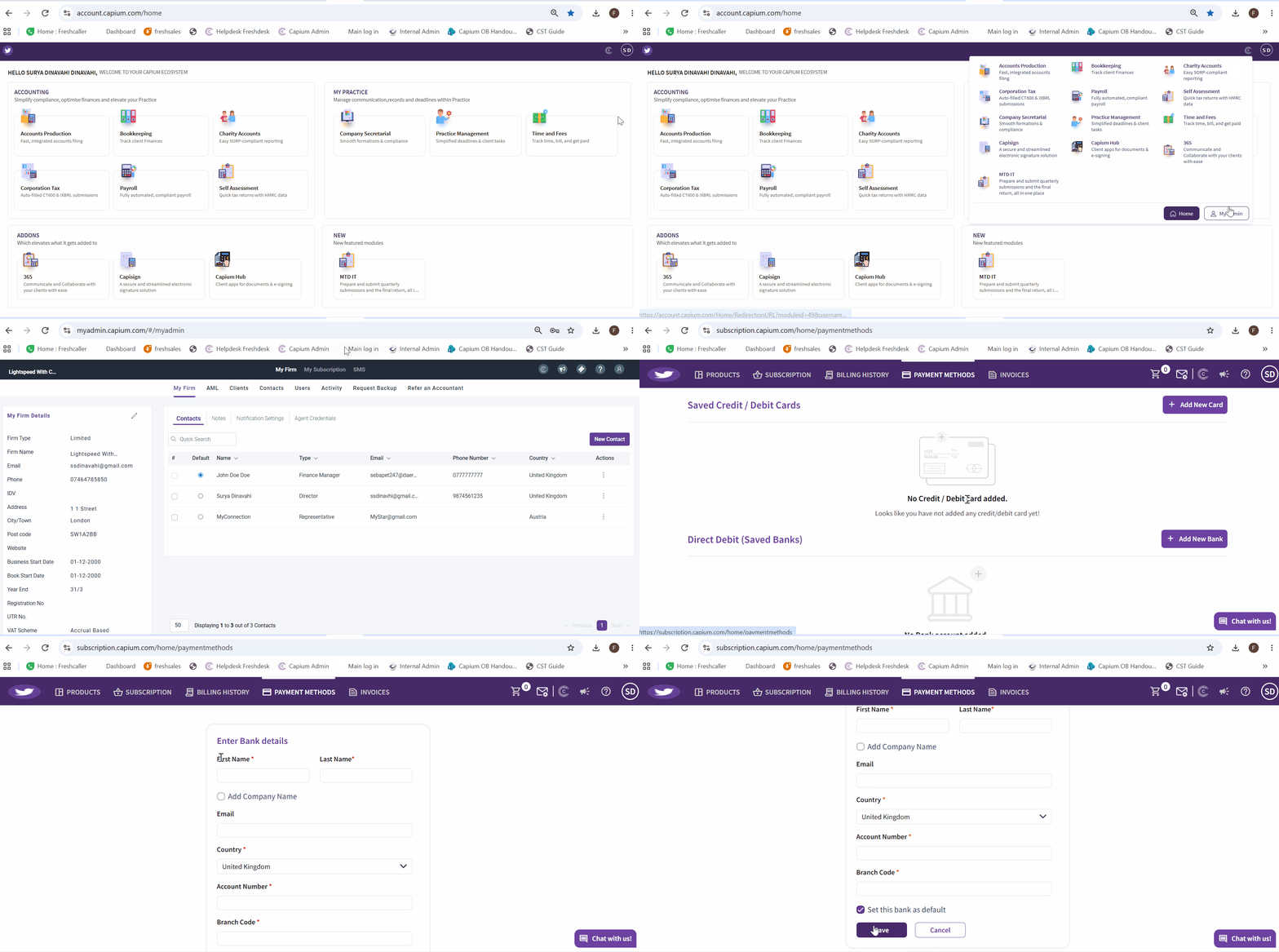
- Go to your payment methods. Navigation > My Admin > My Subscription > Payment Methods
- Under Direct Debit (Saved Banks), select Add New Bank.
- Complete the required fields, which are marked with an asterisk (*).
- Tick Set this bank as default if you want future invoices collected by Direct Debit.
- Select Save.
Note : Your Direct Debit is now set up. The payment may take some time to be processed and received by Capium. If you are unable to access your account after setting up your Direct Debit, contact Capium and we can manually unblock your account.
Please see picture for reference :
Checking whether an invoice has been paid
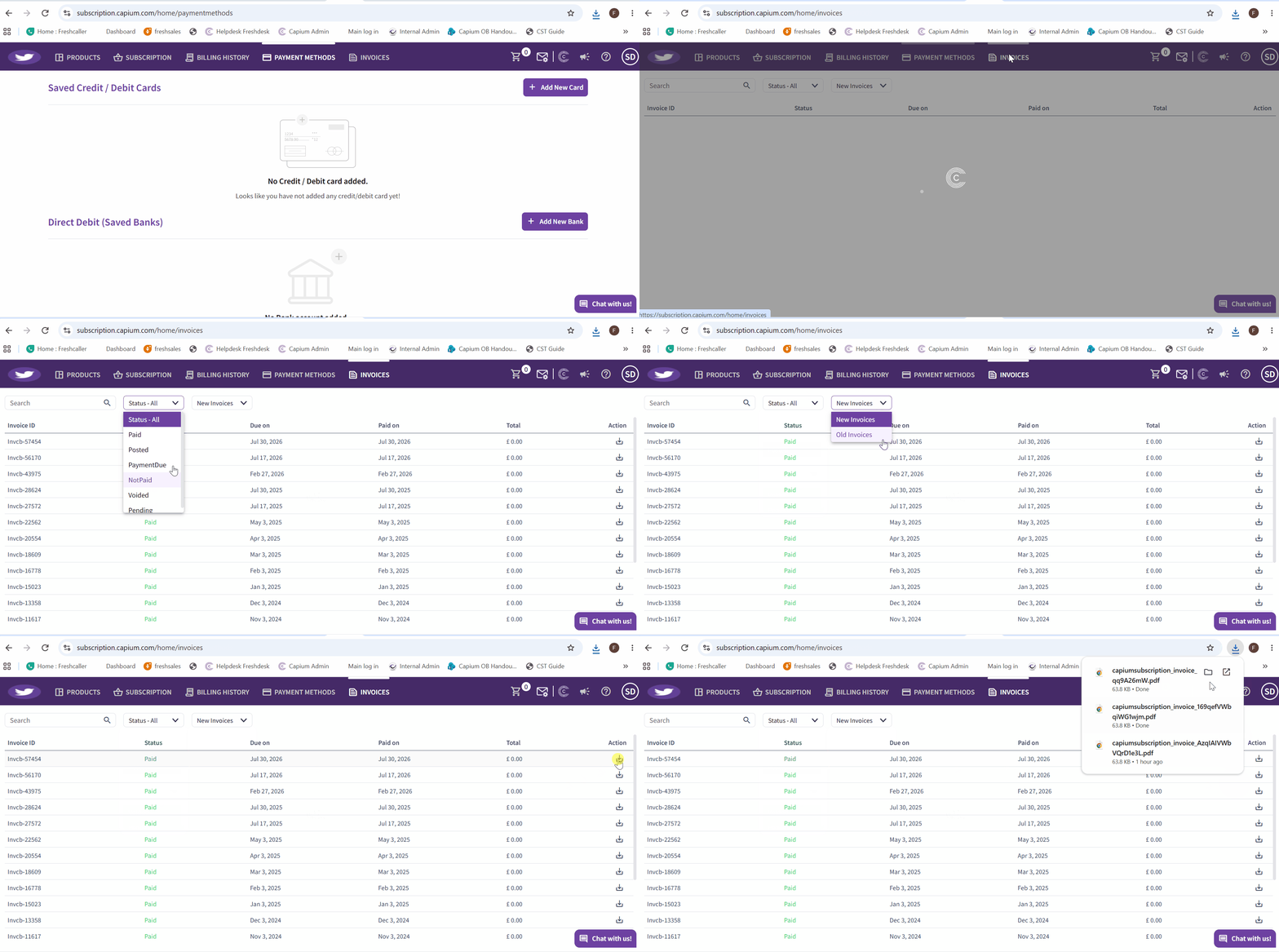
Navigation > My Admin > My Subscription > Invoices
The Invoices tab lists your invoices with their Status, Due on date, Paid on date and Total. You can search for an invoice or filter the list using the Status drop-down. To download a copy of an invoice, select the download icon in the Action column.
If you've set up a Direct Debit, the invoice only shows as Paid once Capium has received the payment.
Please see picture for reference :