
Overview
The CT600 is the form used to report a company's Company Tax Return. The return also includes the accounts and computations, as well as any supplementary pages. This article explains how to create a new CT600 return for a client in the Corporation Tax module, either by importing basic data from Accounts Production or by entering it manually.
Before you start
- Manual creation: set up an accounting period for the client in the Corporation Tax module settings. The period must correspond to the CT600 you are creating, and it must be set up for each client individually.
- Importing from Accounts Production: prepare the accounts for the same period in Accounts Production first. To attach the accounts to the CT600, you will need a full accounts report prepared there.
Create a new CT600 return
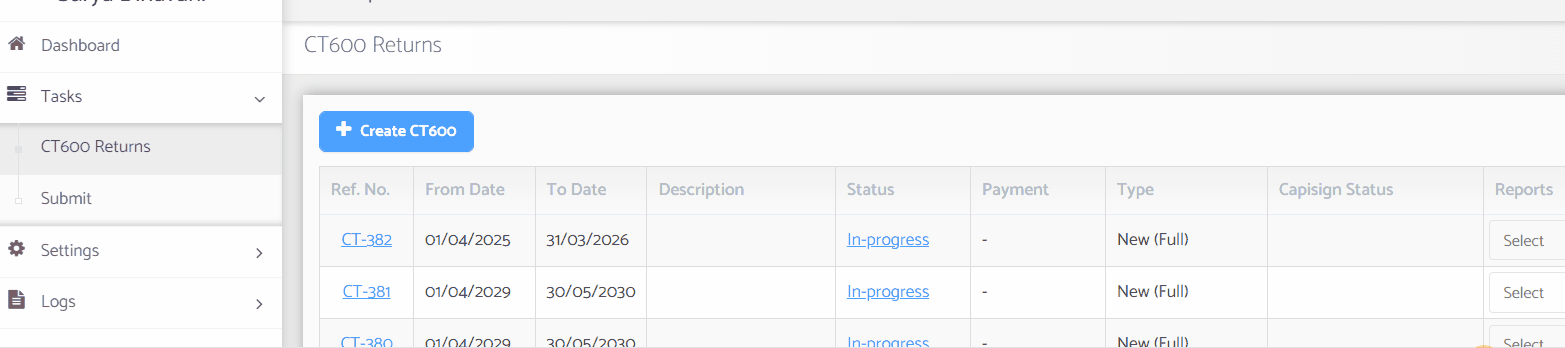
- Go to the CT600 Returns list.
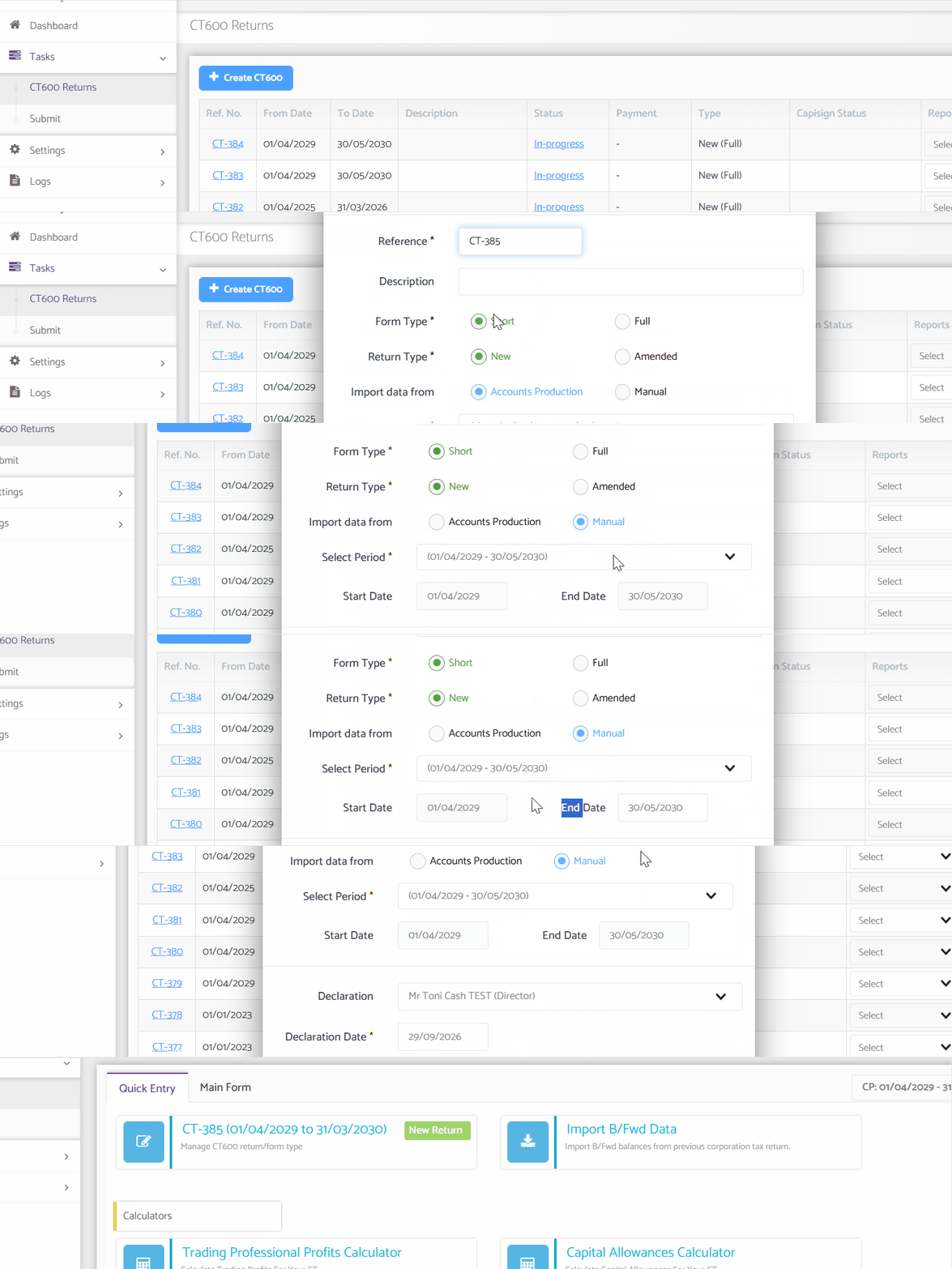
Navigation > Corporation Tax > Client Specific > Tasks > CT600 ReturnsThe list shows the CT600 forms already prepared for the client.- Select + Create CT600.
- Check the reference number. Capium generates it with the prefix CT. You can edit it if required.
- Add a description if you need one. This field is optional.
- Select the form type, Short or Full. See the table below.
- Select the return type: a new return or an amended return.
- Select Manaul
- Select Save.
- Importing from Accounts Production:
- To import basic data from Accounts Production, select the accounts source.
- To import basic data and attach the full accounts report to the CT600, select Full Account Report from the dropdown list. This selection is the basis for preparing the CT600.
- Check the start and end dates. Capium populates them automatically from the accounting period you selected.
- Select Save.
Capium opens the main CT600 page, where you complete and review the calculations and computations.
Related Articles:
Click here to watch an example video of adding a supplementary form to CT600
Click here to watch how to claim Group Relief through the supplementary form
Click here to watch how to create an amended CT600