Welcome to this quick guide on linking sole traders to individuals. This guide will walk you through the essential steps.
Important: We have recently introduced a change where all Sole Traders must now be linked to an Individual when creating them. This can be done in two areas of Capium: My Admin and Capium 365. There are a few differences in the process depending on which area you use to create and link the client. The guide below will walk you through the process for both My Admin and Capium 365. This change has been introduced because the Individual is the main entity used for MTDIT, while the Sole Trader is classified as the associated business. Linking the two ensures the client is set up correctly for MTDIT and other relevant processes. |
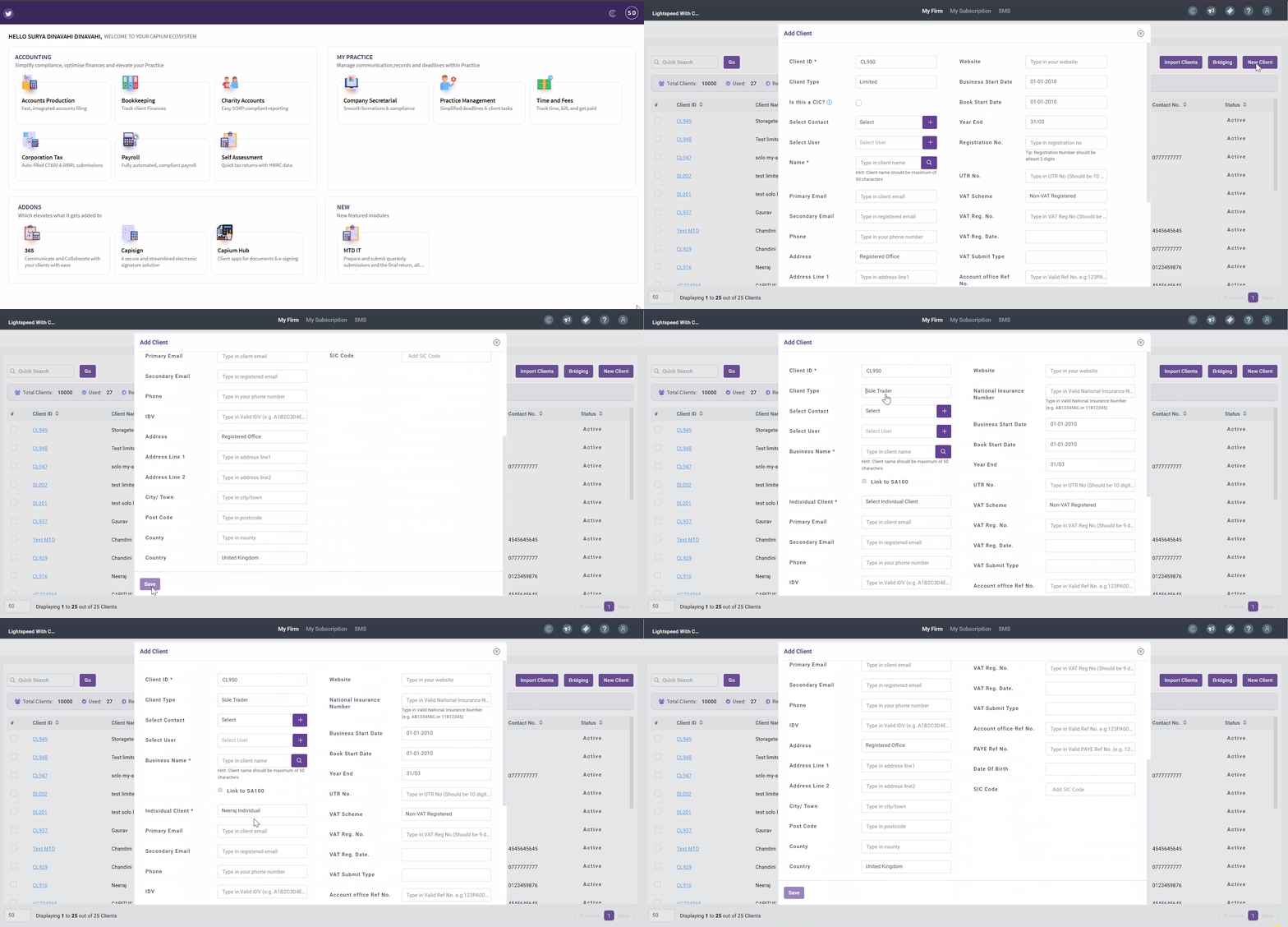
My Admin:
Navigation: My Admin > Clients > New Client
1.Navigate to My Admin, select Clients, and then click New Client.
2.First, create the Individual and enter all the relevant information for the client. Once you have completed the details, click Save.
3.Next, create the Sole Trader. In the Individual Client field, click the dropdown menu and select the Individual you created previously.
4.Enter all the relevant details for the Sole Trader and click Save to complete the setup.
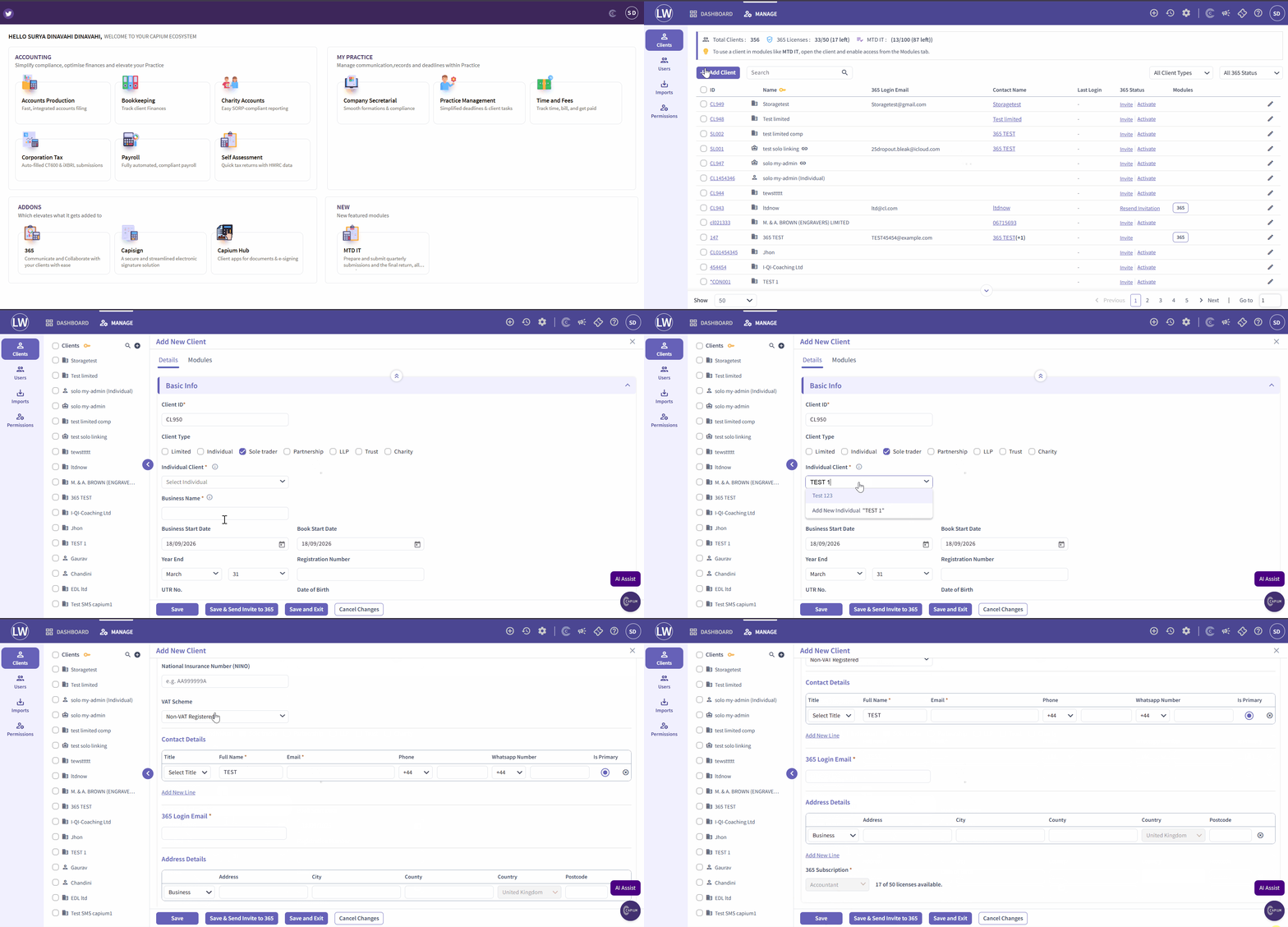
Capium 365:
Navigation: Capium 365 > Manage > + Add New Client
1.Navigate to Capium 365 and click + New Client.
2. In the Add New Client section, you can create the Sole Trader and Individual at the same time.
3. First, select the client type as Sole Trader. Enter the Individual’s name and click Add New Individual. This will automatically create a new Individual and link it to the Sole Trader.
4. Enter all the relevant details for the Sole Trader and click Save to complete the setup.