
When reporting UK Property income through the Capium MTD IT Bridging Spreadsheet, it is important to record Residential Financial Costs correctly to ensure that qualifying finance costs are reported in accordance with HMRC's Making Tax Digital for Income Tax (MTD IT) requirements.
Residential Financial Costs generally include finance costs incurred wholly or exclusively for a residential property rental business, such as:
- Interest on loans used to purchase or improve residential rental property.
- Interest in business overdrafts used exclusively for the property rental business.
These costs are reported separately because HMRC applies special tax relief rules for individual residential landlords.
Please do not include the following as Residential Financial Costs:
- Personal loan interest
- Savings account interest received
- Personal credit card interest
- Property repairs and maintenance expenses
- Mortgage capital repayments
Step 1: Download the UK Property Bridging Spreadsheet
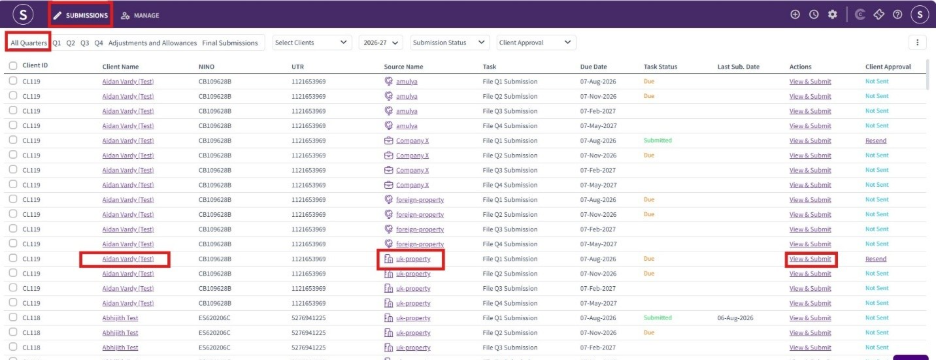
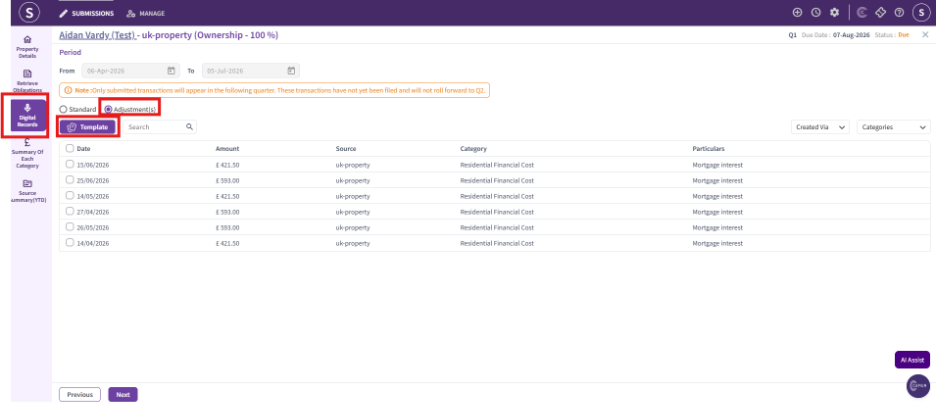
Before recording any Residential Financial Costs, download the UK Property Bridging Spreadsheet from the client's digital records.
Navigation: MTD IT → Submissions → Select Client → UK Property Source → View & Submit
Note: Capium provides separate Bridging Spreadsheet templates for:
- Sole Trader
- UK Property
- Foreign Property
For residential rental income and related finance costs, always use the UK Property template.
Once the template has been downloaded, you can begin entering your property transactions.
Step 2: Record the information in the Template
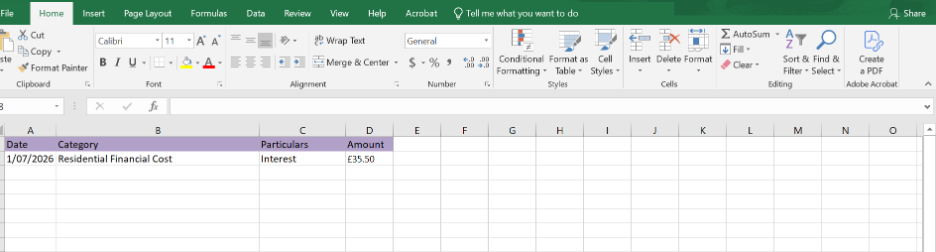
- Open the downloaded UK Property template and enter each qualifying finance cost as an individual transaction in the adjustment sheet of the template file.
- Verify that the information entered matches the supporting lender or bank statements before saving the spreadsheet.
Step 3: Upload the Completed template file
- After entering all relevant transactions, Save the completed spreadsheet.
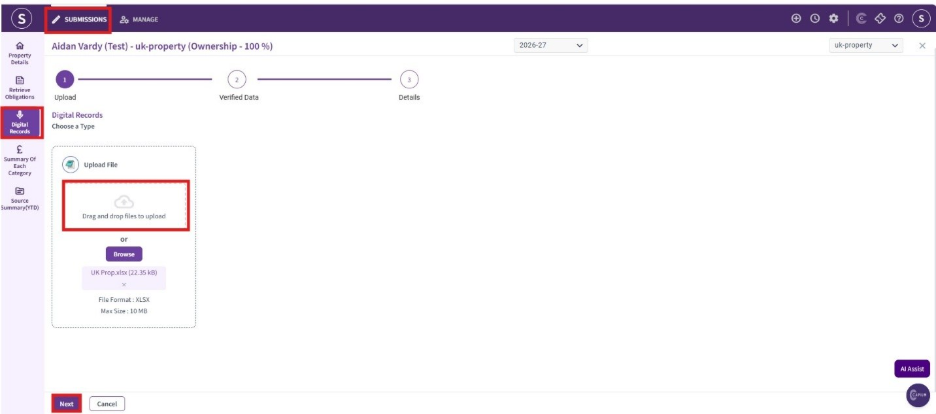
- Return to the client's UK Property submission screen and upload the completed Spreadsheet using the upload option.
Navigation: Submission > Digital records > Click Drag & drop the file to upload the template file.
Step 4: Review the Imported summary
Once the spreadsheet has been uploaded successfully
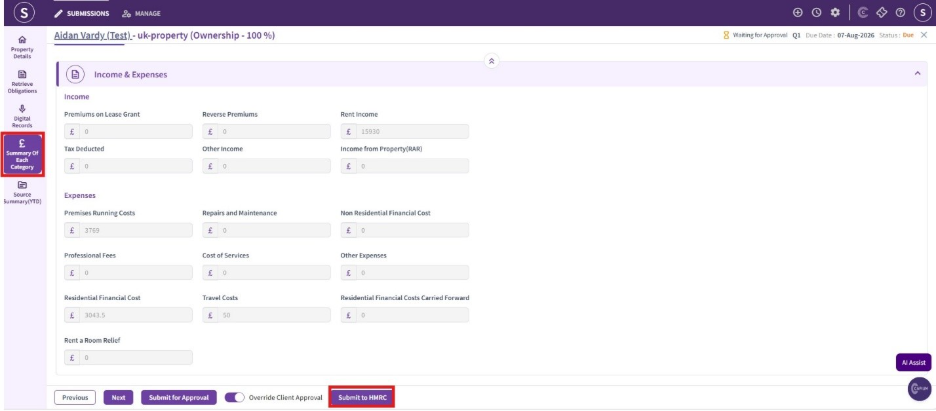
Navigate to the Income & Expenses summary and review each category carefully to ensure all transactions have been categorized appropriately
Navigation: MTD > Client specific source -UK property > View & Submit > Submissions > Summary of Each category
Step 5 : Submit the UK Property Update to HMRC
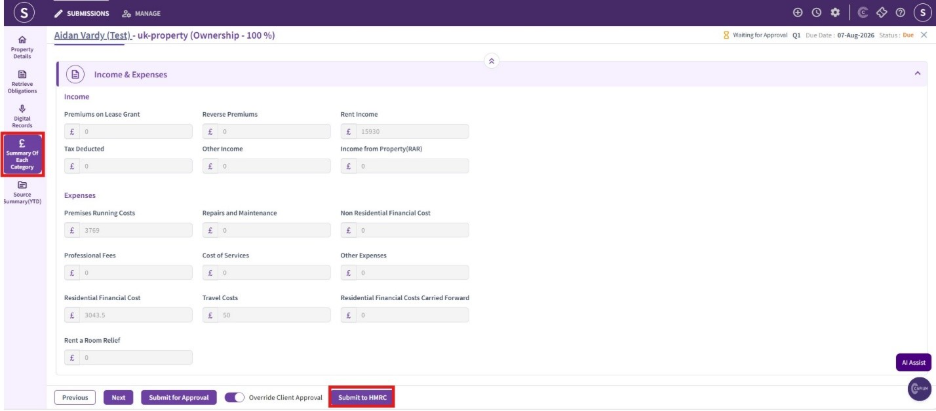
After reviewing the imported data Confirm the Income & Expenses summary is correct and select the option Submit to HMRC at the bottom of the page.
Related:
Click here to find out more about Tax relief from HMRC