
Welcome to this quick guide on how to create an amended SA100 tax return. This guide will walk you through the essential steps.
SA100: Amended Tax Return
Navigation: Self Assessment > Client Specific > Action Drop Down > Edit > Edit Return Detail
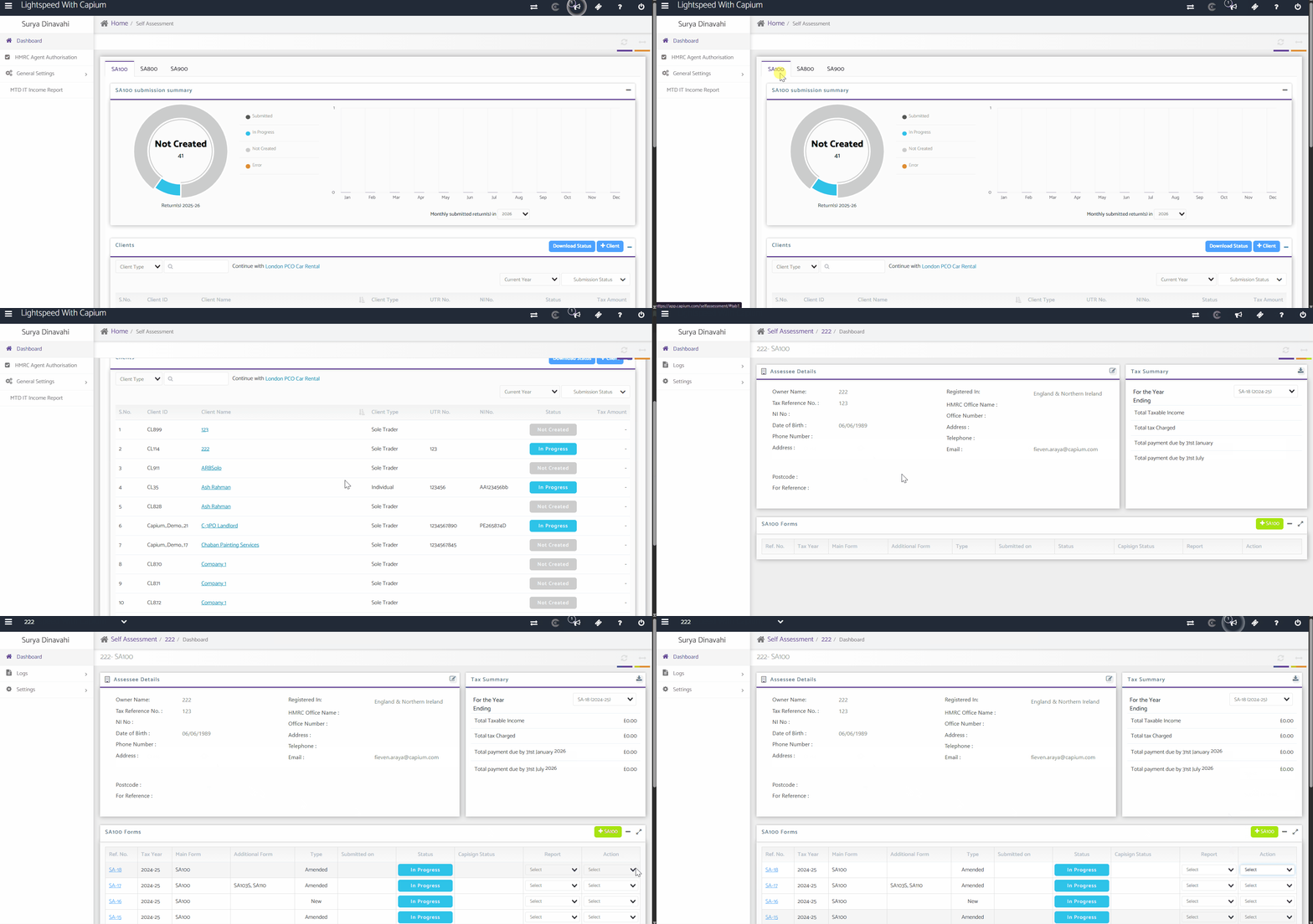
Firstly select the client you wish to create an amended return for. Once you are in the client's SA-100 record, click on the Action drop-down menu and select Edit.
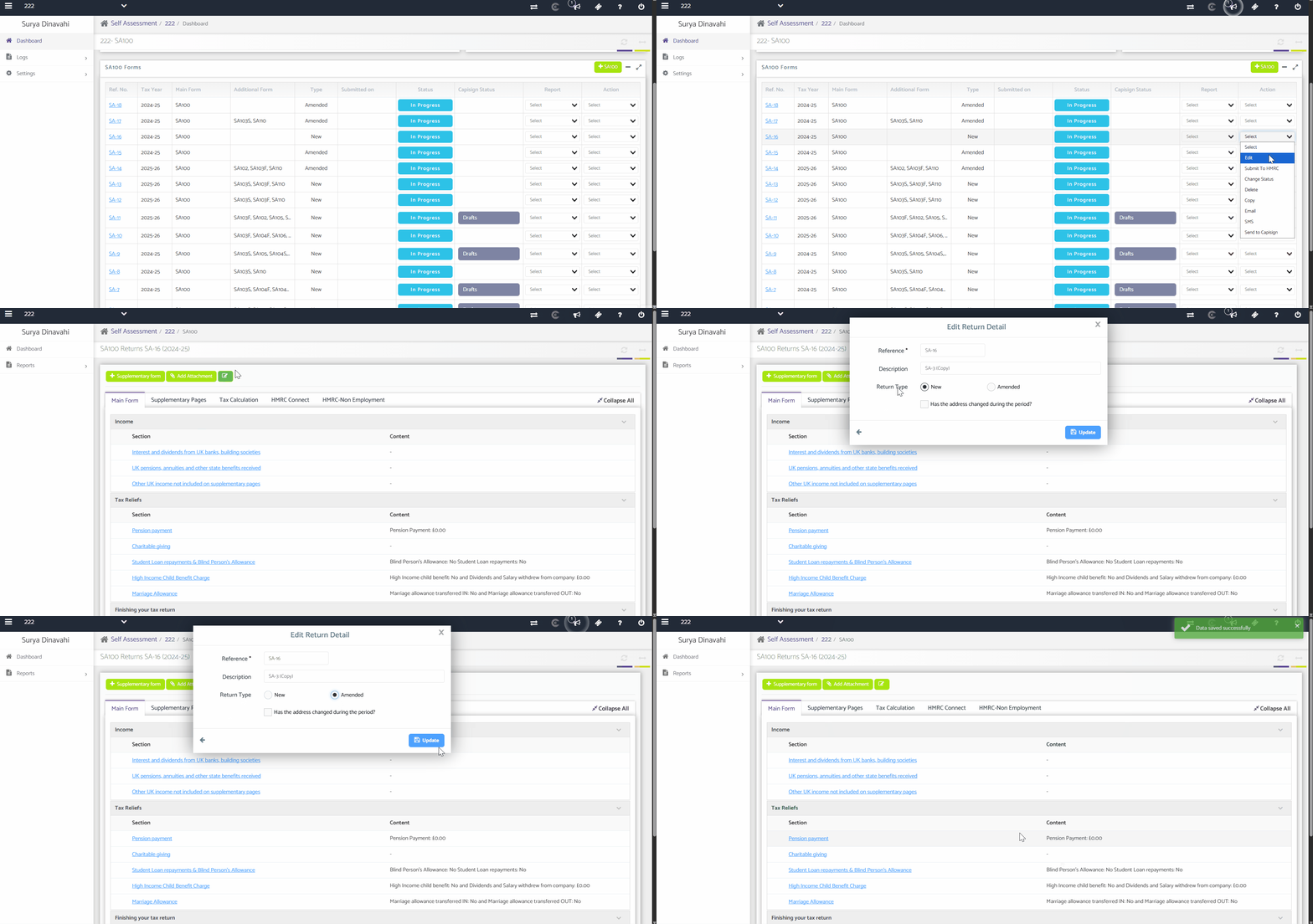
Click on Edit Return Detail. Within the return details, change the return type from New to Amended and then click Update to save your changes.
Once updated, return to the dashboard. The system will automatically create an amended version of the SA-100 return, which you can open and continue editing.
Creating an Amended Return from a Submitted SA-100
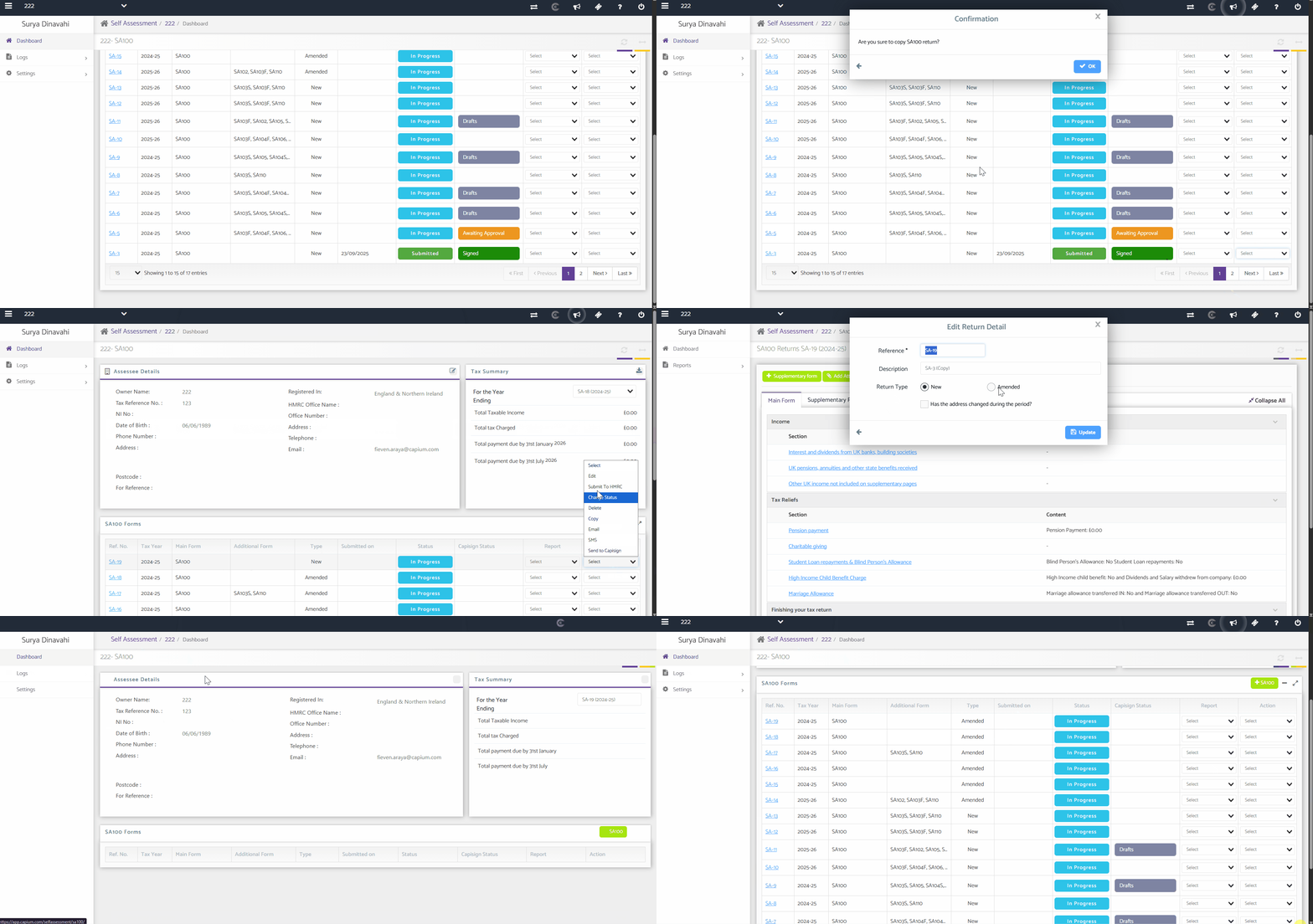
If the original SA-100 return has already been submitted, you cannot amend it directly. Instead, create a copy of the submitted return.
To do this, open the client's SA-100 return, click the Action drop-down menu, and select Copy. The system will create a duplicate of the submitted return.
Open the copied return, click the Action drop-down menu again, and select Edit. Then click Edit Return Detail.
Change the return type to Amended and click Update. The copied return is now an amended return, allowing you to make any necessary changes before submitting the amended version.