
The Practice Management module in Capium allows you to configure deadlines and reminders for MTD IT as a service. This covers both the quarterly submission cycle and the annual final submission, and applies these settings at both the practice level and for individual clients.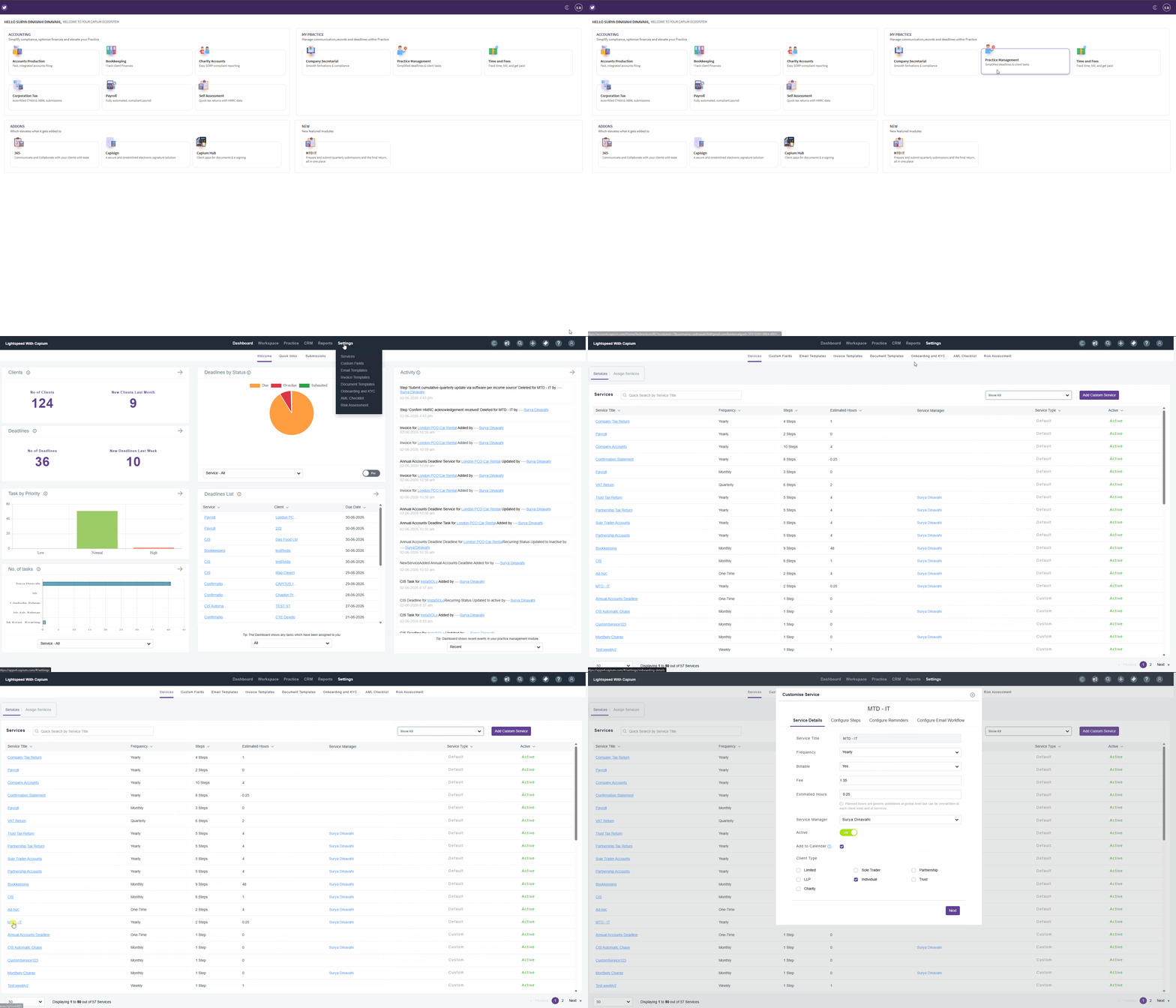
Configuring the MTD IT Service in Settings
Navigation > Practice Management > Settings > Services
- In the top menu, click Settings, then click Services.
- Scroll down to find MTD IT in the list of services.
- Click on the service. The frequency will be set to Yearly by default.
- Click Next. You will see two checklists available:
- Quarterly checklist - recurs on a quarterly basis.
- Adjustment and Allowance / Final Submission checklist - recurs on an annual basis.
Please Note: these two checklists operate independently. Completing or not completing the final submission checklist has no impact on the quarterly checklist workflow.
- Click Next again. Use the edit icon to add new steps to either checklist. Click Add Step to add steps for both the quarterly and final submission checklists as needed.
Configuring Reminders
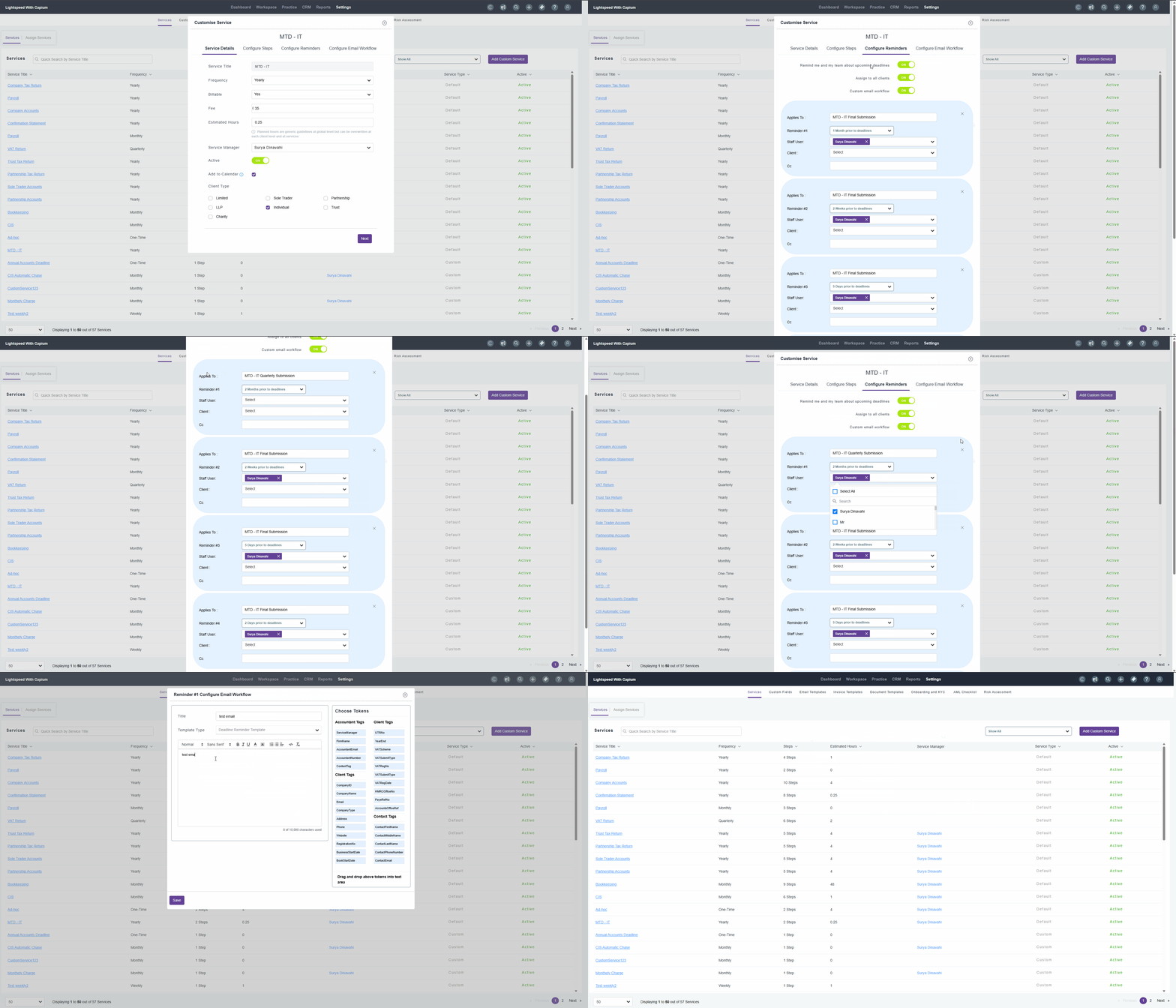
Navigation > Practice Management > Settings > Services > MTD IT > Configure Reminders
- MTD IT deadline coveres both the quarterly submission, and the final submission.
- Quarterly submission.
- Final submission reminders.
- To send automated emails alongside your reminders, enable the Custom Email Workflow toggle. Once enabled, you can assign a custom email to each reminder you have configured.
- Once all steps and reminders are set, click Save to apply the service configuration at the practice level.
 Assigning Services to the indivudals
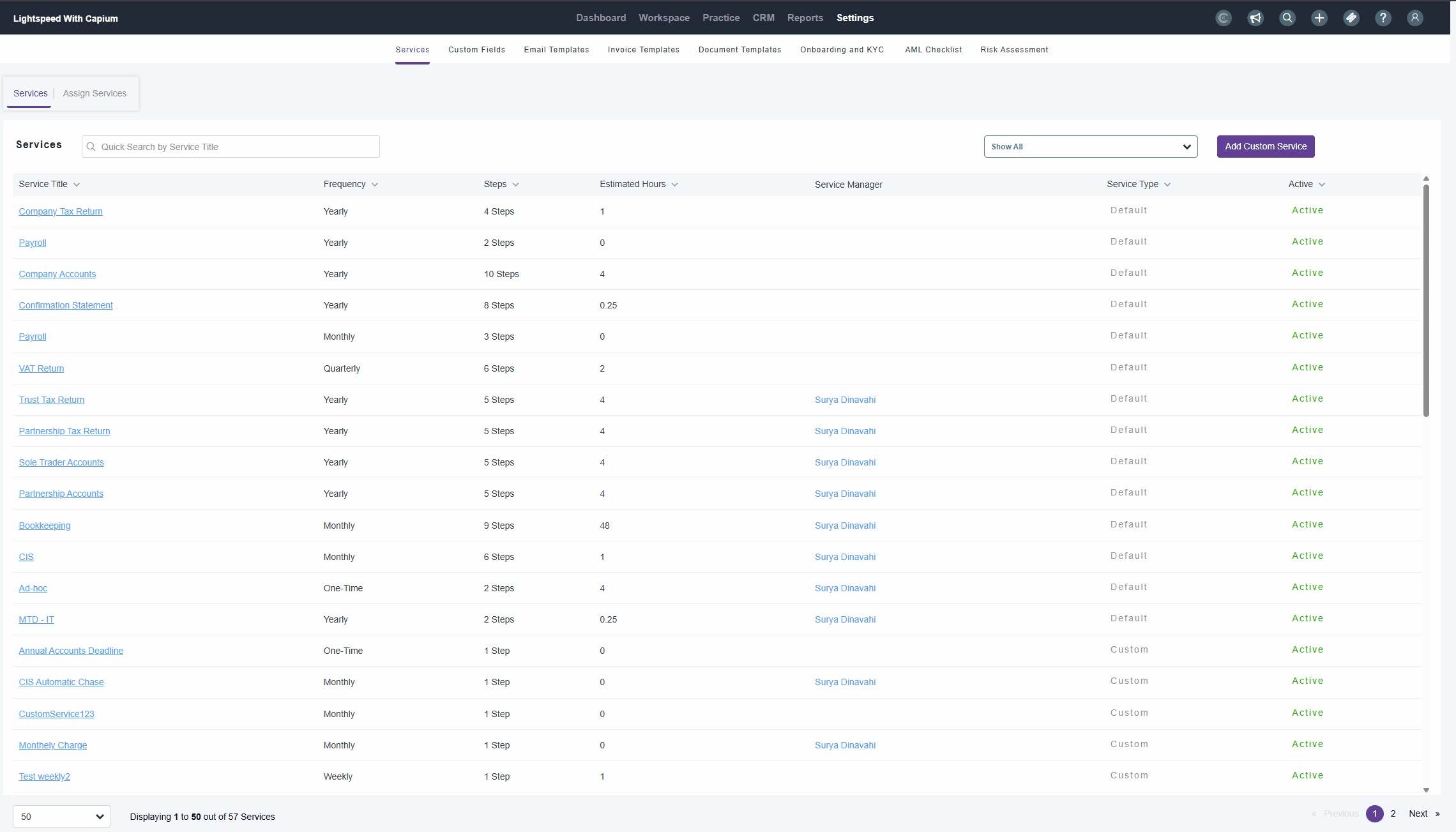
Navigation > Practice Management > Setting > Services > Assign Services
- MTD IT deadline needs to be assigned to all the clients that qualify.
- You can filter the clients, then bulk assign them as shown on the screen above.
- Please note that this must be saved once assigned.
Enabling the MTD IT Service for Individual Clients
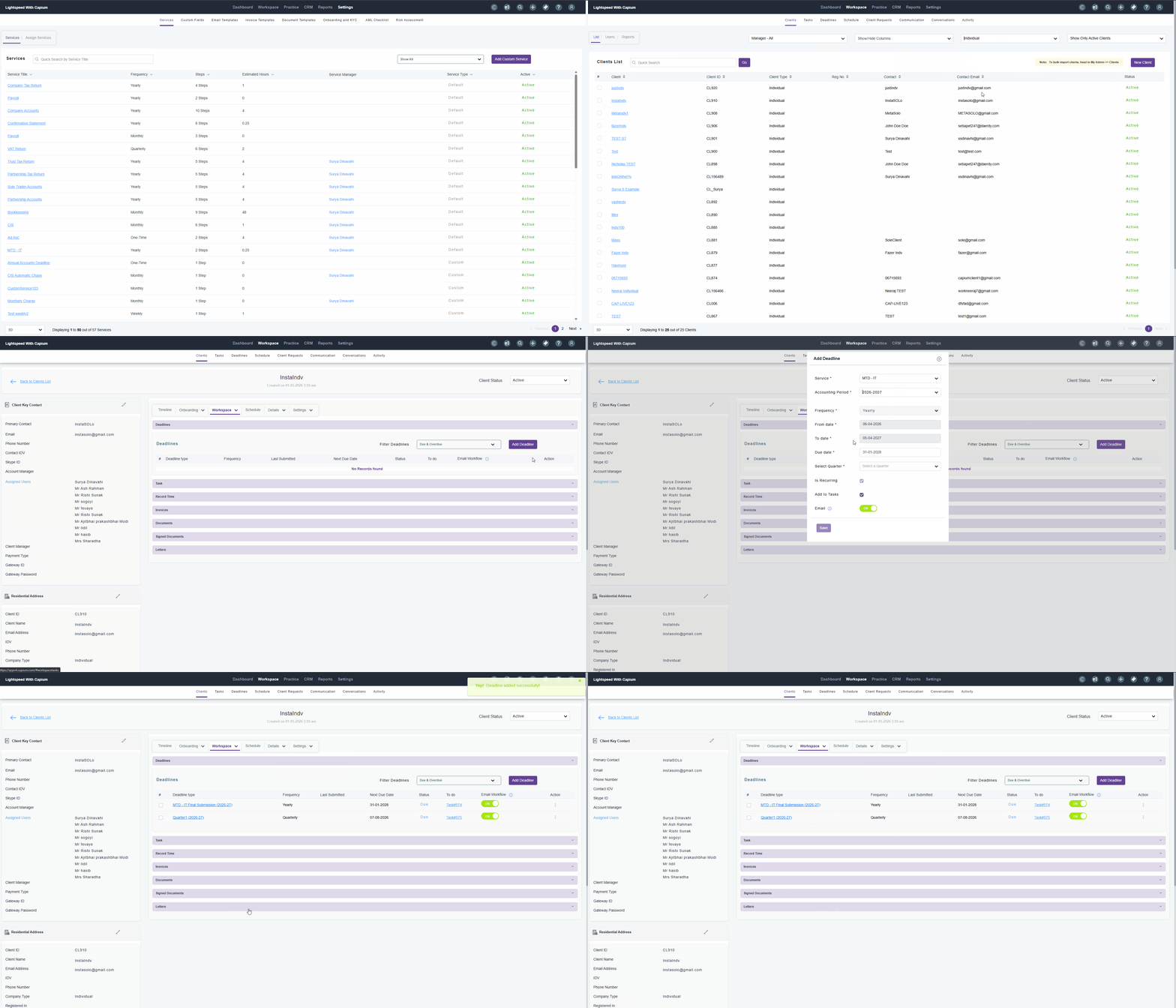
Navigation > Practice Management > Workspace > Clients
- Go to Workspace, then Clients.
- Search for and select the individual client who requires the MTD IT service.
- Within the client record, go to Settings, then click Services.
- Enable the MTD IT service for this client.
- Set the start date of the service, then save. This will generate the workflow steps and apply the reminders configured at the practice settings level.
Marking Reminders as Completed
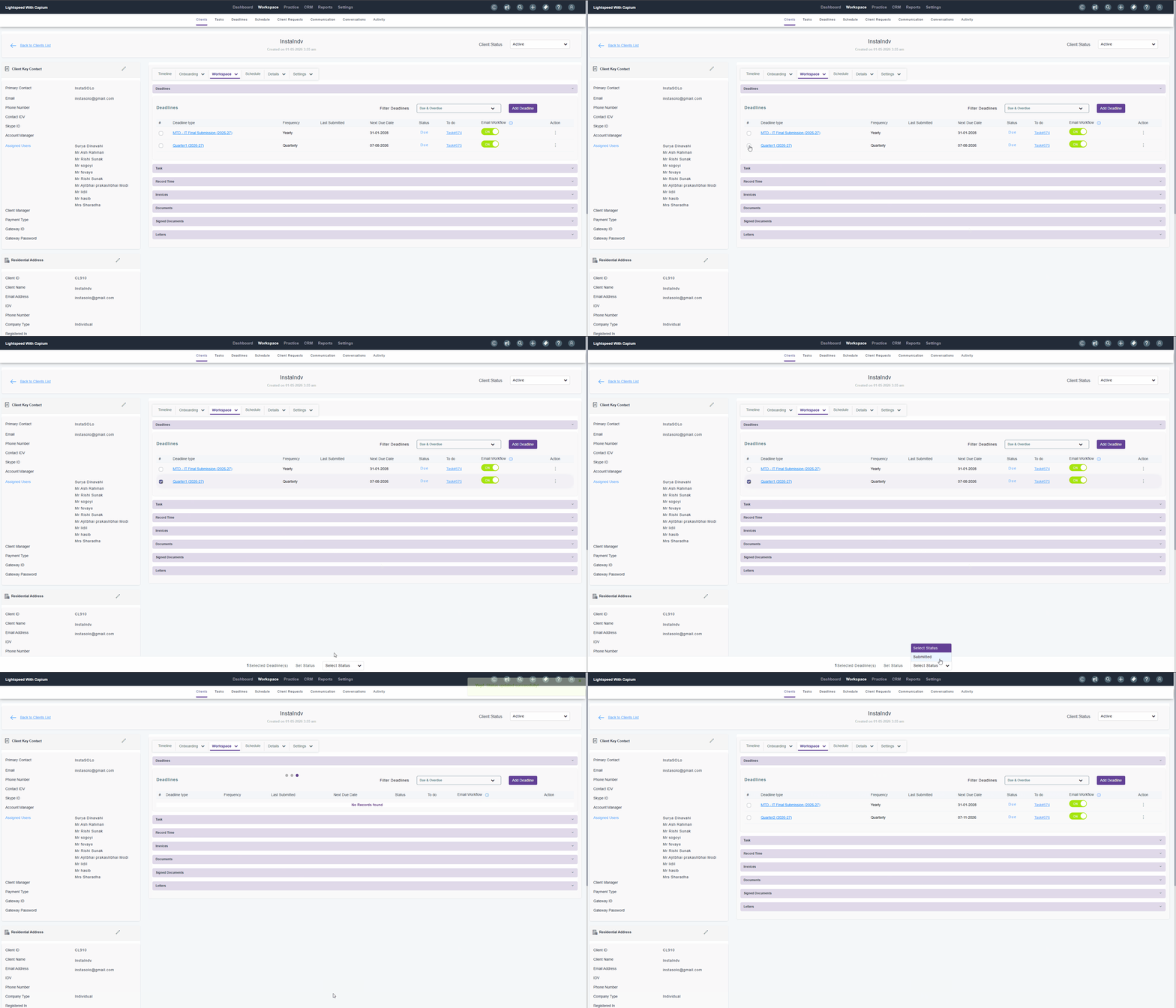
Reminders do not close automatically. To mark a reminder as completed, you must go into the Practice Management module and click Completed under each reminder manually.
If this step is not taken, reminders will remain open in the system regardless of whether the relevant submission has been made.
Completing the end-of-quarter step will trigger the next quarter's workflow automatically.
Important Note: MTD IT Module and Practice Management
There is currently no direct link between submissions made in the MTD IT module and the deadline grid in the Practice Management module. Deadlines and reminders must be managed and marked as completed manually within Practice Management.
This integration is currently under development. Once the update is live, this article will be updated and an announcement will be made within the system.