
Capium Payroll includes functionality to help accountants and their staff stay on top of pension re-enrolment obligations. You are able to update both the pension assessment date and the re-enrolment date directly within the system. Once these dates are set, Capium will automatically send reminder emails to the accountant to ensure that upcoming re-enrolment deadlines are not missed.
Automated Re-Enrolment Reminder Emails
When a re-enrolment date has been set for a client, Capium will automatically send two reminder emails to the accountant:
- A reminder email 60 days before the re-enrolment date, to allow sufficient time to begin preparations.
- A reminder email 30 days before the re-enrolment date, as a follow-up prompt ahead of the deadline.
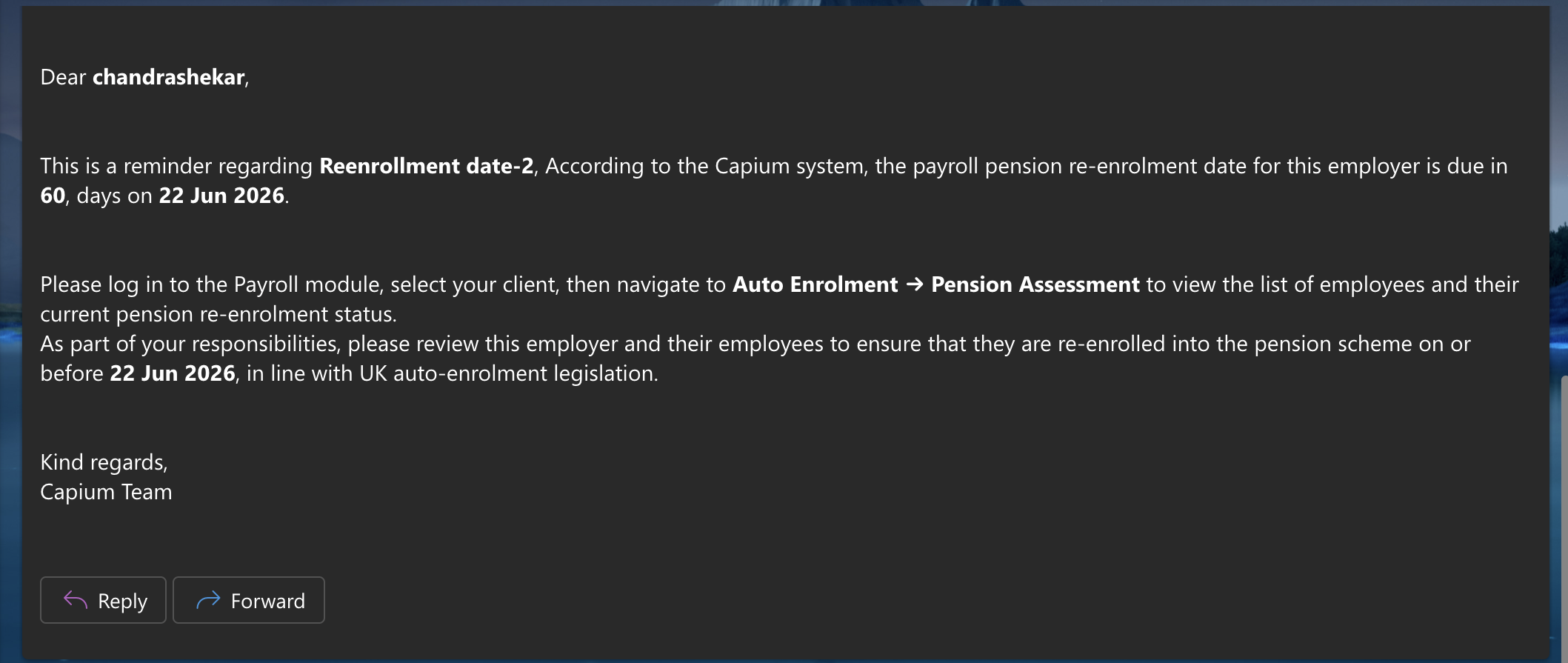
These reminders are sent automatically by the system and do not require any manual intervention. This helps ensure that you and your team are always aware of upcoming re-enrolment obligations across your client base.
Re-Enrolment Report
Capium also provides a dedicated report that allows you to view re-enrolment dates across your entire client base in one place. This is particularly useful for practices managing pension re-enrolment obligations for multiple clients.
To access the Re-Enrolment Report, follow the navigation below:
Navigation > Payroll > Bulk Payroll > Re-Enrolment Report
Alternatively click here to be redirected. 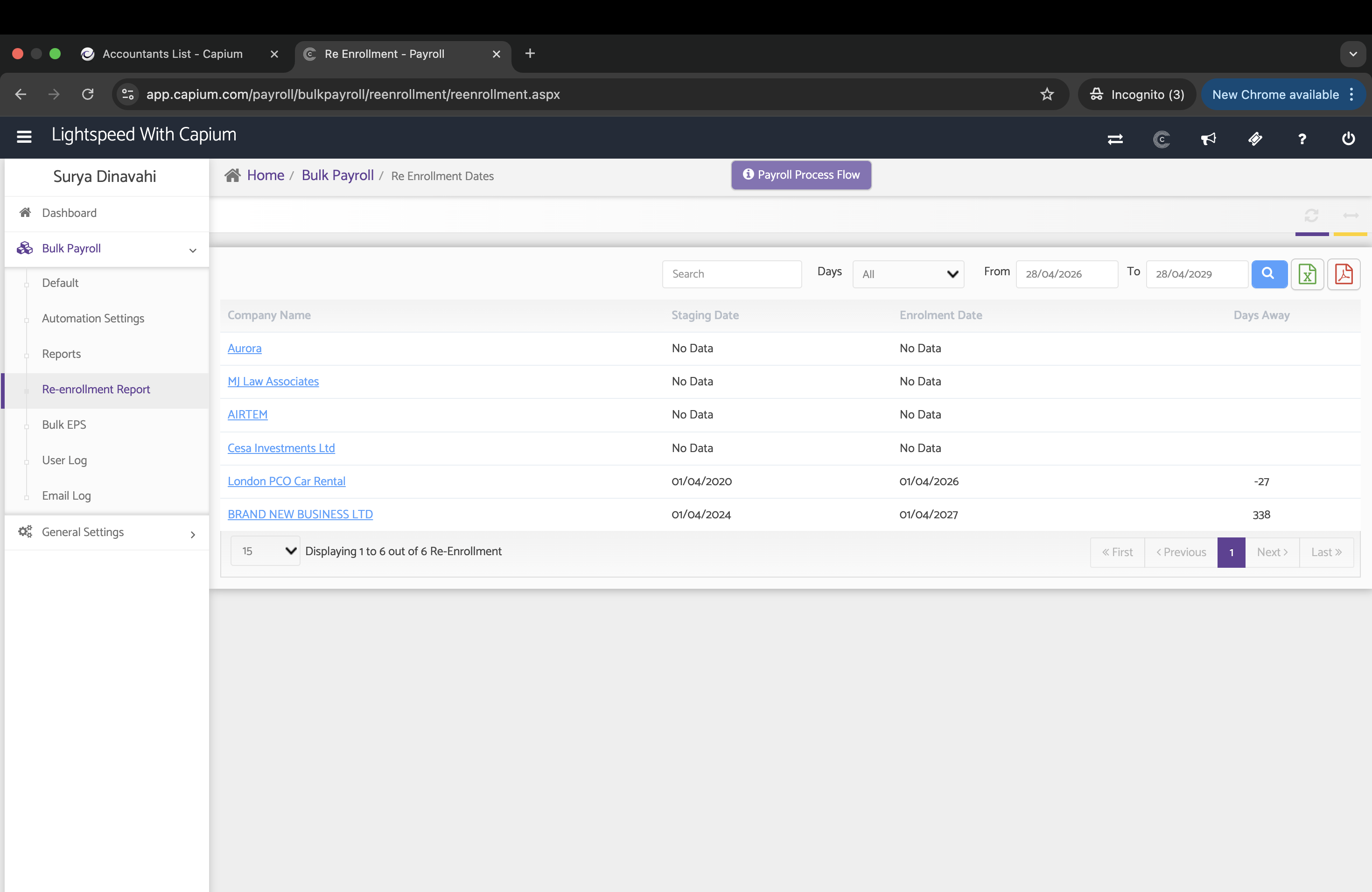
From this report, you can review the re-enrolment dates for all clients and identify any upcoming deadlines that require attention.
Updating the Pension Assessment Date and Re-Enrolment Date
To update the pension assessment date or re-enrolment date for a specific client, navigate to the relevant client within the Payroll module. Once the dates have been updated and saved, the automated reminder emails will be scheduled accordingly based on the re-enrolment date entered.
Notes
- Ensure that re-enrolment dates are entered accurately to guarantee that automated reminders are sent at the correct intervals.
- If you do not receive the automated reminder emails, please check your spam or junk folder in the first instance, or contact Capium Support for further assistance.