
What Is the Capium 365 Client Portal?
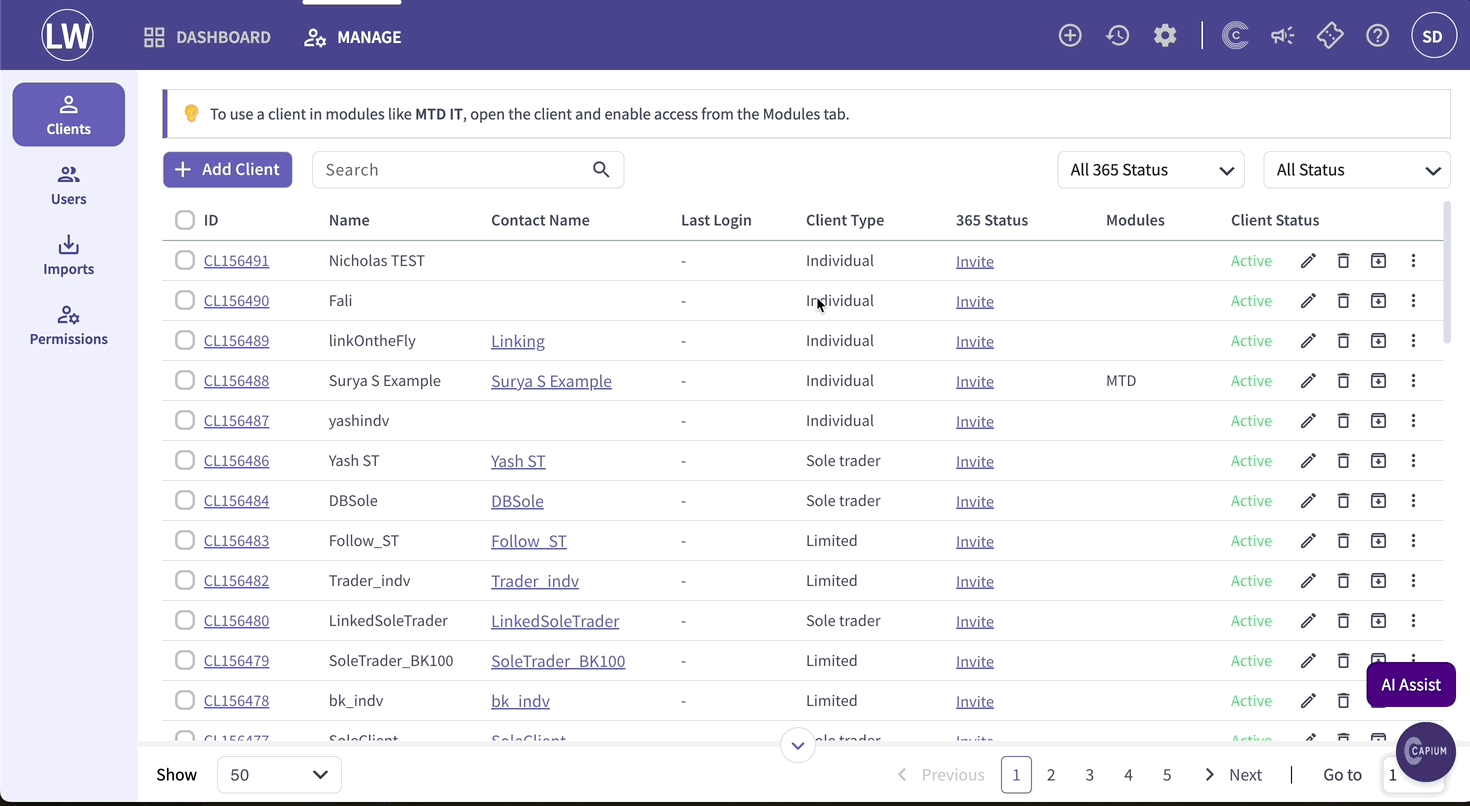
The Capium 365 Client Portal is a core component of the MTD IT (Making Tax Digital for Income Tax) system, designed to streamline client setup and management for the MTD IT module. Currently, the portal sits within the 365 section of the platform, with plans to expand its availability across Capium in the future.
Why Do I See So Many Clients Listed?
Previously, clients had to be imported separately — from My Admin into Capium 365, and from the Self Assessment module into MTD IT. This created a fragmented experience that did not align with how the rest of the Capium ecosystem works.
To address this, client management has been consolidated into a single location: the Capium 365 Client Portal. Going forwards, this will be your one central hub for managing clients across both Capium 365 and the MTD IT module.
What Can I Do in the New Portal?
With this update, you can now:
- Add, edit, and delete clients directly from the 365 Client Portal, in a similar way to how you would manage clients in My Admin.
- Enable individuals to access the MTD IT module, something that was not previously possible through My Admin.
For more detail on how to use these features, please refer to [this article].
| Important: Seeing clients in this list does not mean your Capium 365 licences are being used. The portal at this stage is simply a setup screen. Clients are visible, but they are not active 365 users until you explicitly activate them. |
How to Activate a Client in Capium 365
When you are ready to activate a client, you have two straightforward options:
- Option 1: Send an Invite
Navigation > Capium 365 > Client Portal > Locate the client > Send Invite
Directly invite the client to access their portal by selecting the invite option next to their name.
- Option 2: Manually Activate
Navigation > Capium 365 > Client Portal > Locate the client > Three vertical dots > Activate
Locate the client in the list, click the three vertical dots on the right-hand side, and select Activate.
How to Activate a Client in MTD IT
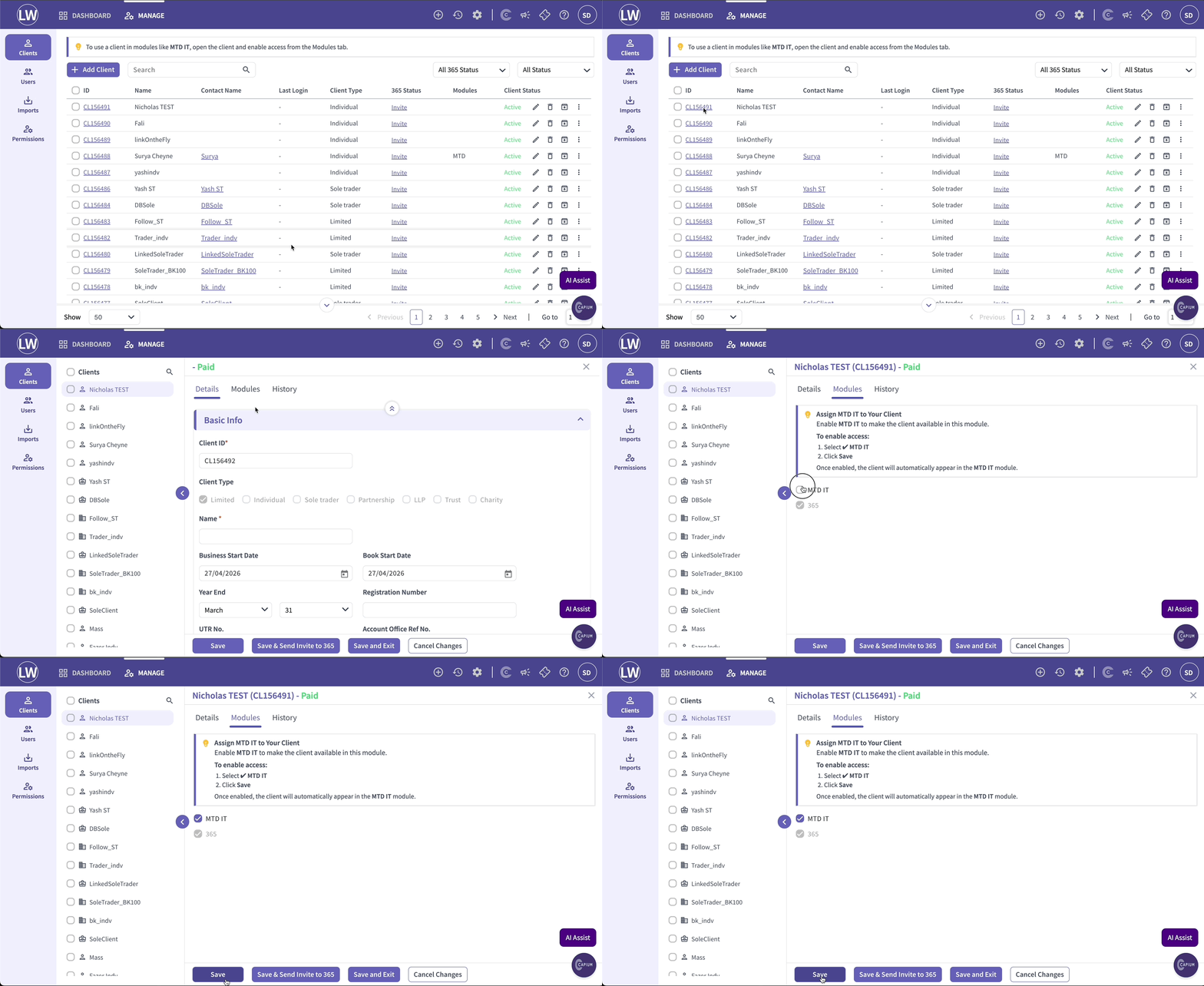
If you are looking to add a client to the MTD IT module, you will first need to ensure that the individual has been created in the Client Portal.
Navigation > Capium 365 > Client Portal > Select the individual > Modules tab > Add MTD IT
- Open the individual - click into the individual profile from the Client Portal.
- Module Access - locate the Modules tab within the individual profile screen and add the MTD IT module.
Let me know if you would like any sections adjusted, expanded, or if you have another module article you need writing up.