Welcome to this quick guide on Migrating Bookkeeping Clients to Capium 365. This guide will walk you through the essential steps.
Once you migrate to Capium 365, your clients will no longer have access to the existing bookkeeping module. However, Capium 365 enables them to perform all the functions previously available in the bookkeeping module and more, with enhanced capabilities and improved efficiency.
Capium 365 is designed to work alongside the bookkeeping module, enhancing its functionality rather than replacing it. For example, if your clients were previously creating sales invoices or purchase invoices within the existing bookkeeping module, they will now be able to carry out these tasks within Capium 365. All associated data will continue to synchronise seamlessly with the bookkeeping module.
You will be able to transfer all client data from the bookkeeping module into Capium 365 in just a few simple steps. This includes data such as customers, suppliers, products, bank accounts, account names, and VAT rates. Please refer to the step by step guide below for detailed instructions.
Client Specific - Settings - Imports
Navigation: Capium 365 > Manage > Clients > Client Specific > Settings > Imports
One of the first things you should do when accessing a specific client is ensure that all the required data is brought into the system. If the client’s information has already been set up in the Bookkeeping module, you can import the data directly from there. If you are starting fresh, you can also use the Import function to upload the required data using an Excel file or a PDF document.
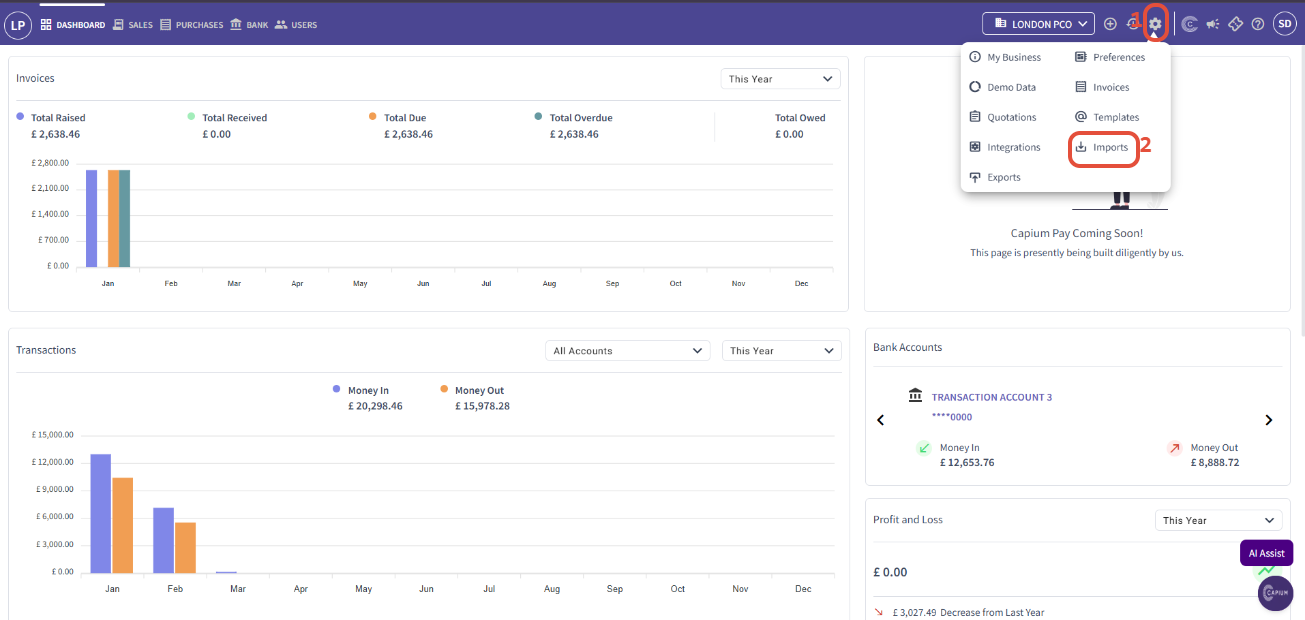
To do this, click on the settings wheel shown in the picture below and select “Imports.” This will redirect you to the Imports page.
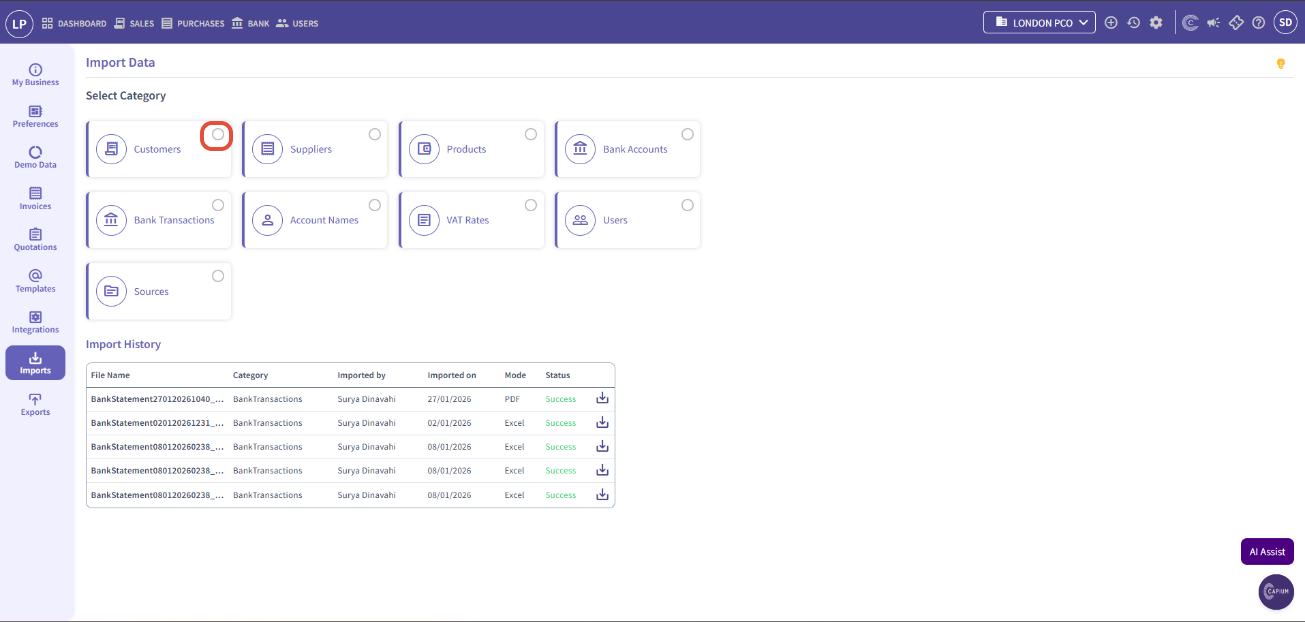
Once you are in the Import Data section, you can import a variety of data into the system. The main categories you should initially focus on are Customers, Suppliers, and Bank Accounts. Select the circle icon next to each category and then click next.
Here, you can to upload the data manually, you can download the sample Excel file shown in the picture below, fill in the relevant fields, and then upload it into the system. Alternatively, you can choose to upload the data in PDF format.
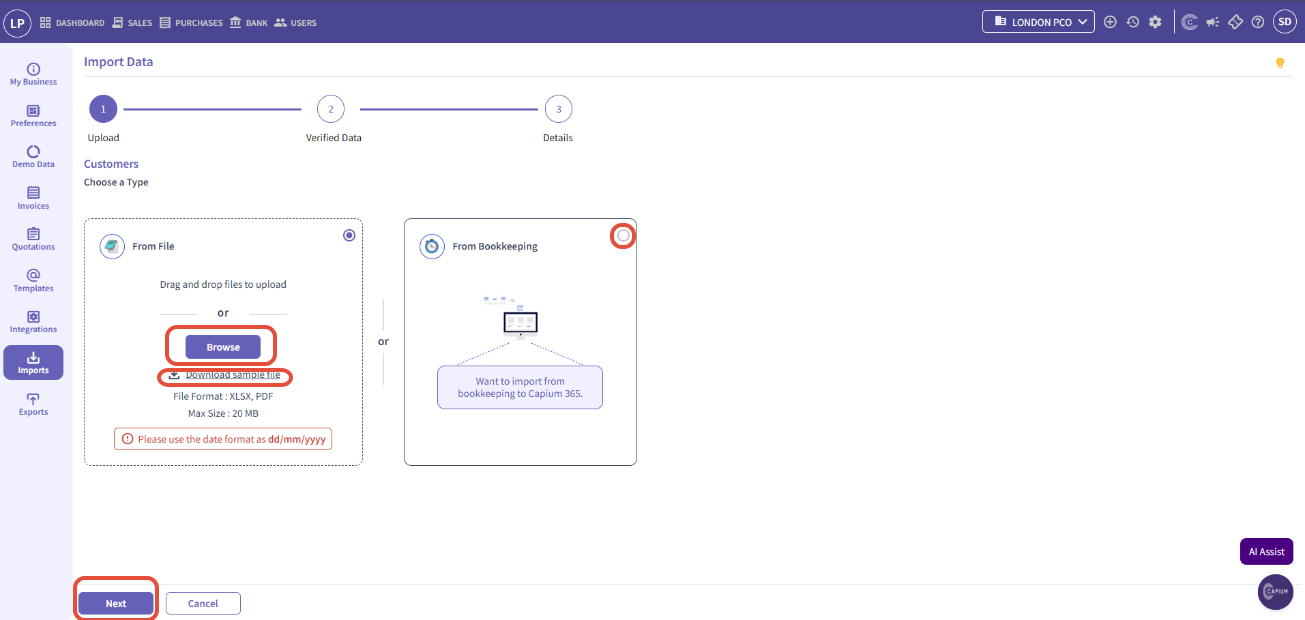
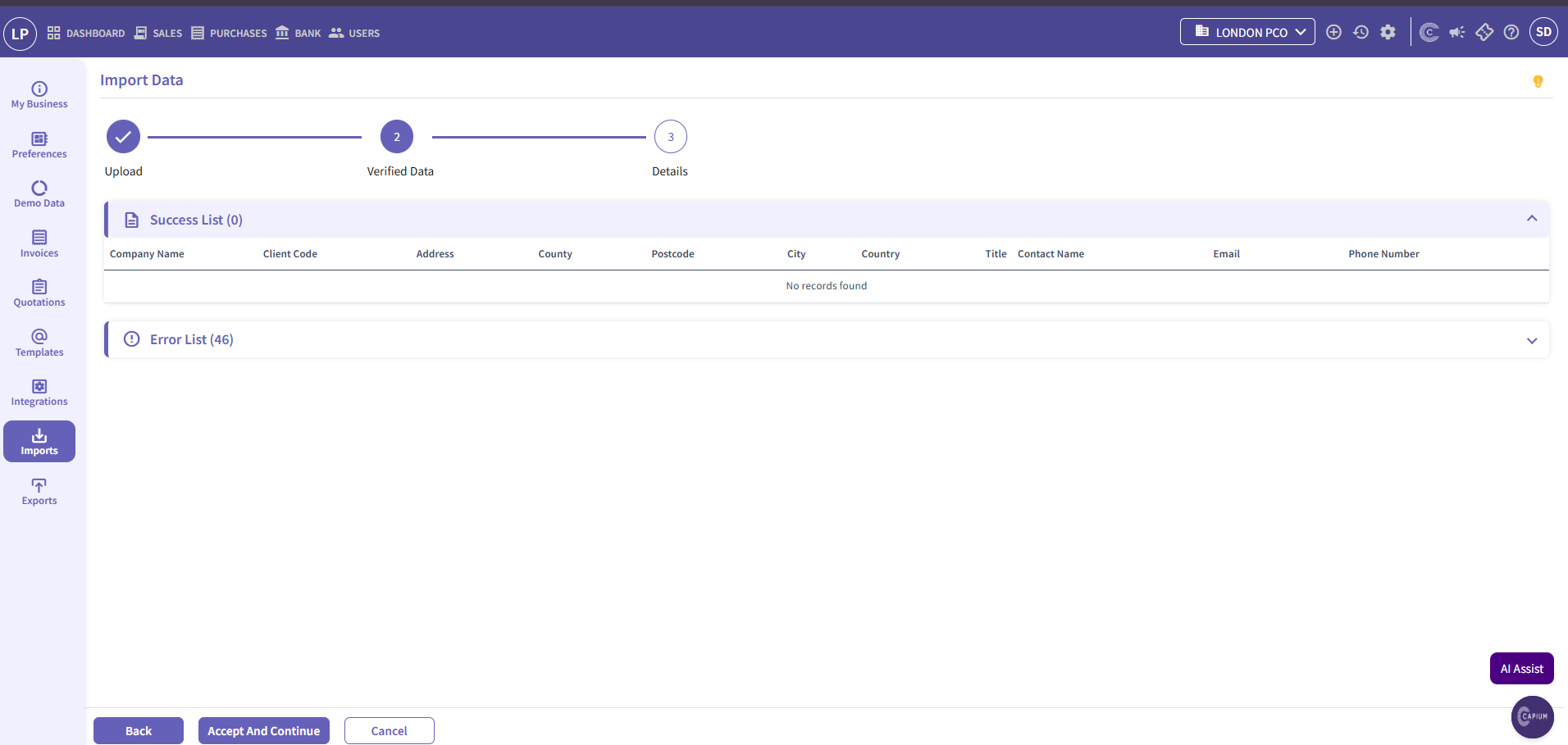
You can also import data directly from the Bookkeeping module by selecting the circle icon and clicking Next. This will take you to the page shown below, where you will see two lists: a Success List and an Error List.
The Success List shows the data that can be successfully imported into the system, depending on the selected import category. The Error List displays the data that cannot be imported. This may occur if the data already exists in the account or if there are issues with the data.