
Template upload for UK Property –
This feature in MTD IT Capital enables you to import UK property income and expenditure data quickly and efficiently using a standardized template. This reduces manual data entry, improves accuracy, and helps ensure that property records are uploaded in the correct format for Making Tax Digital (MTD) compliance.
By completing and uploading the template, you can add or update your clients' UK property details in bulk, making it easier to manage quarterly updates and annual submissions. Before uploading, please ensure that all mandatory fields have been completed and that the information has been reviewed for accuracy.
If you are using Bridging solution u can use the link
Before we start:
Before uploading the UK Property Income and Expenditure Template, please ensure that the client has been added to Capium as an Individual, the MTD IT module has been enabled, and the client has been successfully authorised with HMRC You should also confirm that the client's UK Property income source has been Synchronised with HMRC and is available within Capium.
Step 1
Navigation: MTD IT > Submissions > Client specific > Select view & Submit > Digital records > Template.
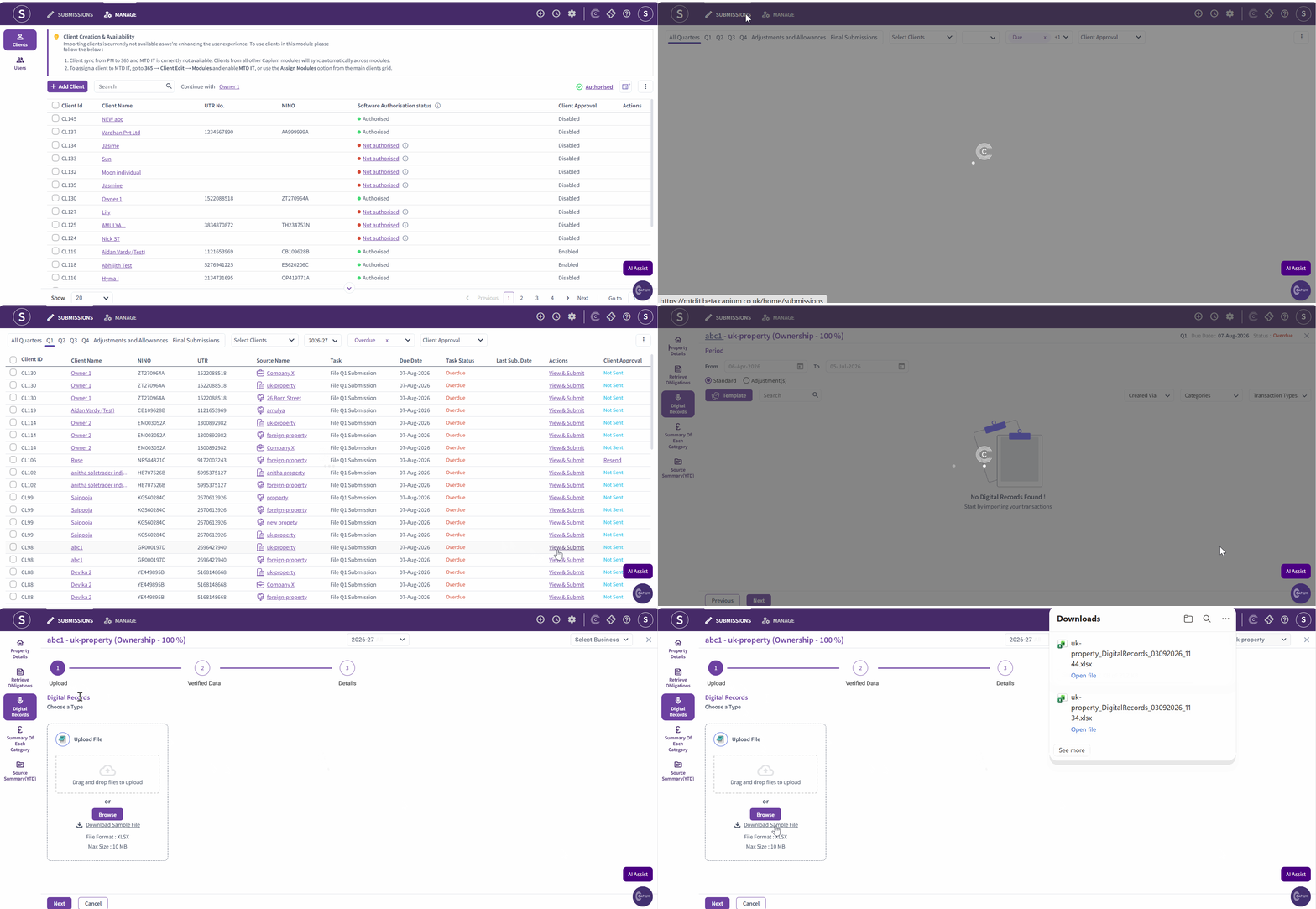
- Download the sample file
- Populate all relevant fields in the file
- Save the file
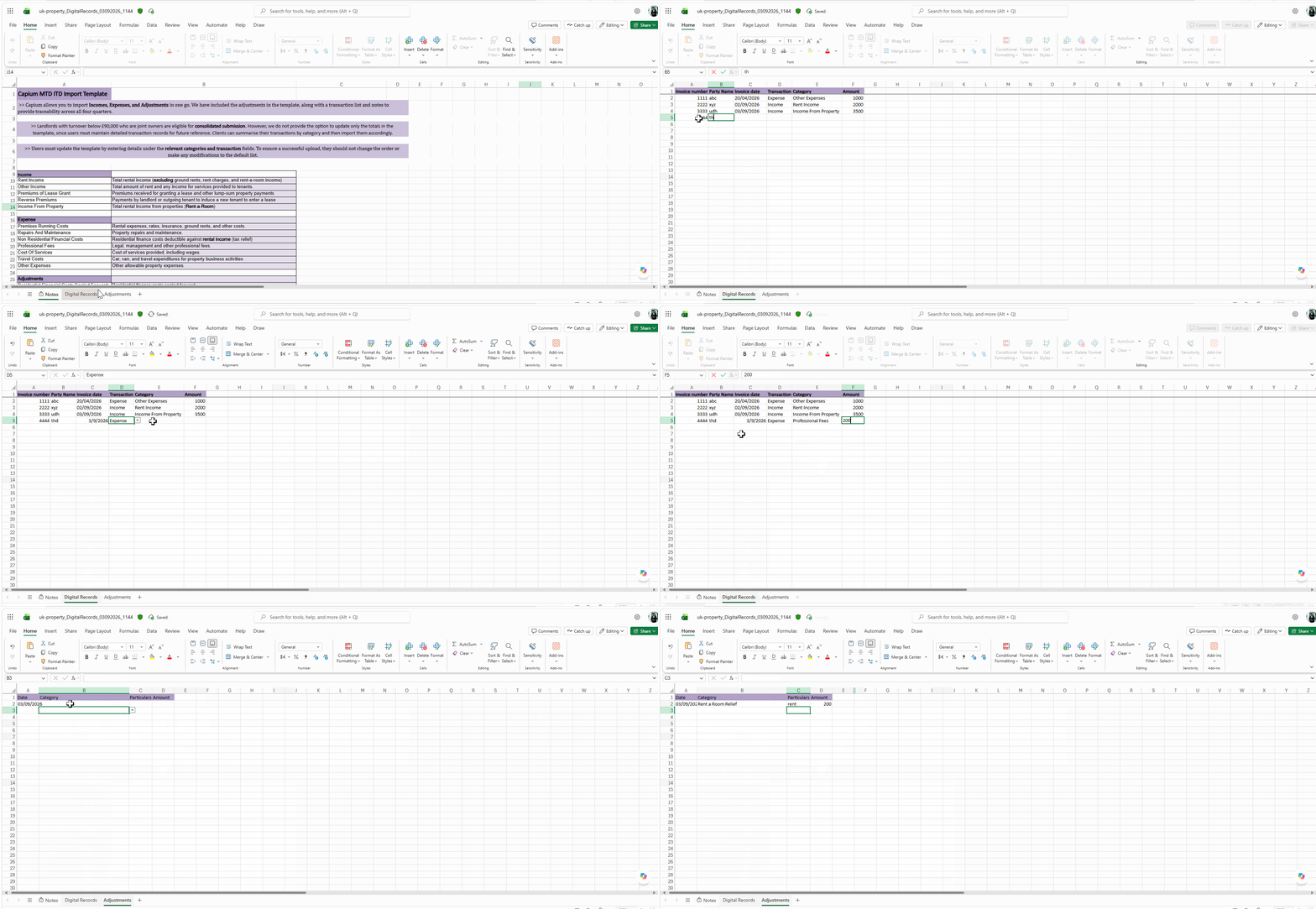
After downloading the template, complete all relevant fields with the client's UK property income and expenditure information and save the file before uploading it to Capium. The template is divided into two sections:
- Digital Records, where you record individual income and expense transactions
- Adjustments, where you enter any accounting or tax adjustments required for the reporting period.
Ensure all information is accurate and entered in the correct format to help avoid validation errors during the upload process.
- The Digital Records section includes:
- Invoice number – the reference for the transaction.
- Party Name – the customer, supplier or relevant party.
- Invoice date – the date of the transaction.
- Transaction Type – select whether the transaction is Income or Expense.
- Category – select the relevant income or expense category (e.g., turnover, cost of goods, travel, Admin cost).
- Amount – the value of the transaction in pounds sterling.
The Adjustments section includes:
- Date
- Category
- Particulars
- Amount
Prior to uploading the template, review all income and expenditure figures to ensure they are complete, accurate, and entered in the correct format. Carrying out these checks beforehand will help ensure a smooth upload process and minimise the risk of validation errors or submission issues.
Step 2
Please see reference below
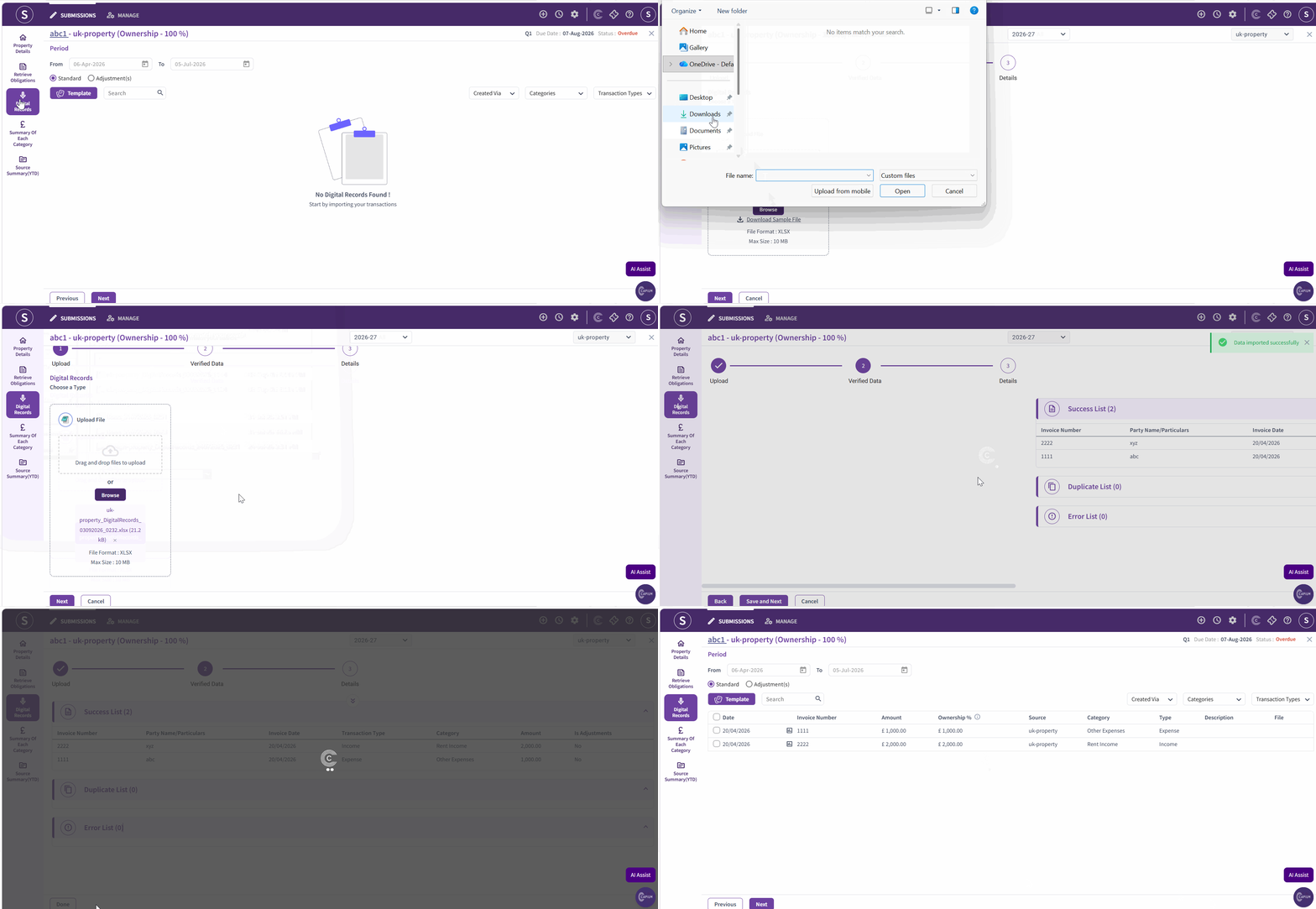
Now reupload the CSV template into the system by selecting browse or use drag and drop files option to upload the file
Once the file is selected, click ‘Next’ at the bottom of the page.
After you upload the file, the system will display
1. Success list will show the records that have been successfully imported
2. Duplicates list will highlight any duplicate entries in the file
3. Error list will display records that could not be imported due to errors with the reason
| Important: Re-uploading a template permanently replaces the existing digital records with the information contained in the uploaded file. Make sure the file includes all records you want to retain before proceeding. |
Once verification has been completed, all transactions will be imported and displayed as shown below. Review the imported information to ensure it is accurate, then select Done to finalise the process.
Step 3
Please see reference below
Next Step:
Once the digital records and adjustments have been imported and reviewed, return to the Summary page and check that all information has been uploaded correctly. If everything is accurate, select Submission to proceed with the MTD IT submission.
Dedicated articles and video guides are available for each workflow, covering the full end-to-end journey including setup and features. Please scroll to the bottom of this article to access the relevant workflow guides.
Related Articles :