
This article applies only if quarterly updates are being filed outside Capium
Overview
This guide explains how your practice should handle End of Year (EoY) for a client where all quarterly updates (Q1–Q4) were submitted using a third-party application, and you are using Capium only from the annual submission stage onwards.
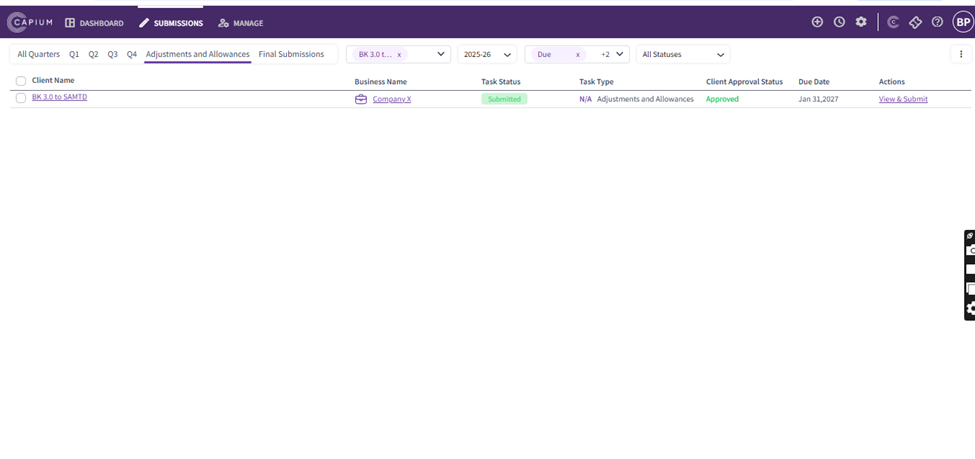
In this scenario, Capium will recognise that quarterlies were filed outside of Capium, display the quarterly statuses as submitted, and take you straight into the annual / finalisation journey.
When to use this process
Use this approach if:
Q1, Q2, Q3 and Q4 were completed in another software
You still want to complete the annual submission / final declaration in Capium
You do not need Capium to prepare or submit any quarterly updates for that tax year
What Capium will do in this scenario
Capium will:
Show Q1–Q4 submission statuses as submitted via a third party (similar to how Capium handles “mid-year joiners”).
Land you directly into the annual stage (the Adjustments/Allowances journey onwards).
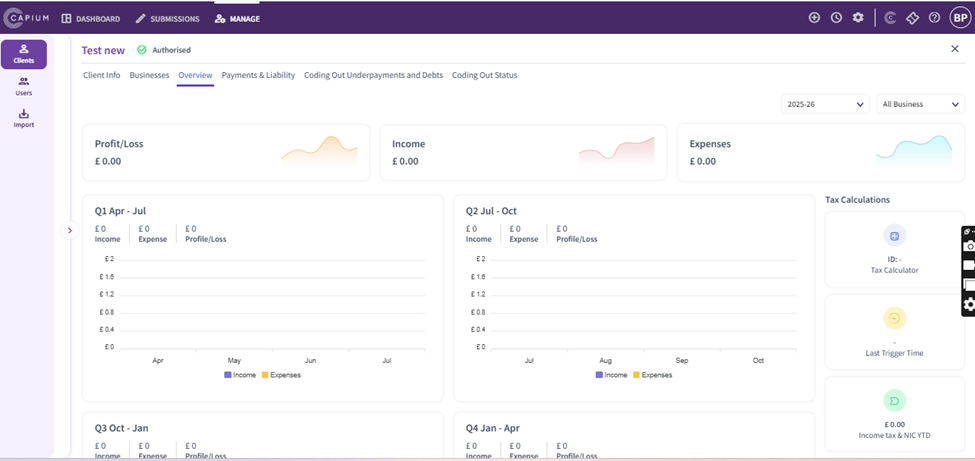
Hide/disable quarterly-related views (you won’t be presented the quarterly overview and related profit/loss/income screens).
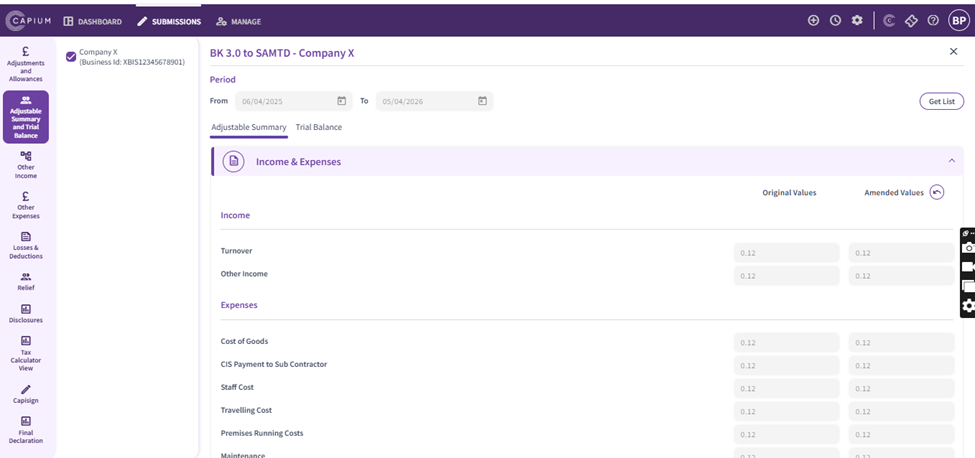
Only present annual-related tabs such as tax calculation and annual income/expense/P&L related areas.
Prerequisites (always required)
These steps are the same whether a client joined at the beginning of the year, mid-year, or only for the annual submission:
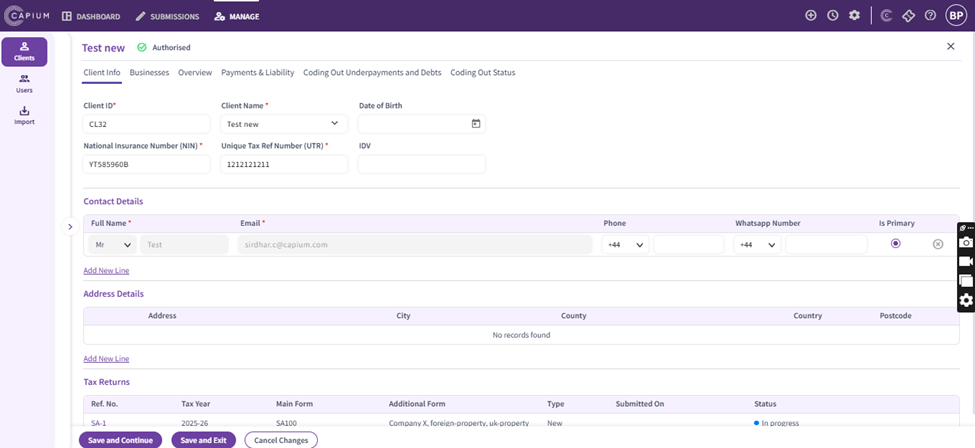
Add the client in Capium
Authorise the client with HMRC
Pull the client’s businesses/income sources
Add those business/income sources into the tax return
Step-by-step: End of Year only (Q1–Q4 filed outside Capium)
Step 1 — Create the client and connect to HMRC
Create/add the client in Capium.
Complete HMRC authorisation for the client.
Retrieve the client’s income sources/businesses from HMRC.
Add the relevant business(es) into the return.
Step 2 — Confirm Capium shows Q1–Q4 as filed elsewhere
Open the client’s MTD IT journey in Capium.
Check the quarterly section/status area.
Confirm Q1, Q2, Q3 and Q4 are all shown as submitted via third party.
If all four quarters are marked as filed via third party, Capium will move you forward into the annual-only flow.
Step 3 — Complete annual adjustments and allowances (annual stage onwards)
Go to Adjustments and enter any year-end adjustments required.
Go to Allowances and complete relevant claims.
Review the Tax Calculation area.
Complete the final annual steps and submit the annual declaration as required.
What you will see (and what you won’t)
You will see
Annual submission areas (annual Income / Expenses / P&L related tabs)
Tax calculation
Annual finalisation journey (from Adjustments onwards)
You will NOT see
Quarterly overview screens
Quarterly profit/loss/income related views connected to Q1–Q4
Tab behaviour (important)
If Q1, Q2, Q3 and Q4 are all submitted via third party, then:
Trial Balance will be disabled
Adjustable Summary and Allowances will be disabled (as per the documented intended behaviour for this condition)
Practical tip for practices: this “disabled tab” behaviour is intended to prevent confusion and stop you from trying to rebuild quarterly-led numbers inside Capium when the quarterlies were not done here.