
Overview
This article explains how to show the approval date in the statutory accounts report for a client in Accounts Production. It applies to practice staff who prepare and generate annual accounts in Capium.
Before you start
- The client must already have an accounting period and accounts set up in Accounts Production. See How to prepare a set of Accounts.
- The setting applies to the client you are working in. Repeat the steps for each client where the approval date is required.
Show the approval date in the accounts report
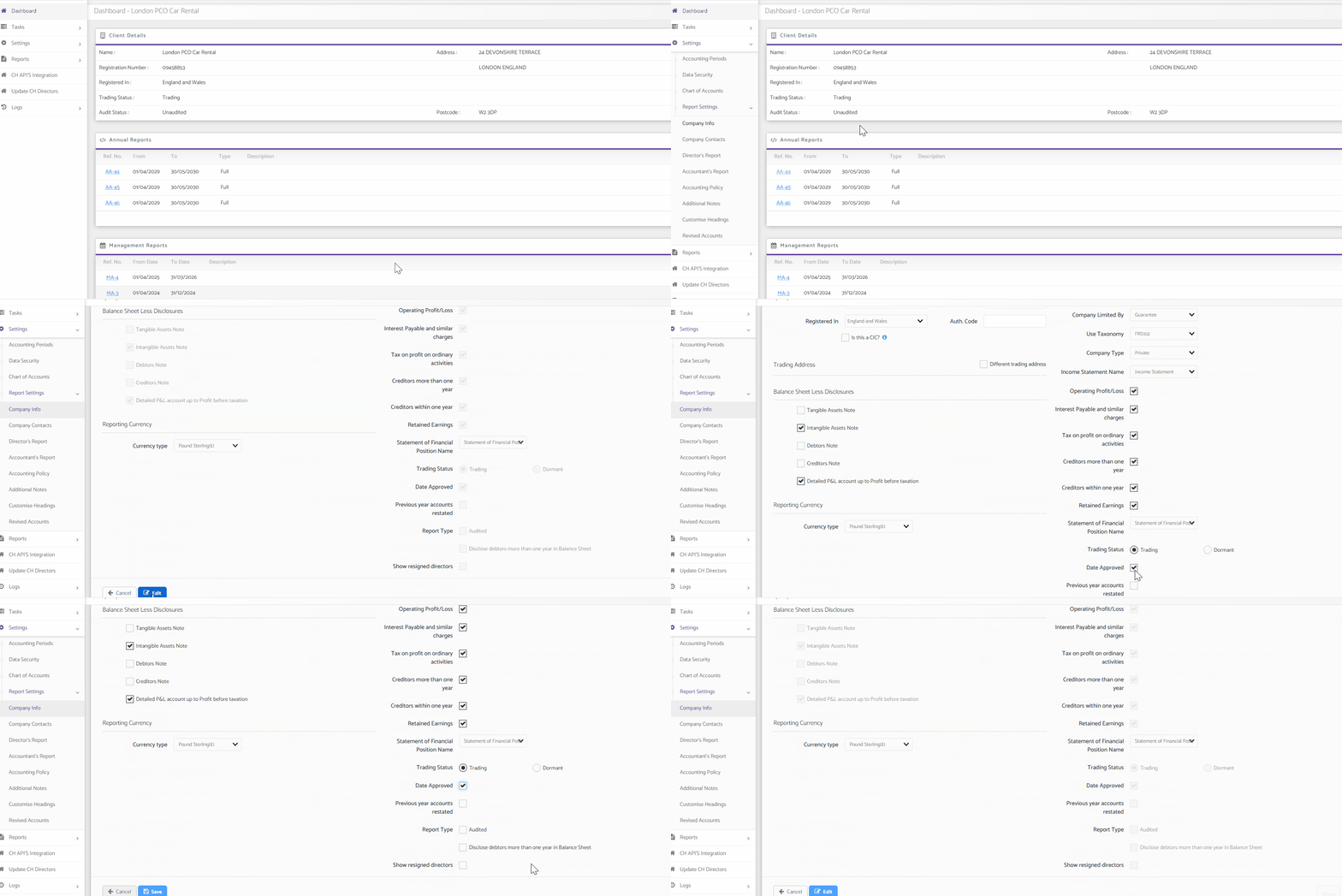
- Go to the client's report settings.
- Navigation > Accounts Production > Client Specific > Settings > Report Settings > Company Info
- Select Edit.
- Tick the Date Approved checkbox.
- Save your changes.
- Regenerate the accounts report so that the change appears. See How To Regenerate Annual Accounts.
The approval date now appears in the regenerated accounts report.