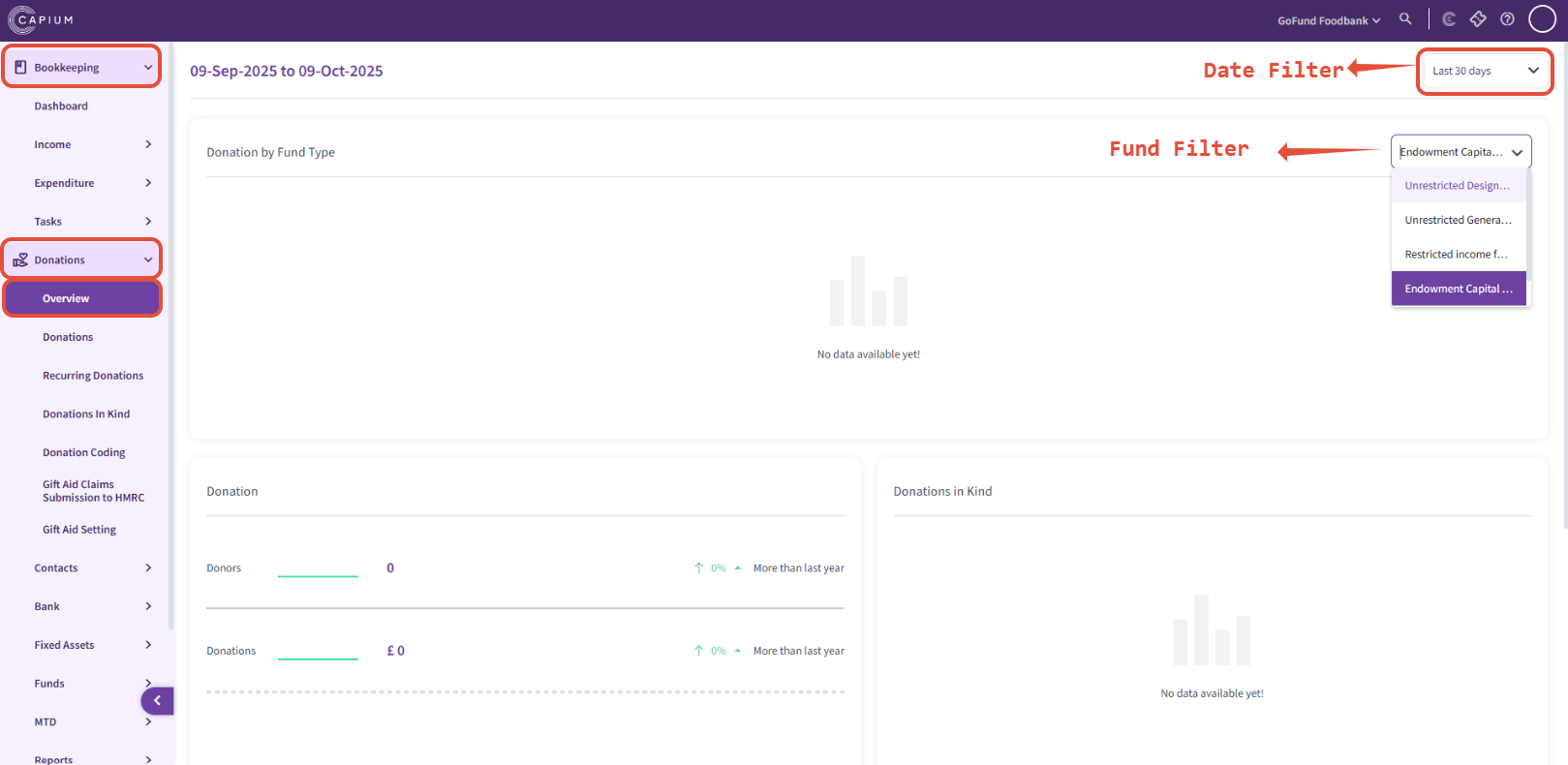
Bookkeeping: Donation - Overview
Navigation: Charity > Client specific > Bookkeeping > Donation> Overview
In this section you will get a overview of the Donations.
You will be able to see the:
- Donations by Fund
- Donation
- Donations in Kind
- Donations Flow
Bookkeeping: Donation - Donations
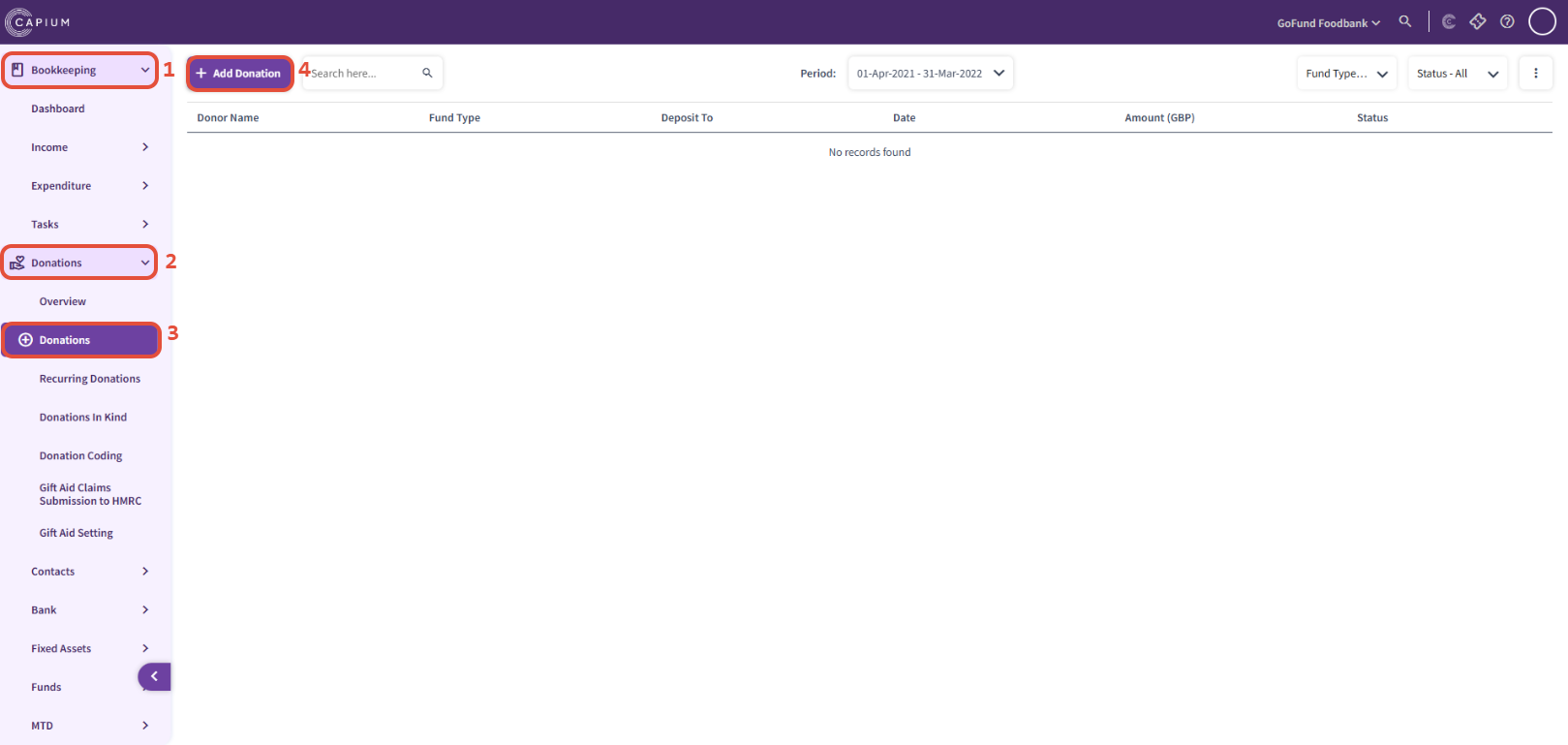
Navigation: Charity > Client specific > Bookkeeping > Donations > Donations
In this section you will be able to add in your Donations.
To add a Donation, click on '+ Add Donation'
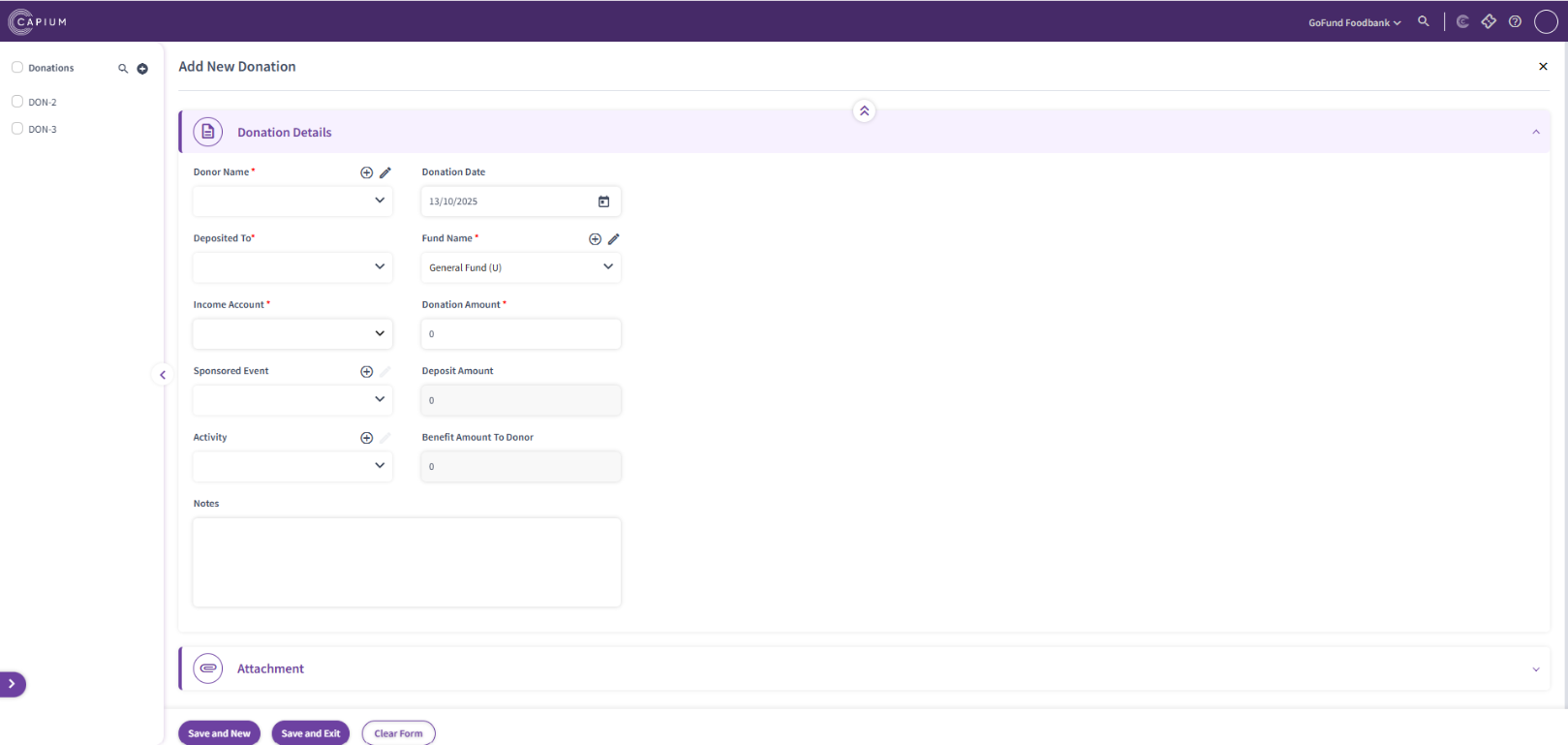
After you click on '+ Add Donation' it will take you to this page shown below, here you will be able to enter the relevant data for the Donation as well as add a attachment.
Bookkeeping: Donation - Recurring Donations
Navigation: Charity > Client specific > Bookkeeping > Donations > Recurring Donations
In this section you will be able to create your Recurring Donation.
To create a Recurring Donation, click on '+ Add Recurring Donation'
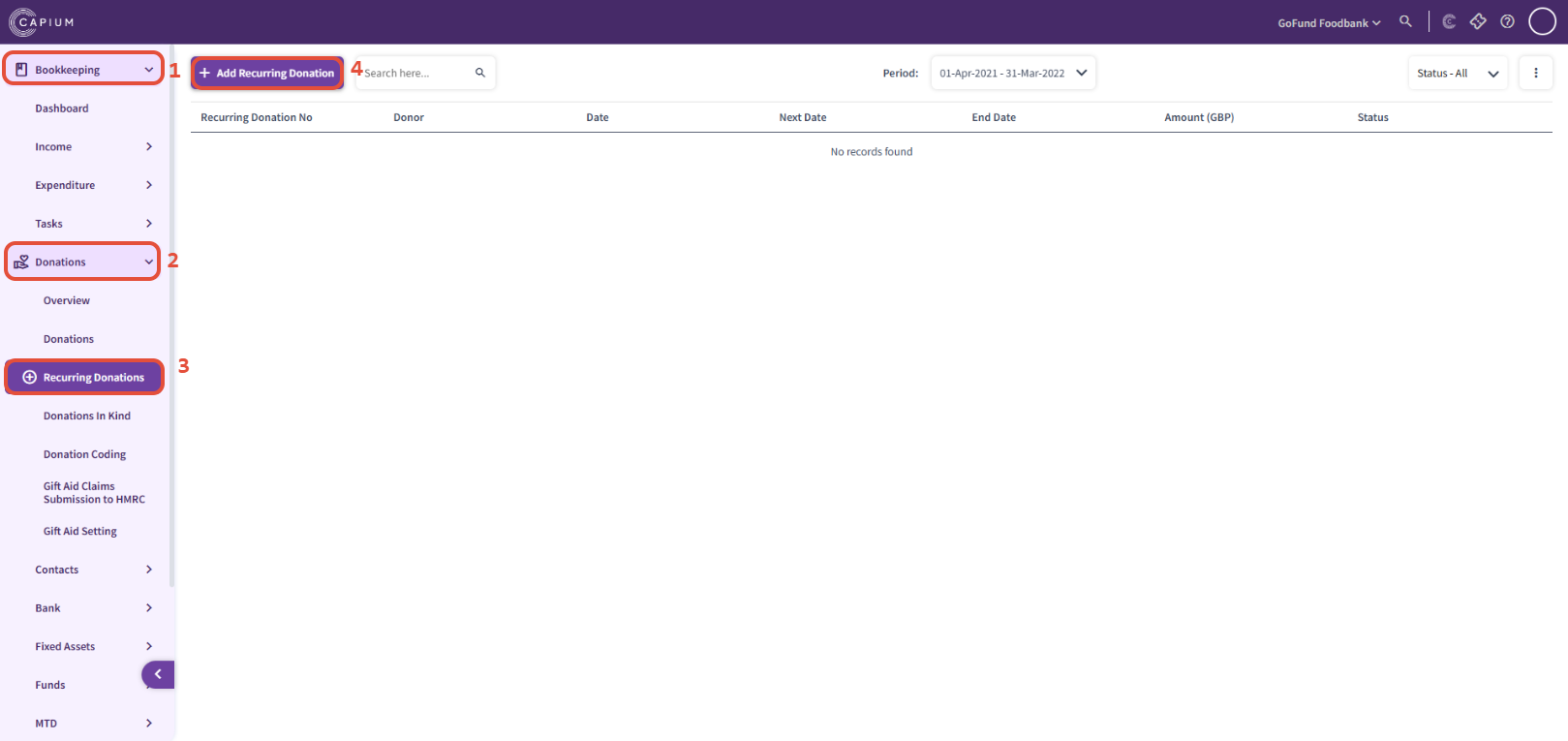
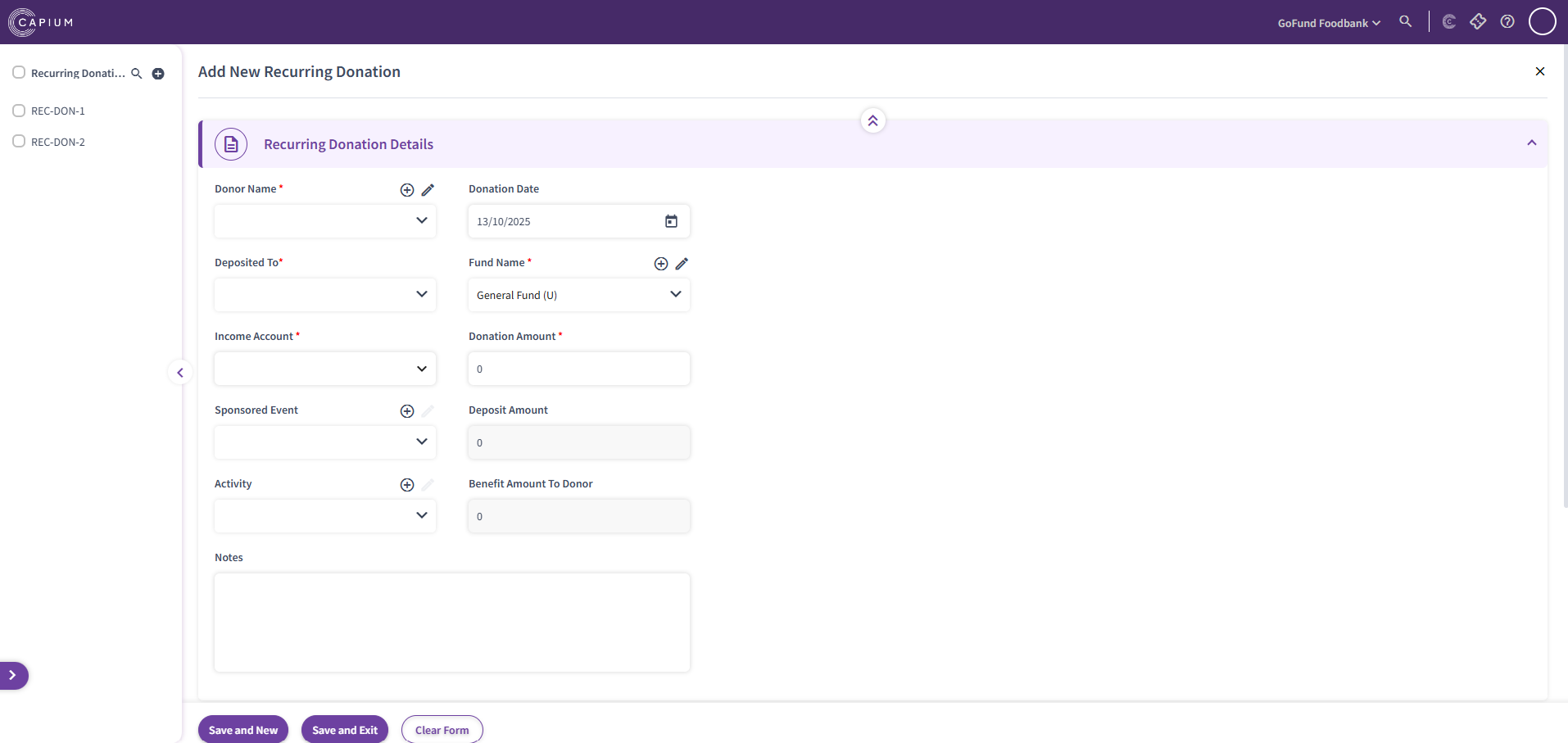
After you click on '+ Add Recurring Donation' it will take you to this page shown below, here you will be able to enter the relevant data for the Recurring Donation.
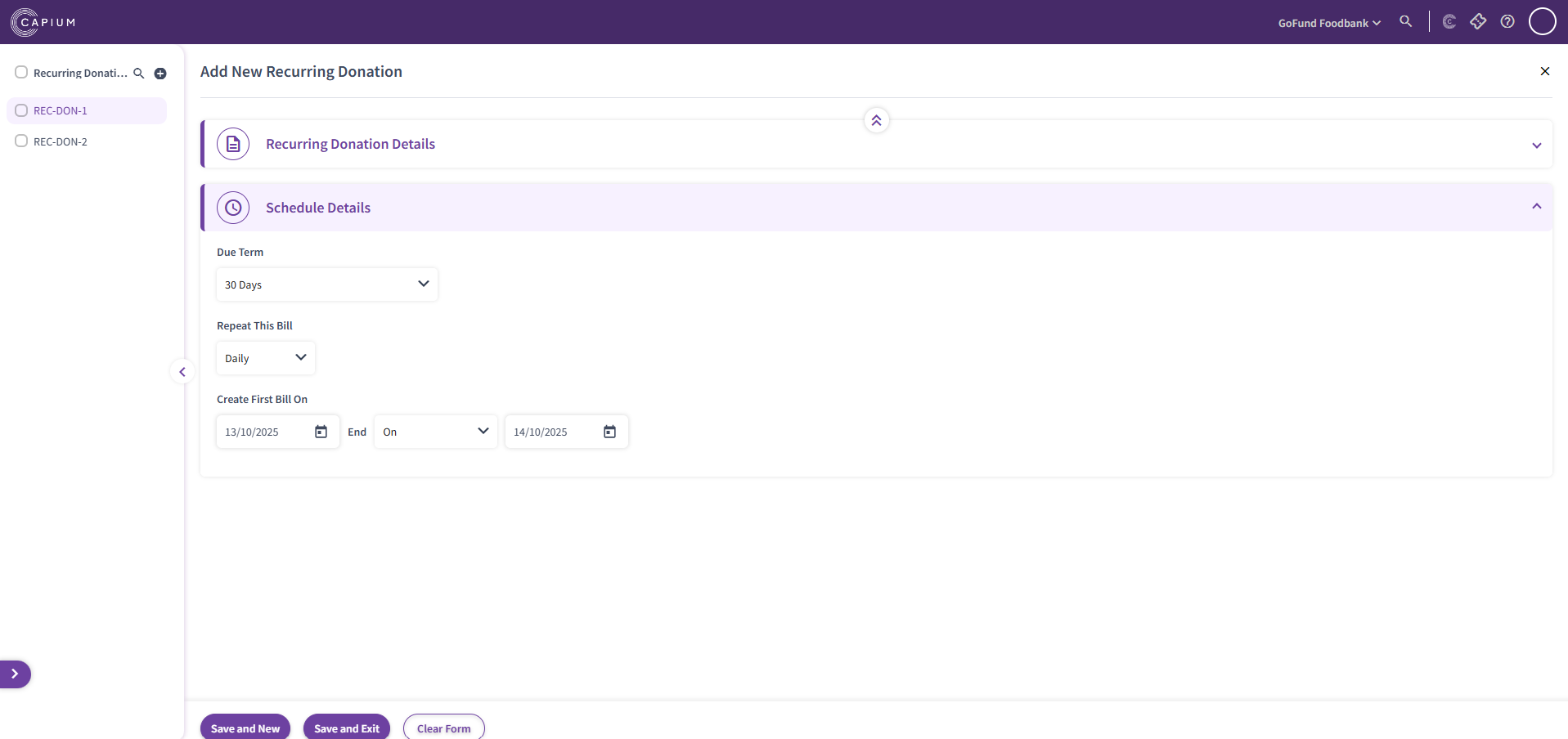
You will also be able to add Schedule Details for the Recurring Donation as shown on the picture below.
Bookkeeping: Donation - Donations in Kind
Navigation: Charity > Client specific > Bookkeeping > Donations > Donations in Kind
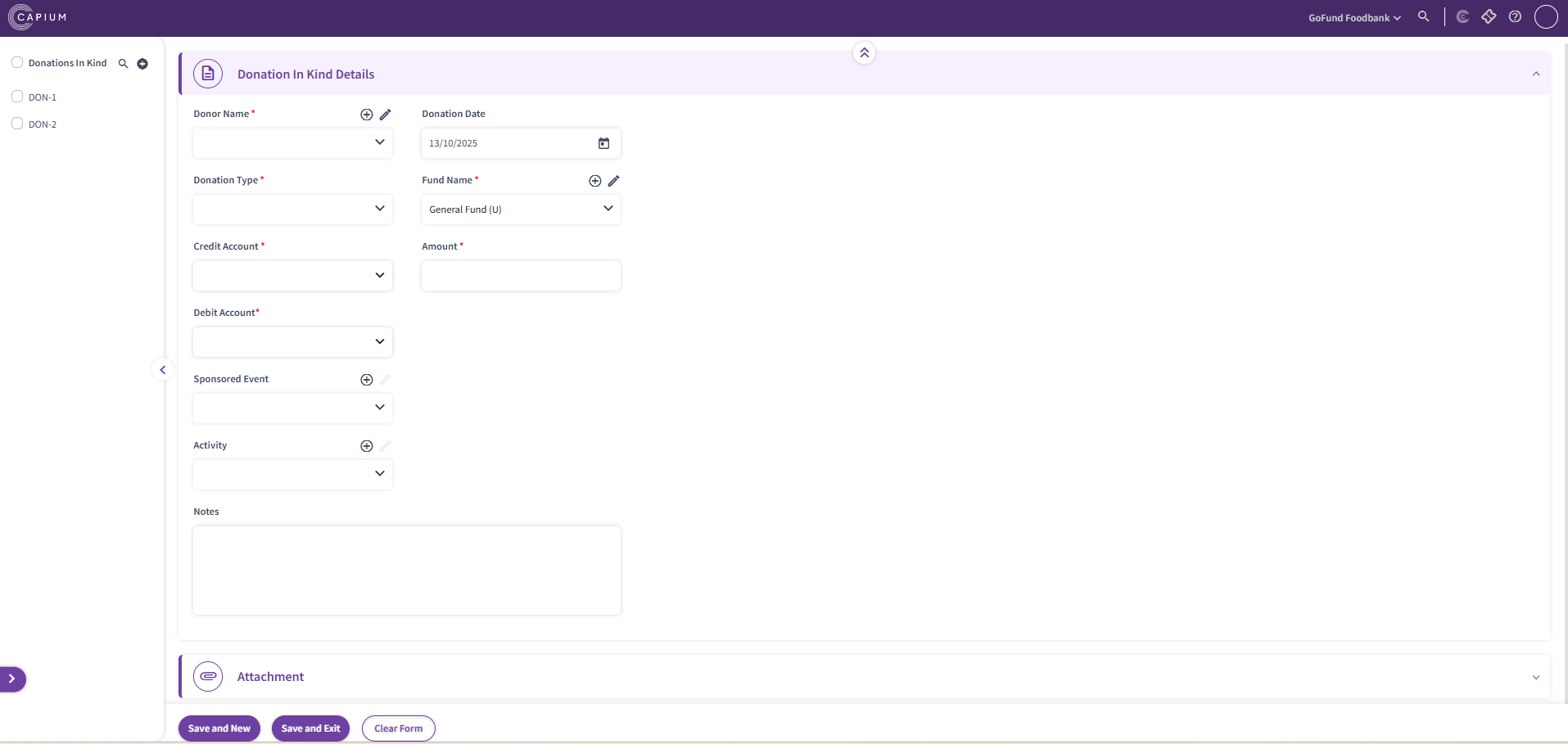
In this section you will be able to add in your Donations in Kind.
To add a Donation in Kind, click on '+ Add Donations in Kind'
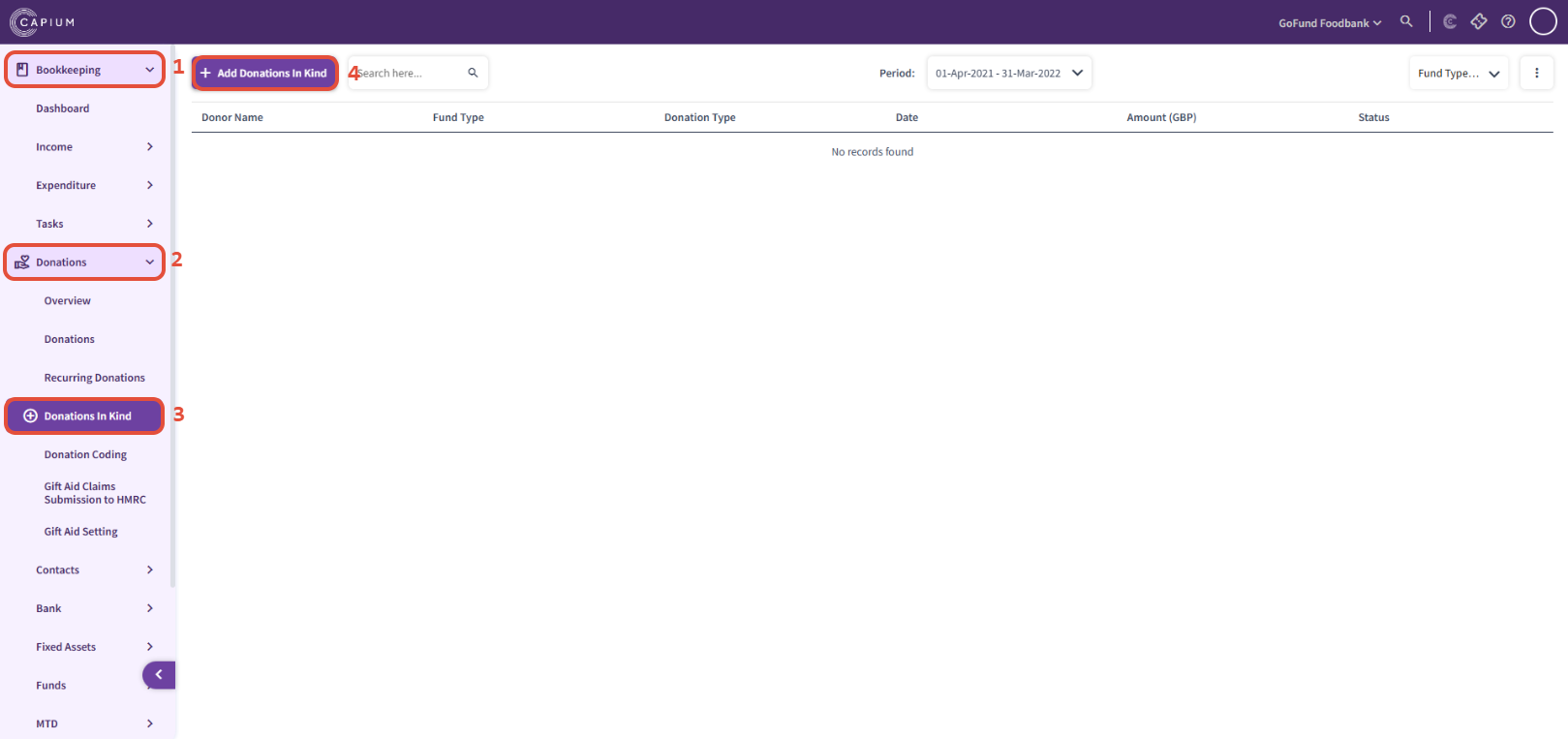
After you click on '+ Add Donation in Kind' it will take you to this page shown below, here you will be able to enter the relevant data for the Donation in Kind as well as add a attachment.
Bookkeeping: Donation - Donation Coding
Navigation: Charity > Client specific > Bookkeeping > Donations > Donation Coding
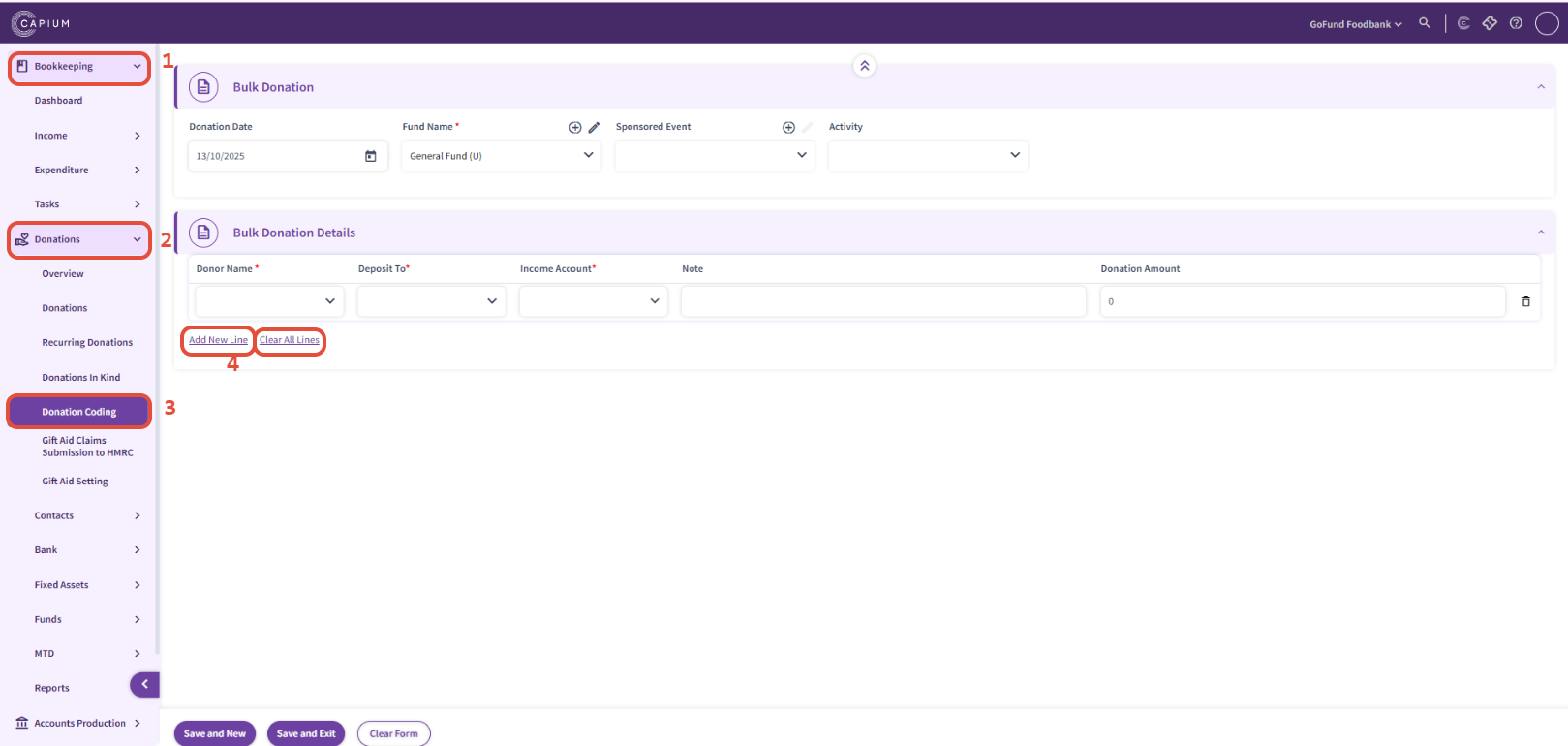
In this section, you can bulk add your donations.
You can enter details such as Fund Name, Donor Name, Deposit To, Income Account, Donation Amount, and more.
Once you’ve entered the necessary information for one donation, click on Add New Line. This will insert a new row where you can continue entering the details for the next donation.
Bookkeeping: Donation - Gift Aid Setting
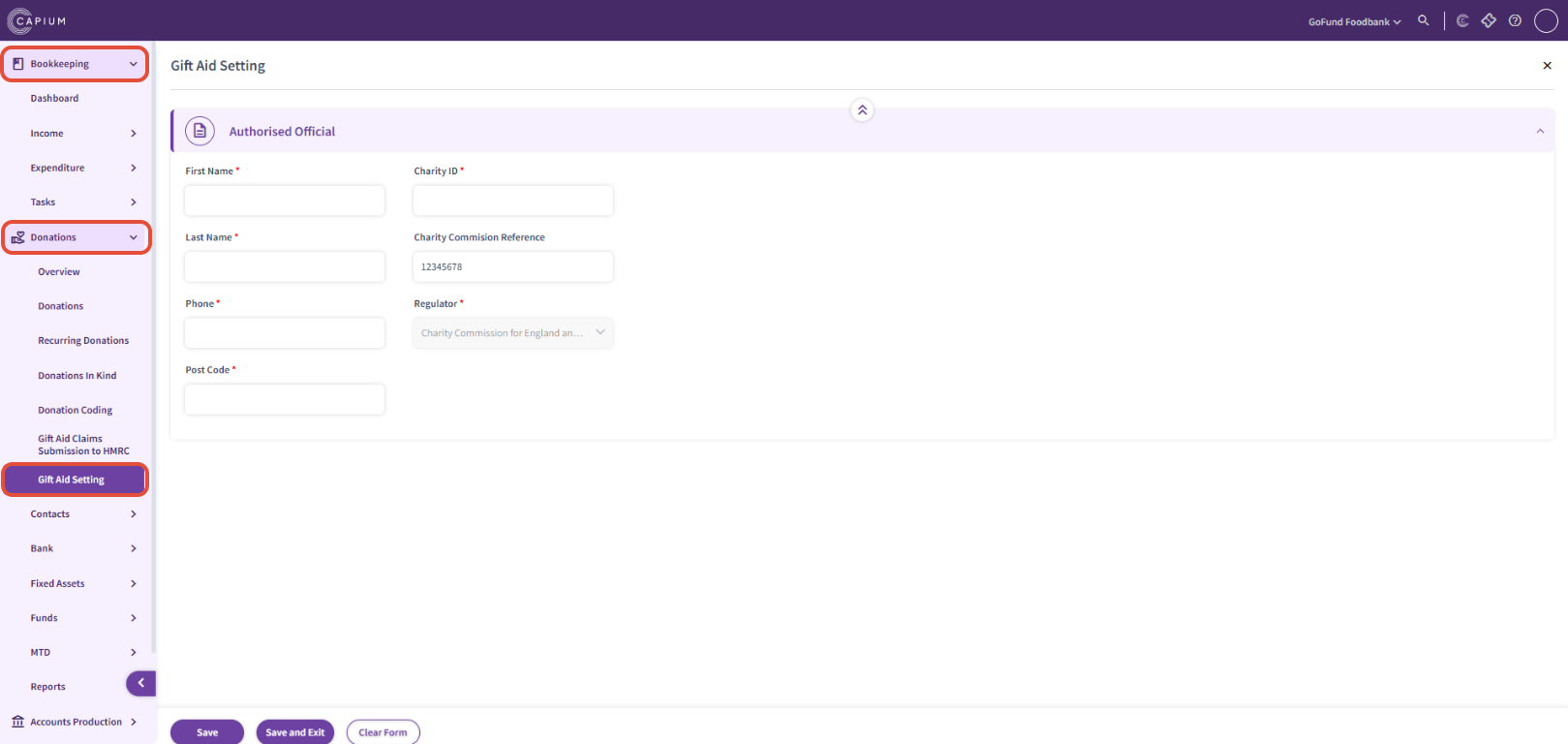
Navigation: Charity > Client specific > Bookkeeping > Donations > Gift Aid Setting
In this section you will be able to enter the details for the 'Authorised Official'.
Bookkeeping: Donation - Gift Aid Claims Submission to HRMC
Navigation: Charity > Client specific > Bookkeeping > Donations > Gift Aid Claims Submission to HMRC
Important: Gift Aid Claims Submission to HMRC is currently in Beta, and the submissions feature is temporarily unavailable. We are currently working on a fix and will provide an update as soon as the feature goes live. |
In this section you will be able to submit your gift aid claims to HMRC.
To create a submission to HMRC for gift aid claims click '+ Add Gift Aid Claims to HMRC'.
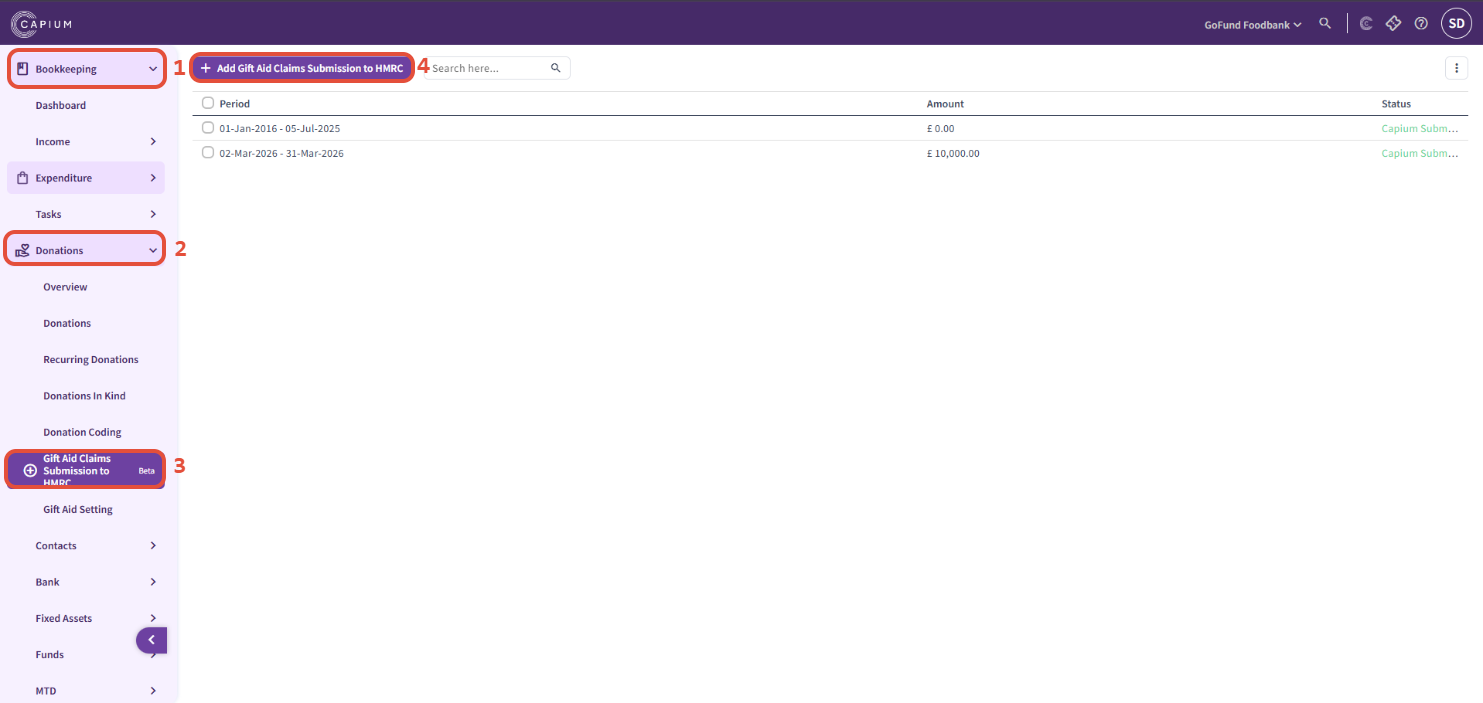
After clicking on '+ Add Gift Aid Claims to HMRC', you will be taken to the page shown below. Here, you can enter the start date and end date for the claim period. You can then download the sample file and fill it in with the relevant information.
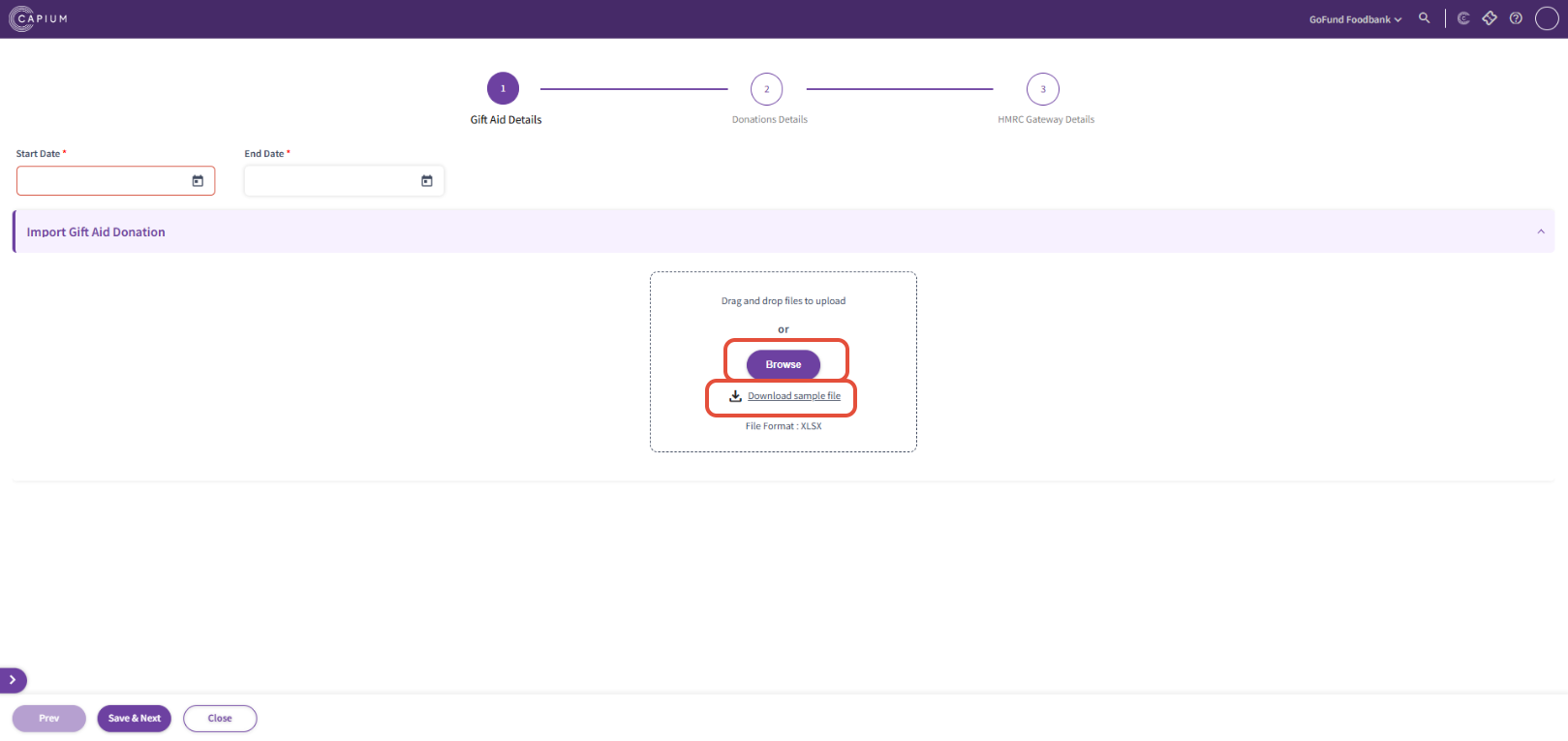
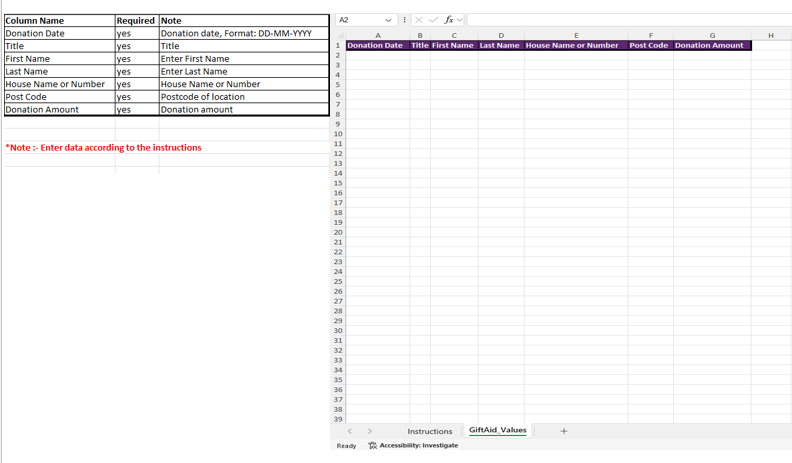
Once you open the file, the first sheet will provide instructions on the required fields and the correct format in which you should enter the data. The second sheet is where you will enter the data, including Donation Date, Title, First Name, Last Name, House Name or Number, Post Code, and Donation Amount. Once all the relevant data has been entered into the file, save and close it. You can then either drag and drop the file into the upload area or click Browse to select the file for upload.
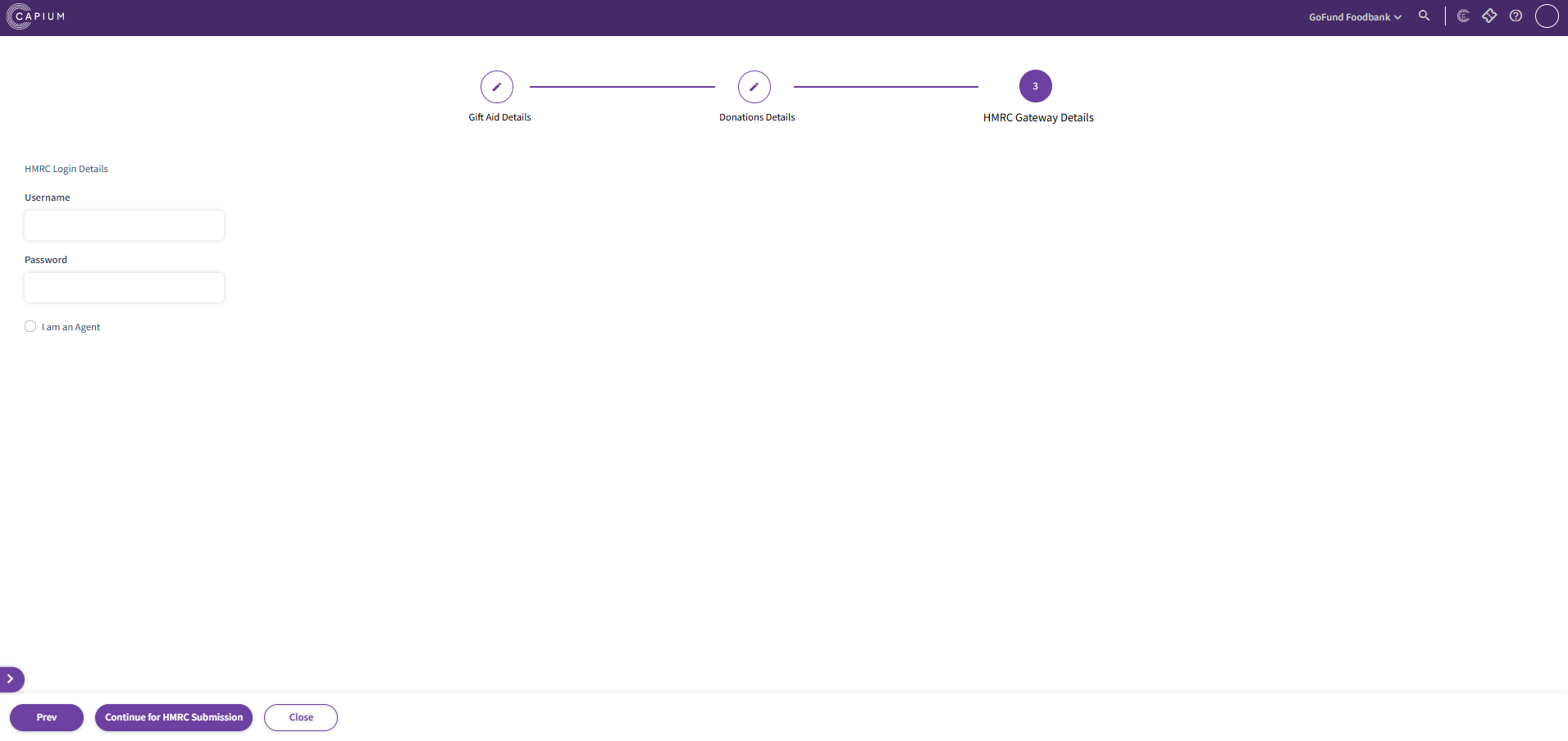
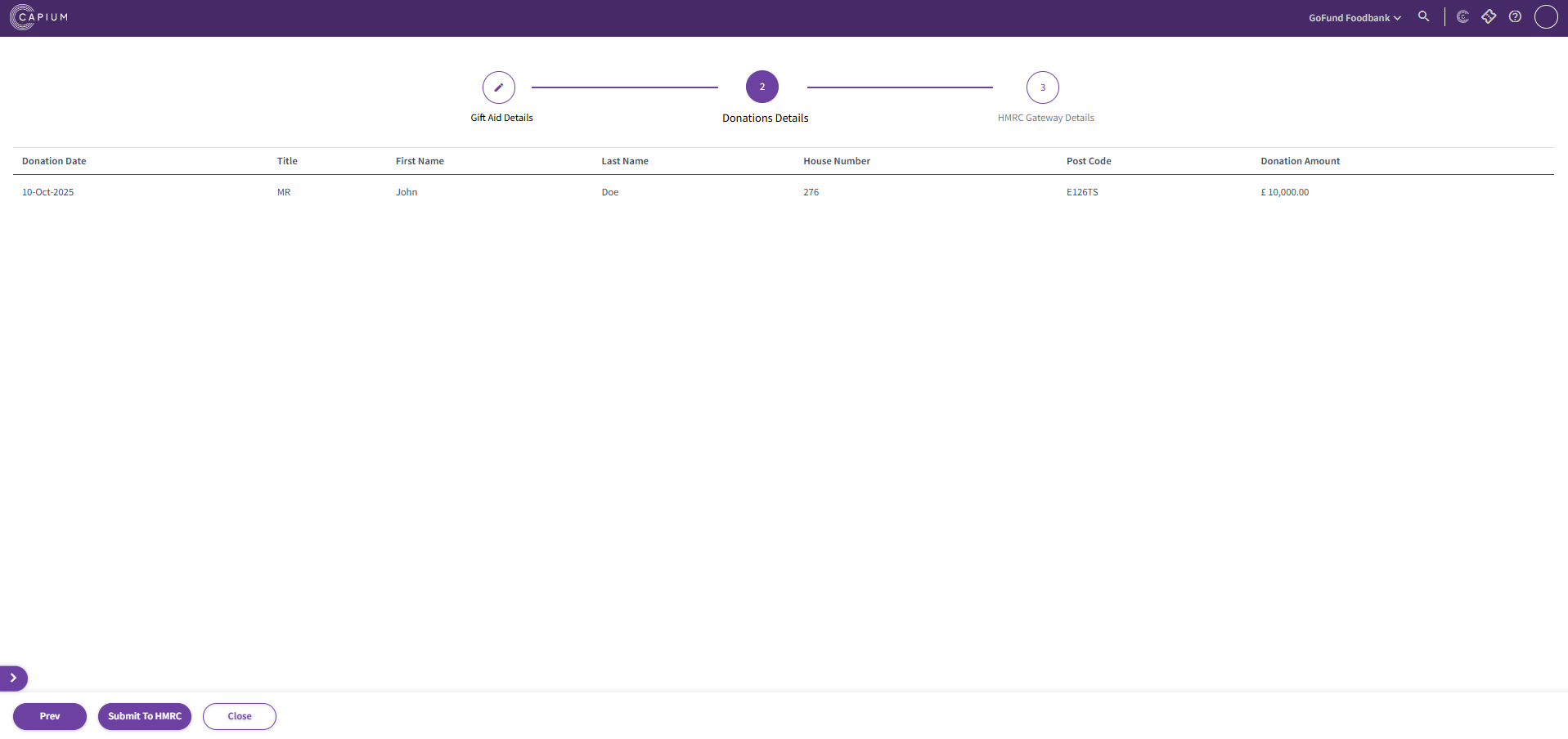
Once you upload the file, click 'Save and Next'. This will take you to the page shown below, where you will see a breakdown of the data imported from the file. Now click 'Submit to HMRC', this will take you to the HMRC Gateway Details section.
You can enter your HMRC login details and click 'Continue For HMRC Submission' to make your submission.