
This article covers how to set-up SMS in the Practice Management Module.
To send an SMS
Step 1: Navigate to the SMS Section
Navigation: Practice Management > Communication > SMS > Select 'Send SMS'
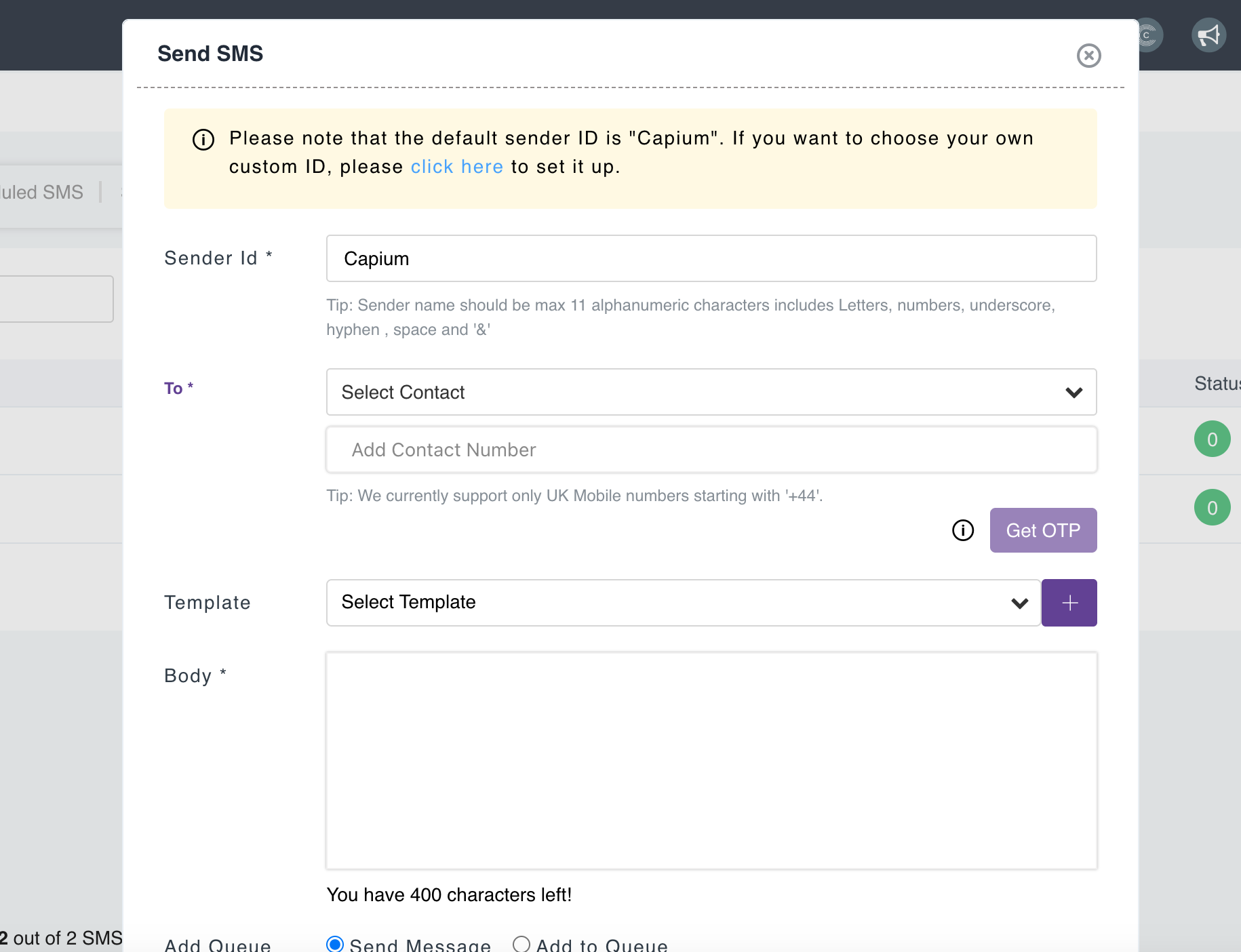
Step 2: Compose and Send Your Message
Select the client from the dropdown list or add contact number manually.
Note:
By this point you would have set up your services and assigned them to your clients, if not please use this article to guide you:
Quick Guide: Getting Started with Practice Management
Then, add the message in the 'Body' or you have the option to create your own template by clicking the 'Plus' button as shown on the screenshot above. Then click Send.
By default, SMS messages will be sent using the sender ID: Capium - If you would like to have your own custom ID please use the steps below:
Using Your Own Sender ID
Step 1: Register on Kudosity
Please register your Sender ID using the following link:
https://senderid.burstsms.com/?country=United+Kingdom&account=78981
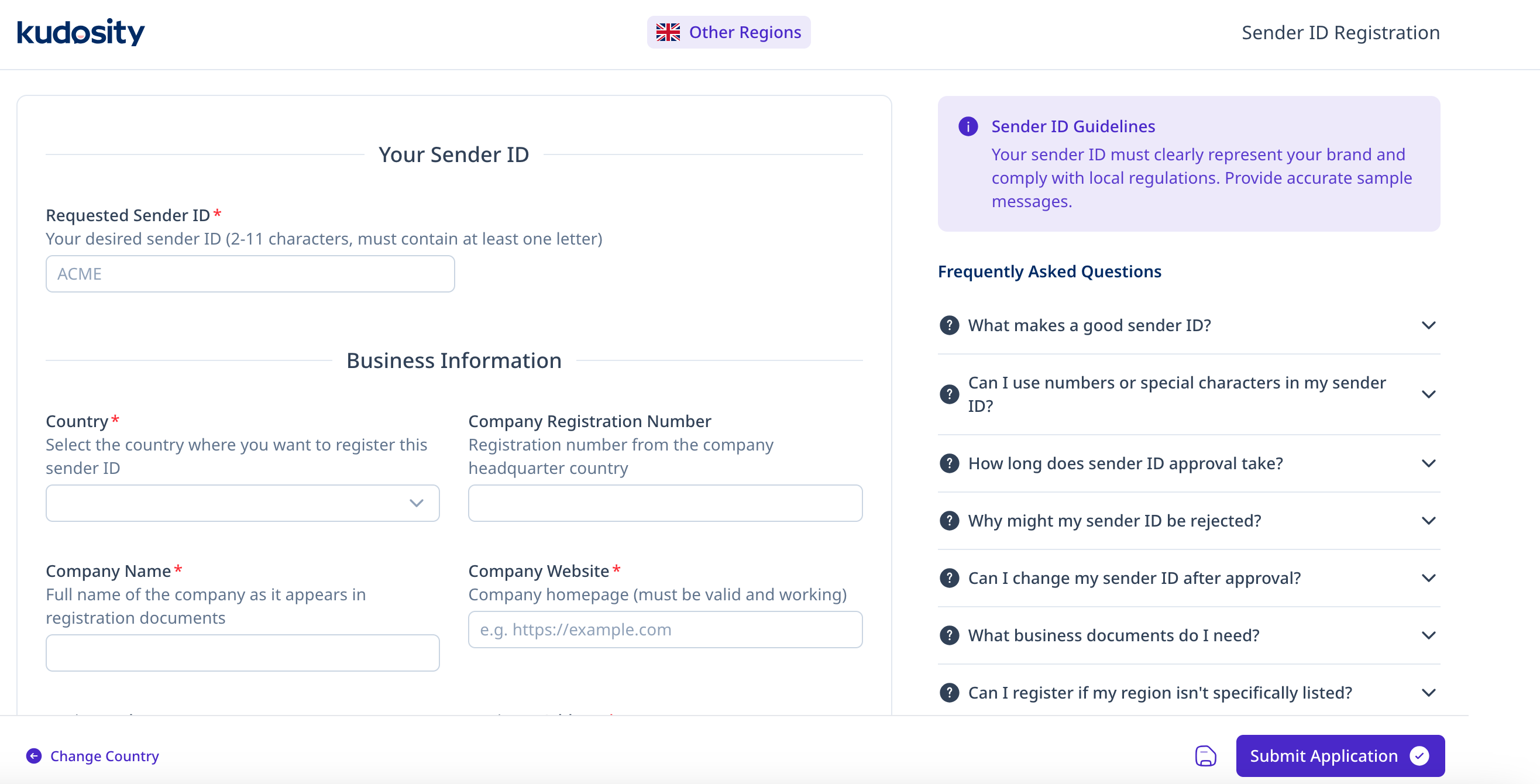
Step 2: Complete the Registration Process
Follow the instructions provided by Burst SMS to submit and verify your Sender ID. See screenshot below:
Important
- Custom Sender IDs must be registered directly with Burst SMS before they can be used.
- Typical processing time is 5-10 business days after submission.
Need Help?
If you experience any issues registering your Sender ID or sending SMS messages, please contact your onboarding manager or Support@capium.com.
You can also contact Kudosity directly (24hr Support):
AU: +61 1300 012 014
CA: +1 888 266 9330
NZ: +64 9 909 1938
PH: +63 2 8231 3564
SG: +65 6978 6301
UK: +44 20 4525 8940
US: +1 888 426 0999
Email: helpdesk@kudosity.com
Related Guides:
Communication-How to send and schedule emails and SMS