Once you are in the assessment portal. click on the S100 in the middle of the screen as illustrated below.
Once you click on the S100, you will see a list of individuals and sole traders.
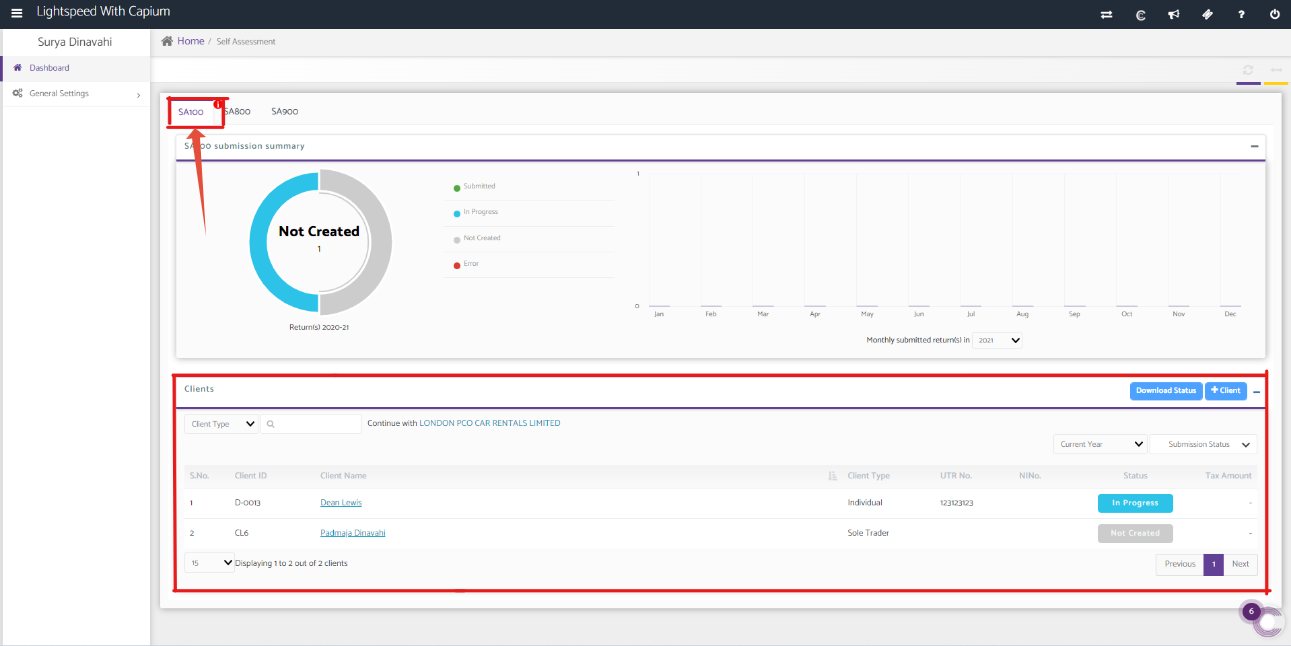
Once you choose your client for which you want to submit the self assessment for, you can choose them from the home screen.
STEP 1
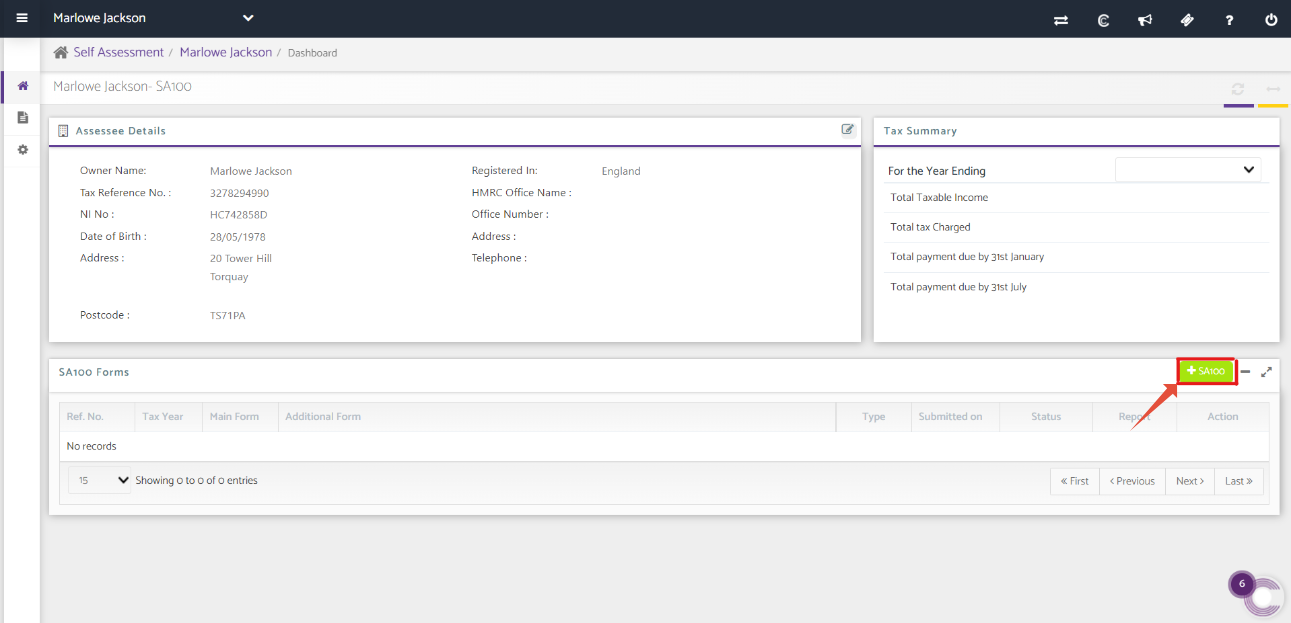
Once you open your client page you will land on the following page and you will see the green button on the right hand side that we use to add a new return.
STEP 2
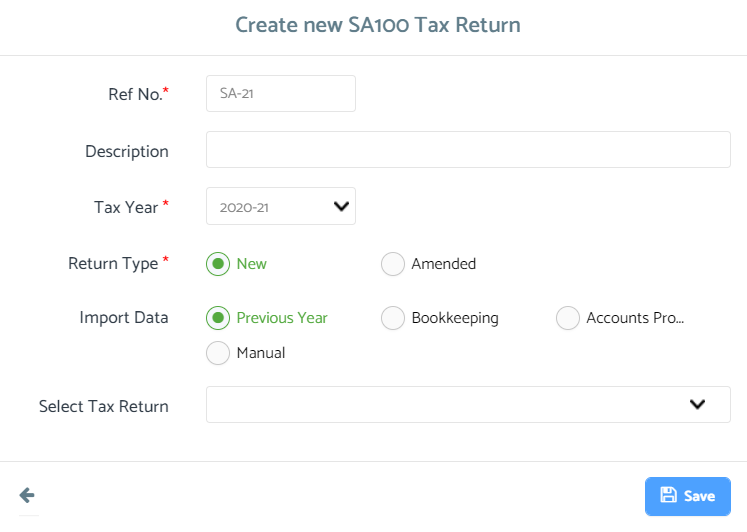
You will then be prompted to fill in the following details form screen.
A quick reminder that SA100 can import from both bookkeeping and accounts production modules.
Please see this link for importing from bookkeeping, and this link for accounts production import.
In this example we have used a manual import.
STEP 3
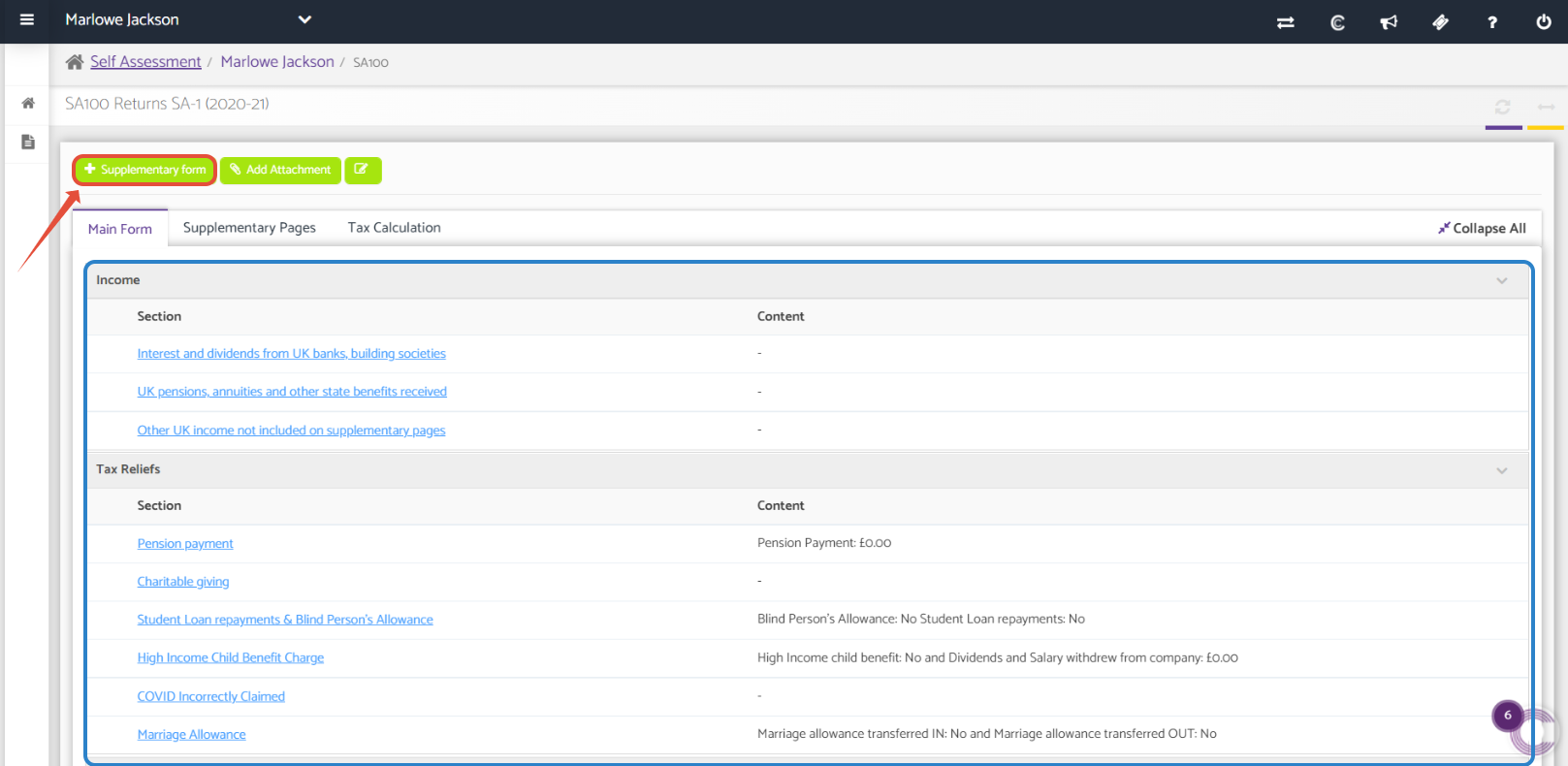
The blue box consists of your income, tax reliefs and reclaims from previous years. You can add more pages bu clicking the green add supplementary pages shown in red.
STEP 4
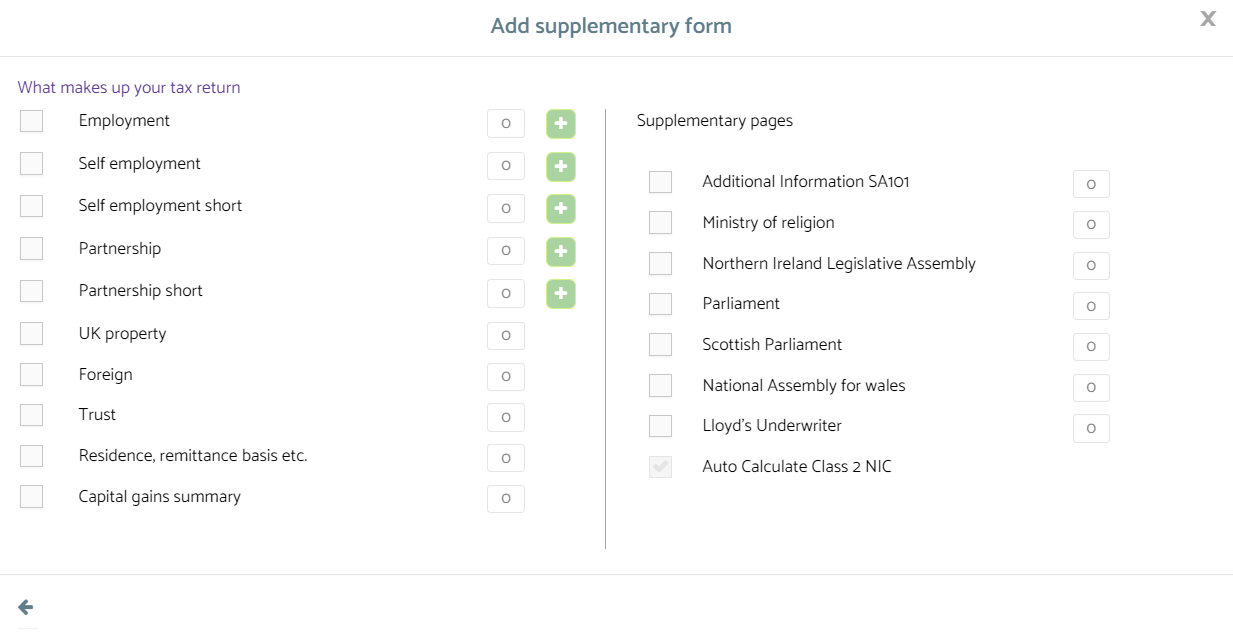
The software provides you with the following options to add supplementary forms, you can add multiple employment, self employment and partnership forms.
STEP 5
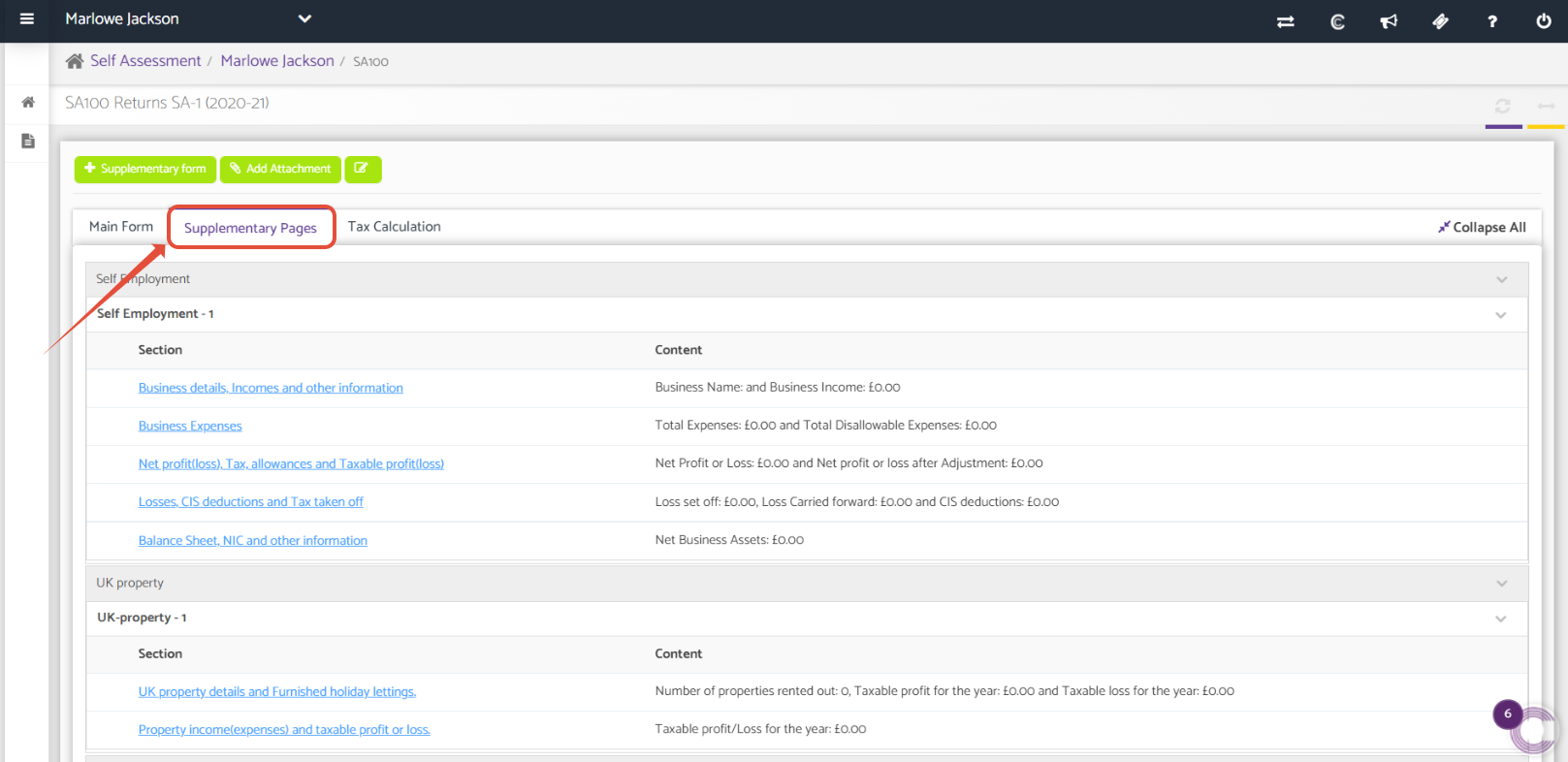
Once the chosen forms have been selected you will see the selections appear in the supplementary pages, as shown below:
STEP 6
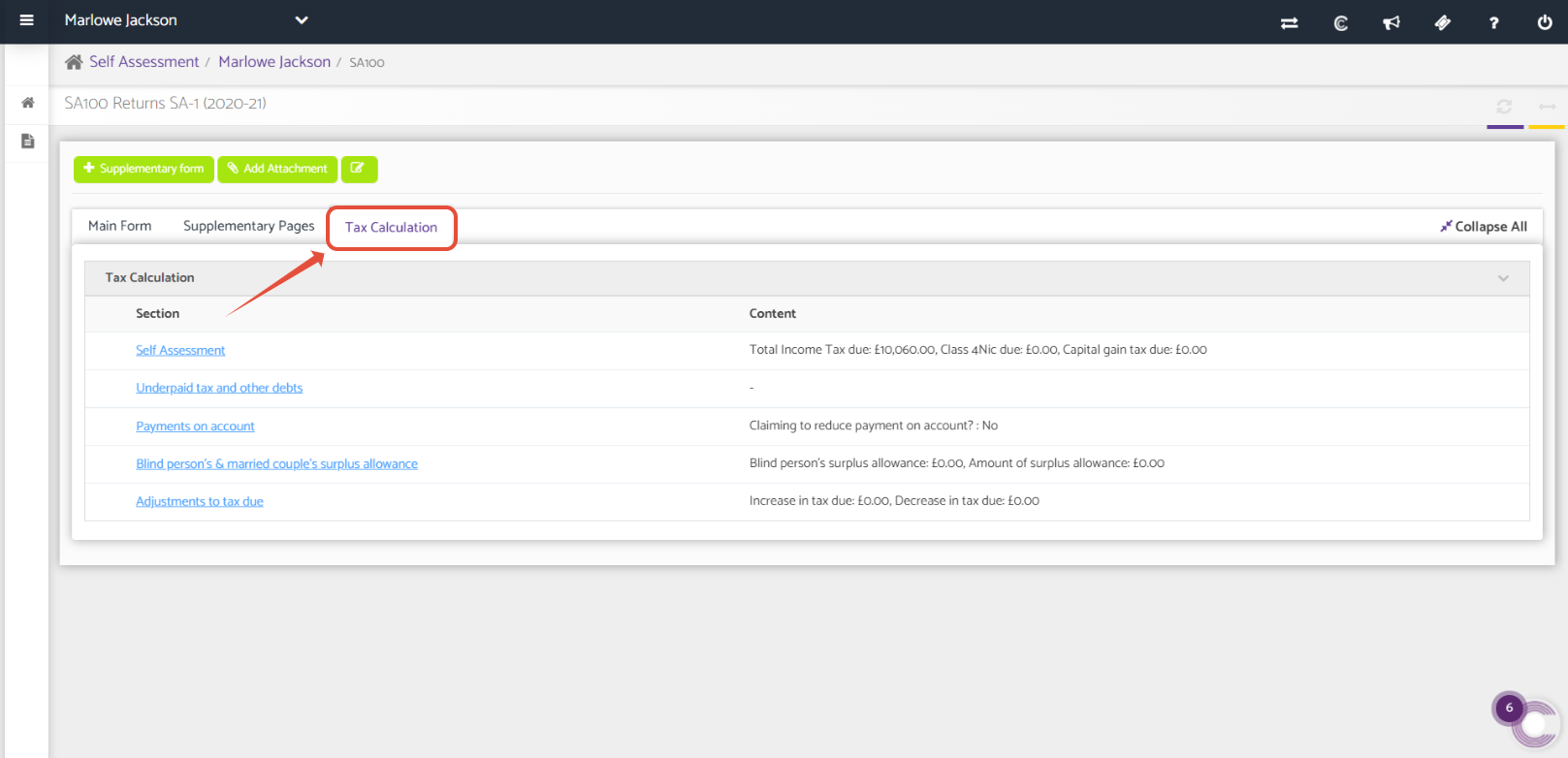
Final details can be verified and checked from the tax calculation tab, as shown below:
STEP 7
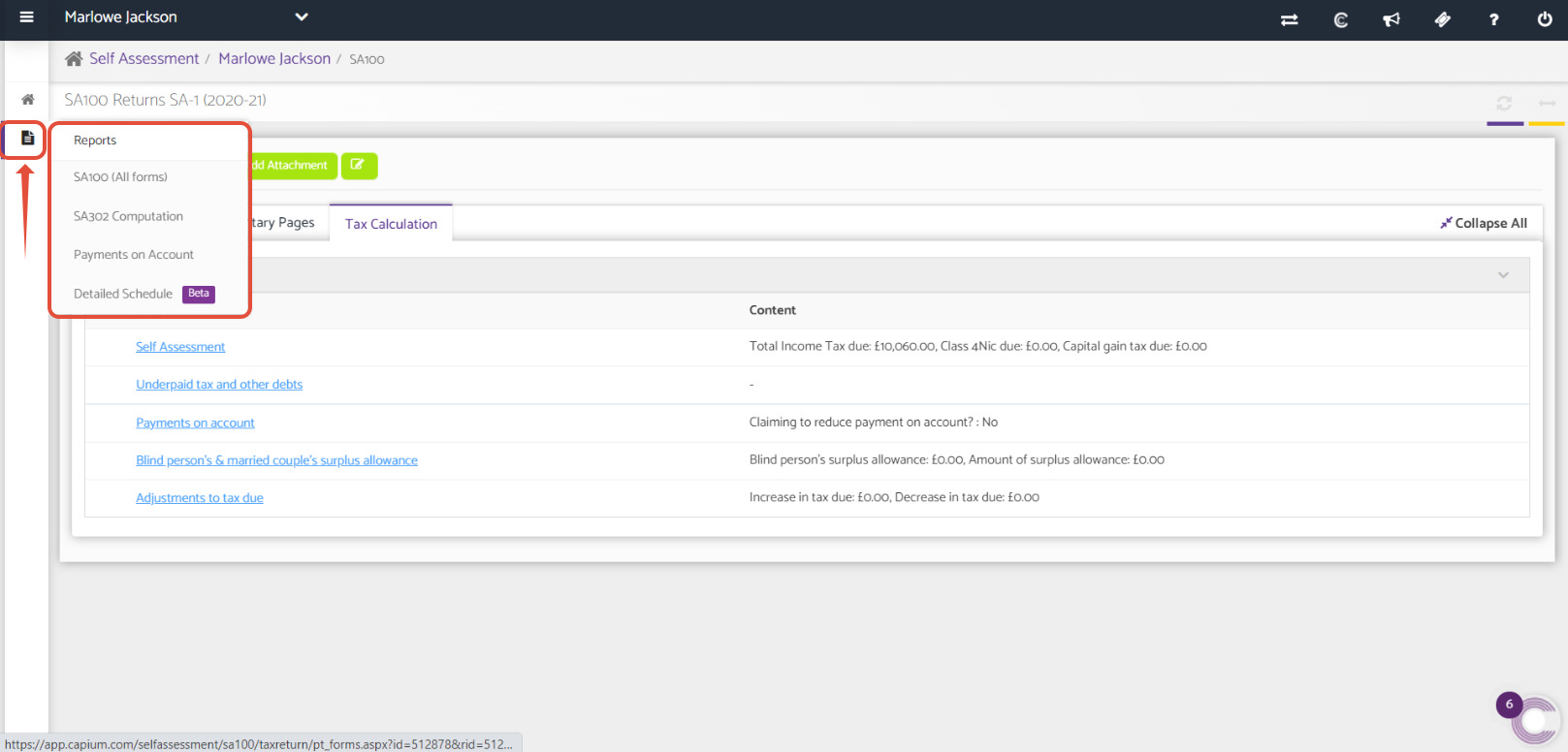
Once everything is completed you can access the full forms from the reporting section to the left hand side of the screen and download the reports to be approved by your clients. Please note that you can password protect the files though the software before sending them.
STEP 8
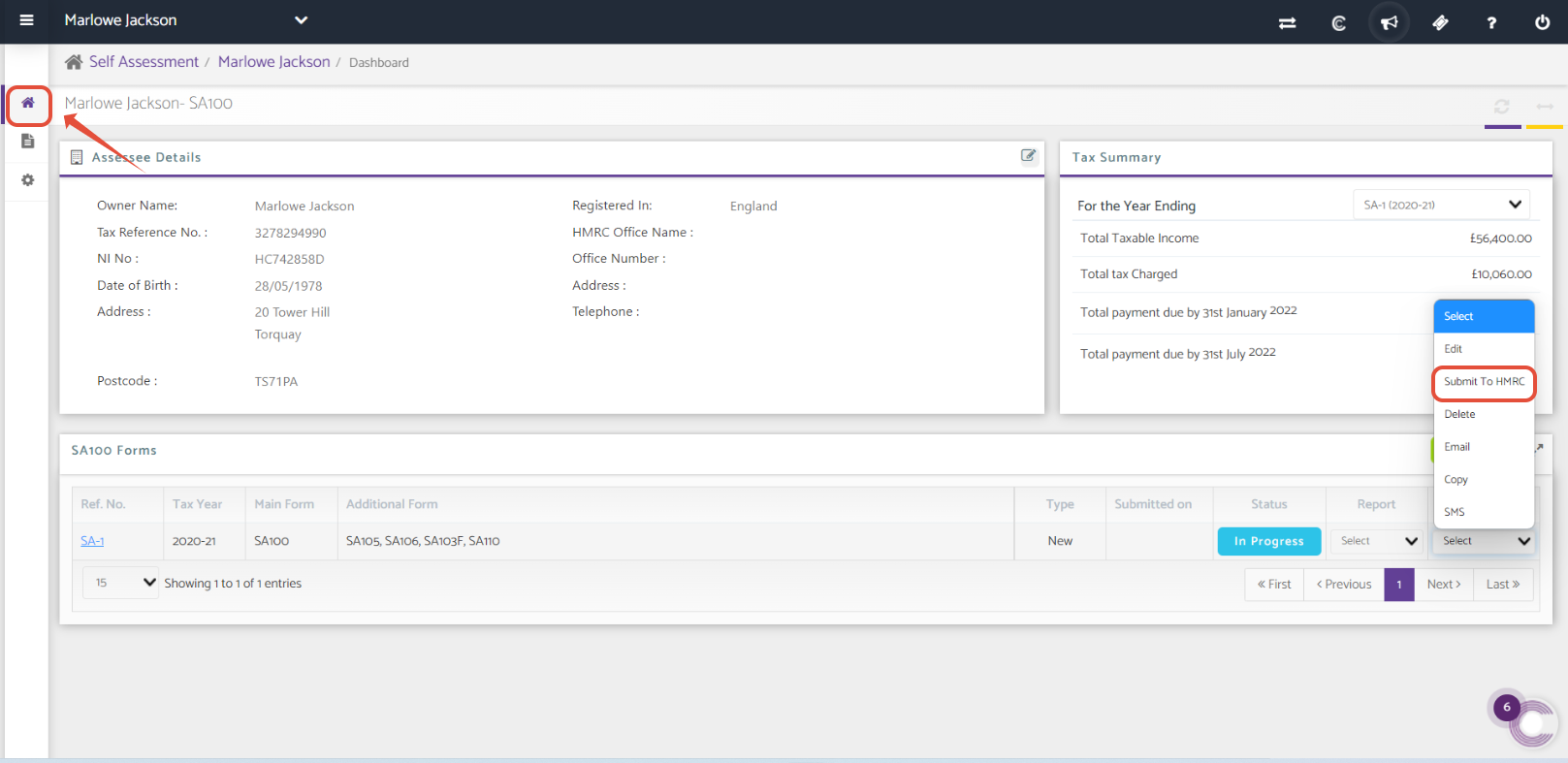
Once it is all signed off you can send to HMRC, by clicking on home as shown in red, selecting the return you want to submit. Then clicking on the drop down menu to submit with HMRC.