
To change the approval date of accounts you need to navigate to Accounts Production >> Reports >> Annual Accounts >> Click on the Reference no of the particular report and a Pop-Up will appear.
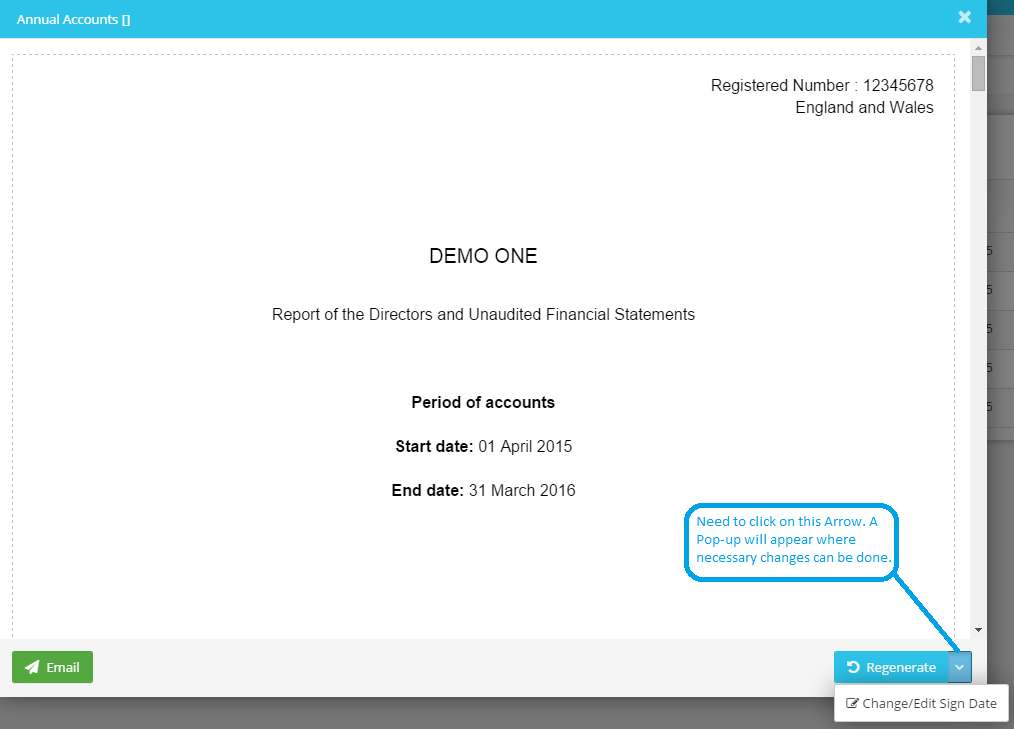
You need to click on the down arrow button near Regenerate and a New Pop-Up will appear where the desired changes can be made.
Please refer below screenshot for more help.
Please click here to find out how to regenerate the accounts