
Overview
The Secretaries section allows you to add and manage company secretaries within Accounts Production. Secretary information can be maintained for company records and can also be displayed on the Company's Information page within generated reports.
Navigation
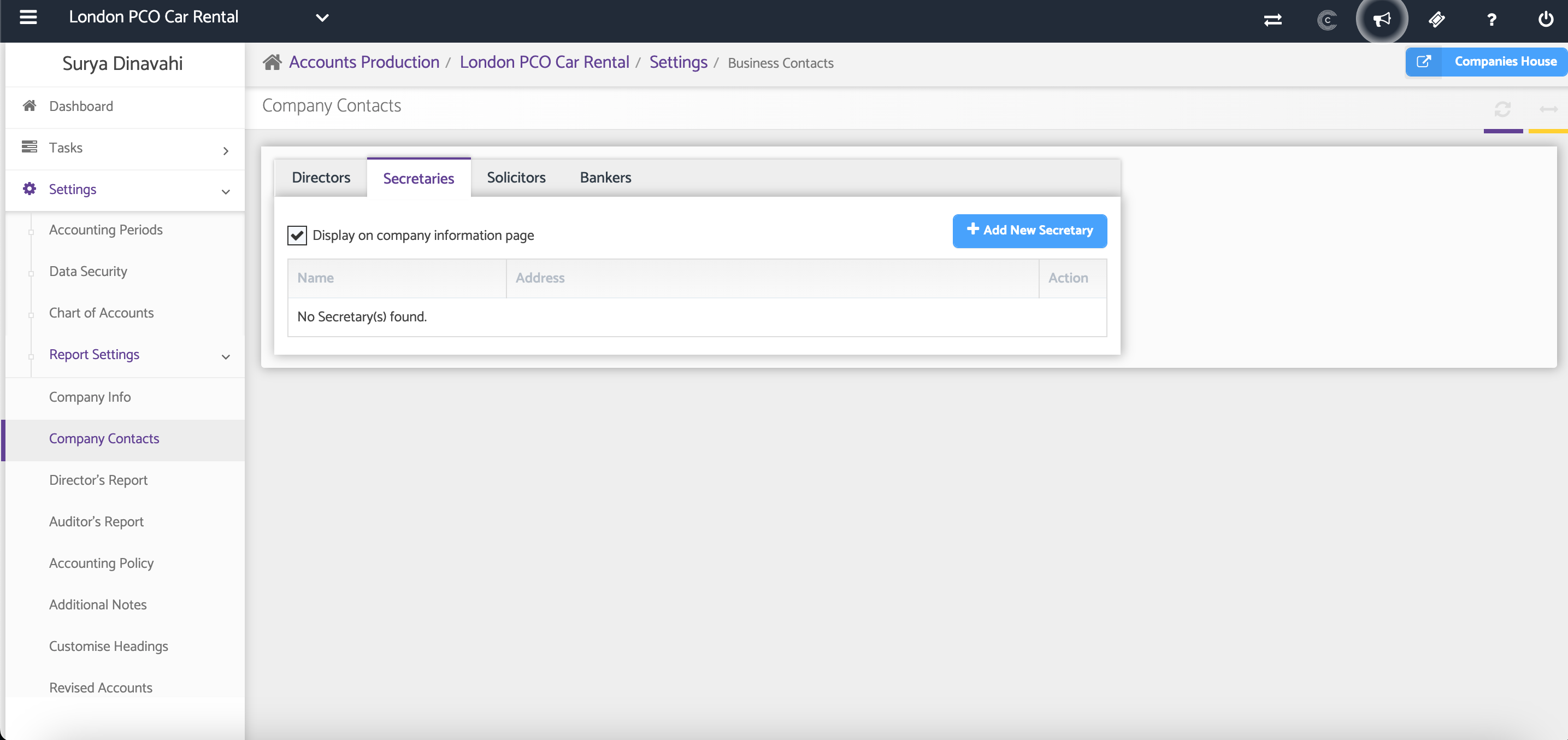
Accounts Production > Settings > Report Settings > Company Contacts > Secretaries
Step 1: Add a New Secretary
Click + Add New Secretary.
A Contact Details page will open where you can enter the secretary's information.
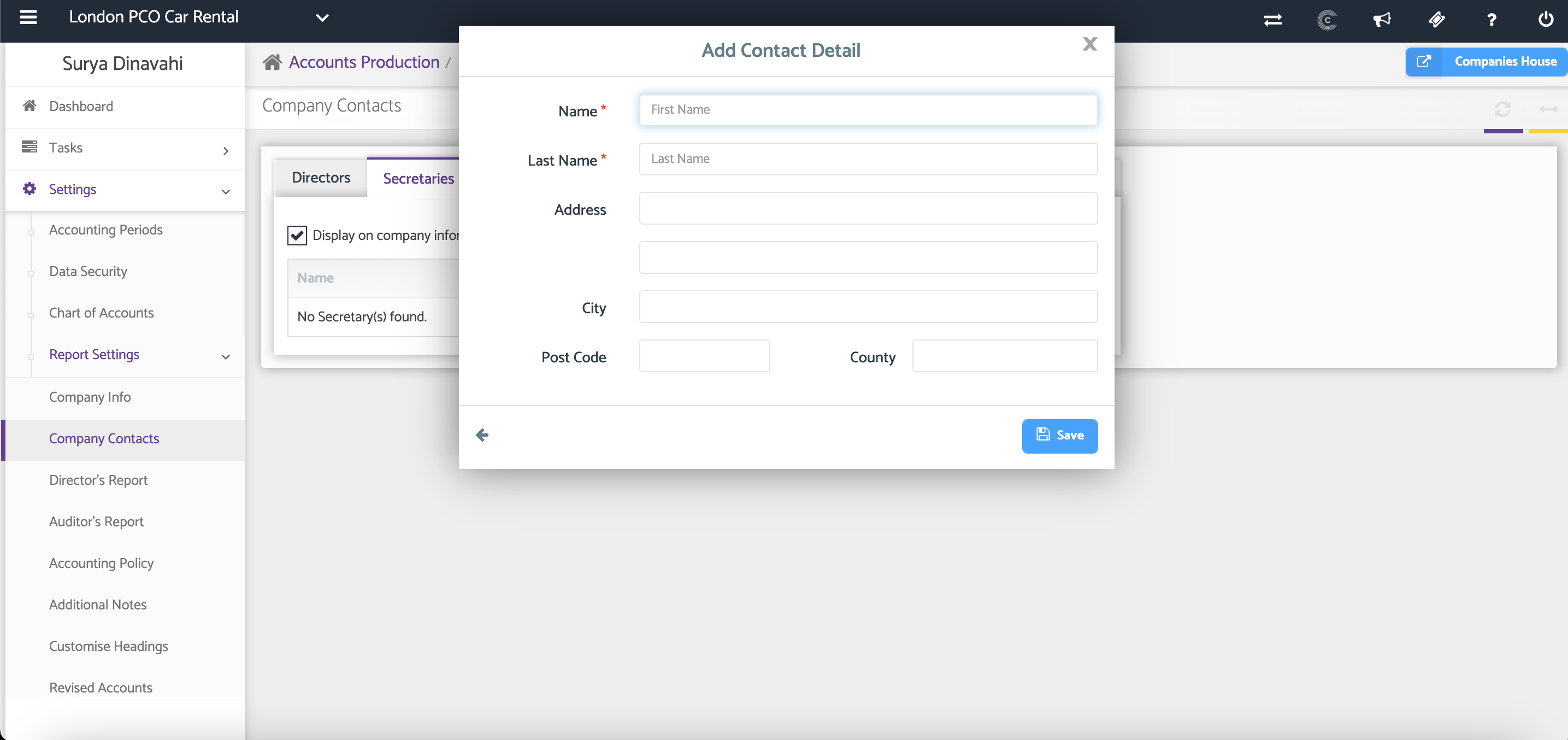
Complete the relevant secretary information, including the secretary's name and any additional details required.
Once all information has been entered, click Save.
Step 2: Display the Secretary on Company Reports
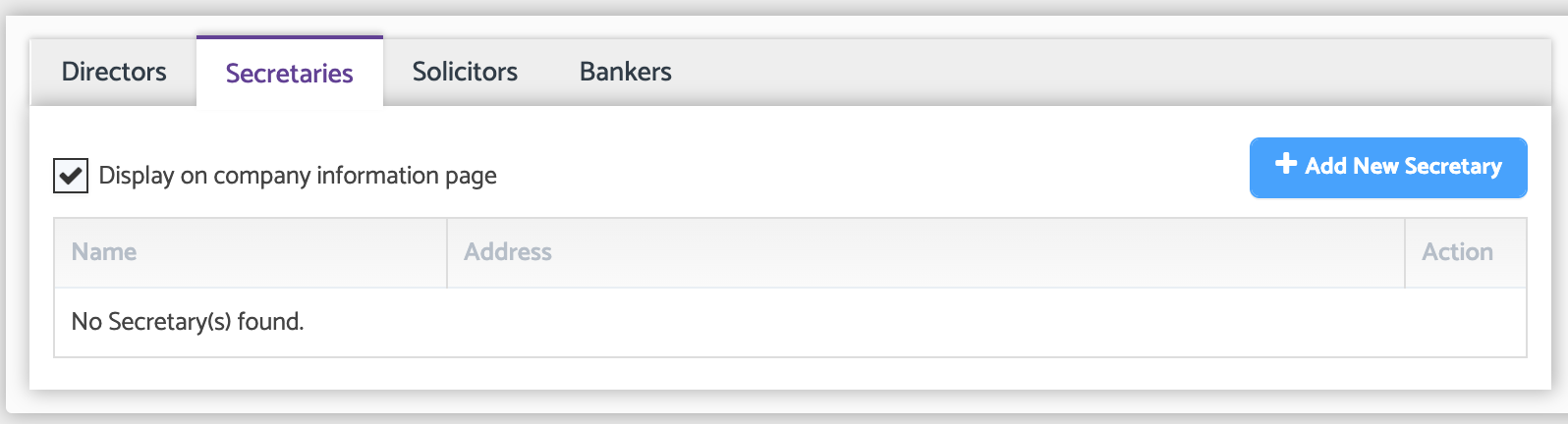
If you would like the secretary's name to appear on the Company's Information page within generated reports, select the Show on Company Information Page checkbox.
Step 3: Edit or Delete a Secretary
You can manage existing secretary records using the available actions.
Edit – Update the secretary's information.
Delete – Remove the secretary from the company records.
Additional Help
Need Help?
If you need assistance or guidance, please contact your onboarding manager or email Support@capium.com, or call us on 020 3322 5578.