
Bookkeeping: how to add opening balances
This article explains how to add opening balances for a limited company client in Capium's Bookkeeping module. Opening balances can be entered manually, one account at a time, or uploaded in bulk using the CSV import function. It applies to bookkeepers and practice staff setting up a client's opening position for a new accounting period.
Entering Opening Balances
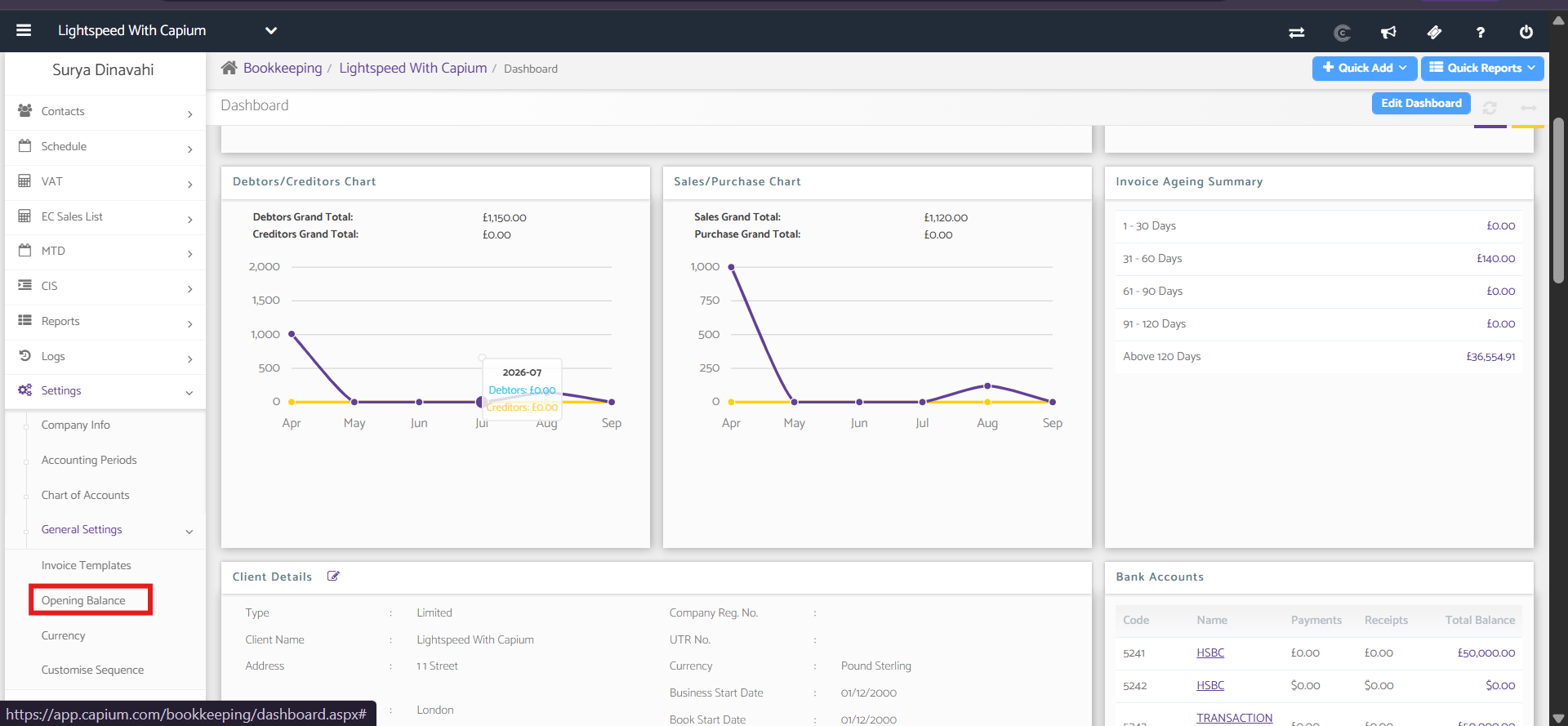
Navigation > Bookkeeping > Settings > General Settings > Opening Balance
Adding opening balances manually
Navigation > Bookkeeping > Select a client > Settings > General Settings > Opening Balance
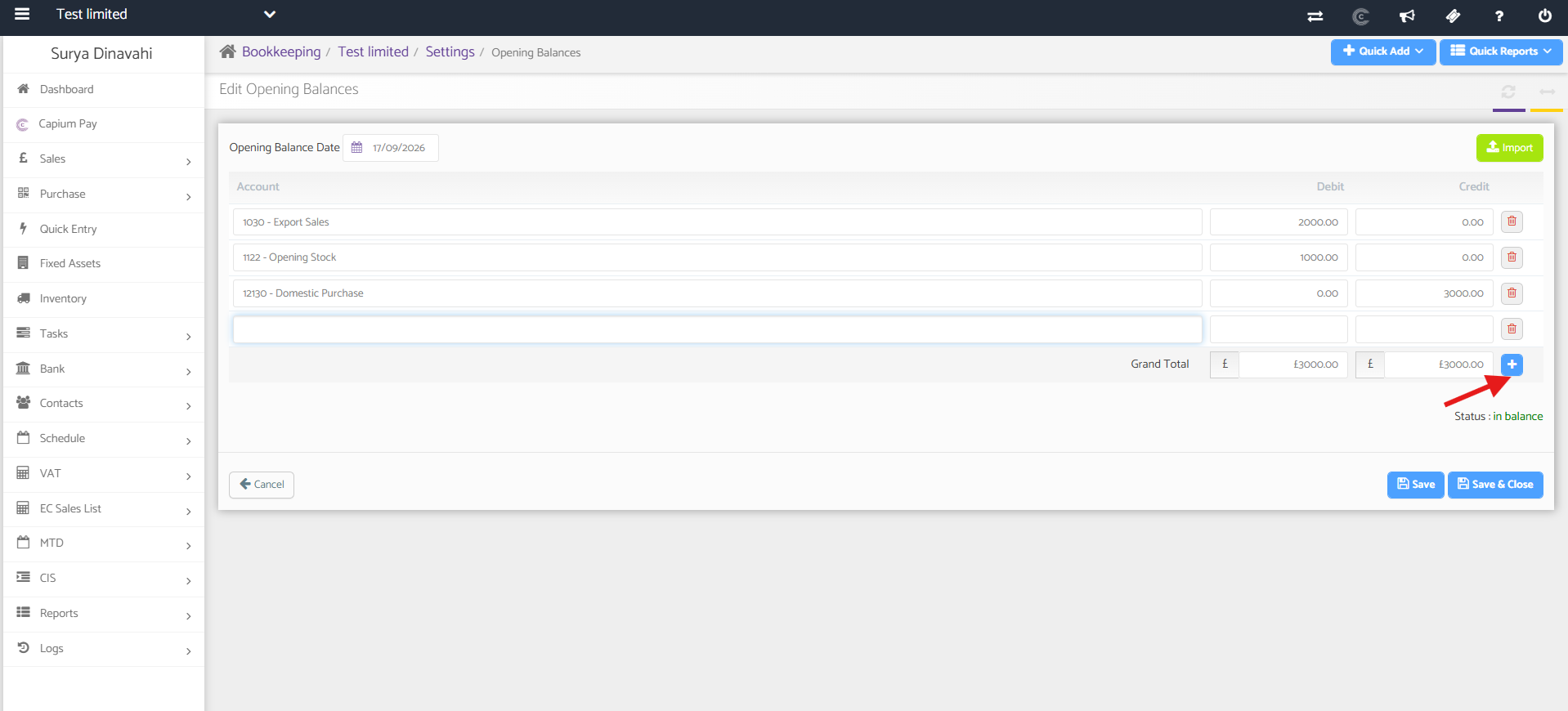
- Click + to add a new account. A new row appears.
- Enter the account name.
- Enter the amount in either the Debit or Credit column, depending on the nature of the account.
- Click Save.
Note : Debit and Credit side should be equal in the Grand Total.
Importing opening balances via CSV
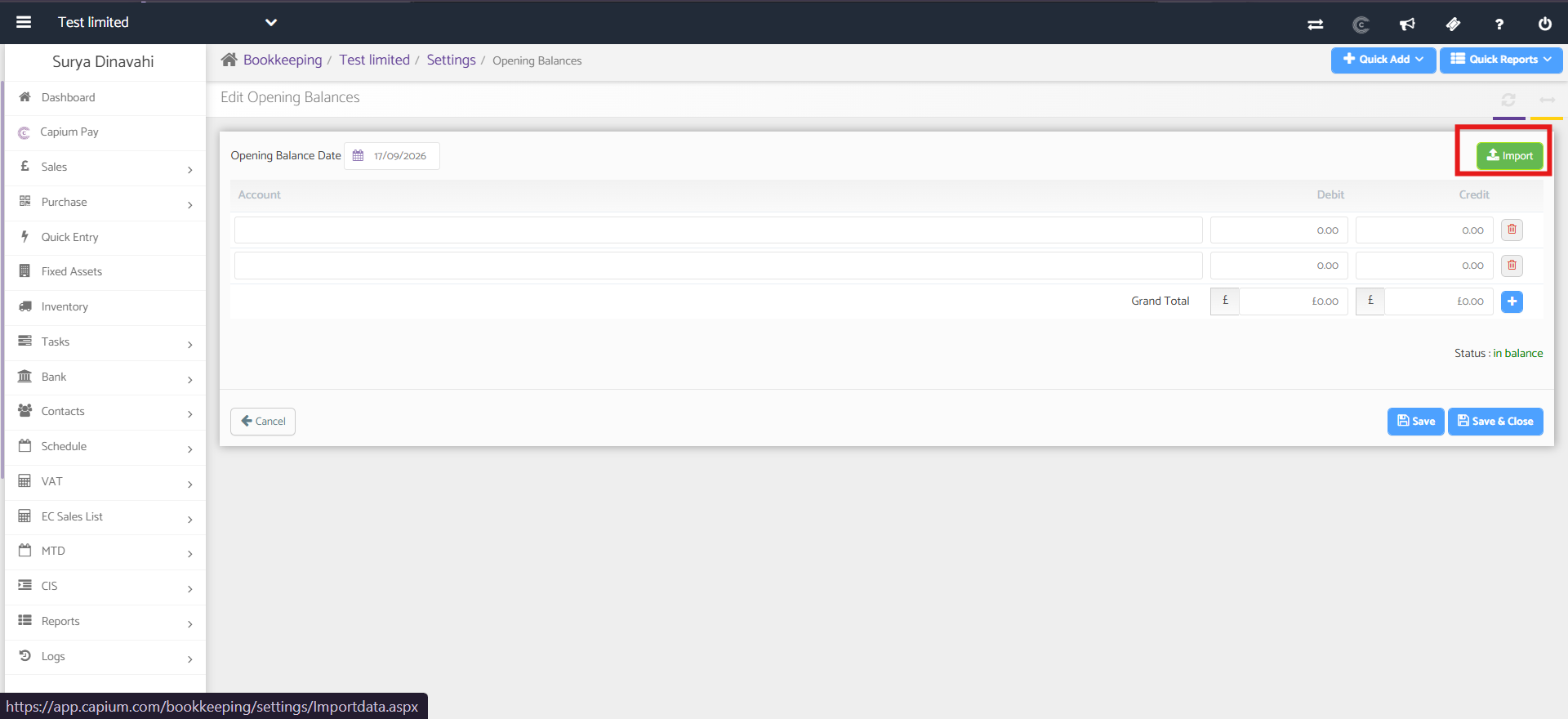
- From the Opening Balance screen, click Import.
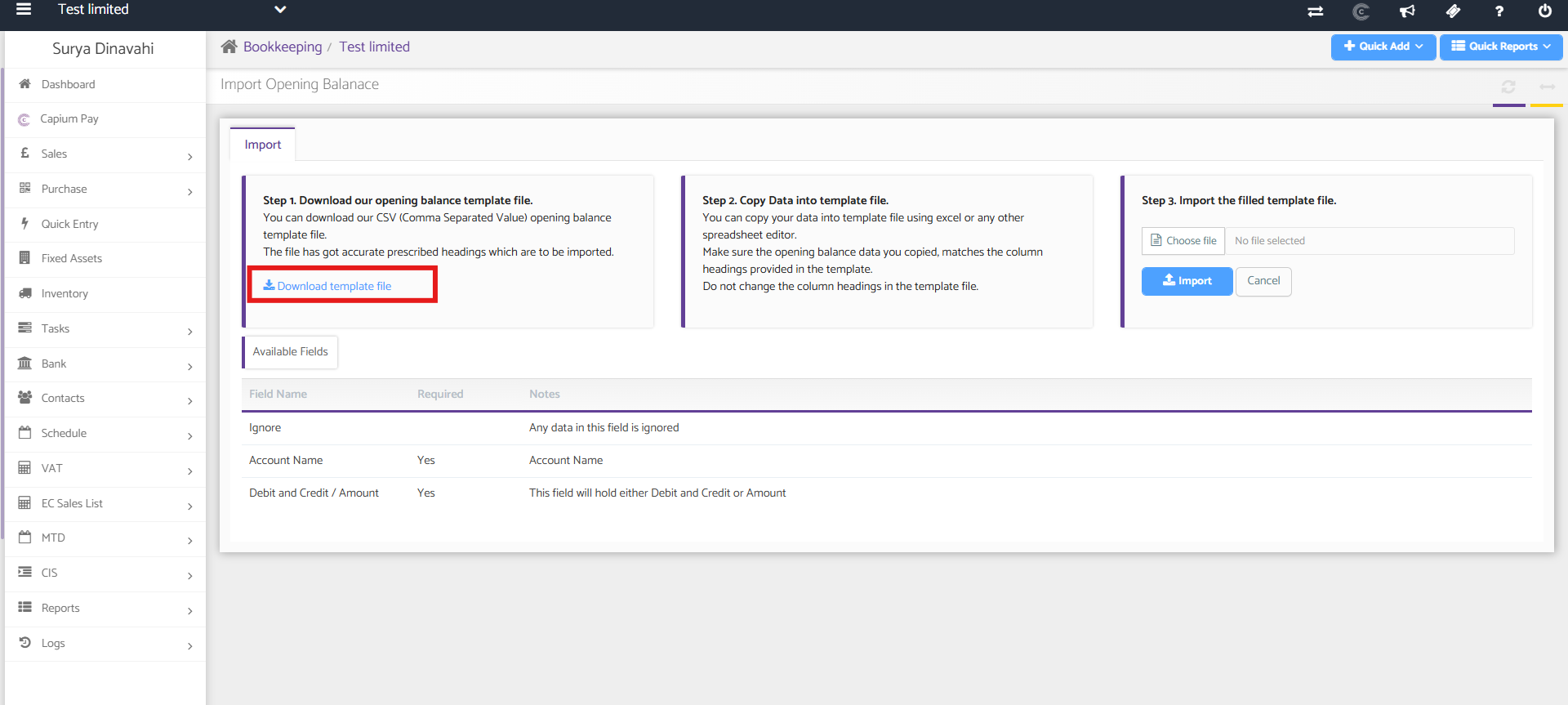
- Click to download the CSV template file.
- Copy your data into the downloaded template, keeping the existing column structure.
- Choose the completed file.
- Click Import.
Additional Help
Need Help?
If you need assistance or guidance, please contact your onboarding manager or email Support@capium.com, or call us on 020 3322 5578.